
PROVOZNÍ NÁVOD
1. POPIS
NOUS B5Z (dále jen „přepínač“) je určen k organizaci automatického a manuálního vypínání elektrických spotřebičů v místnosti prostřednictvím vzdáleného přístupu přes internet pomocí chytrého telefonu nebo tabletu s nainstalovanou aplikací Nous Smart Home. Komunikace se přepínačem je konfigurována prostřednictvím vzdáleného serveru pomocí protokolu P2P, pro který se používá bezdrátový adaptér ZigBee.
Spínač je vybaven mechanickým tlačítkem a globální indikací stavu zařízení. Zařízení je vybaveno elektromechanickým relé.
Je určen k instalaci za nástěnný vypínač nebo do montážní/rozvodné krabice tam, kde je omezený prostor, což vám umožní „chytře“ konfigurovat téměř jakýkoli vypínač nebo zásuvku a integrovat ji do ekosystému Zigbee. Zigbee 3.0 poskytuje spolehlivou bezdrátovou komunikaci, nízkou spotřebu energie (až 1 W) a podporu pro mesh sítě.
DŮLEŽITÉ: Pro připojení budete potřebovat Nous E1, Nous E7, Nous E15 nebo jinou ZigBee bránu/hub kompatibilní s Tuya.
The connection of a switch to the Internet cannot be guaranteed in all cases, as it depends on many conditions: the quality of the communication channel and intermediate network equipment, the make and model of the mobile device, the version of the operating system, etc. (and may not always depend on the proper functioning of the switch or the ZigBee gateway/hub).
DEVICE FEATURES:
- Single channel (1 channel, with PM)
- Bluetooth control. After successful pairing of the app and the switch, even if the phone and the switch are offline, you can turn the smart switch on/off via the app at a distance of up to 10 meters.
- Manual control of the module. The module can be turned on/off by pressing the button on the housing. This allows you to check system operation immediately after installation.
- Group control. Multiple modules can be configured for group control, allowing you to control several devices with a single tap.
- Power-off memory function. Allows the device to save and restore previous settings after a power outage or sudden power loss. You can set the behavior to OFF, ON, or Restore in the app.
- Overload protection. Built-in protection against overcurrent (8.5 A), overvoltage (265 V), and undervoltage (85 V). If these limits are exceeded, the switch will automatically shut off the power.
2. TECHNICAL CHARACTERISTICS
|
Model |
NOUS B5Z |
|
Channel |
1 |
|
Power meter |
Yes |
|
Network |
Zigbee 3.0, 802.15.4 |
|
Frequency Range |
2400-2483 MHz |
|
Max. Transmit Power |
10 dBm |
|
Output Power |
Max. Current: 8A, Power: 2000W, AC Voltage: 100-240V. |
|
Input Power |
100-240 V AC, 50/60 Hz |
|
Standby Power Consumption |
<1 W |
|
Overload protection |
Yes (>8.5 A; >265 V, <85 V) |
|
Security |
WAP/WAP2, WEP/TKIP/AES |
|
Encryption |
WEP/TKIP/AES |
|
Working Temperature |
-20°C ~ 40°C |
|
Product size and Weight |
29*34*17 mm, 21 g |
3. CONNECTION DIAGRAM AND OPERATION OF THE DEVICE
|
|
SW |
Switch (controlling «O») input terminal |
|
O |
Load circuit output terminal |
|
|
L |
Live terminal (110-240V) |
|
|
N |
Neutral terminal |
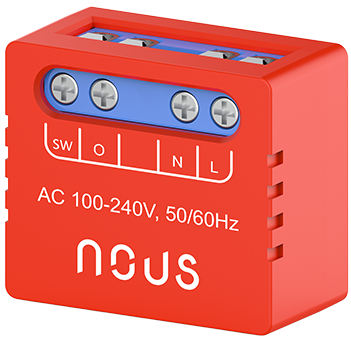
Connection types
|
|
1. With one switch (regular light) |
|
|
2. With two switches (staircase lighting circuit) |
|
|
3. Without a switch (socket) |
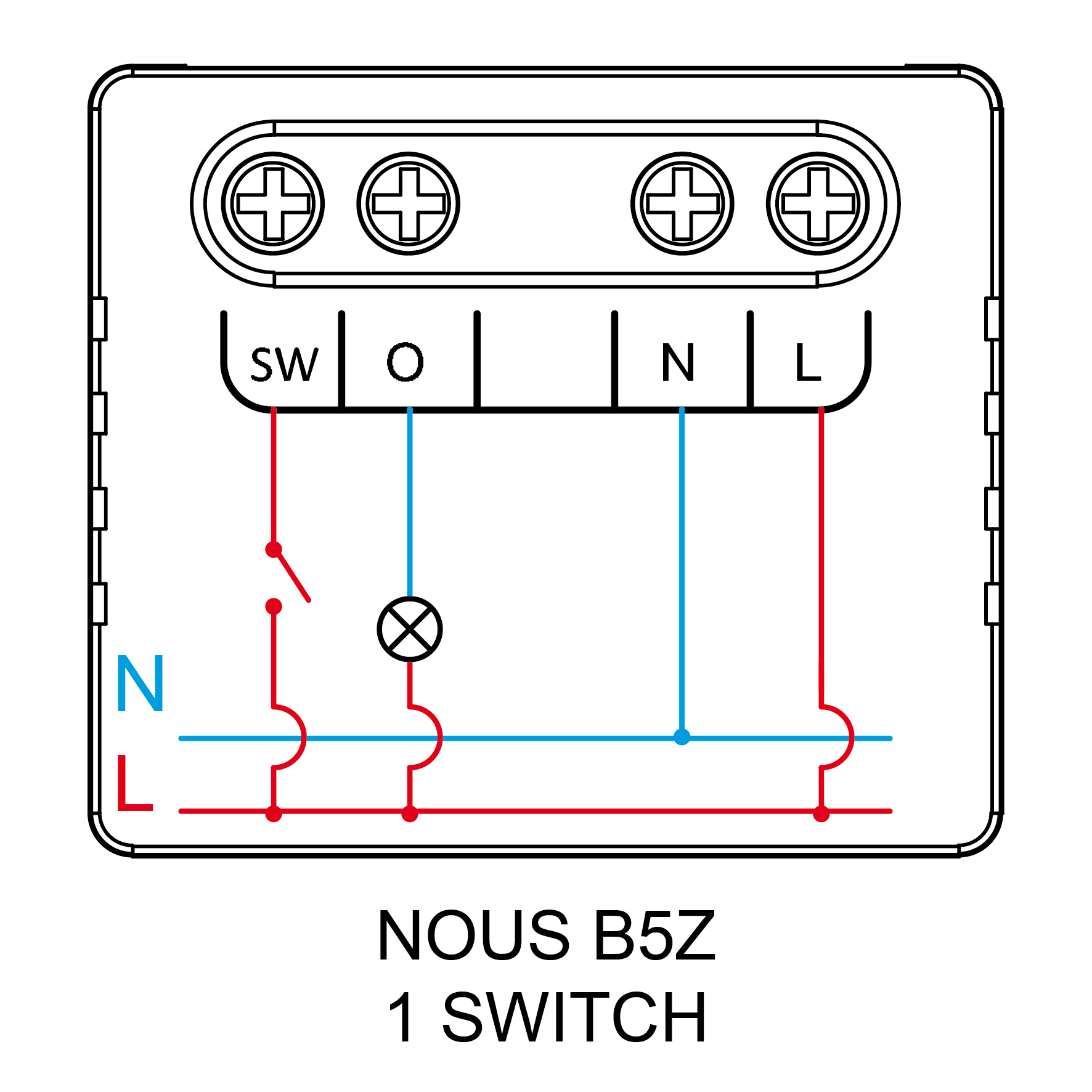
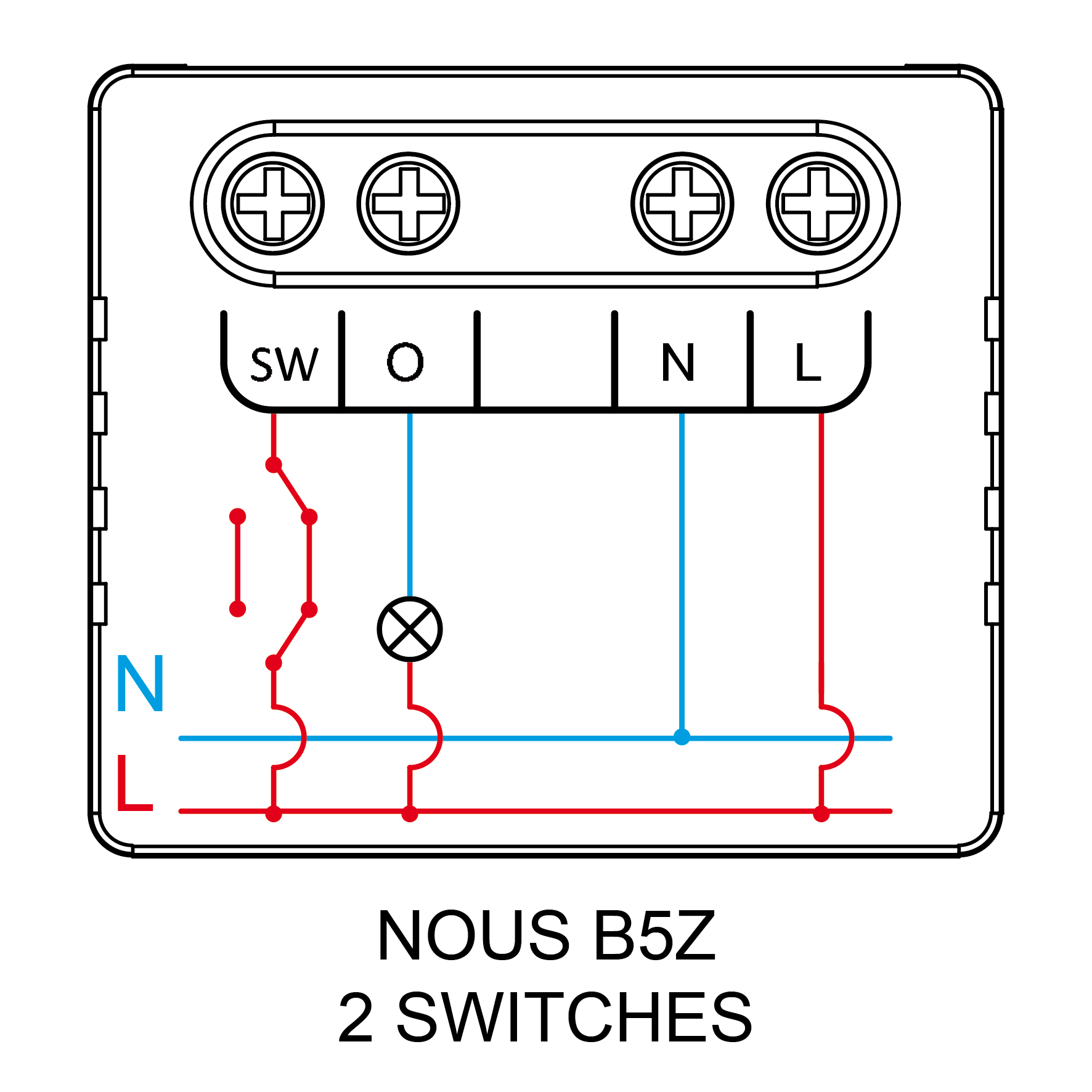
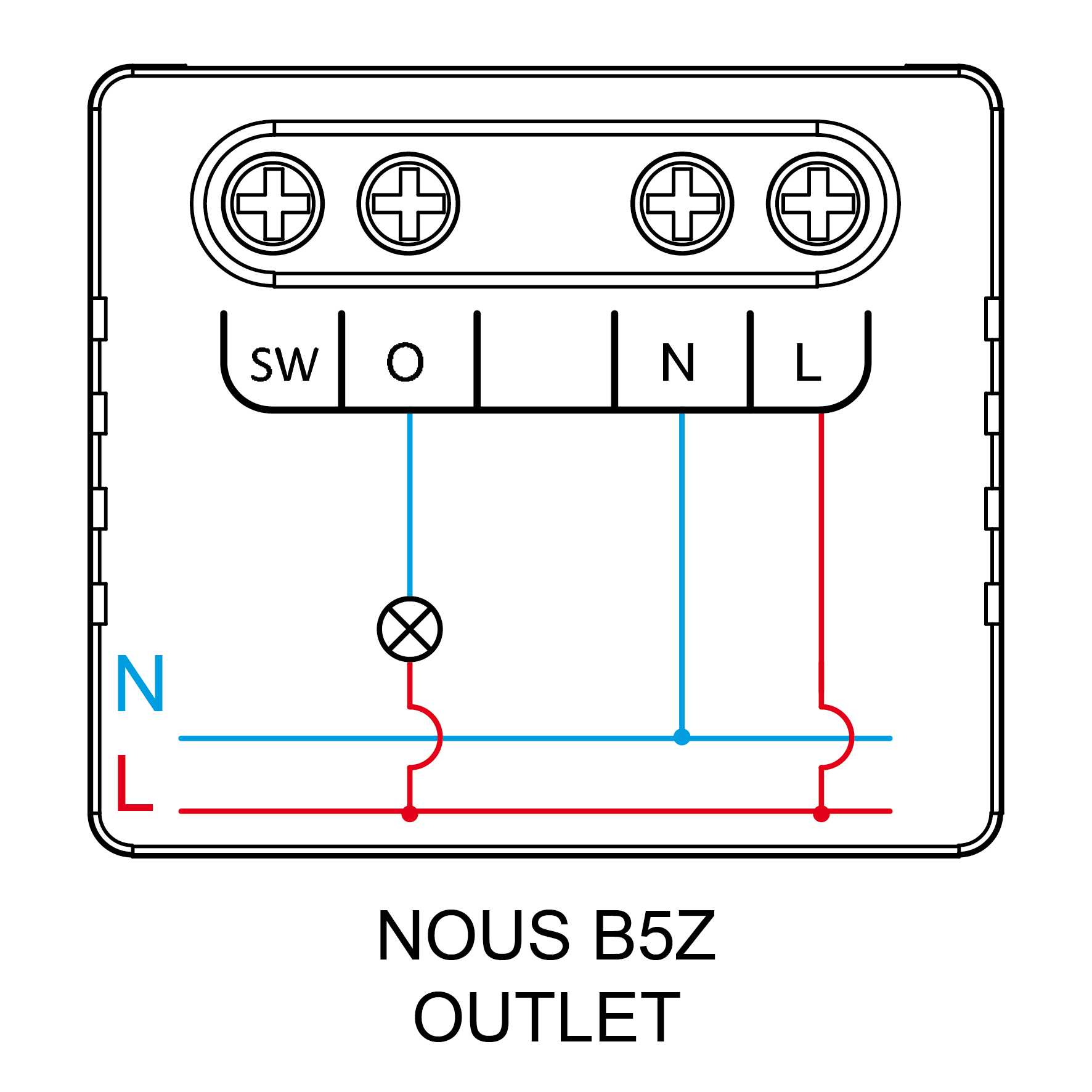
Typy připojení – analogové připojení, přerušení fázového vodiče
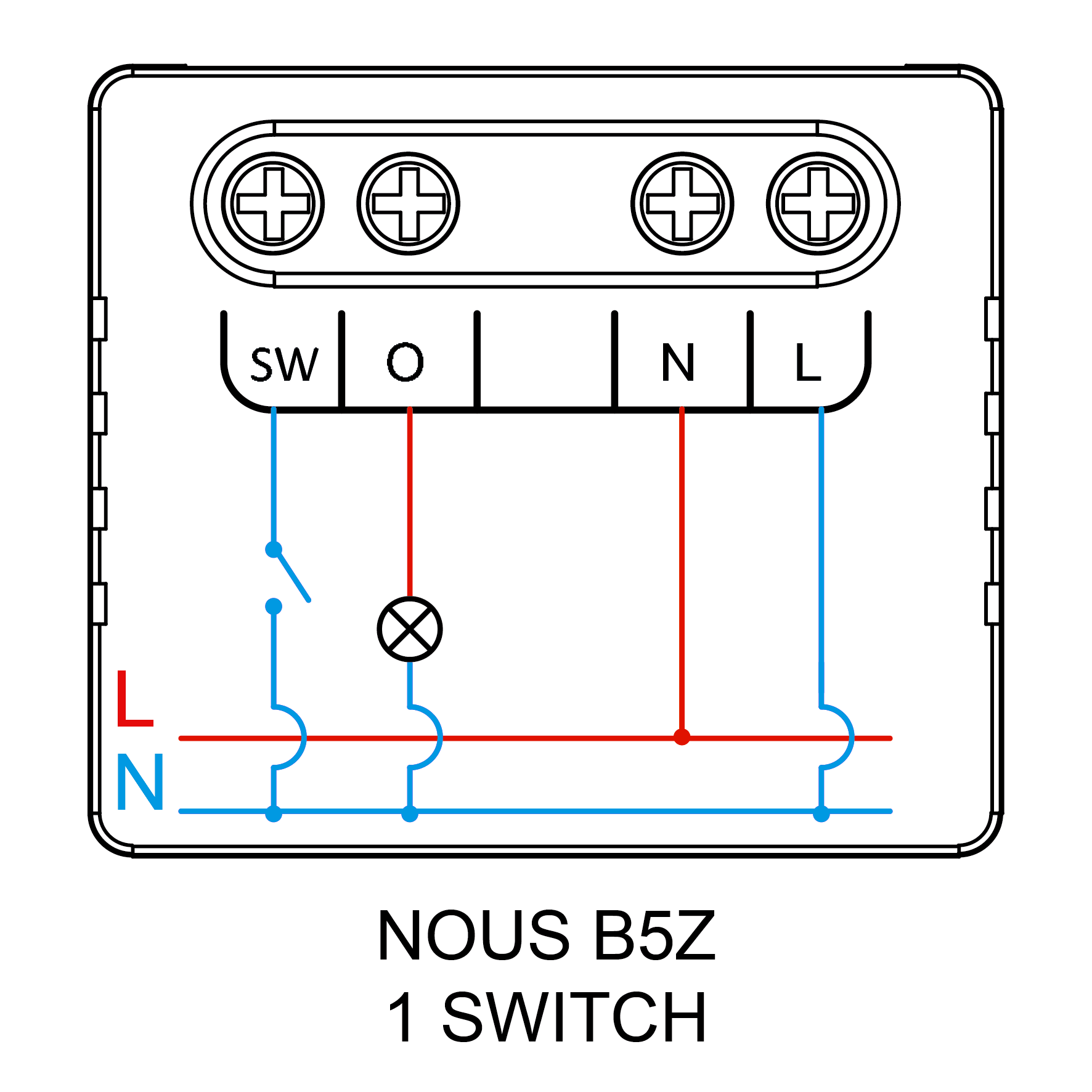 |
1. S jedním vypínačem (běžné osvětlení) |
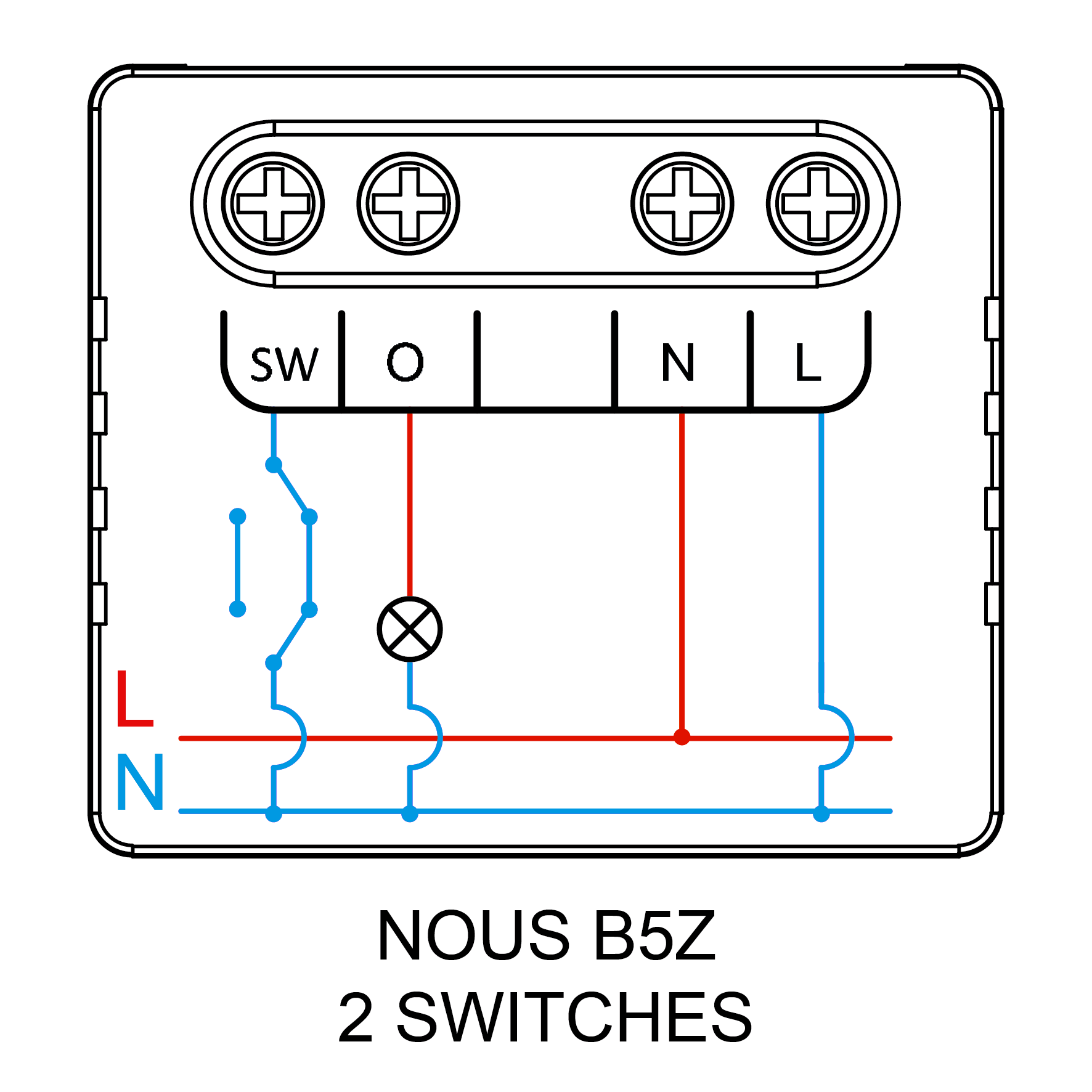 |
2. Se dvěma vypínači (schodišťové zapojení) |
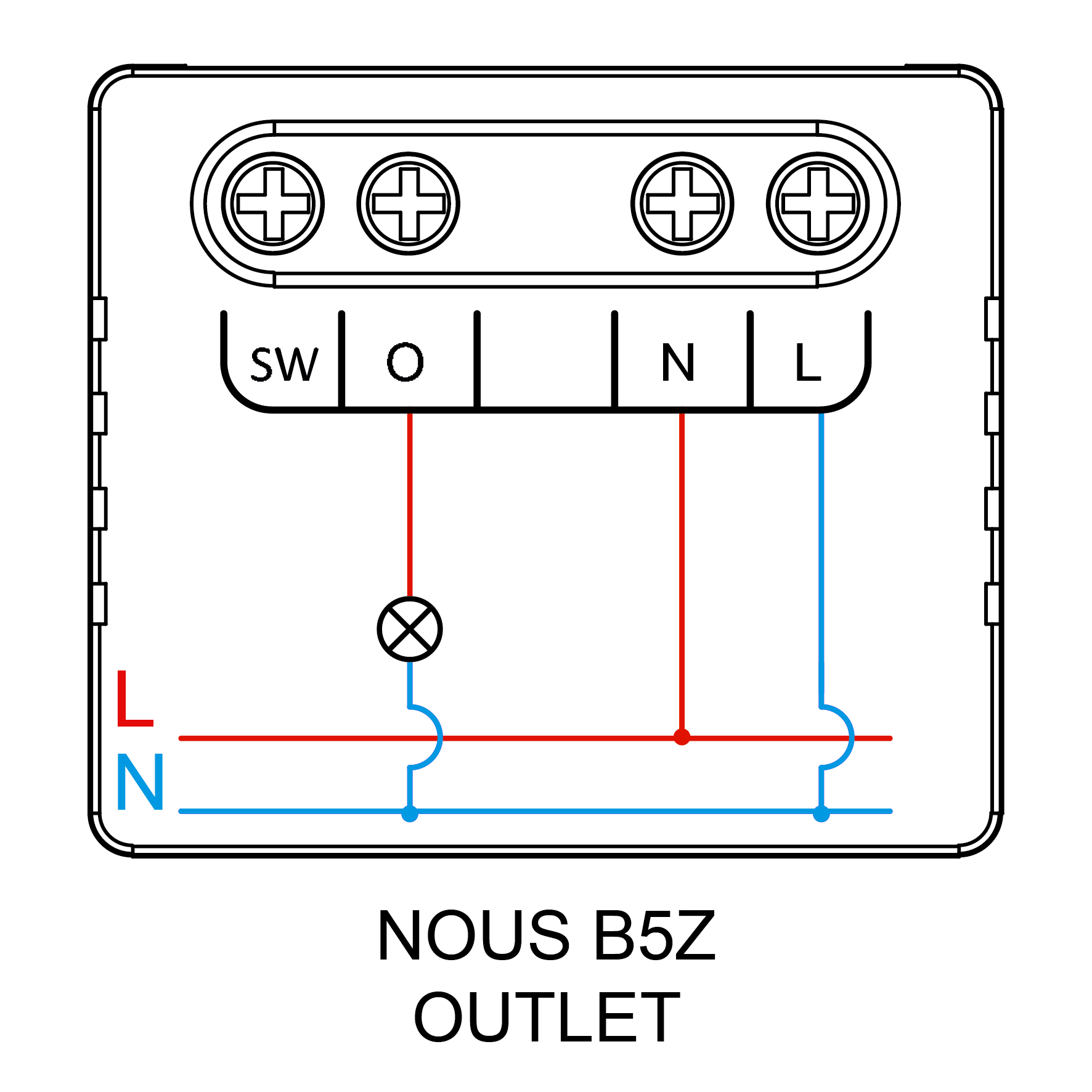 |
3. Bez vypínače (zásuvka) |
4. SAFETY AND PRECAUTIONARY MEASURES
- Please read this manual carefully.
- Use the product within the temperature and humidity limits specified in the technical data sheet.
- Do not install the product near heat sources such as radiators, etc.
- Do not allow the device to fall or be subject to mechanical stress.
- Do not use chemically active or abrasive detergents to clean the product. Use a damp flannel cloth instead.
- Do not exceed the specified power rating. This may result in a short circuit and electric shock.
- Do not disassemble the product yourself - diagnostics and repairs of the device should only be carried out at a certified service center.
5. CONNECTION
To connect the Nous device, you need a smartphone based on the Android or iOS mobile operating system with the Nous Smart Home application installed. This mobile application is free and available for download from Play Market and App Store. The QR code for the application is given below:

After installing the program, for its correct operation, it is necessary to grant it all permissions in the corresponding section of the smartphone settings. Then you need to register a new user of this program.
The procedure for connecting the device to the Zigbee network:
| 1 | Connect the smartphone to the access point that will be used to connect the device (your ZigBee hub should already be connected to the app). Make sure the network frequency range is 2.4 GHz, otherwise the device will not connect, as Zigbee Habs are not designed to work with 5 GHz Wi-Fi networks (Nous E15 ZigBee hub is universal and works at 2.4/5 GHz) | |
| 2 | Connect the device to the network. If the global indication does not flash quickly, then press the button for 5-7 seconds to reset the smart outlet settings to factory values. | |
| 3 | Open the Nous Smart Home app and click the button to add a new device | |
| 4 |
An autoscan will appear, prompting you to add a new device. Confirm the connection and start pairing. |
|
| 5 |
If autoscan doesn't see your device, you can select it manually from the list of devices |
|
 |
.jpg) |
|
| 6 | In the "Add Manually" tab, select the "Smart Switches" category, and in it the "Nous B5Z" model, as shown in the figure above; | |
| 7 | In the window that opens, select "next step" and click the "Next" button; | |
| 8 | Connection to the Zigbee hub | |
 |
 |
|
| 8 | A window will appear indicating the degree of network connection and adding the current user of the program to the list of devices: | |
| 9 | After the procedure, a window will appear in which you can set the name of the device and choose the room in which it is located. The device name will also be used by Amazon Alexa and Google Home. | |
| 10 | To delete all data from the smart socket, in the device menu, you need "Delete device", "disabled and delete all data" | |
| When the device is removed from the device list of the application user, the settings of the smart socket will be reset to factory values and it will be necessary to shorten the procedure of connecting to the Wi-Fi network again. If the password for the Wi-Fi access point was entered incorrectly, then after the timer expires, a "failed to connect to Wi-Fi" window appears in the application with step-by-step instructions to fix the problem. | ||
How to connect your device to Alexa:
| 1 |
Sign in with your Alexa account and password (if you're not already signed in, sign up first); After logging in, click the menu in the upper left corner, then click "Settings" and select "Set up a new device"; |
|
| 2 |
Select "Skills" in the options bar, then search for |
|
| 3 |
Zadejte uživatelské jméno a heslo, které jste si dříve zaregistrovali (účet je podporován pouze ve Spojených státech); Pokud se zobrazí správná stránka, znamená to, že váš účet Alexa je propojen s vaším účtem NOUS Smart Home. |
|
 |
 |
|
| 4 |
Vyhledávání zařízení: Uživatelé musí aplikaci Echo říct: |
|
| 5 |
Seznam podpůrných dovedností |
|
| Pozor: název zařízení se musí shodovat s názvem aplikace NOUS Smart Home. | ||