
BEDIENUNGSANLEITUNG
Beschreibung
Die intelligente WLAN-Steckdose NOUS A10 (im Folgenden „Smart-Steckdose“ genannt) dient zum automatischen und manuellen Ein- und Ausschalten von Elektrogeräten im Raum. Die Fernsteuerung erfolgt über das Internet mit einem Smartphone oder Tablet mit installierter Nous Smart Home App. Die Kommunikation mit der Steckdose erfolgt über einen Cloud-Server per P2P-Protokoll und über den integrierten WLAN-Adapter. Die Smart-Steckdose verfügt über einen mechanischen Taster und eine Statusanzeige. Sie ist mit einem elektromechanischen Relais ausgestattet und unterstützt die Energieüberwachung und Abrechnung des Stromverbrauchs.
 ACHTUNG: Die Verbindung einer intelligenten Steckdose mit dem Internet kann nicht in allen Fällen garantiert werden, da sie von vielen Bedingungen abhängt: der Qualität des Kommunikationskanals und der zwischengeschalteten Netzwerkausrüstung, der Marke und dem Modell des Mobilgeräts, der Version des Betriebssystems usw.
VORBEUGENDE MASSNAHMEN
- Lesen Sie dieses Handbuch sorgfältig durch.
- Verwenden Sie das Produkt innerhalb der im technischen Datenblatt angegebenen Temperatur- und Feuchtigkeitsgrenzen.
- Installieren Sie das Produkt nicht in der Nähe von Wärmequellen wie Heizkörpern usw.
- Lassen Sie das Gerät nicht fallen und setzen Sie es keinen mechanischen Belastungen aus.
- Verwenden Sie zur Reinigung des Produkts keine chemisch aktiven oder scheuernden Reinigungsmittel. Verwenden Sie stattdessen ein feuchtes Flanelltuch.
- Überlasten Sie die angegebene Kapazität nicht. Dies kann zu Kurzschlüssen und Stromschlägen führen.
- Zerlegen Sie das Produkt nicht selbst – Diagnose und Reparatur des Geräts sollten nur in einem zertifizierten Servicecenter durchgeführt werden.
Design und Steuerung
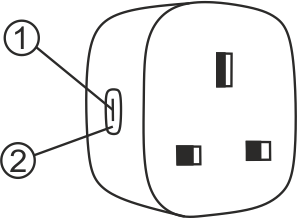
| NEIN. | Name | Beschreibung |
| 1 | Indikator | Zeigt den aktuellen Status des Geräts an |
| 2 | Taste | A short press of the button turns the device on and off. A long press of the button (5-7°C) resets the smart plug settings and Wi-Fi connection settings. |
Connection
To connect the Nous A10 smart socket, you need a smartphone based on the Android or iOS mobile operating system with the Nous Smart Home application installed. This mobile application is free and available for download from the Play Market and App Store. The QR code for the application is given below:

After installing the application, for it to work correctly, you need to grant it all permissions in the appropriate section of your smartphone settings. Then you need to register a new user for this application.
To connect a smart plug to a Wi-Fi network:
| 1 | Connect your smartphone to the Wi-Fi network that will be used for the outlet. The device works in 2.4 GHz and 5 GHz networks . | |
| 2 | Plug the power cord into the wall outlet. If the indicator light is not flashing quickly, press the button for 5-7 seconds to reset to factory settings. | |
| 3 | Open the Nous Smart Home app and press the button to add a new device. | |
| 4 |
Automatic scanning will find the new device. Confirm the connection and start pairing. |
|
| 5 |
If the device is not found automatically, you can add it manually from the device list. |
|
 |
 |
|
| 6 |
In the "Add Manually" tab , select the "Smart Sockets" category , and then the "A10 Socket" model . |
|
| 7 |
In the new window, click "Next Step" and then "Next" . |
|
| 8 | Make sure the Wi-Fi network name is correct, enter the password, and click Next . | |
 |
 |
|
| 8 |
A window will appear showing the degree of network connection. |
|
| 9 |
Once the process is complete, you will be able to name the device and select the room it is located in. This name will also be used on Amazon Alexa and Google Home . |
|
| 10 |
To delete all data from the outlet, select "Delete device" from the device menu , then "Power off and delete all data" . |
|
| When the device is removed from the user's device list in the app, the smart plug settings will be reset to factory defaults and you will need to go through the Wi-Fi connection process again. If the Wi-Fi access point password was entered incorrectly, the app will display a "Failed to connect to Wi-Fi" window after the timer expires with step-by-step instructions on how to fix the problem. | ||
How to connect your device to Alexa
| 1 |
Melden Sie sich mit Ihrem Alexa-Konto und Passwort an (falls Sie noch nicht angemeldet sind, registrieren Sie sich zuerst). Klicken Sie nach der Anmeldung auf das Menü in der oberen linken Ecke, dann auf „Einstellungen“ und wählen Sie „Neues Gerät einrichten“ aus. |
|
| 2 |
Wählen Sie in der Einstellungsleiste „Skills“ aus und suchen Sie dann |
|
| 3 |
Geben Sie den Benutzernamen und das Passwort ein, mit dem Sie sich zuvor registriert haben (Konto wird nur in den USA unterstützt). Wenn Sie die richtige Seite sehen, bedeutet dies, dass Ihr Alexa-Konto mit Ihrem NOUS Smart Home-Konto verknüpft ist. |
|
 |
 |
|
| 4 |
Geräteerkennung: Benutzer müssen zu Echo sagen: |
|
| 5 |
Liste der Support-Skills |
|
| Achtung: Der Gerätename muss mit dem Namen der NOUS Smart Home Anwendung übereinstimmen. | ||