
OPERATING MANUAL
description
The E10Z Multifunctional CO2 Detector detects temperature, humidity and CO2 concentration. When CO2 concentration in the room reaches a certain concentration, the alarm will send out sound warning alarm.
- Single-source detection, protected against false alarms due to dust, insects or moisture.
- Professional labyrinth design, rapid fire detection.
- Notification function via app, check battery level and working status at any time.
- Housing made of fire-resistant plastic with a glossy surface.
 NOTE: You will need a Nous E1, Nous E7 or other Tuya-compatible ZigBee gateway/hub to connect.
The device's connection to the Internet cannot be guaranteed in all cases, as it depends on many conditions: the quality of the communication channel and intermediate network equipment, the make and model of the mobile device, the version of the operating system, etc.
PREVENTIVE MEASURES
- Read these instructions carefully.
- Use the product within the temperature and humidity limits specified in the technical data sheet.
- Do not install the product near heat sources, such as radiators, etc.
- Do not allow the device to fall or be subjected to mechanical stress.
- Do not use chemically active or abrasive cleaning agents to clean the product. Use a damp flannel cloth.
- Do not overload the specified capacity. This may cause a short circuit and electric shock.
- Do not disassemble the product yourself - diagnostics and repair of the device should only be carried out at a certified service center.
Design and controls
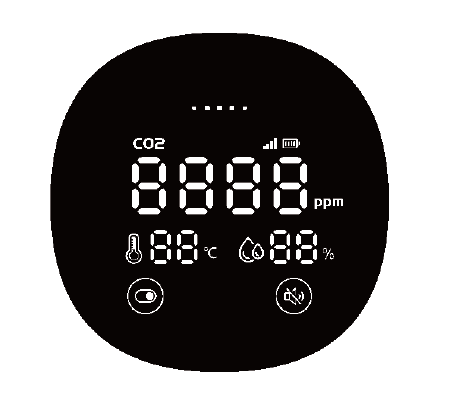
| Button | ON | OFF | ||
|---|---|---|---|---|
| long press | short press | long press | short press | |
 |
Hold down for more than 2 seconds shutdown |
switch brightness |
Hold down for more than 2 seconds turn on |
no-operation |
 |
Hold down for more than 2 seconds Toggle volume |
switch mute or not |
no-operation | no-operation |
Connection
To connect the Nous E8 device, you need a smartphone based on the Android or iOS mobile operating system with the Nous Smart Home application installed. This mobile application is free and available for download from the Play Market and App Store. The QR code for the application is given below:

After installing the application, for it to work correctly, you need to grant it all permissions in the appropriate section of your smartphone settings. Then you need to register a new user of this application.
How to connect a smart socket to a Zigbee network:
| 1 | Connect your smartphone to the access point that will be used to connect your smart device. Make sure the network frequency range is 2.4 GHz, otherwise the device will not connect as Zigbee Hubs are not designed to work with 5 GHz Wi-Fi networks; (your ZigBee Hub must already be connected to the app) | |
| 2 | After power on, long press for more than 6s, hear a long buzzer, and the signal indicator flashes, indicating the wireless pairing mode. |
|
| 3 | Open the Nous Smart Home app and click the add new device button | |
| 4 |
An auto-scan will appear, prompting you to add a new device. Confirm the connection and start pairing. |
|
| 5 |
If auto-scan doesn't see your device, you can select it manually from the device list |
|
 |
.jpg) |
|
| 6 | In the "Add Manually" tab, select the "Smart Sensors" category, and in it the "E10 CO2 Detector" model, as shown in the figure above; | |
| 7 | In the window that opens, select "next step" and click the "Forward" button; | |
| 8 | connecting to a Zigbee hub | |
 |
 |
|
| 8 | A window will appear indicating the degree of network connection and adding the current user of the application to the list of devices: | |
| 9 | Once the procedure is complete, a window will appear where you can name the device and select the room it is in. The device name will also be used by Amazon Alexa and Google Home. | |
| When the device is removed from the user's device list in the application, the smart socket settings are reset to factory settings and you will need to go through the Wi-Fi connection procedure again. If the password for the Wi-Fi access point was entered incorrectly, the application will display a "Failed to connect to Wi-Fi" window after the timer expires, offering step-by-step steps to fix the problem. | ||
Alarming State
| CO2 Concentration(ppm) |
Indicator Color |
| 400~799 |
Green |
| 800~1599 |
Yellow |
| 1600~5000 | Red |
Battery Indicator
| Battery State |
Connect Charger |
Not Connect Charger |
||
|
ON |
OFF |
ON |
OFF |
|
| full battery |
green |
go out |
go out |
go out
|
| high battery |
green |
green |
green |
|
| moderate battery |
green flash |
green flash |
yellow |
|
| low battery |
green flash |
green flash |
red |
|
| no battery | green flash | green flash | shutdown | |
Low Battery Alarming
Battery icon turn red: 2 chirps are heard periodically. Please note that the hush icon can not mute the low battery alarming, it can stop alarming automatically after connecting the charger.
Self-calibration
Please keep the device run continuously for 48 hours for self-calibration after you received it,it is better run continuously in a room with good ventilation.
Trouble Shooting
The device shows 0000 and remind CO2 sensor fault when detect the sensor damage or no connection.
The device shows 99℃, 99% when detect the temperature & humidity sensor damage or no connection.
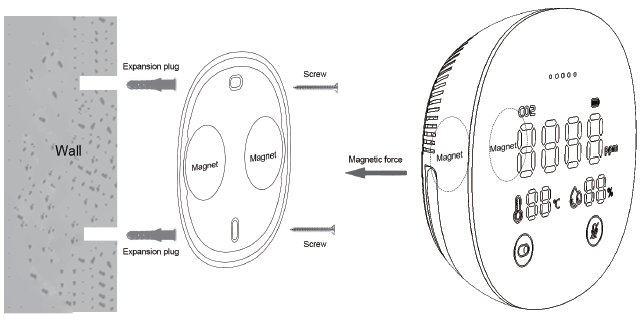
'Installation method
| Installation procedure using the mounting plate: | ||
| 1 |
Drill hole on the wall and put in the expansion bolt. |
 |
| 2 |
Assemble the mounting plate, tighten the screw, please note that the iron |
|
| 3 |
Assemble the device align with the mounting plate, adjust the location and |
|
|
Importantly: |
Make sure that the Zigbee network in the selected installation location is stable and has a sufficient level. |
How to connect your device to Alexa
| 1 |
Log in using your Alexa account and password (if you are not already registered, register first); Once logged in, click the menu in the upper left corner, then click "Settings" and select "Set up a new device"; |
|
| 2 |
Select "Skills" in the settings bar, then search for |
|
| 3 |
Enter the username and password you previously registered (account supported only in the United States); When you see the correct page, it means that the Alexa account is linked to the NOUS Smart Home account. |
|
 |
 |
|
| 4 |
Device Discovery: Users need to say to Echo: |
|
| 5 |
List of support skills |
|
| Attention: the device name must match the NOUS Smart Home APP. | ||