
OPERATION MANUAL
description
The Nous E8 home ZigBee photoelectric smoke alarm detects fire by detecting smoke. When the smoke in the room reaches a certain concentration, the alarm system emits a sound and light alarm. This alarm system is suitable for residential buildings.
- Single-source detection protected from false positives due to dust, insects or moisture.
- Professional labyrinth design, quick fire detection.
- App notification function, check battery level and working status at any time.
- The body is made of fire-resistant plastic with a glossy surface.
 NOTE: You will need a Nous E1, Nous E7 or other Tuya compatible ZigBee gateway/hub to connect.
If the e8 sensor is not detected by ZigBee2mqtt, please install the updated firmware according to the instructions: https://www.zigbee2mqtt.io/advanced/support-new-devices/01_support_new_devices.html
and provide a file with settings TZE284_0zaf1cr8
The connection of the device to the Internet cannot be guaranteed in all cases, as it depends on many conditions: the quality of the communication channel and intermediate network equipment, the make and model of the mobile device, the version of the operating system, etc.
PRECAUTIONARY MEASURES
- Read this manual carefully.
- Use the product within the temperature and humidity limits specified in the technical data sheet.
- Do not install the product near heat sources, such as radiators, etc.
- Do not allow the device to fall and be subject to mechanical loads.
- Do not use chemically active and abrasive detergents to clean the product. Use a damp flannel cloth for this.
- Do not overload the specified capacity. This may cause short circuit and electric shock.
- Do not disassemble the product yourself - diagnostics and repair of the device must be carried out only in a certified service center.
Design and controls
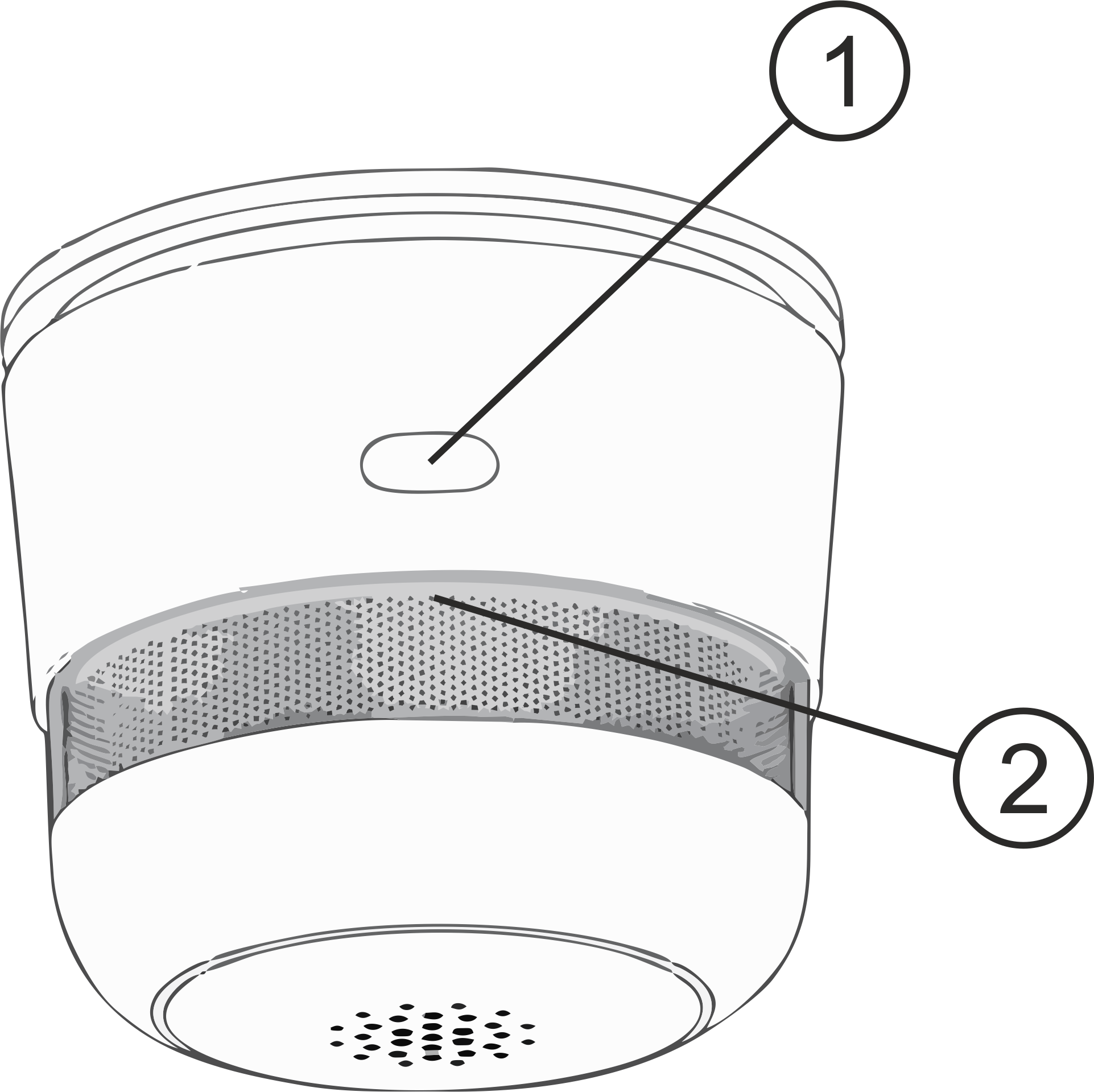
| № | Name | description |
| 1 | Button | A long press of the button (5-7 C) resets the device settings and network connection parameters. |
| 2 | Indicator | Shows the current state of the device |
Connection
To connect the Nous E8 device, you need a smartphone based on the Android or iOS mobile operating system with the Nous Smart Home application installed. This mobile application is free and available for download from Play Market and App Store. The QR code for the application is given below:

After installing the program, for its correct operation, it is necessary to grant it all permissions in the corresponding section of the smartphone settings. Then you need to register a new user of this program.
The procedure for connecting a smart socket to the Zigbee network:
| 1 | Connect the smartphone to the access point that will be used to connect the smart device. Make sure the network frequency range is 2.4 GHz, otherwise the device will not connect, as Zigbee Habs are not designed to work with 5 GHz Wi-Fi networks; (your ZigBee hub should already be connected to the app) | |
| 2 | Turn on the device. If the world indication does not flash quickly, then press the button for 5-7 seconds to reset the device settings to factory values. | |
| 3 | Open the Nous Smart Home app and click the button to add a new device | |
| 4 |
An autoscan will appear, prompting you to add a new device. Confirm the connection and start pairing. |
|
| 5 |
If autoscan doesn't see your device, you can select it manually from the list of devices |
|
 |
.jpg) |
|
| 6 | In the "Add manually" tab, select the "Smart sensors" category, and in it the "E8 smoke sensor" model, as shown in the figure above; | |
| 7 | In the window that opens, select "next step" and click the "Next" button; | |
| 8 | connection to the Zigbee hub | |
 |
 |
|
| 8 | A window will appear indicating the degree of network connection and adding the current user of the program to the list of devices: | |
| 9 | After the procedure, a window will appear in which you can set the name of the device and choose the room in which it is located. The device name will also be used by Amazon Alexa and Google Home. | |
| When the device is removed from the device list of the application user, the settings of the smart socket will be reset to factory values and it will be necessary to shorten the procedure of connecting to the Wi-Fi network again. If the password for the Wi-Fi access point was entered incorrectly, then after the timer expires, a “failed to connect to Wi-Fi” window appears in the application with step-by-step instructions to fix the problem. | ||
Battery replacement
| 1 |
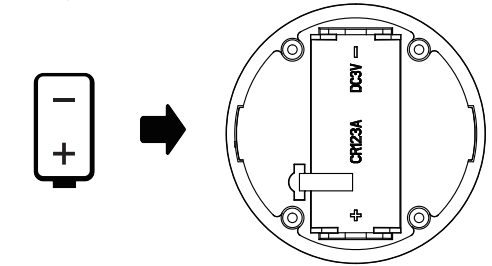
To replace the battery, disconnect the smoke alarm from the mounting bracket by turning it counterclockwise. |
 |
| 2 |
Remove the battery and then install a new one, observing the correct polarity. |
|
| 3 |
Press the button to test the alarm, then install the alarm on the mounting bracket by turning it clockwise to lock it in place. |
Installation method
| Installation procedure using a mounting plate: | ||
| 1 |
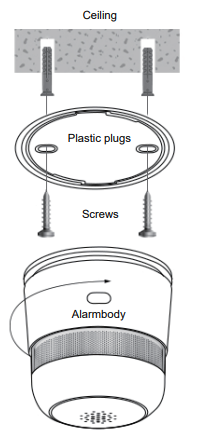
Place the mounting plate in the desired installation location and mark where the holes should be drilled. |
 |
| 2 |
Drill two holes with a diameter of 4 millimeters (the distance between them is 32 millimeters). |
|
| 3 |
Insert the plastic plugs into the holes. |
|
| 4 |
Insert the screws into the mounting plate and tighten them firmly into the plugs. |
|
| 5 |
Place the smoke alarm on the mounting bracket and turn clockwise to secure. |
|
| 6 |
The smoke alarm is secured when the holes between the mounting plate and the smoke alarm match. |
|
| 7 |
Press the test button to check if the smoke alarm is working properly. If there is no sound, the alarm is faulty and cannot be used. |
|
|
Importantly: |
Make sure that the Wi-Fi network is stable and has a sufficient level in the chosen installation location. |
How to connect your device to Alexa
| 1 |
Sign in with your Alexa account and password (if you're not already signed in, sign up first); After logging in, click the menu in the upper left corner, then click "Settings" and select "Set up a new device"; |
|
| 2 |
Select "Skills" in the options bar, then search for |
|
| 3 |
Enter the username and password you previously registered (the account is only supported in the United States); When you see the correct page, it means that your Alexa account is linked to your NOUS Smart Home account. |
|
 |
 |
|
| 4 |
Device discovery: Users must tell Echo, |
|
| 5 |
List of support skills |
|
| Attention: the name of the device must match the NOUS Smart Home APP. | ||