
OPERATING MANUAL
1. DESCRIPTION
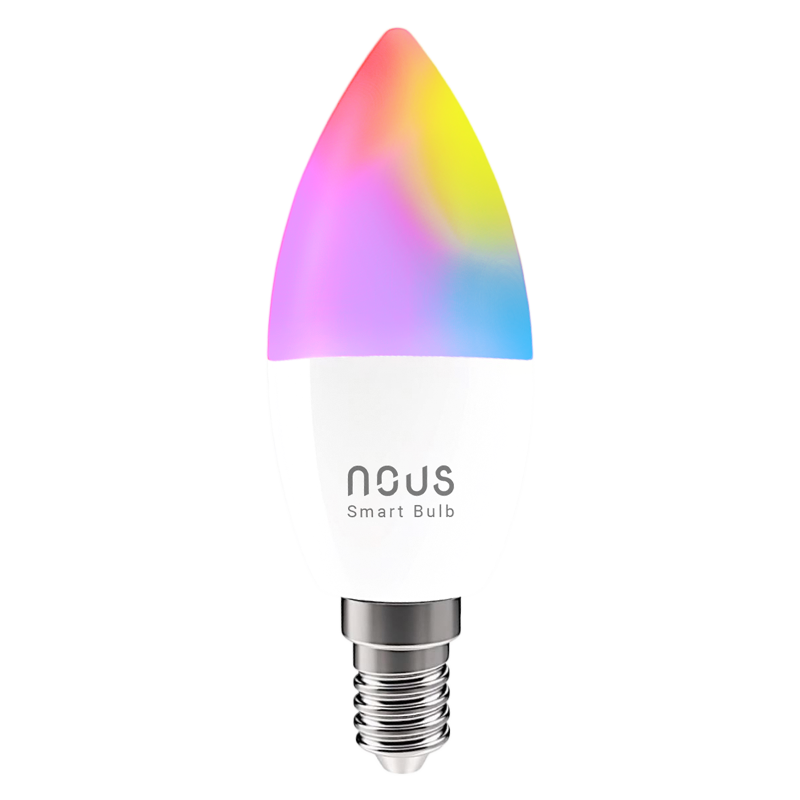 |
Smart ZigBee Bulb RGB P4Z
Network Protocol (ZigBee 3.0): IEEE 802.15.4
Zigbee Frequency: 2.400 - 2.483 GHz
Power: 4.9W
Lumen: 450Lm
Color Temperature: 2700K-6500K
RGB: 16 million colors
Max.Transmit Power: 10 dBm
Base E14 | Bulb C37
Rated Voltage: 220-240VAC
3. SAFETY AND PRECAUTIONARY MEASURES
- Please read this manual carefully.
- Use the product within the temperature and humidity limits specified in the technical data sheet.
- Do not install the product near heat sources such as radiators, etc.
- Do not allow the device to fall or be subject to mechanical stress.
- Do not use chemically active or abrasive detergents to clean the product. Use a damp flannel cloth instead.
- Do not exceed the specified power rating. This may result in a short circuit and electric shock.
- Do not disassemble the product yourself - diagnostics and repairs of the device should only be carried out at a certified service center.
4. CONNECTION
To connect the Nous device, you need a smartphone based on the Android or iOS mobile operating system with the Nous Smart Home application installed. This mobile application is free and available for download from Play Market and App Store. The QR code for the application is given below:
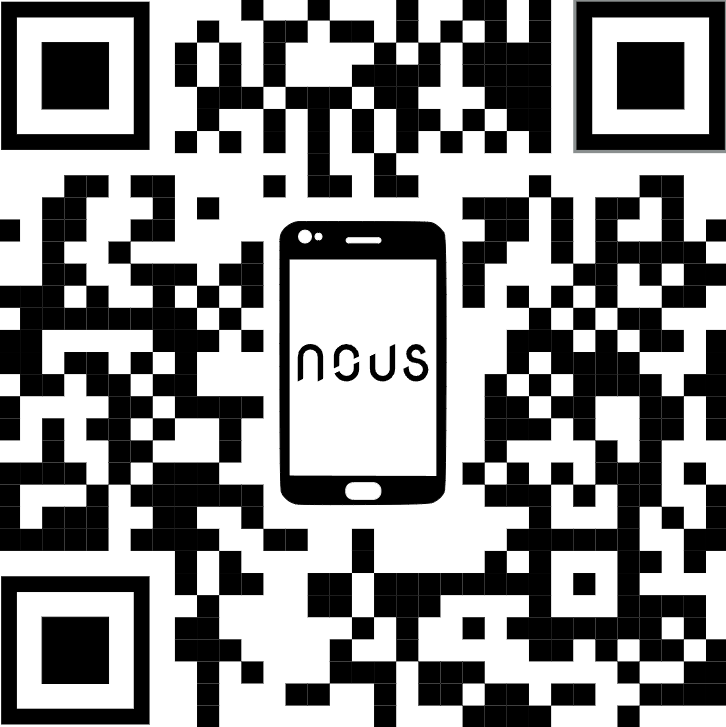 |
Scan the QR code or or download it directly
Importantly: you will need a Nous E1, Nous E7, Nous E15 or other Tuya compatible ZigBee gateway/hub
- Turn on the device (your Nous ZigBee hub should already be connected to the app). Ensure that the bulb is connected to a 230V power supply (screwed into the socket) and the power is switched on.
- After turning on the power, the bulb should start flashing rapidly. If it does not, simply turn the power switch off and back on to reset the device.
- Open the Nous Smart app.
- Select your ZigBee Gateway (Hub) from the device list.
- Click "Add subdevice" (or "+") inside the hub menu.
- The app will automatically scan for devices ready to connect. Confirm the connection to start pairing.
- Once paired, you can rename your device and it is ready to use.
- Alternative: If the device is not found automatically, click "Add manually", select the corresponding lighting category from the list, and follow the on-screen prompts.
Create a group
All you have to do is go to the settings of one of the bulbs, click "create group" and then select the bulbs you want to include in that group. Give this group a name you like, and after that it will appear on your panel as a new device.
Now you can go to this new group and control these bulbs as one device.
Using the Amazon Echo Quick Guide
What you'll need:
1. Amazon Alexa PROGRAM and account
2. NOUS Smart Home program and account (Users need to register their own account by selecting their US region)
3. Echo, Echo Dot, Tap or other Amazon voice devices.
Tip: After successful setup, rename the device. It is recommended to use easy pronunciation of English words in the name of the device (Amazon Echo temporarily supports English only).
Set up the speakerphone with the Alexa app
- Sign in with your Alexa account and password (if you're not already signed in, sign up first); After logging in, click the menu in the upper left corner, then click "Settings" and select "Set up a new device";
- Select a device (eg Echo). When the desired page appears, press and hold the small dot on the Echo bar until the indicator turns yellow. Then click "Continue" in the program.
- Select dedicated WIFI and wait a few minutes.
- After the introductory video, click "Next Step" and it will automatically take you to the "Home" page. The Echo is now successfully connected to the Alexa app over Wi-Fi.
Enable our skill in the Alexa app
- Select "Skills" in the options bar, then search for
"NOUS Smart Home" in the search bar; In the search results, select NOUS Smart Home, then click Enable. - Enter the username and password you previously registered (the account is only supported in the United States); When you see the correct page, it means that your Alexa account is linked to your NOUS Smart Home account.
Control your device with your voice
After the previous operation, you can control the device through Echo.
- Device discovery: First, users have to tell Echo, "Echo (or Alexa), open my devices." Echo will start to find the devices added in NOUS Smart Home APP, it will take about 20 seconds to show the result. Or you can click "Open devices" in Alexa APP, it will show the devicesfound successfully. Note: "Echo" is one of the wake-up names, which can be any of these three names (Settings): Alexa/Echo/Amazon.
- List of support skills
User can control devices with following instructions:
Alexa, turn on [device]
Alexa, turn off [device]
Attention: the name of the device must match the NOUS Smart Home APP.