
MANUEL D'UTILISATION
1. DESCRIPTION
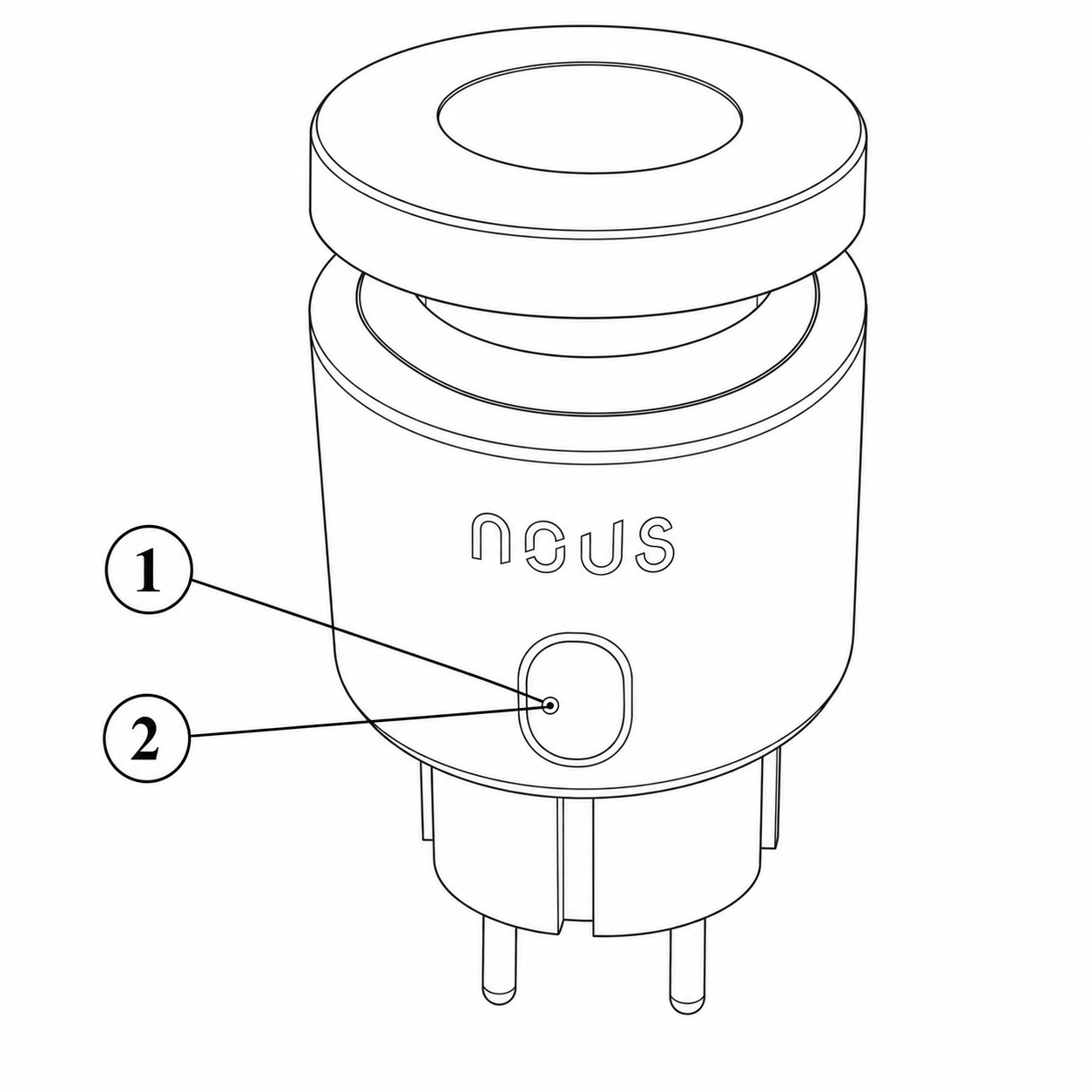 |
| Non. | Nom | Description |
| 1 | Bouton | Une brève pression sur le bouton permet d'allumer ou d'éteindre l'appareil. Une pression prolongée (5 à 7 secondes) réinitialise les paramètres de l'appareil et de la connexion réseau. |
| 2 | Indicateur | Affiche l'état actuel de l'appareil |
AVERTISSEMENT!
Hubs requis pour la connexion via Matter
1. Pour Google Home/Google Nest :
vous avez besoin de l’un des appareils suivants : Google Nest Hub (2e génération ou ultérieure), Google Nest Hub Max, Google Nest Mini/Google Home Mini (avec micrologiciel mis à jour), Google Nest Audio, Google Nest Wifi Pro (routeur compatible Matter).
2. Pour Apple HomeKit
: vous avez besoin de l’un des appareils suivants : Apple HomePod (toutes générations), Apple HomePod mini, Apple TV 4K (2022 ou ultérieure avec prise en charge Thread).
3. Pour Amazon Alexa :
vous avez besoin de l’un des appareils suivants : Amazon Echo (4e génération), Amazon Echo Dot (5e génération), Amazon Echo Show 10 (3e génération), Amazon Echo Studio, eero Pro 6 (routeur compatible Matter).
4. Pour Samsung SmartThings
: vous avez besoin de : SmartThings Hub (v3) ou SmartThings Station.
2. CARACTÉRISTIQUES TECHNIQUES
WiFi Frequency: 2.4 GHz
Network Protocol: IEEE802.11 b/g/n
Output Power: 3680W
Rated Voltage: 100-240VAC
Rated Current: 16A
Working Temperature: -5°C ~ 40°C
Water resistance: IP44
Frequency range: 2.400 - 2.4835 GHz
Max.Transmit Power: 17 dBm
Dimensions: 56*50*84mm
3. SAFETY AND PRECAUTIONARY MEASURES
- Please read this manual carefully.
- Use the product within the temperature and humidity limits specified in the technical data sheet.
- Do not install the product near heat sources such as radiators, etc.
- Do not allow the device to fall or be subject to mechanical stress.
- Do not use chemically active or abrasive detergents to clean the product. Use a damp flannel cloth instead.
- Do not exceed the specified power rating. This may result in a short circuit and electric shock.
- Do not disassemble the product yourself - diagnostics and repairs of the device should only be carried out at a certified service center.
4. CONNECTION
To connect the Nous device, you need a smartphone based on the Android or iOS mobile operating system with the Nous Smart Home application installed. This mobile application is free and available for download from Play Market and App Store. The QR code for the application is given below:
 |
Scan the QR code
Importantly: Make sure that the Wi-Fi network is stable and has a sufficient level in the chosen installation location.
To connect your device to a Wi-Fi network:
| 1 | Connect your smartphone to the access point that will be used to connect the device. Make sure the network frequency range is 2.4 GHz, otherwise the device will not connect as it is not designed to work with 5 GHz Wi-Fi networks. | |
| 2 | Turn on the device. | |
| 3 | Open the Nous Smart Home app and click the add new device button. | |
| 4 |
An auto-scan will appear, prompting you to add a new device. Confirm the connection and start pairing. |
|
| 5 |
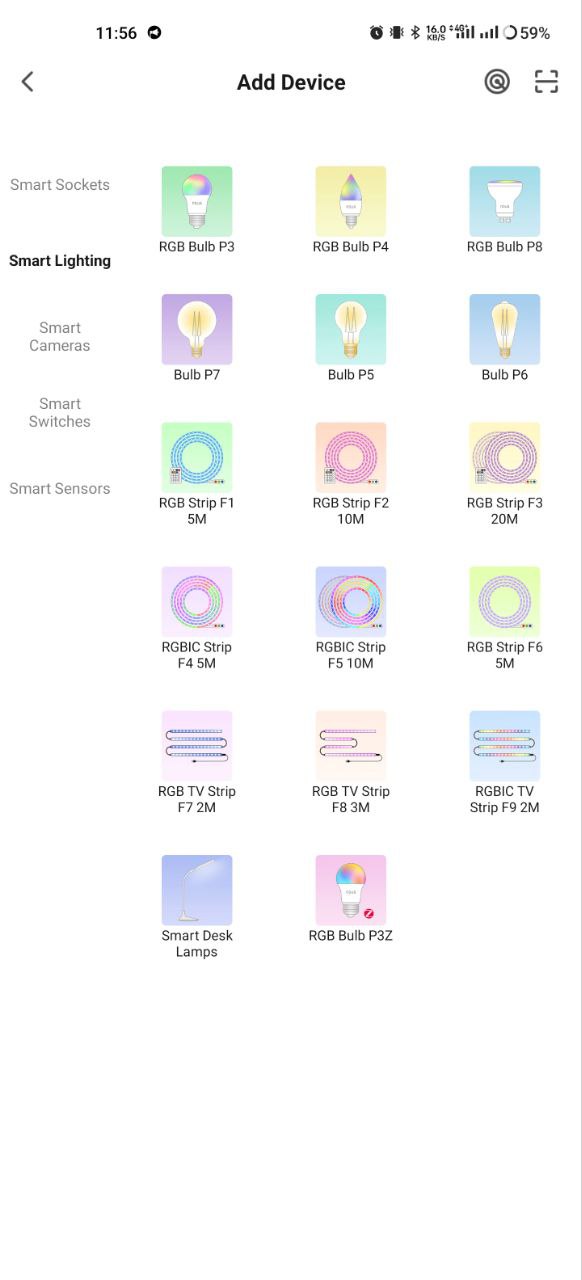
If auto-scan doesn't see your device, you can select it manually from the device list. |
|
 |
 |
|
| 6 | In the "Add manually" tab, select the "Smart sockets" category, and in it the model "A6M socket", as shown in the figure above; | |
| 7 | In the window that opens, select "next step" and click the "Next" button. | |
| 8 | In the next window, make sure that the name of the access point matches the required one, then enter the password for it in the line below and click the "Next" button. | |
 |
 |
|
| 9 | A window will appear indicating the degree of network connection and adding the current user of the application to the list of devices. | |
| 10 | Once the procedure is complete, a window will appear where you can name the device and select the room it is in. The device name will also be used by Amazon Alexa and Google Home. | |
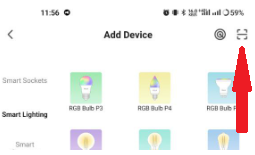
| 11 | Adding a device to the Nous Smart Home app using a QR code. | |
| 12 | In the "Add Manually" tab, select "Scan" as shown in the figure below. | |
 |
||
| 13 | Next, scan the QR code and wait for the device to appear in the app. | |
| 14 | Pour supprimer toutes les données de l'appareil, vous devez sélectionner « Supprimer l'appareil », « Éteindre et supprimer toutes les données » dans le menu de l'appareil. | |
| Lorsqu'un appareil est supprimé de la liste des appareils de l'utilisateur dans l'application, ses paramètres sont réinitialisés aux valeurs d'usine et vous devrez effectuer à nouveau la procédure de connexion Wi-Fi. Si le mot de passe du point d'accès Wi-Fi a été saisi incorrectement, l'application affichera une fenêtre « Échec de la connexion Wi-Fi » après l'expiration du délai, proposant des instructions détaillées pour résoudre le problème. | ||
5. Connexion via le protocole Matter (Google Home, Apple HomeKit, Alexa)
1. Google Home
-
Ouvrez Google Home → "+" → "Ajouter un appareil" .
-
Sélectionnez « Périphériques du protocole Matter » .
-
Scannez le code QR sur l'ampoule ou saisissez le code manuellement.
-
Attribuer une chambre → fait !
2. Apple HomeKit
-
Ouvrez l'application Maison → "+" → "Ajouter un appareil" .
-
Pointez l'appareil photo vers le code QR sur l'ampoule.
-
Confirmer l'ajout → attribuer une chambre.
3. Amazon Alexa (via Matter)
-
Ouvrez l'application Alexa → "Appareils" → "+" → "Ajouter un appareil" .
-
Sélectionnez « Matière » → « Rechercher des appareils » .
-
Alexa va trouver l'ampoule → confirmer l'ajout.
-
Attribuez un nom et un groupe (par exemple, « Salon »).
Important!
-
Pour fonctionner avec Matter, votre hub doit se trouver sur le même réseau local que l'appareil.
-
Certaines fonctionnalités (par exemple, les scénarios avancés) peuvent n'être disponibles que via l'application native Nous Smart Home.
-
Si vous rencontrez des problèmes de connexion, essayez :
-
Redémarrez le hub
-
Centre de mise à jour du micrologiciel
-
Réinitialiser l'appareil
-
Pour obtenir de l'aide supplémentaire, veuillez contacter le support NOUS.