
MANUALE OPERATIVO
1. DESCRIZIONE
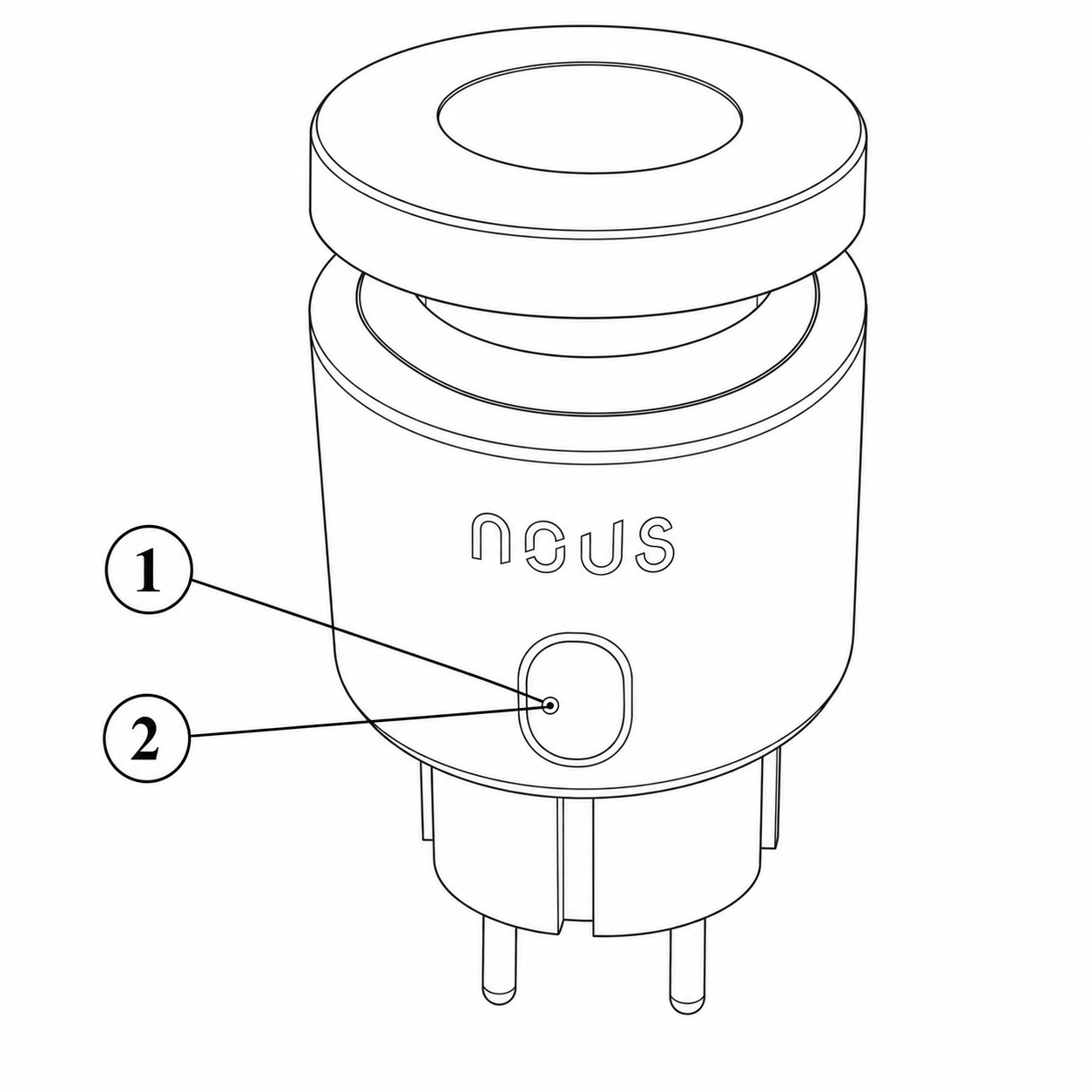 |
| NO. | Nome | Descrizione |
| 1 | Pulsante | Una breve pressione del pulsante accende o spegne il dispositivo. Una pressione prolungata del pulsante (5-7 °C) ripristina le impostazioni del dispositivo e i parametri di connessione di rete. |
| 2 | Indicatore | Mostra lo stato attuale del dispositivo |
AVVERTIMENTO!
Hub necessari per la connessione tramite Matter
1. Per Google Home/Google Nest.
È necessario uno di questi dispositivi: Google Nest Hub (2a generazione o successiva), Google Nest Hub Max, Google Nest Mini/Google Home Mini (con firmware aggiornato), Google Nest Audio, Google Nest Wifi Pro (router abilitato per Matter)
2. Per Apple HomeKit
È necessario uno di questi dispositivi: Apple HomePod (qualsiasi generazione), Apple HomePod mini, Apple TV 4K (2022 o successiva con supporto Thread)
3. Per Amazon Alexa
È necessario uno di questi dispositivi: Amazon Echo (4a generazione), Amazon Echo Dot (5a generazione), Amazon Echo Show 10 (3a generazione), Amazon Echo Studio, eero Pro 6 (router abilitato per Matter)
4. Per Samsung SmartThings
È necessario: SmartThings Hub (v3), SmartThings Station
2. CARATTERISTICHE TECNICHE
WiFi Frequency: 2.4 GHz
Network Protocol: IEEE802.11 b/g/n
Output Power: 3680W
Rated Voltage: 100-240VAC
Rated Current: 16A
Working Temperature: -5°C ~ 40°C
Water resistance: IP44
Frequency range: 2.400 - 2.4835 GHz
Max.Transmit Power: 17 dBm
Dimensions: 56*50*84mm
3. SAFETY AND PRECAUTIONARY MEASURES
- Please read this manual carefully.
- Use the product within the temperature and humidity limits specified in the technical data sheet.
- Do not install the product near heat sources such as radiators, etc.
- Do not allow the device to fall or be subject to mechanical stress.
- Do not use chemically active or abrasive detergents to clean the product. Use a damp flannel cloth instead.
- Do not exceed the specified power rating. This may result in a short circuit and electric shock.
- Do not disassemble the product yourself - diagnostics and repairs of the device should only be carried out at a certified service center.
4. CONNECTION
To connect the Nous device, you need a smartphone based on the Android or iOS mobile operating system with the Nous Smart Home application installed. This mobile application is free and available for download from Play Market and App Store. The QR code for the application is given below:
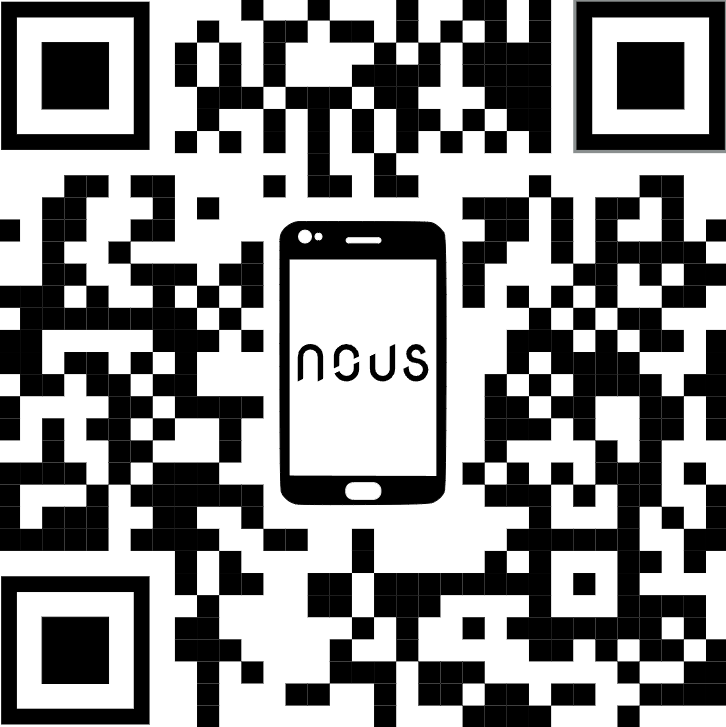 |
Scan the QR code
Importantly: Make sure that the Wi-Fi network is stable and has a sufficient level in the chosen installation location.
To connect your device to a Wi-Fi network:
| 1 | Connect your smartphone to the access point that will be used to connect the device. Make sure the network frequency range is 2.4 GHz, otherwise the device will not connect as it is not designed to work with 5 GHz Wi-Fi networks. | |
| 2 | Turn on the device. | |
| 3 | Open the Nous Smart Home app and click the add new device button. | |
| 4 |
An auto-scan will appear, prompting you to add a new device. Confirm the connection and start pairing. |
|
| 5 |
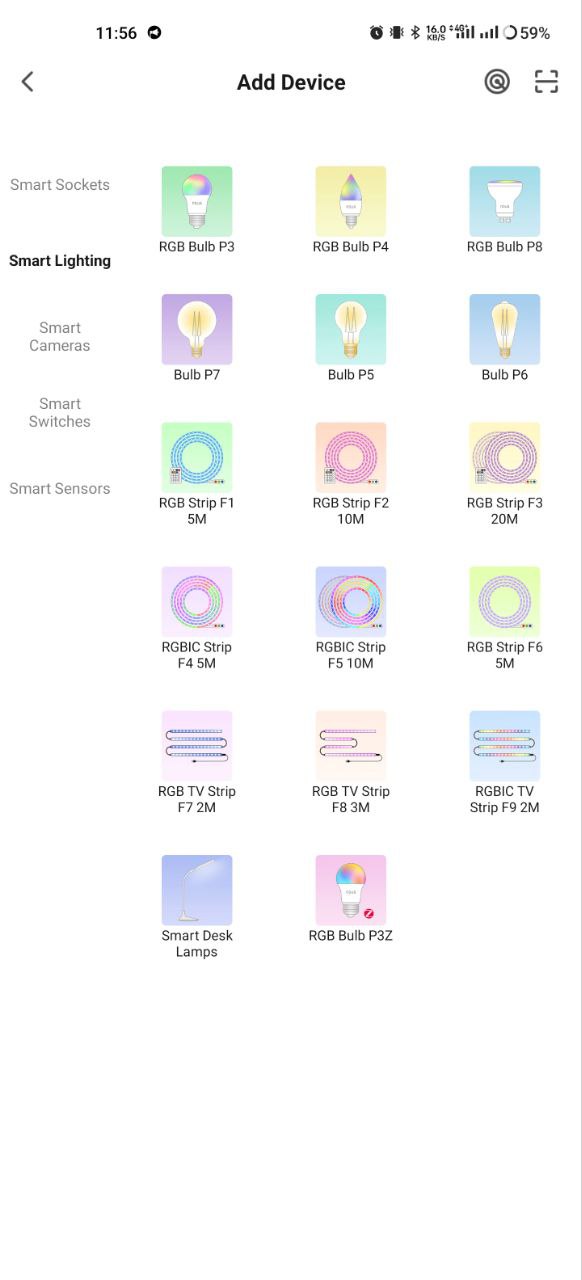
If auto-scan doesn't see your device, you can select it manually from the device list. |
|
 |
 |
|
| 6 | In the "Add manually" tab, select the "Smart sockets" category, and in it the model "A6M socket", as shown in the figure above; | |
| 7 | In the window that opens, select "next step" and click the "Next" button. | |
| 8 | In the next window, make sure that the name of the access point matches the required one, then enter the password for it in the line below and click the "Next" button. | |
 |
 |
|
| 9 | A window will appear indicating the degree of network connection and adding the current user of the application to the list of devices. | |
| 10 | Once the procedure is complete, a window will appear where you can name the device and select the room it is in. The device name will also be used by Amazon Alexa and Google Home. | |
| 11 | Adding a device to the Nous Smart Home app using a QR code. | |
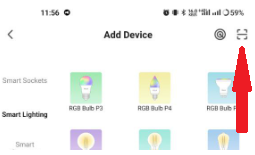
| 12 | In the "Add Manually" tab, select "Scan" as shown in the figure below. | |
 |
||
| 13 | Next, scan the QR code and wait for the device to appear in the app. | |
| 14 | Per eliminare tutti i dati dal dispositivo, è necessario selezionare "Elimina dispositivo", quindi "Spegni ed elimina tutti i dati" nel menu del dispositivo. | |
| Quando un dispositivo viene rimosso dall'elenco dei dispositivi dell'utente nell'applicazione, le impostazioni del dispositivo vengono ripristinate alle impostazioni di fabbrica e sarà necessario ripetere la procedura di connessione Wi-Fi. Se la password per il punto di accesso Wi-Fi è stata inserita in modo errato, l'applicazione visualizzerà una finestra "Impossibile connettersi al Wi-Fi" allo scadere del timer, offrendo istruzioni dettagliate per risolvere il problema. | ||
5. Connessione tramite protocollo Matter (Google Home, Apple HomeKit, Alexa)
1. Google Home
-
Apri Google Home → "+" → "Aggiungi dispositivo" .
-
Selezionare "Dispositivi del protocollo Matter" .
-
Scansiona il codice QR sulla lampadina oppure inserisci il codice manualmente.
-
Assegna una stanza → fatto!
2. Apple HomeKit
-
Apri l'app Casa → "+" → "Aggiungi dispositivo" .
-
Punta la fotocamera sul codice QR presente sulla lampadina.
-
Conferma aggiunta → assegna camera.
3. Amazon Alexa (tramite Matter)
-
Apri l'app Alexa → "Dispositivi" → "+" → "Aggiungi dispositivo" .
-
Seleziona "Matter" → "Cerca dispositivi" .
-
Alexa troverà la lampadina → confermerà l'aggiunta.
-
Assegna un nome e un gruppo (ad esempio, "Soggiorno").
Importante!
-
Per funzionare tramite Matter, l'hub deve trovarsi sulla stessa rete locale del dispositivo.
-
Alcune funzionalità (ad esempio scenari avanzati) potrebbero essere disponibili solo tramite l'app nativa Nous Smart Home.
-
Se riscontri problemi di connessione, prova a:
-
Riavvia l'hub
-
Aggiornamento del firmware dell'hub
-
Ripristina il dispositivo
-
Per ulteriore assistenza, si prega di contattare il supporto NOUS.