
INSTRUKCJA OBSŁUGI
1. OPIS
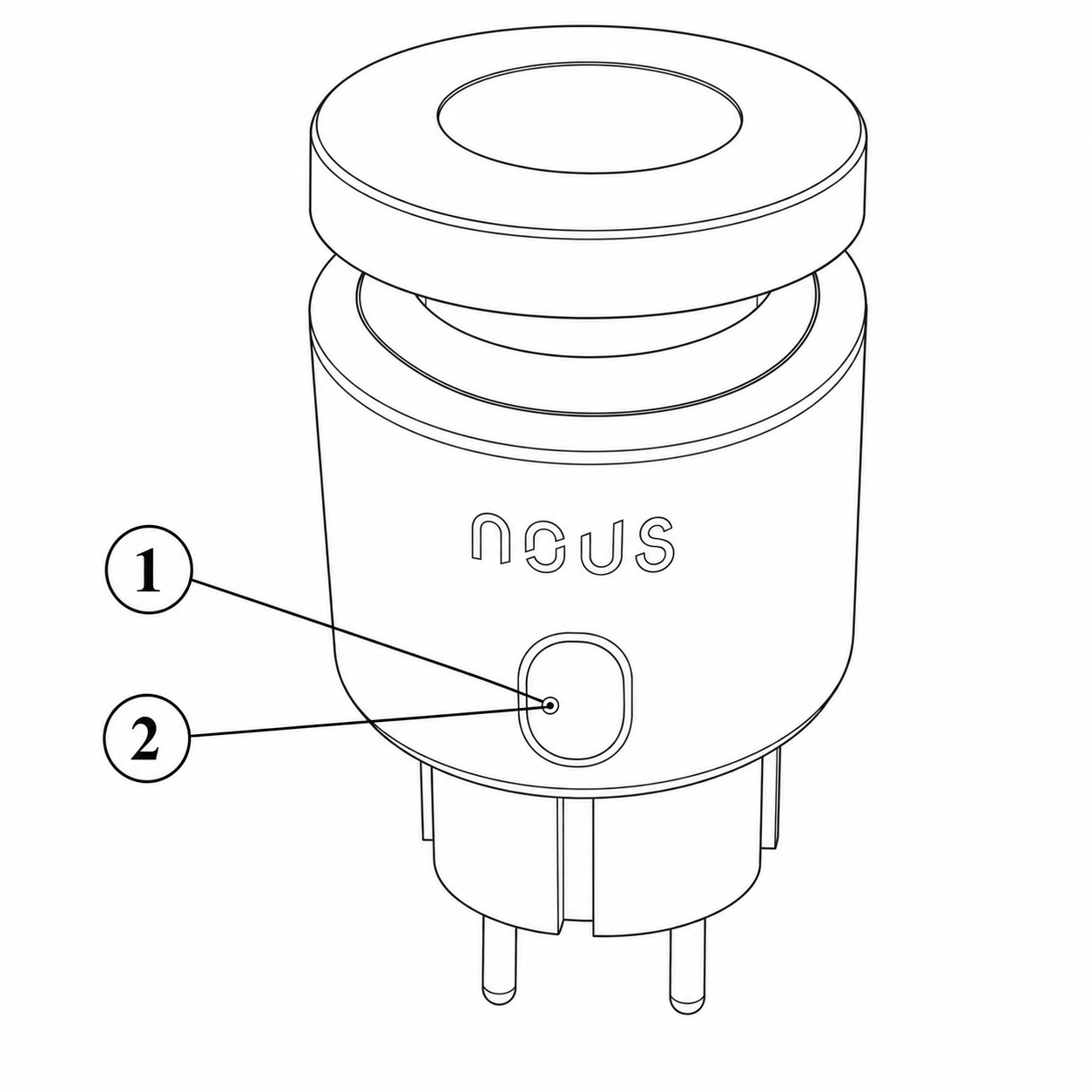 |
| NIE. | Nazwa | Opis |
| 1 | Przycisk | Krótkie naciśnięcie przycisku włącza lub wyłącza urządzenie. Długie naciśnięcie przycisku (5-7°C) resetuje ustawienia urządzenia i parametry połączenia sieciowego. |
| 2 | Wskaźnik | Pokazuje aktualny stan urządzenia |
OSTRZEŻENIE!
Wymagane koncentratory do połączenia przez Matter
1. W przypadku Google Home/Google Nest.
Potrzebujesz jednego z następujących urządzeń: Google Nest Hub (2. generacji lub nowszy), Google Nest Hub Max, Google Nest Mini/Google Home Mini (z zaktualizowanym oprogramowaniem układowym), Google Nest Audio, Google Nest Wifi Pro (router obsługujący Matter)
2. W przypadku Apple HomeKit
potrzebujesz jednego z następujących urządzeń: Apple HomePod (dowolnej generacji), Apple HomePod mini, Apple TV 4K (2022 lub nowszy z obsługą Thread),
3. W przypadku Amazon Alexa
potrzebujesz jednego z następujących urządzeń: Amazon Echo (4. generacji), Amazon Echo Dot (5. generacji), Amazon Echo Show 10 (3. generacji), Amazon Echo Studio, eero Pro 6 (router obsługujący Matter)
4. W przypadku Samsung SmartThings
potrzebujesz: SmartThings Hub (v3), SmartThings Station
2. DANE TECHNICZNE
WiFi Frequency: 2.4 GHz
Network Protocol: IEEE802.11 b/g/n
Output Power: 3680W
Rated Voltage: 100-240VAC
Rated Current: 16A
Working Temperature: -5°C ~ 40°C
Water resistance: IP44
Frequency range: 2.400 - 2.4835 GHz
Max.Transmit Power: 17 dBm
Dimensions: 56*50*84mm
3. SAFETY AND PRECAUTIONARY MEASURES
- Please read this manual carefully.
- Use the product within the temperature and humidity limits specified in the technical data sheet.
- Do not install the product near heat sources such as radiators, etc.
- Do not allow the device to fall or be subject to mechanical stress.
- Do not use chemically active or abrasive detergents to clean the product. Use a damp flannel cloth instead.
- Do not exceed the specified power rating. This may result in a short circuit and electric shock.
- Do not disassemble the product yourself - diagnostics and repairs of the device should only be carried out at a certified service center.
4. CONNECTION
To connect the Nous device, you need a smartphone based on the Android or iOS mobile operating system with the Nous Smart Home application installed. This mobile application is free and available for download from Play Market and App Store. The QR code for the application is given below:
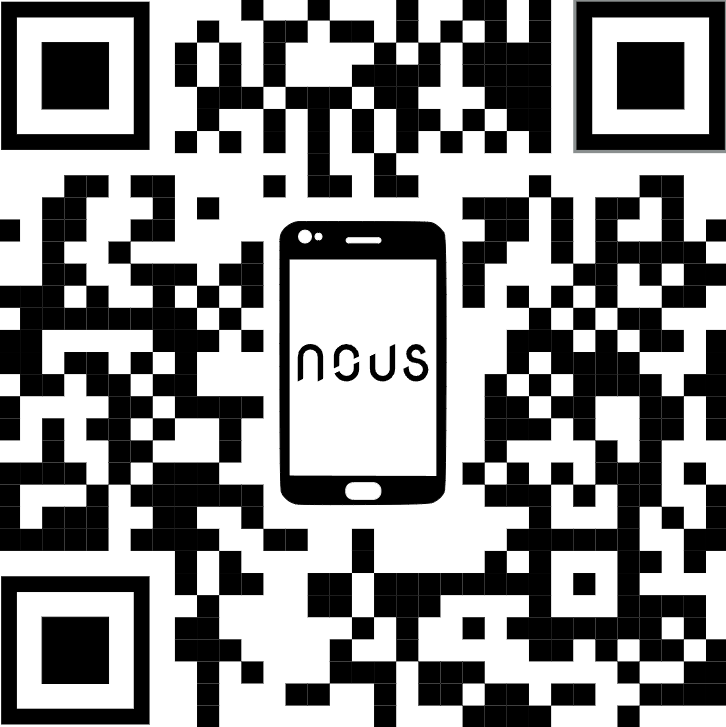 |
Scan the QR code
Importantly: Make sure that the Wi-Fi network is stable and has a sufficient level in the chosen installation location.
To connect your device to a Wi-Fi network:
| 1 | Connect your smartphone to the access point that will be used to connect the device. Make sure the network frequency range is 2.4 GHz, otherwise the device will not connect as it is not designed to work with 5 GHz Wi-Fi networks. | |
| 2 | Turn on the device. | |
| 3 | Open the Nous Smart Home app and click the add new device button. | |
| 4 |
An auto-scan will appear, prompting you to add a new device. Confirm the connection and start pairing. |
|
| 5 |
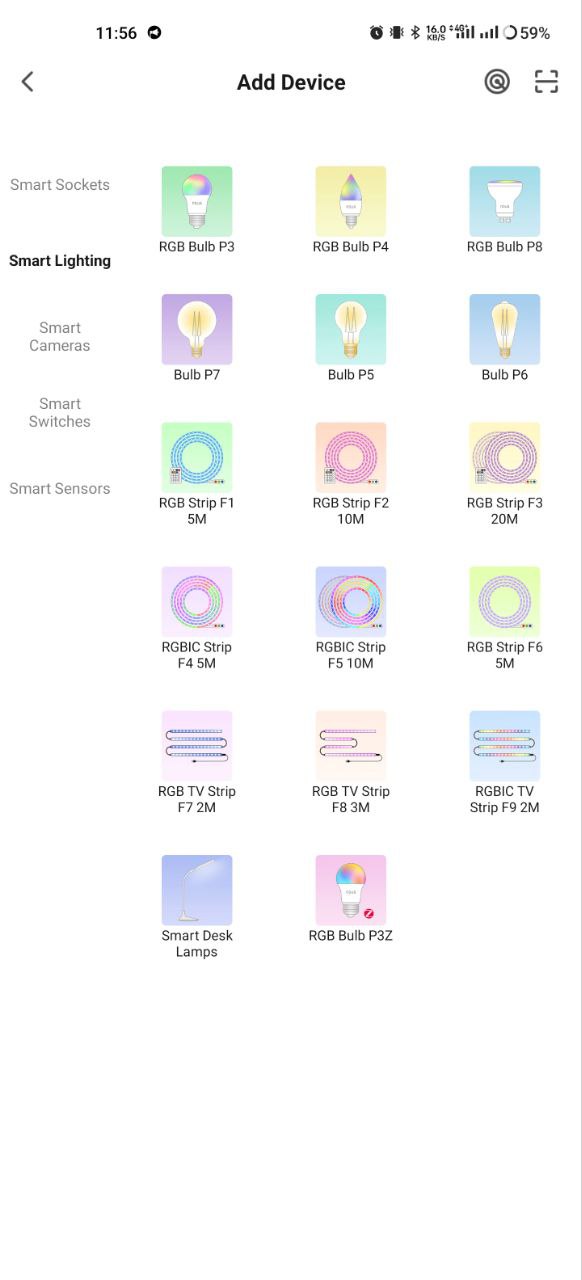
If auto-scan doesn't see your device, you can select it manually from the device list. |
|
 |
 |
|
| 6 | In the "Add manually" tab, select the "Smart sockets" category, and in it the model "A6M socket", as shown in the figure above; | |
| 7 | In the window that opens, select "next step" and click the "Next" button. | |
| 8 | In the next window, make sure that the name of the access point matches the required one, then enter the password for it in the line below and click the "Next" button. | |
 |
 |
|
| 9 | A window will appear indicating the degree of network connection and adding the current user of the application to the list of devices. | |
| 10 | Once the procedure is complete, a window will appear where you can name the device and select the room it is in. The device name will also be used by Amazon Alexa and Google Home. | |
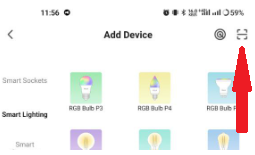
| 11 | Adding a device to the Nous Smart Home app using a QR code. | |
| 12 | In the "Add Manually" tab, select "Scan" as shown in the figure below. | |
 |
||
| 13 | Next, scan the QR code and wait for the device to appear in the app. | |
| 14 | Aby usunąć wszystkie dane z urządzenia, należy w menu urządzenia wybrać opcję „Usuń urządzenie”, „Wyłącz i usuń wszystkie dane”. | |
| Po usunięciu urządzenia z listy urządzeń użytkownika w aplikacji, ustawienia urządzenia zostaną przywrócone do ustawień fabrycznych i konieczne będzie ponowne przeprowadzenie procedury połączenia z siecią Wi-Fi. Jeśli hasło do punktu dostępowego Wi-Fi zostało wprowadzone nieprawidłowo, po upływie ustawionego czasu aplikacja wyświetli okno „Nie udało się połączyć z siecią Wi-Fi”, oferując instrukcje krok po kroku, jak rozwiązać problem. | ||
5. Połączenie za pomocą protokołu Matter (Google Home, Apple HomeKit, Alexa)
1. Google Home
-
Otwórz Google Home → „+” → „Dodaj urządzenie” .
-
Wybierz „Urządzenia protokołu Matter” .
-
Zeskanuj kod QR znajdujący się na żarówce lub wprowadź kod ręcznie.
-
Przypisz pokój → gotowe!
2. Apple HomeKit
-
Otwórz aplikację Dom → „+” → „Dodaj urządzenie” .
-
Skieruj kamerę na kod QR znajdujący się na żarówce.
-
Potwierdź dodanie → przypisz pokój.
3. Amazon Alexa (przez Matter)
-
Otwórz aplikację Alexa → „Urządzenia” → „+” → „Dodaj urządzenie” .
-
Wybierz „Matter” → „Skanuj urządzenia” .
-
Alexa znajdzie żarówkę → potwierdzi dodanie.
-
Przypisz nazwę i grupę (na przykład „Salon”).
Ważny!
-
Aby móc korzystać z platformy Matter, Twój hub musi być w tej samej sieci lokalnej co urządzenie.
-
Niektóre funkcje (np. zaawansowane scenariusze) mogą być dostępne wyłącznie za pośrednictwem natywnej aplikacji Nous Smart Home
-
Jeśli masz problemy z połączeniem, spróbuj:
-
Zrestartuj hub
-
Aktualizacja oprogramowania układowego Hub
-
Zresetuj urządzenie
-
Jeśli potrzebujesz dalszej pomocy, skontaktuj się z pomocą techniczną NOUS.