
NÁVOD NA POUŽITIE
1. POPIS
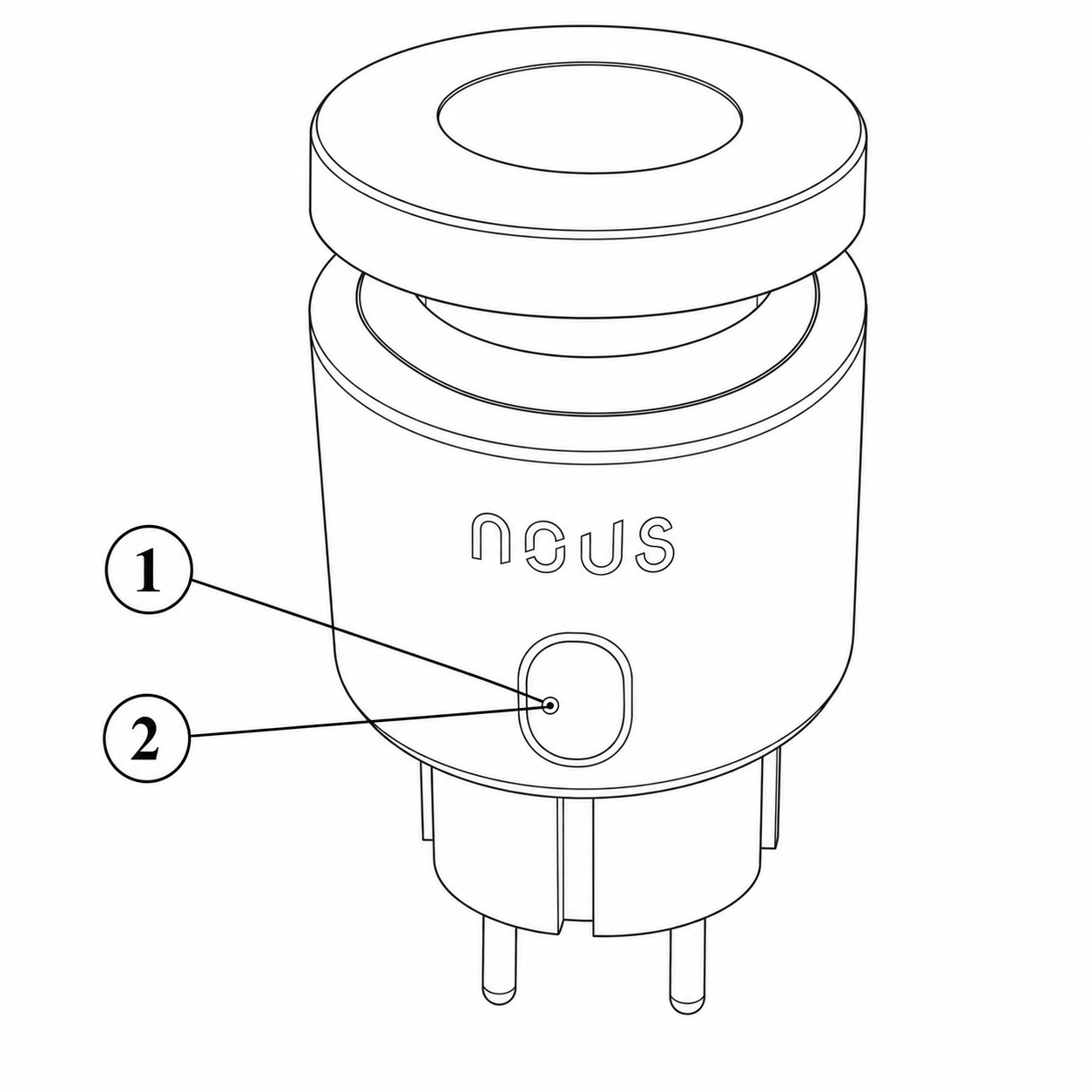 |
| Nie. | Meno | Popis |
| 1 | Tlačidlo | Krátkym stlačením tlačidla sa zariadenie „ZAPNIE“ alebo „VYPNIE“. Dlhým stlačením tlačidla (5-7 °C) sa vynulujú nastavenia zariadenia a parametre sieťového pripojenia. |
| 2 | Indikátor | Zobrazuje aktuálny stav zariadenia |
POZOR!
Požadované uzly pre pripojenie cez Matter
1. Pre Google Home/Google Nest.
Potrebujete jedno z týchto zariadení: Google Nest Hub (2. generácia alebo novší), Google Nest Hub Max, Google Nest Mini/Google Home Mini (s aktualizovaným firmvérom), Google Nest Audio, Google Nest Wifi Pro (router s podporou Matter).
2. Pre Apple HomeKit
Potrebujete jedno z týchto zariadení: Apple HomePod (ľubovoľná generácia), Apple HomePod mini, Apple TV 4K (2022 alebo novší s podporou Thread).
3. Pre Amazon Alexa
Potrebujete jedno z týchto zariadení: Amazon Echo (4. generácia), Amazon Echo Dot (5. generácia), Amazon Echo Show 10 (3. generácia), Amazon Echo Studio, eero Pro 6 (router s podporou Matter).
4. Pre Samsung SmartThings
Potrebujete: SmartThings Hub (v3), SmartThings Station.
2. TECHNICKÉ CHARAKTERISTIKY
WiFi Frequency: 2.4 GHz
Network Protocol: IEEE802.11 b/g/n
Output Power: 3680W
Rated Voltage: 100-240VAC
Rated Current: 16A
Working Temperature: -5°C ~ 40°C
Water resistance: IP44
Frequency range: 2.400 - 2.4835 GHz
Max.Transmit Power: 17 dBm
Dimensions: 56*50*84mm
3. SAFETY AND PRECAUTIONARY MEASURES
- Please read this manual carefully.
- Use the product within the temperature and humidity limits specified in the technical data sheet.
- Do not install the product near heat sources such as radiators, etc.
- Do not allow the device to fall or be subject to mechanical stress.
- Do not use chemically active or abrasive detergents to clean the product. Use a damp flannel cloth instead.
- Do not exceed the specified power rating. This may result in a short circuit and electric shock.
- Do not disassemble the product yourself - diagnostics and repairs of the device should only be carried out at a certified service center.
4. CONNECTION
To connect the Nous device, you need a smartphone based on the Android or iOS mobile operating system with the Nous Smart Home application installed. This mobile application is free and available for download from Play Market and App Store. The QR code for the application is given below:
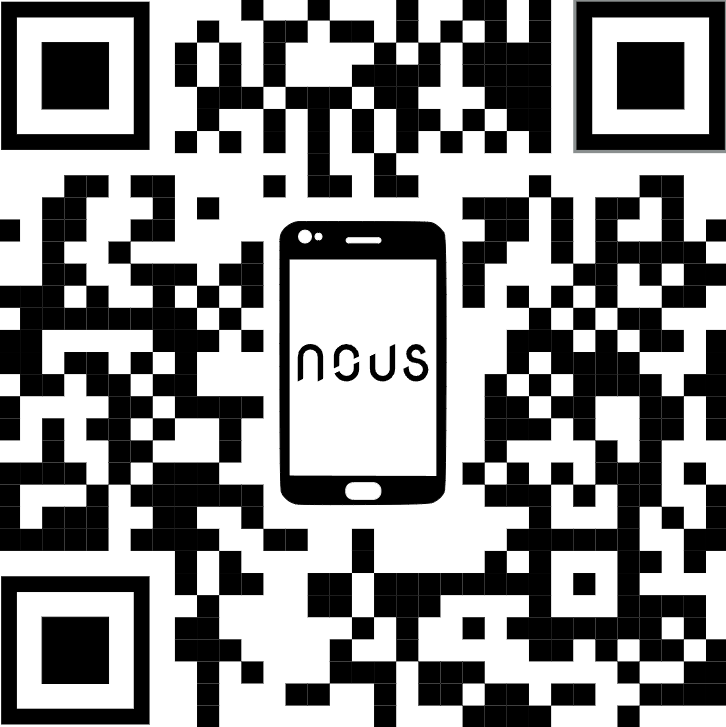 |
Scan the QR code
Importantly: Make sure that the Wi-Fi network is stable and has a sufficient level in the chosen installation location.
To connect your device to a Wi-Fi network:
| 1 | Connect your smartphone to the access point that will be used to connect the device. Make sure the network frequency range is 2.4 GHz, otherwise the device will not connect as it is not designed to work with 5 GHz Wi-Fi networks. | |
| 2 | Turn on the device. | |
| 3 | Open the Nous Smart Home app and click the add new device button. | |
| 4 |
An auto-scan will appear, prompting you to add a new device. Confirm the connection and start pairing. |
|
| 5 |
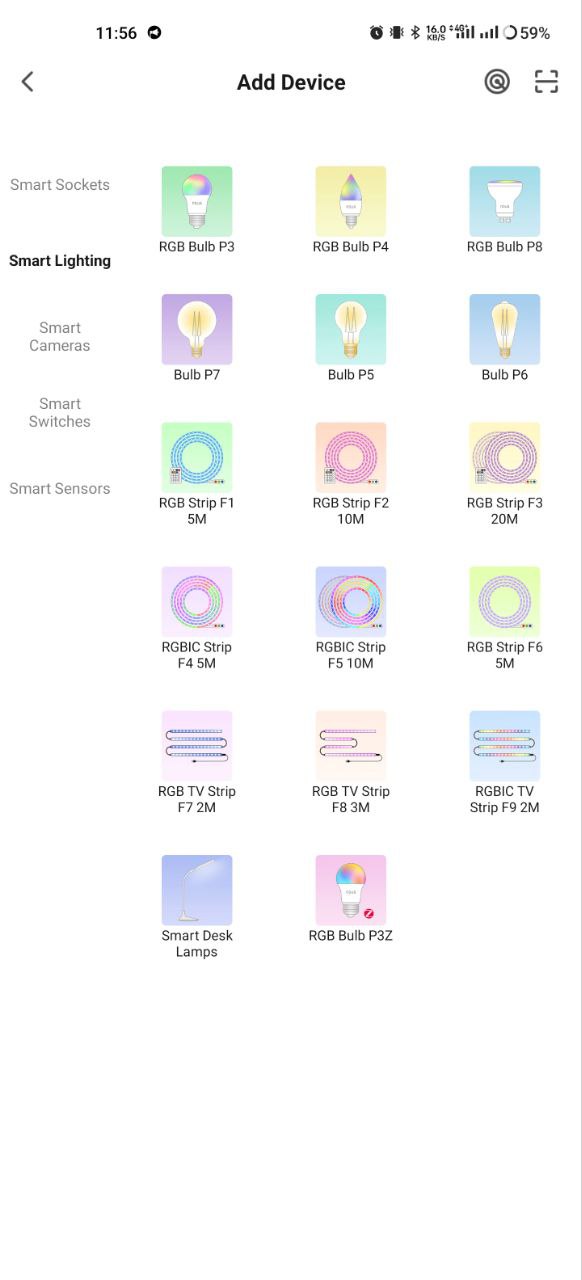
If auto-scan doesn't see your device, you can select it manually from the device list. |
|
 |
 |
|
| 6 | In the "Add manually" tab, select the "Smart sockets" category, and in it the model "A6M socket", as shown in the figure above; | |
| 7 | In the window that opens, select "next step" and click the "Next" button. | |
| 8 | In the next window, make sure that the name of the access point matches the required one, then enter the password for it in the line below and click the "Next" button. | |
 |
 |
|
| 9 | A window will appear indicating the degree of network connection and adding the current user of the application to the list of devices. | |
| 10 | Once the procedure is complete, a window will appear where you can name the device and select the room it is in. The device name will also be used by Amazon Alexa and Google Home. | |
| 11 | Adding a device to the Nous Smart Home app using a QR code. | |
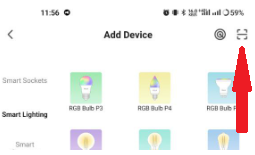
| 12 | In the "Add Manually" tab, select "Scan" as shown in the figure below. | |
 |
||
| 13 | Next, scan the QR code and wait for the device to appear in the app. | |
| 14 | Ak chcete zo zariadenia odstrániť všetky údaje, musíte v ponuke zariadenia vybrať možnosť „Odstrániť zariadenie“, „Vypnúť a odstrániť všetky údaje“. | |
| Keď je zariadenie odstránené zo zoznamu zariadení používateľa v aplikácii, nastavenia zariadenia sa obnovia na výrobné nastavenia a budete musieť znova prejsť procesom pripojenia k sieti Wi-Fi. Ak bolo heslo pre prístupový bod Wi-Fi zadané nesprávne, aplikácia po uplynutí časovača zobrazí okno „Nepodarilo sa pripojiť k sieti Wi-Fi“ s podrobnými pokynmi na vyriešenie problému. | ||
5. Pripojenie cez protokol Matter (Google Home, Apple HomeKit, Alexa)
1. Domovská stránka Google
-
Otvorte Domovskú stránku Google → „+“ → „Pridať zariadenie“ .
-
Vyberte možnosť „Zariadenia s protokolom hmoty“ .
-
Naskenujte QR kód na žiarovke alebo zadajte kód manuálne.
-
Prideliť miestnosť → hotovo!
2. Apple HomeKit
-
Otvorte aplikáciu Domácnosť → „+“ → „Pridať zariadenie“ .
-
Namierte fotoaparát na QR kód na žiarovke.
-
Potvrdiť pridanie → priradiť miestnosť.
3. Amazon Alexa (prostredníctvom spoločnosti Matter)
-
Otvorte aplikáciu Alexa → „Zariadenia“ → „+“ → „Pridať zariadenie“ .
-
Vyberte „Hmotnosť“ → „Vyhľadať zariadenia“ .
-
Alexa nájde žiarovku → potvrdí pridanie.
-
Priraďte názov a skupinu (napríklad „Obývačka“).
Dôležité!
-
Aby váš hub fungoval cez Matter, musí byť v rovnakej lokálnej sieti ako zariadenie.
-
Niektoré funkcie (napr. pokročilé scenáre) môžu byť dostupné iba prostredníctvom natívnej aplikácie Nous Smart Home.
-
Ak máte problémy s pripojením, skúste:
-
Reštartujte rozbočovač
-
Aktualizácia firmvéru hubu
-
Resetovať zariadenie
-
Pre ďalšiu pomoc kontaktujte podporu NOUS.