
OPERATING MANUAL A7 / A7M
1. DESCRIPTION
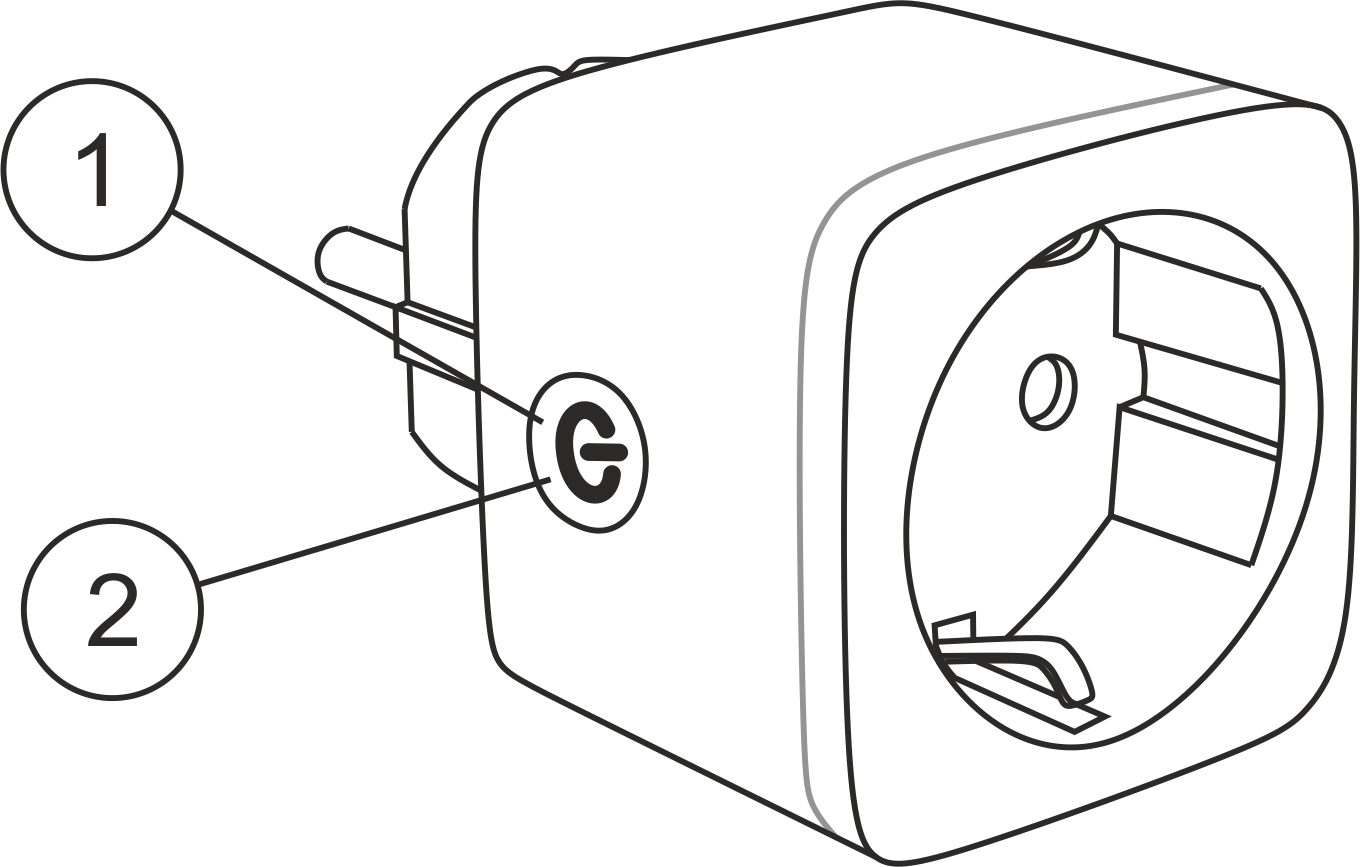 |
| № | Name | Description |
| 1 | Button | A short press of the button switches the device "ON" "OFF". A long press of the button (5-7 C) resets the device settings and network connection parameters. |
| 2 | Indicator | Shows the current state of the device |
WARNING!
Required hubs for connection via Matter (only for A7M)
1. For Google Home/Google Nest.
You need one of these devices: Google Nest Hub (2nd generation or later), Google Nest Hub Max, Google Nest Mini/Google Home Mini (with updated firmware), Google Nest Audio, Google Nest Wifi Pro (Matter-enabled router)
2. For Apple HomeKit
You need one of these devices: Apple HomePod (any generation), Apple HomePod mini, Apple TV 4K (2022 or later with Thread support),
3. For Amazon Alexa
You need one of these devices: Amazon Echo (4th generation), Amazon Echo Dot (5th generation), Amazon Echo Show 10 (3rd generation), Amazon Echo Studio, eero Pro 6 (Matter-enabled router)
4. For Samsung SmartThings
Need: SmartThings Hub (v3), SmartThings Station
2. TECHNICAL CHARACTERISTICS
WiFi Frequency: 2.4 GHz
Network Protocol: IEEE802.11 b/g/n
Output Power: 3680W
Rated Voltage: 100-240VAC
Rated Current: 16A
Working Temperature: -5°C ~ 40°C
Frequency range: 2.400 - 2.4835 GHz
Max.Transmit Power: 17 dBm
Dimensions: 50*56*83mm
3. SAFETY AND PRECAUTIONARY MEASURES
- Please read this manual carefully.
- Use the product within the temperature and humidity limits specified in the technical data sheet.
- Do not install the product near heat sources such as radiators, etc.
- Do not allow the device to fall or be subject to mechanical stress.
- Do not use chemically active or abrasive detergents to clean the product. Use a damp flannel cloth instead.
- Do not exceed the specified power rating. This may result in a short circuit and electric shock.
- Do not disassemble the product yourself - diagnostics and repairs of the device should only be carried out at a certified service center.
4. CONNECTION
To connect the Nous device, you need a smartphone based on the Android or iOS mobile operating system with the Nous Smart Home application installed. This mobile application is free and available for download from Play Market and App Store. The QR code for the application is given below:
 |
Scan the QR code
Importantly: Make sure that the Wi-Fi network is stable and has a sufficient level in the chosen installation location.
To connect your device to a Wi-Fi network:
| 1 | Connect your smartphone to the access point that will be used to connect the device. Make sure the network frequency range is 2.4 GHz, otherwise the device will not connect as it is not designed to work with 5 GHz Wi-Fi networks. | |
| 2 | Turn on the device. | |
| 3 | Open the Nous Smart Home app and click the add new device button. | |
| 4 |
An auto-scan will appear, prompting you to add a new device. Confirm the connection and start pairing. |
|
| 5 |
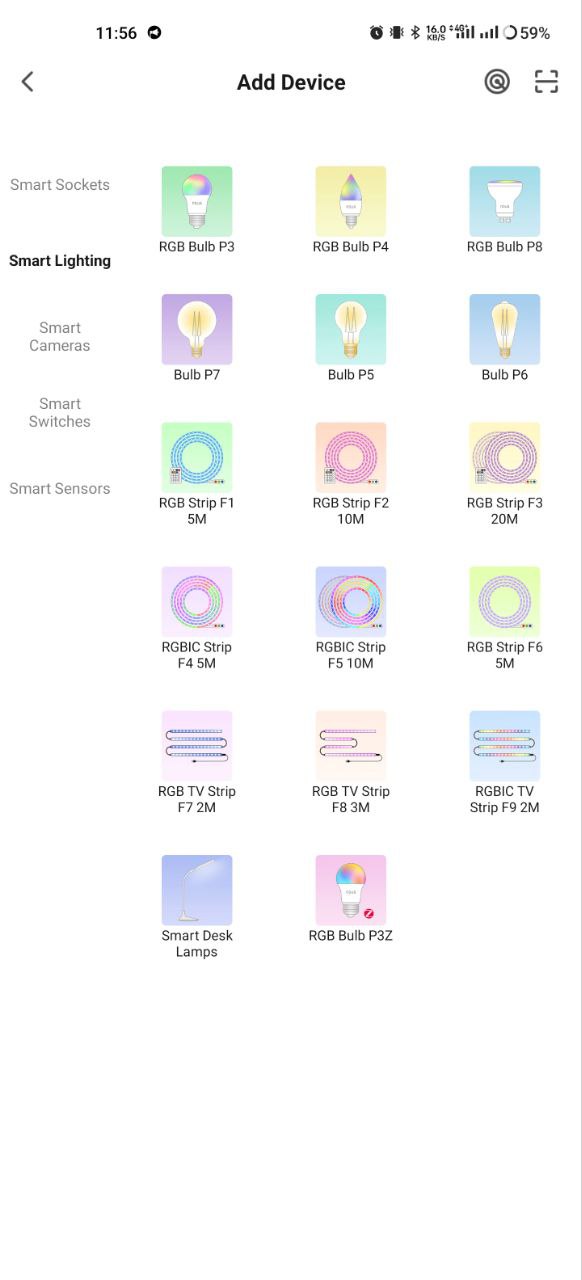
If auto-scan doesn't see your device, you can select it manually from the device list. |
|
 |
 |
|
| 6 | In the "Add manually" tab, select the "Smart sockets" category, and in it the model "A7 socket" / "A7M socket", as shown in the figure above; | |
| 7 | In the window that opens, select "next step" and click the "Next" button. | |
| 8 | In the next window, make sure that the name of the access point matches the required one, then enter the password for it in the line below and click the "Next" button. | |
 |
 |
|
| 9 | A window will appear indicating the degree of network connection and adding the current user of the application to the list of devices. | |
| 10 | Once the procedure is complete, a window will appear where you can name the device and select the room it is in. The device name will also be used by Amazon Alexa and Google Home. | |
| 11 | Adding a device to the Nous Smart Home app using a QR code (only for A7M) | |
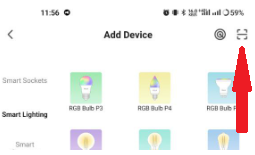
| 12 | In the "Add Manually" tab, select "Scan" as shown in the figure below (only for A7M) | |
 |
||
| 13 | Next, scan the QR code and wait for the device to appear in the app. (only for A7M) | |
| 14 | To delete all data from the device, you need to "Delete device", "turn off and delete all data" in the device menu. | |
| When a device is removed from the user's device list in the application, the device settings are reset to factory settings and you will need to go through the Wi-Fi connection procedure again. If the password for the Wi-Fi access point was entered incorrectly, the application will display a "Failed to connect to Wi-Fi" window after the timer expires, offering step-by-step steps to resolve the issue. | ||
5. Connection via Matter protocol (Google Home, Apple HomeKit, Alexa) - only for A7M
- Google Home
-
Open Google Home → "+" → "Add device" .
-
Select "Matter Protocol Devices" .
-
Scan the QR code on the light bulb or enter the code manually.
-
Assign a room → done!
- Apple HomeKit
-
Open the Home app → "+" → "Add device" .
-
Point the camera at the QR code on the light bulb.
-
Confirm addition → assign room.
- Amazon Alexa (via Matter)
-
Open the Alexa app → "Devices" → "+" → "Add Device" .
-
Select "Matter" → "Scan for devices" .
-
Alexa will find the light bulb → confirm the addition.
-
Assign a name and group (for example, "Living Room").
Importantly!
-
To work through Matter, your hub must be on the same local network as the device.
-
Some features (e.g. advanced scenarios) may only be available through the native Nous Smart Home app
-
If you are having connection problems, try:
-
Reboot the hub
-
Update hub firmware
-
Reset device
-
For further assistance, please contact NOUS support.