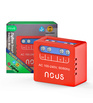
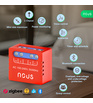
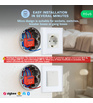


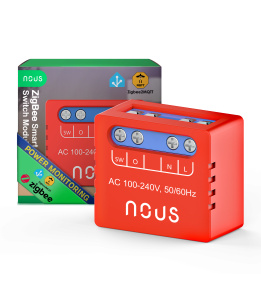
Nous B5Z ZigBee MINI Smart Switch Module (1 channel, with PM)
| Main settings | |
|---|---|
| Material | PC+ABS3250 |
| Brand | NOUS |
| Certificate | CE, RoHS |
| Compatibility | Requires zigbee 3.0 hub/gateway |
| Special features | Power meter: Yes, Channels: 1 |
| Other | |
| Warranty | 24 months |
| Comes in the box | module, manual |
| Network | |
| Protocol | Zigbee 3.0 |
| Communication standard | IEEE 802.15.4 |
| Control from a smartphone | NOUS smart, Tuya smart life app, Home Assistant, etc |
| Frequency range: | 2.400~2.483GHz |
| Max.Transmit Power | 10 dBm |
| Compatibility with voice assistants | Amazon Alexa, Google Assistant, SmartThings, Siri Shortcuts |
| Specifications | |
| Device weight | 21g |
| Device dimensions | 29*34*17mm |
| Operating voltage range | 100-240V AC, 50/60Hz |
| Operating temperature | -20°C ~ 40°C |
| Maximum load | 8A, 2000W, 100-240V AC |
OPERATING MANUAL
1. DESCRIPTION
The NOUS B5Z (hereinafter - the switch) is designed to organize automatic and manual shutdown of electrical appliances in the room, through remote access via the Internet, using a smartphone or tablet with the Nous Smart Home application installed. Communication with the switch is configured through a remote server using the P2P protocol, for which a wireless ZigBee adapter is used.
The switch is equipped with a mechanical button and a global indication of the device status. The device is equipped with an electromechanical relay.
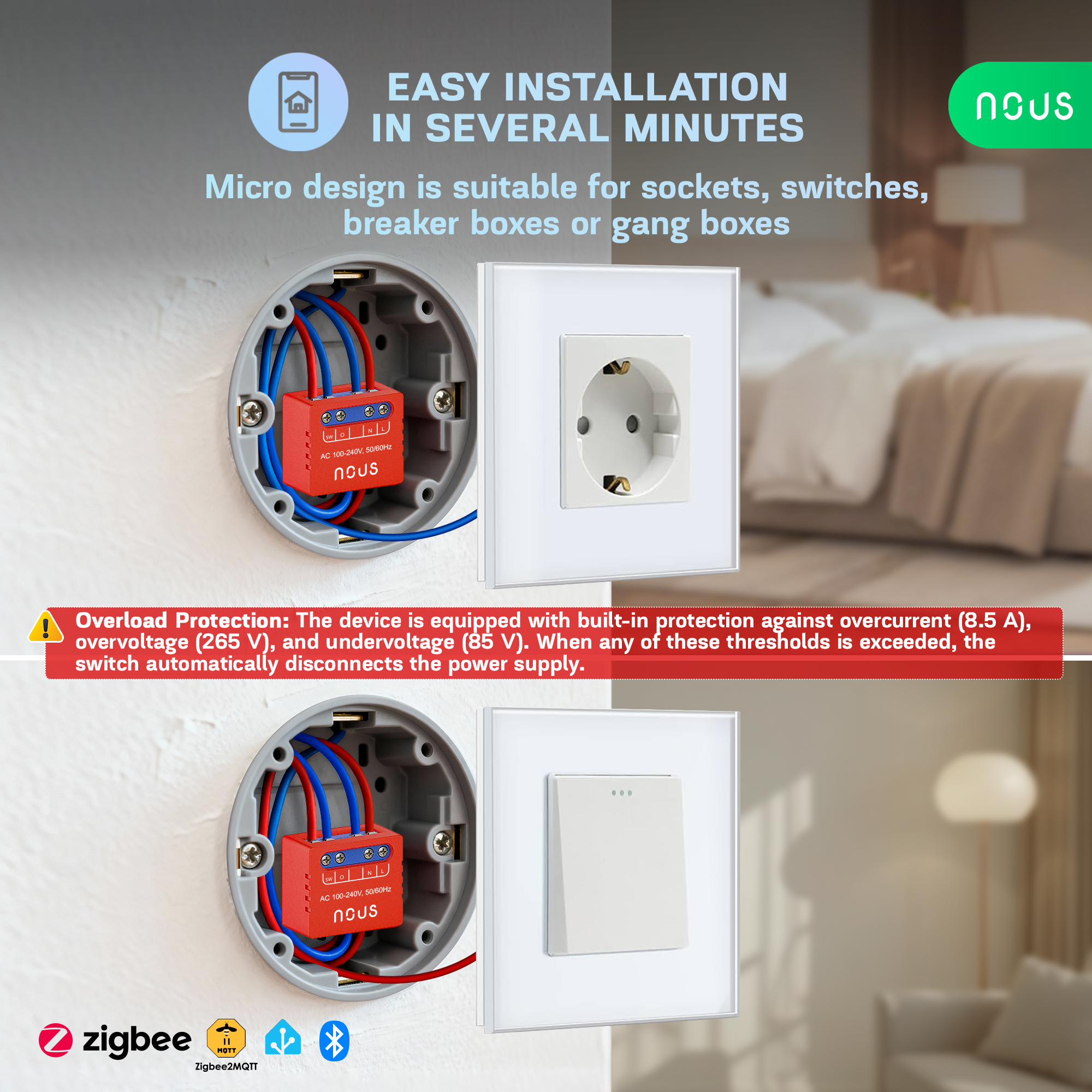
It is intended for installation behind a wall switch or inside a mounting/junction box where space is limited, allowing you to make almost any switch or socket «smart» and integrate it into a Zigbee ecosystem. Zigbee 3.0 provides reliable wireless communication, low power consumption (up to 1 W), and support for mesh networking.
IMPORTANT: You will need a Nous E1, Nous E7, Nous E15 or other Tuya compatible ZigBee gateway/hub to connect.
The connection of a switch to the Internet cannot be guaranteed in all cases, as it depends on many conditions: the quality of the communication channel and intermediate network equipment, the make and model of the mobile device, the version of the operating system, etc. (and may not always depend on the proper functioning of the switch or the ZigBee gateway/hub).
DEVICE FEATURES:
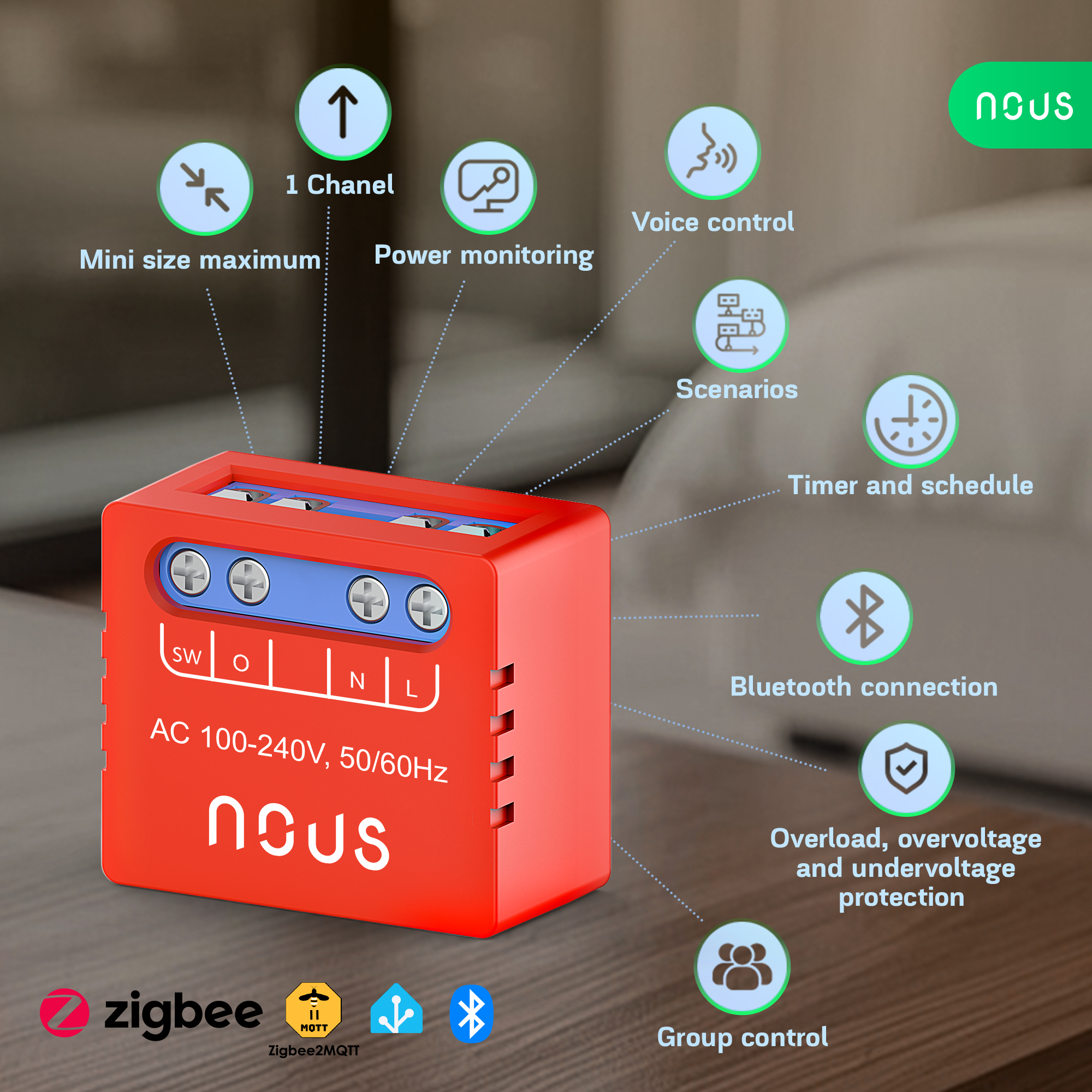
- Single channel (1 channel, with PM)
- Bluetooth control. After successful pairing of the app and the switch, even if the phone and the switch are offline, you can turn the smart switch on/off via the app at a distance of up to 10 meters.
- Manual control of the module. The module can be turned on/off by pressing the button on the housing. This allows you to check system operation immediately after installation.
- Group control. Multiple modules can be configured for group control, allowing you to control several devices with a single tap.
- Power-off memory function. Allows the device to save and restore previous settings after a power outage or sudden power loss. You can set the behavior to OFF, ON, or Restore in the app.
- Overload protection. Built-in protection against overcurrent (8.5 A), overvoltage (265 V), and undervoltage (85 V). If these limits are exceeded, the switch will automatically shut off the power.
2. TECHNICAL CHARACTERISTICS
|
Model |
NOUS B5Z |
|
Channel |
1 |
|
Power meter |
Yes |
|
Network |
Zigbee 3.0, 802.15.4 |
|
Frequency Range |
2400-2483 MHz |
|
Max. Transmit Power |
10 dBm |
|
Output Power |
Max. Current: 8A, Power: 2000W, AC Voltage: 100-240V. |
|
Input Power |
100-240 V AC, 50/60 Hz |
|
Standby Power Consumption |
<1 W |
|
Overload protection |
Yes (>8.5 A; >265 V, <85 V) |
|
Security |
WAP/WAP2, WEP/TKIP/AES |
|
Encryption |
WEP/TKIP/AES |
|
Working Temperature |
-20°C ~ 40°C |
|
Product size and Weight |
29*34*17 mm, 21 g |
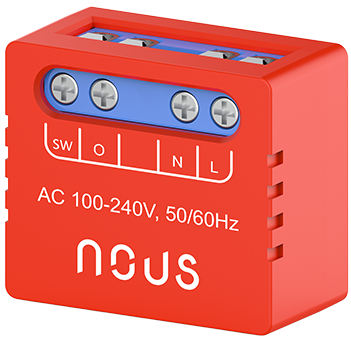
3. CONNECTION DIAGRAM AND OPERATION OF THE DEVICE
|
|
SW |
Switch (controlling «O») input terminal |
|
O |
Load circuit output terminal |
|
|
L |
Live terminal (110-240V) |
|
|
N |
Neutral terminal |
Connection types
|
|
1. With one switch (regular light) |
|
|
2. With two switches (staircase lighting circuit) |
|
|
3. Without a switch (socket) |
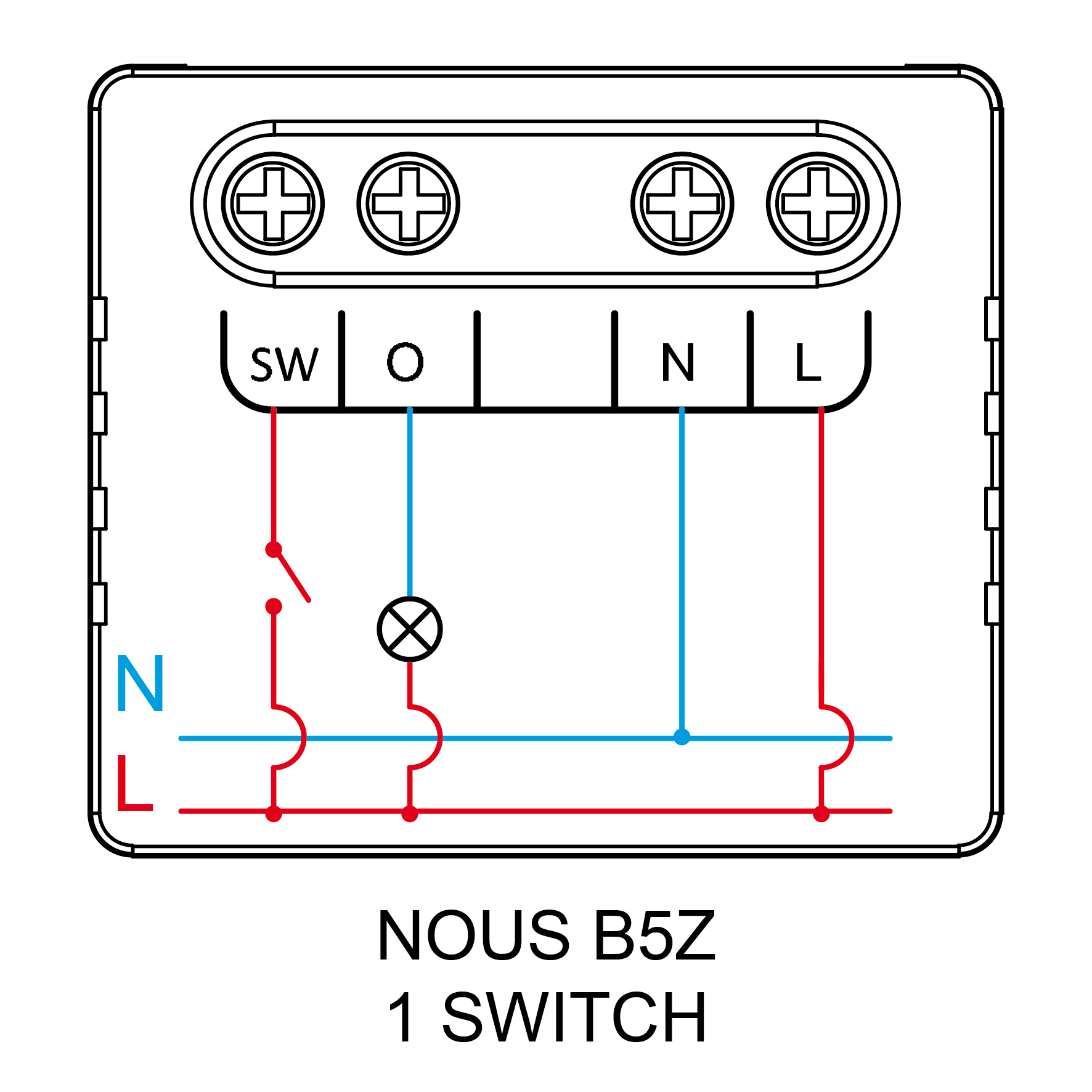
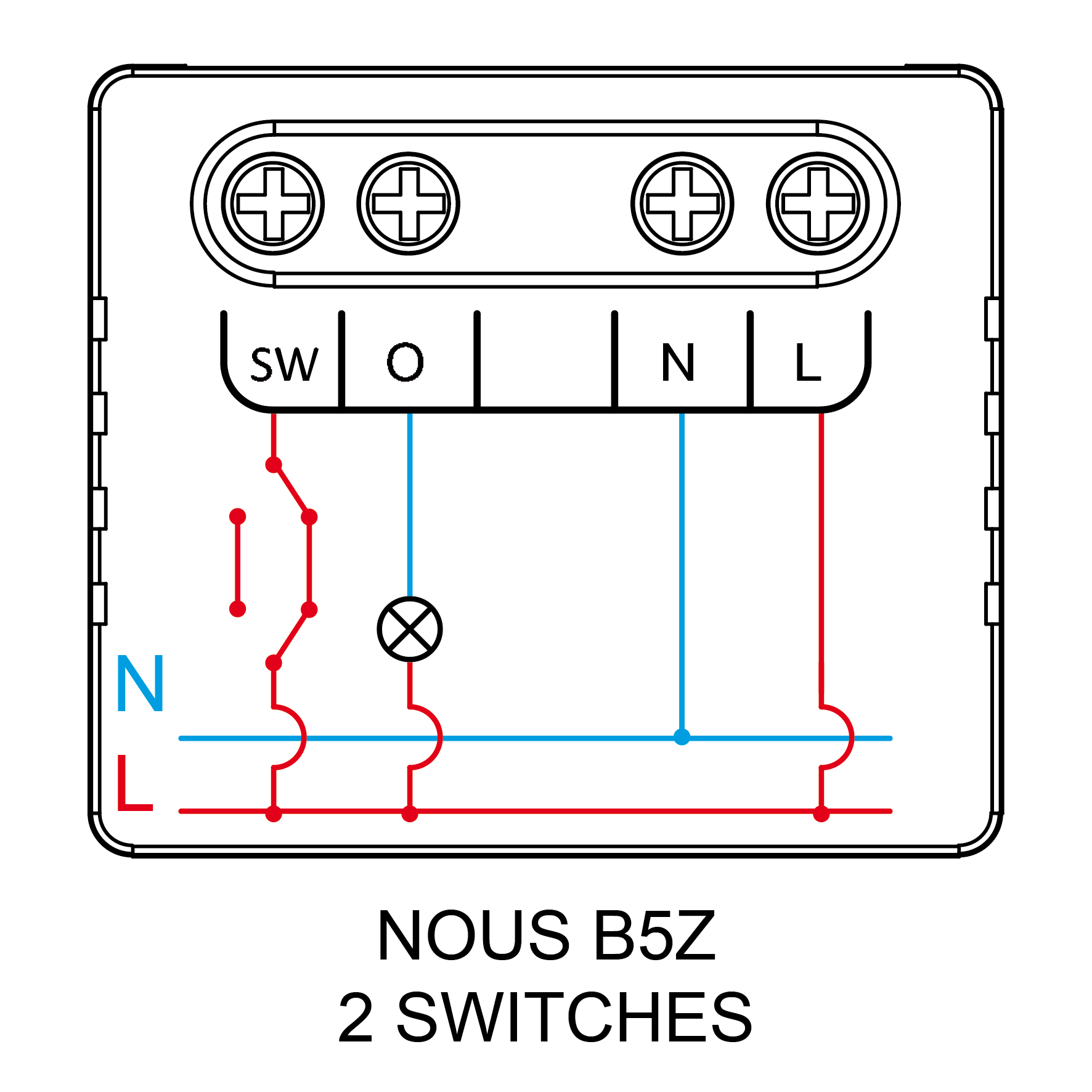
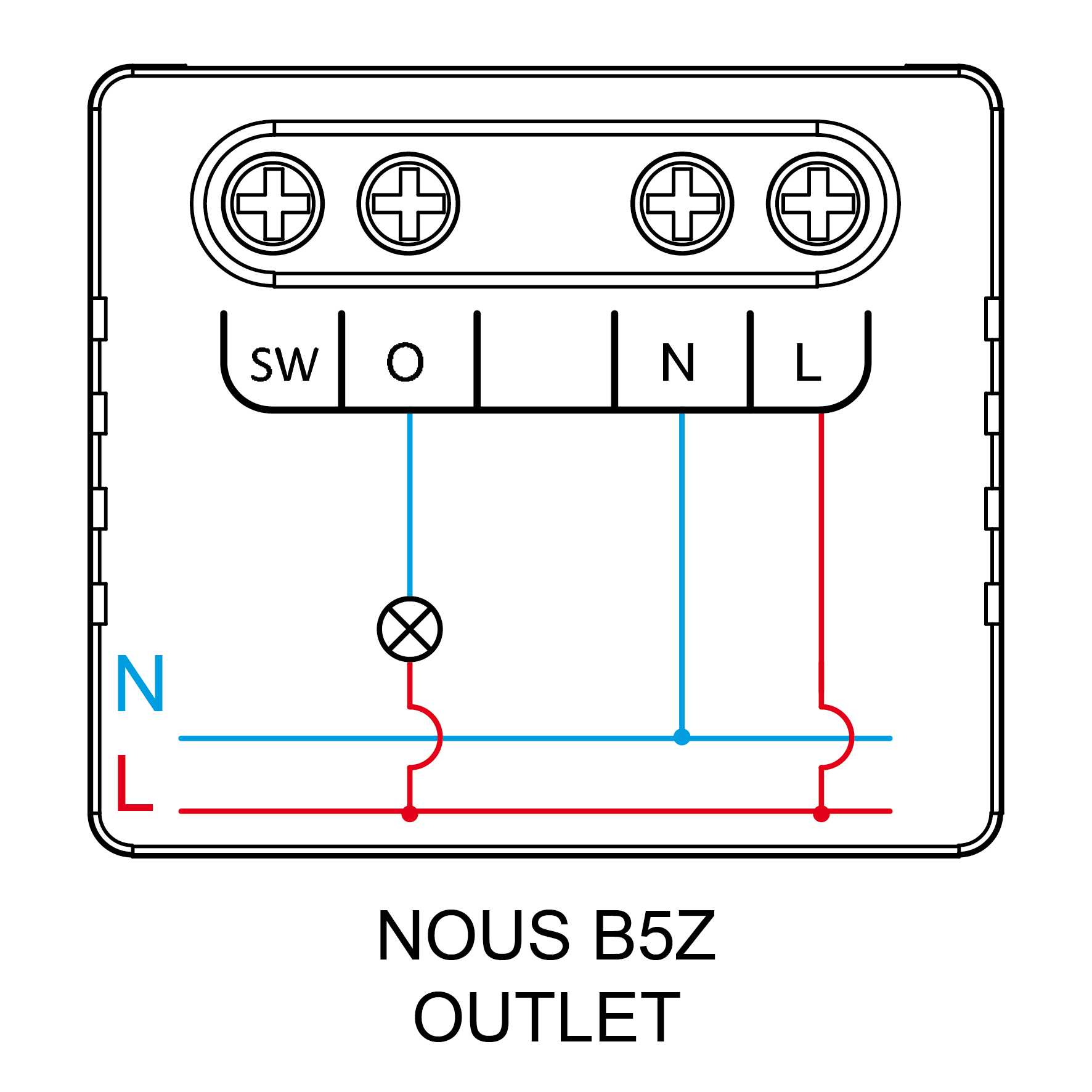
Connection types - analog connection, Live wire (Phase) disconnect
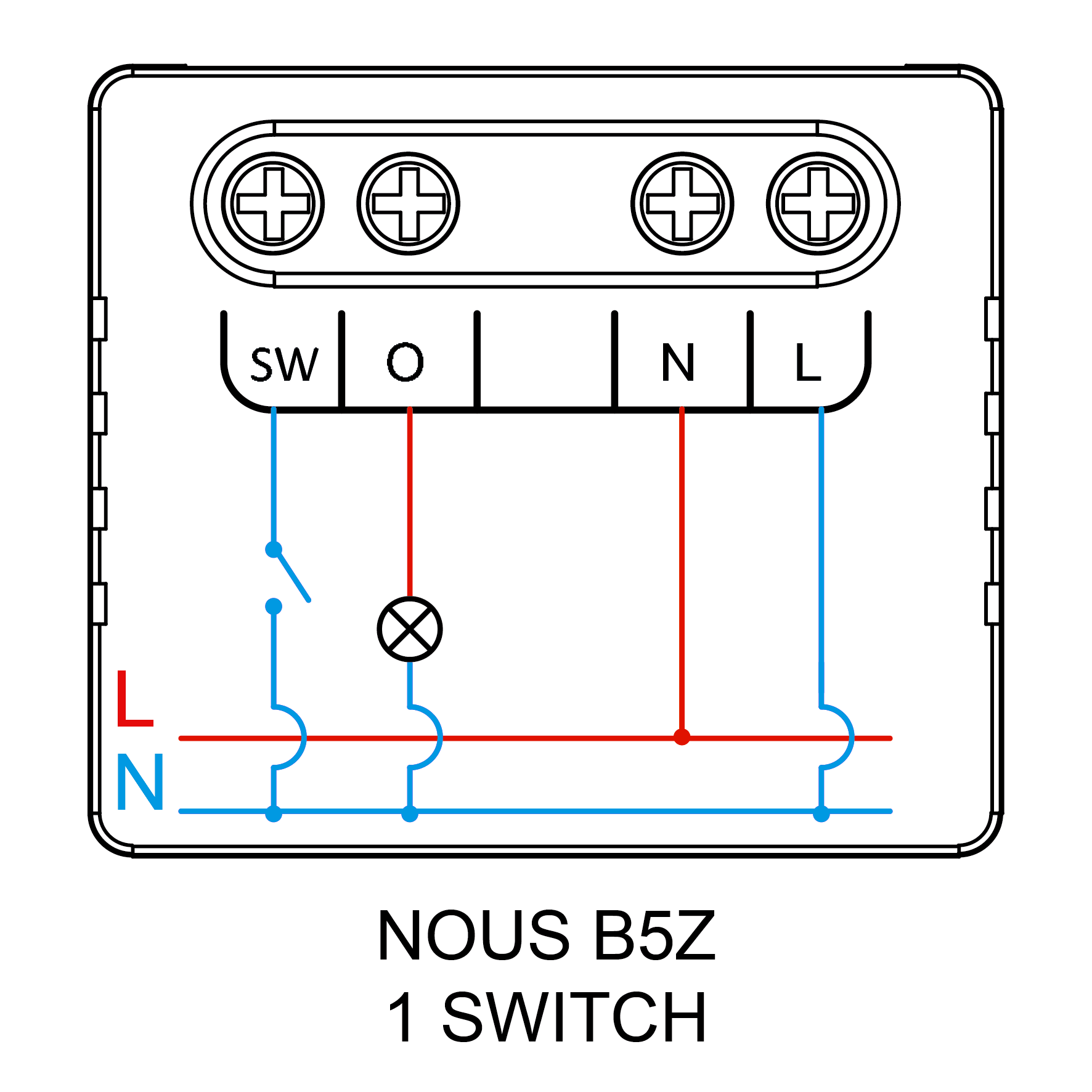 |
1. With one switch (regular light) |
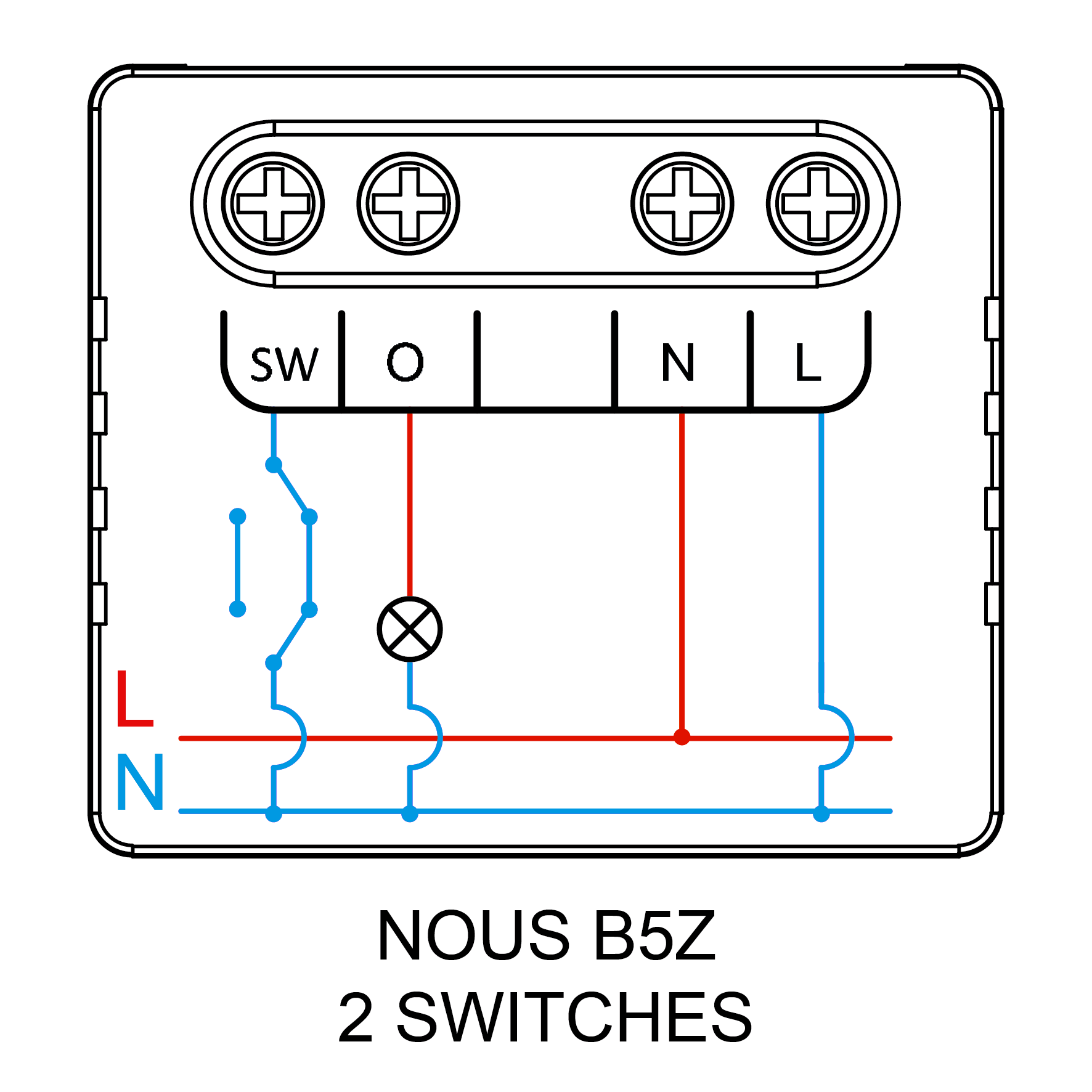 |
2. With two switches (staircase lighting circuit) |
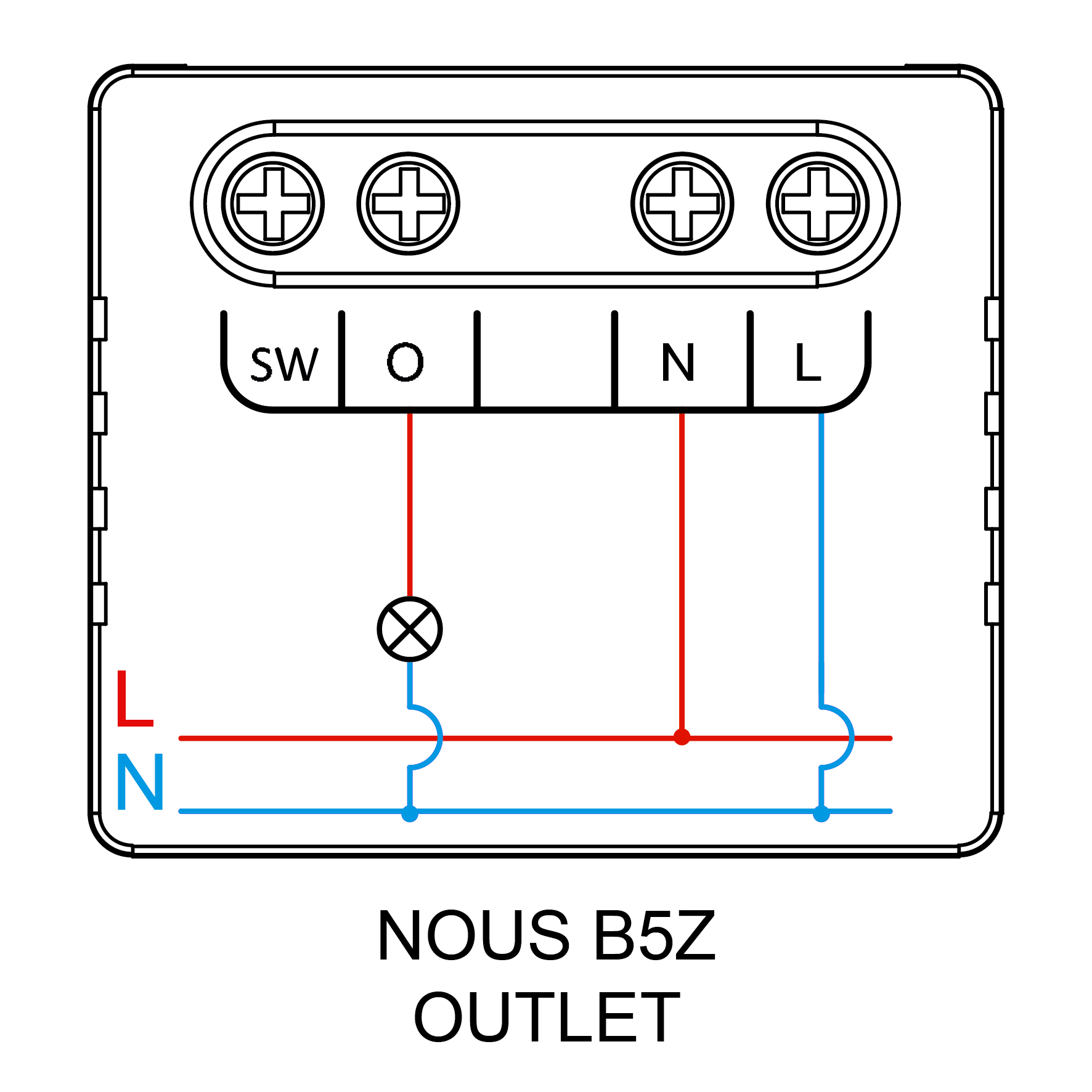 |
3. Without a switch (socket) |
4. SAFETY AND PRECAUTIONARY MEASURES
- Please read this manual carefully.
- Use the product within the temperature and humidity limits specified in the technical data sheet.
- Do not install the product near heat sources such as radiators, etc.
- Do not allow the device to fall or be subject to mechanical stress.
- Do not use chemically active or abrasive detergents to clean the product. Use a damp flannel cloth instead.
- Do not exceed the specified power rating. This may result in a short circuit and electric shock.
- Do not disassemble the product yourself - diagnostics and repairs of the device should only be carried out at a certified service center.
5. CONNECTION
To connect the Nous device, you need a smartphone based on the Android or iOS mobile operating system with the Nous Smart Home application installed. This mobile application is free and available for download from Play Market and App Store. The QR code for the application is given below:

After installing the program, for its correct operation, it is necessary to grant it all permissions in the corresponding section of the smartphone settings. Then you need to register a new user of this program.
The procedure for connecting the device to the Zigbee network:
| 1 | Connect the smartphone to the access point that will be used to connect the device (your ZigBee hub should already be connected to the app). Make sure the network frequency range is 2.4 GHz, otherwise the device will not connect, as Zigbee Habs are not designed to work with 5 GHz Wi-Fi networks (Nous E15 ZigBee hub is universal and works at 2.4/5 GHz) | |
| 2 | Connect the device to the network. If the global indication does not flash quickly, then press the button for 5-7 seconds to reset the smart outlet settings to factory values. | |
| 3 | Open the Nous Smart Home app and click the button to add a new device | |
| 4 |
An autoscan will appear, prompting you to add a new device. Confirm the connection and start pairing. |
|
| 5 |
If autoscan doesn't see your device, you can select it manually from the list of devices |
|
 |
.jpg) |
|
| 6 | In the "Add Manually" tab, select the "Smart Switches" category, and in it the "Nous B5Z" model, as shown in the figure above; | |
| 7 | In the window that opens, select "next step" and click the "Next" button; | |
| 8 | Connection to the Zigbee hub | |
 |
 |
|
| 8 | A window will appear indicating the degree of network connection and adding the current user of the program to the list of devices: | |
| 9 | After the procedure, a window will appear in which you can set the name of the device and choose the room in which it is located. The device name will also be used by Amazon Alexa and Google Home. | |
| 10 | To delete all data from the smart socket, in the device menu, you need "Delete device", "disabled and delete all data" | |
| When the device is removed from the device list of the application user, the settings of the smart socket will be reset to factory values and it will be necessary to shorten the procedure of connecting to the Wi-Fi network again. If the password for the Wi-Fi access point was entered incorrectly, then after the timer expires, a "failed to connect to Wi-Fi" window appears in the application with step-by-step instructions to fix the problem. | ||
How to connect your device to Alexa:
| 1 |
Sign in with your Alexa account and password (if you're not already signed in, sign up first); After logging in, click the menu in the upper left corner, then click "Settings" and select "Set up a new device"; |
|
| 2 |
Select "Skills" in the options bar, then search for |
|
| 3 |
Enter the username and password you previously registered (the account is only supported in the United States); When you see the correct page, it means that your Alexa account is linked to your NOUS Smart Home account. |
|
 |
 |
|
| 4 |
Device discovery: Users must tell Echo, |
|
| 5 |
List of support skills |
|
| Attention: the name of the device must match the NOUS Smart Home APP. | ||
BEDIENUNGSANLEITUNG
1. BESCHREIBUNG
Der NOUS B5Z (im Folgenden: der Schalter) dient der automatischen und manuellen Abschaltung elektrischer Geräte im Raum per Fernzugriff über das Internet mithilfe eines Smartphones oder Tablets mit installierter Nous Smart Home App. Die Kommunikation mit dem Schalter erfolgt über einen Remote-Server mittels P2P-Protokoll und einem drahtlosen ZigBee-Adapter.
Der Schalter ist mit einem mechanischen Knopf und einer globalen Statusanzeige ausgestattet. Das Gerät verfügt über ein elektromechanisches Relais.
Es ist für die Installation hinter einem Wandschalter oder in einer Unterputzdose mit begrenztem Platzangebot vorgesehen und ermöglicht es Ihnen, nahezu jeden Schalter oder jede Steckdose „smart“ zu machen und in ein Zigbee-Ökosystem zu integrieren. Zigbee 3.0 bietet zuverlässige drahtlose Kommunikation, geringen Stromverbrauch (bis zu 1 W) und Unterstützung für Mesh-Netzwerke.
WICHTIG: Sie benötigen ein Nous E1, Nous E7, Nous E15 oder ein anderes Tuya-kompatibles ZigBee-Gateway/Hub zum Verbinden.
Die Verbindung eines Switches mit dem Internet kann nicht in allen Fällen gewährleistet werden, da sie von vielen Bedingungen abhängt: der Qualität des Kommunikationskanals und der zwischengeschalteten Netzwerkgeräte, der Marke und dem Modell des Mobilgeräts, der Version des Betriebssystems usw. (und möglicherweise nicht immer von der ordnungsgemäßen Funktion des Switches oder des ZigBee-Gateways/Hubs abhängig ist).
GERÄTEMERKMALE:
- Einkanalig (1 Kanal, mit PM)
- Bluetooth-Steuerung. Nach erfolgreicher Kopplung von App und Schalter können Sie den intelligenten Schalter auch dann über die App aus einer Entfernung von bis zu 10 Metern ein- und ausschalten, wenn sich Telefon und Schalter offline befinden.
- Manuelle Steuerung des Moduls. Das Modul kann durch Drücken des Knopfes am Gehäuse ein- und ausgeschaltet werden. Dadurch lässt sich die Systemfunktion unmittelbar nach der Installation überprüfen.
- Gruppensteuerung. Mehrere Module können für die Gruppensteuerung konfiguriert werden, sodass Sie mehrere Geräte mit einem einzigen Tippen steuern können.
- Speicherfunktion bei Stromausfall. Das Gerät speichert und stellt nach einem Stromausfall oder plötzlichem Stromverlust die vorherigen Einstellungen wieder her. In der App kann das Verhalten auf AUS, EIN oder Wiederherstellen eingestellt werden.
- Überlastschutz. Integrierter Schutz gegen Überstrom (8,5 A), Überspannung (265 V) und Unterspannung (85 V). Bei Überschreitung dieser Grenzwerte schaltet der Schalter die Stromzufuhr automatisch ab.
2. TECHNISCHE MERKMALE
|
Modell |
WE B5Z |
|
Kanal |
1 |
|
Stromzähler |
Ja |
|
Netzwerk |
Zigbee 3.0, 802.15.4 |
|
Frequenzbereich |
2400–2483 MHz |
|
Maximale Sendeleistung |
10 dBm |
|
Ausgangsleistung |
Max. Stromstärke: 8A, Leistung: 2000W, Wechselspannung: 100-240V. |
|
Eingangsleistung |
100–240 V Wechselstrom, 50/60 Hz |
|
Standby-Stromverbrauch |
<1 W |
|
Überlastschutz |
Ja (>8,5 A; >265 V, <85 V) |
|
Sicherheit |
WAP/WAP2, WEP/TKIP/AES |
|
Verschlüsselung |
WEP/TKIP/AES |
|
Betriebstemperatur |
-20 °C ~ 40 °C |
|
Produktgröße und Gewicht |
29 x 34 x 17 mm, 21 g |
3. Anschlussdiagramm und Funktionsweise des Geräts
|
|
SW |
Eingang des Schalters (Steuerung «O») |
|
O |
Ausgangsanschluss des Lastkreises |
|
|
L |
Phasenanschluss (110-240 V) |
|
|
N |
Neutralleiter |
Verbindungstypen
|
|
1. Mit einem Schalter (normales Licht) |
|
|
2. Mit zwei Schaltern (Treppenhausbeleuchtungskreis) |
|
|
3. Ohne Schalter (Steckdose) |
Anschlussarten – analoger Anschluss, Unterbrechung des Außenleiters (Phase)
|
1. Mit einem Schalter (normale Beleuchtung) |
|
2. Mit zwei Schaltern (Treppenhausschaltung) |
|
3. Ohne Schalter (Steckdose) |
4. Sicherheits- und Vorsichtsmaßnahmen
- Bitte lesen Sie diese Bedienungsanleitung sorgfältig durch.
- Das Produkt ist innerhalb der im technischen Datenblatt angegebenen Temperatur- und Feuchtigkeitsgrenzen zu verwenden.
- Installieren Sie das Produkt nicht in der Nähe von Wärmequellen wie Heizkörpern usw.
- Das Gerät darf nicht herunterfallen oder mechanischen Belastungen ausgesetzt werden.
- Verwenden Sie zur Reinigung des Produkts keine chemisch aktiven oder scheuernden Reinigungsmittel. Verwenden Sie stattdessen ein feuchtes Flanelltuch.
- Die angegebene Nennleistung darf nicht überschritten werden. Andernfalls kann es zu einem Kurzschluss und einem Stromschlag kommen.
- Zerlegen Sie das Produkt nicht selbst – Diagnose und Reparatur des Geräts sollten nur in einem zertifizierten Servicecenter durchgeführt werden.
5. VERBINDUNG
Um das Nous-Gerät zu verbinden, benötigen Sie ein Smartphone mit Android- oder iOS-Betriebssystem und der installierten Nous Smart Home-App. Diese App ist kostenlos und kann im Play Store bzw. App Store heruntergeladen werden. Den QR-Code für die App finden Sie unten.
Nach der Installation des Programms müssen Sie ihm für den korrekten Betrieb alle erforderlichen Berechtigungen in den Smartphone-Einstellungen erteilen. Anschließend müssen Sie einen neuen Benutzer für dieses Programm registrieren.
Vorgehensweise zum Verbinden des Geräts mit dem ZigBee-Netzwerk:
| 1 | Verbinden Sie das Smartphone mit dem Zugangspunkt, über den das Gerät verbunden werden soll (Ihr ZigBee-Hub sollte bereits mit der App verbunden sein) . Stellen Sie sicher, dass der Netzwerkfrequenzbereich 2,4 GHz beträgt, da sich das Gerät sonst nicht verbinden kann. ZigBee-Hubs sind nicht für die Verwendung mit 5-GHz-WLAN-Netzwerken ausgelegt (der Nous E15 ZigBee-Hub ist universell und funktioniert mit 2,4/5 GHz). | |
| 2 | Verbinden Sie das Gerät mit dem Netzwerk. Falls die globale Anzeige nicht schnell blinkt, halten Sie die Taste 5–7 Sekunden lang gedrückt, um die Einstellungen der intelligenten Steckdose auf die Werkseinstellungen zurückzusetzen. | |
| 3 | Öffnen Sie die Nous Smart Home App und klicken Sie auf die Schaltfläche, um ein neues Gerät hinzuzufügen. | |
| 4 |
Es erscheint ein automatischer Scan, der Sie auffordert, ein neues Gerät hinzuzufügen. Bestätigen Sie die Verbindung und starten Sie den Kopplungsvorgang. |
|
| 5 |
Falls die automatische Suche Ihr Gerät nicht erkennt, können Sie es manuell aus der Geräteliste auswählen. |
|
|
|
|
| 6 | Wählen Sie auf der Registerkarte „Manuell hinzufügen“ die Kategorie „Smart Switches“ und darin das Modell „Nous B5Z“ aus, wie in der obigen Abbildung gezeigt; | |
| 7 | Im sich öffnenden Fenster wählen Sie „nächster Schritt“ und klicken auf die Schaltfläche „Weiter“. | |
| 8 | Verbindung zum Zigbee-Hub | |
|
|
|
| 8 | Es erscheint ein Fenster, das den Grad der Netzwerkverbindung anzeigt und den aktuellen Benutzer des Programms zur Geräteliste hinzufügt: | |
| 9 | Nach Abschluss des Vorgangs erscheint ein Fenster, in dem Sie den Namen des Geräts festlegen und den Raum auswählen können, in dem es sich befindet. Der Gerätename wird auch von Amazon Alexa und Google Home verwendet. | |
| 10 | Um alle Daten von der intelligenten Steckdose zu löschen, müssen Sie im Gerätemenü „Gerät löschen“ und anschließend „Deaktivieren und alle Daten löschen“ auswählen. | |
| Wird das Gerät aus der Geräteliste des App-Nutzers entfernt, werden die Einstellungen der intelligenten Steckdose auf die Werkseinstellungen zurückgesetzt. Anschließend muss der Verbindungsvorgang zum WLAN-Netzwerk erneut verkürzt werden. Wurde das WLAN-Passwort falsch eingegeben, erscheint nach Ablauf des Timers in der App ein Fenster mit der Meldung „Verbindung zum WLAN fehlgeschlagen“ und einer Schritt-für-Schritt-Anleitung zur Problembehebung. | ||
So verbinden Sie Ihr Gerät mit Alexa:
| 1 |
Melden Sie sich mit Ihrem Alexa-Konto und Passwort an (falls Sie noch nicht angemeldet sind, registrieren Sie sich zuerst); Klicken Sie nach der Anmeldung auf das Menü in der oberen linken Ecke, dann auf „Einstellungen“ und wählen Sie „Neues Gerät einrichten“ aus; |
|
| 2 |
Wählen Sie in der Optionsleiste „Skills“ aus und suchen Sie dann |
|
| 3 |
Geben Sie den Benutzernamen und das Passwort ein, die Sie zuvor registriert haben (das Konto wird nur in den Vereinigten Staaten unterstützt); Wenn Sie die richtige Seite sehen, bedeutet dies, dass Ihr Alexa-Konto mit Ihrem NOUS Smart Home-Konto verknüpft ist. |
|
|
|
|
| 4 |
Geräteerkennung: Nutzer müssen Echo sagen: |
|
| 5 |
Liste der unterstützten Fähigkeiten: |
|
| Achtung: Der Gerätename muss mit dem Namen in der NOUS Smart Home App übereinstimmen. | ||
MANUEL D'UTILISATION
1. DESCRIPTION
Le NOUS B5Z (ci-après dénommé « l’interrupteur ») permet de gérer l’arrêt automatique et manuel des appareils électriques d’une pièce, à distance via Internet, grâce à l’application Nous Smart Home installée sur un smartphone ou une tablette. La communication avec l’interrupteur s’effectue par l’intermédiaire d’un serveur distant utilisant le protocole P2P, via un adaptateur ZigBee sans fil.
L'interrupteur est doté d'un bouton mécanique et d'un indicateur global d'état. L'appareil est équipé d'un relais électromécanique.
Il est conçu pour être installé derrière un interrupteur mural ou dans une boîte de jonction/de montage où l'espace est limité, permettant ainsi de rendre « intelligent » presque n'importe quel interrupteur ou prise et de l'intégrer à un écosystème Zigbee. Zigbee 3.0 offre une communication sans fil fiable, une faible consommation d'énergie (jusqu'à 1 W) et la prise en charge des réseaux maillés.
IMPORTANT : Vous aurez besoin d'une passerelle/d'un concentrateur ZigBee compatible Tuya, Nous E1, Nous E7, Nous E15 ou autre.
La connexion d'un commutateur à Internet ne peut être garantie dans tous les cas, car elle dépend de nombreuses conditions : la qualité du canal de communication et des équipements réseau intermédiaires, la marque et le modèle de l'appareil mobile, la version du système d'exploitation, etc. (et peut ne pas toujours dépendre du bon fonctionnement du commutateur ou de la passerelle/du concentrateur ZigBee).
CARACTÉRISTIQUES DE L'APPAREIL :
- Canal unique (1 canal, avec PM)
- Contrôle Bluetooth. Une fois l'application et l'interrupteur appairés, même si le téléphone et l'interrupteur sont hors ligne, vous pouvez allumer/éteindre l'interrupteur intelligent via l'application jusqu'à une distance de 10 mètres.
- Commande manuelle du module. Le module peut être allumé ou éteint en appuyant sur le bouton situé sur le boîtier. Cela permet de vérifier le fonctionnement du système immédiatement après l'installation.
- Contrôle de groupe. Plusieurs modules peuvent être configurés pour un contrôle de groupe, vous permettant de contrôler plusieurs appareils d'un simple clic.
- Fonction de mémorisation en cas de coupure de courant. Permet à l'appareil de sauvegarder et de restaurer les paramètres précédents après une coupure de courant. Vous pouvez activer, désactiver ou restaurer cette fonction dans l'application.
- Protection contre les surcharges. Protection intégrée contre les surintensités (8,5 A), les surtensions (265 V) et les sous-tensions (85 V). En cas de dépassement de ces limites, l'interrupteur coupe automatiquement l'alimentation.
2. CARACTÉRISTIQUES TECHNIQUES
|
Modèle |
NOUS B5Z |
|
Canal |
1 |
|
compteur d'énergie |
Oui |
|
Réseau |
Zigbee 3.0, 802.15.4 |
|
Gamme de fréquences |
2400-2483 MHz |
|
Puissance d'émission maximale |
10 dBm |
|
Puissance de sortie |
Courant max. : 8 A, Puissance : 2000 W, Tension CA : 100-240 V. |
|
Puissance d'entrée |
100-240 V CA, 50/60 Hz |
|
Consommation électrique en veille |
<1 W |
|
Protection contre les surcharges |
Oui (>8,5 A ; >265 V, <85 V) |
|
Sécurité |
WAP/WAP2, WEP/TKIP/AES |
|
Cryptage |
WEP/TKIP/AES |
|
Température de fonctionnement |
-20°C ~ 40°C |
|
Taille et poids du produit |
29 × 34 × 17 mm, 21 g |
3. SCHÉMA DE CONNEXION ET FONCTIONNEMENT DE L'APPAREIL
|
|
SW |
Borne d'entrée de l'interrupteur (commandant « O ») |
|
O |
borne de sortie du circuit de charge |
|
|
L |
Borne sous tension (110-240 V) |
|
|
N |
Borne neutre |
Types de connexion
|
|
1. Avec un seul interrupteur (lumière ordinaire) |
|
|
2. Avec deux interrupteurs (circuit d'éclairage d'escalier) |
|
|
3. Sans interrupteur (prise) |
Types de connexion – connexion analogique, coupure du conducteur de phase
|
1. Avec un interrupteur (éclairage classique) |
|
2. Avec deux interrupteurs (circuit d’éclairage d’escalier) |
|
3. Sans interrupteur (prise) |
4. MESURES DE SÉCURITÉ ET DE PRÉCAUTION
- Veuillez lire attentivement ce manuel.
- Utilisez le produit dans les limites de température et d'humidité spécifiées dans la fiche technique.
- Ne pas installer le produit à proximité de sources de chaleur telles que des radiateurs, etc.
- Ne laissez pas l'appareil tomber ou être soumis à des contraintes mécaniques.
- N’utilisez pas de détergents chimiques ou abrasifs pour nettoyer le produit. Utilisez plutôt un chiffon de flanelle humide.
- Ne dépassez pas la puissance nominale spécifiée. Cela pourrait provoquer un court-circuit et une électrocution.
- Ne démontez pas vous-même le produit ; les diagnostics et les réparations de l’appareil doivent être effectués uniquement dans un centre de service agréé.
5. CONNEXION
Pour connecter l'appareil Nous, vous avez besoin d'un smartphone Android ou iOS sur lequel l'application Nous Smart Home est installée. Cette application mobile est gratuite et disponible au téléchargement sur le Play Store et l'App Store. Le code QR de l'application est indiqué ci-dessous :
Après l'installation du programme, pour son bon fonctionnement, il est nécessaire de lui accorder toutes les autorisations dans la section correspondante des paramètres du smartphone. Ensuite, vous devez créer un compte utilisateur pour ce programme.
Procédure de connexion de l'appareil au réseau Zigbee :
| 1 | Connectez votre smartphone au point d'accès qui servira à connecter l'appareil (votre hub ZigBee devrait déjà être connecté à l'application) . Assurez-vous que la fréquence du réseau est de 2,4 GHz ; sinon, l'appareil ne se connectera pas, car les hubs ZigBee ne sont pas compatibles avec les réseaux Wi-Fi 5 GHz (le hub ZigBee Nous E15 est universel et fonctionne en 2,4/5 GHz). | |
| 2 | Connectez l'appareil au réseau. Si le voyant global ne clignote pas rapidement, appuyez sur le bouton pendant 5 à 7 secondes pour réinitialiser les paramètres d'usine de la prise connectée . | |
| 3 | Ouvrez l'application Nous Smart Home et cliquez sur le bouton pour ajouter un nouvel appareil | |
| 4 |
Une fenêtre de recherche automatique s'affichera, vous invitant à ajouter un nouvel appareil. Confirmez la connexion et lancez l'appairage. |
|
| 5 |
Si la recherche automatique ne détecte pas votre appareil, vous pouvez le sélectionner manuellement dans la liste des appareils. |
|
|
|
|
| 6 | Dans l'onglet « Ajouter manuellement », sélectionnez la catégorie « Interrupteurs intelligents », puis le modèle « Nous B5Z », comme indiqué dans la figure ci-dessus ; | |
| 7 | Dans la fenêtre qui s'ouvre, sélectionnez « étape suivante » et cliquez sur le bouton « Suivant » ; | |
| 8 | Connexion au hub Zigbee | |
|
|
|
| 8 | Une fenêtre apparaîtra indiquant le niveau de connexion réseau et ajoutant l'utilisateur actuel du programme à la liste des appareils : | |
| 9 | Une fois la procédure terminée, une fenêtre s'affichera vous permettant de définir le nom de l'appareil et de choisir la pièce où il se trouve. Ce nom sera également utilisé par Amazon Alexa et Google Home. | |
| 10 | Pour supprimer toutes les données de la prise connectée, dans le menu de l'appareil, vous devez sélectionner « Supprimer l'appareil », puis « Désactiver et supprimer toutes les données ». | |
| Lorsque l'appareil est supprimé de la liste des appareils de l'utilisateur de l'application, les paramètres de la prise connectée sont réinitialisés aux valeurs d'usine et il est nécessaire de répéter la procédure de connexion au réseau Wi-Fi. Si le mot de passe du point d'accès Wi-Fi a été saisi incorrectement, une fenêtre « Échec de la connexion Wi-Fi » s'affiche dans l'application après l'expiration du délai, avec des instructions détaillées pour résoudre le problème. | ||
Comment connecter votre appareil à Alexa :
| 1 |
Connectez-vous avec votre compte Alexa et votre mot de passe (si vous n'êtes pas déjà connecté, inscrivez-vous d'abord) ; Une fois connecté, cliquez sur le menu dans le coin supérieur gauche, puis sur « Paramètres » et sélectionnez « Configurer un nouvel appareil » ; |
|
| 2 |
Sélectionnez « Compétences » dans la barre d’options, puis recherchez |
|
| 3 |
Saisissez le nom d'utilisateur et le mot de passe que vous avez enregistrés précédemment (ce compte est uniquement pris en charge aux États-Unis) ; lorsque la page correcte s'affiche, cela signifie que votre compte Alexa est lié à votre compte NOUS Smart Home. |
|
|
|
|
| 4 |
Découverte des appareils : Dites à Echo : |
|
| 5 |
Liste des compétences prises en charge |
|
| Attention : le nom de l'appareil doit correspondre à celui de l'application NOUS Smart Home. | ||
INSTRUKCJA OBSŁUGI
1. OPIS
NOUS B5Z (dalej – przełącznik) służy do automatycznego i ręcznego wyłączania urządzeń elektrycznych w pomieszczeniu, poprzez zdalny dostęp przez Internet, za pomocą smartfona lub tabletu z zainstalowaną aplikacją Nous Smart Home. Komunikacja z przełącznikiem jest konfigurowana za pośrednictwem zdalnego serwera z wykorzystaniem protokołu P2P, do którego wykorzystywany jest bezprzewodowy adapter ZigBee.
Przełącznik wyposażony jest w przycisk mechaniczny i globalną sygnalizację stanu urządzenia. Urządzenie wyposażone jest w przekaźnik elektromechaniczny.
Przeznaczony jest do montażu za przełącznikiem ściennym lub w puszce montażowej/rozgałęźnej w miejscach o ograniczonej przestrzeni, co pozwala na „inteligentne” działanie niemal każdego przełącznika lub gniazdka i integrację z ekosystemem Zigbee. Zigbee 3.0 zapewnia niezawodną komunikację bezprzewodową, niskie zużycie energii (do 1 W) oraz obsługę sieci kratowych.
WAŻNE: Aby nawiązać połączenie, będziesz potrzebować urządzenia Nous E1, Nous E7, Nous E15 lub innej bramy/hubu ZigBee kompatybilnego z Tuya.
Nie można zagwarantować prawidłowego połączenia przełącznika z Internetem w każdym przypadku, ponieważ zależy to od wielu warunków: jakości kanału komunikacyjnego i pośredniczącego sprzętu sieciowego, marki i modelu urządzenia mobilnego, wersji systemu operacyjnego itp. (i nie zawsze zależy od prawidłowego funkcjonowania przełącznika lub bramy/koncentratora ZigBee).
CECHY URZĄDZENIA:
- Pojedynczy kanał (1 kanał, z PM)
- Sterowanie Bluetooth. Po pomyślnym sparowaniu aplikacji z przełącznikiem, nawet jeśli telefon i przełącznik są offline, możesz włączać i wyłączać inteligentny przełącznik za pomocą aplikacji z odległości do 10 metrów.
- Ręczne sterowanie modułem. Moduł można włączać i wyłączać za pomocą przycisku na obudowie. Pozwala to na sprawdzenie działania systemu natychmiast po instalacji.
- Sterowanie grupowe. Można skonfigurować wiele modułów do sterowania grupowego, co pozwala na sterowanie kilkoma urządzeniami jednym dotknięciem.
- Funkcja pamięci po wyłączeniu zasilania. Umożliwia urządzeniu zapisanie i przywrócenie poprzednich ustawień po awarii zasilania lub nagłej utracie zasilania. Możesz ustawić tę funkcję na WYŁ., WŁ. lub Przywróć w aplikacji.
- Zabezpieczenie przed przeciążeniem. Wbudowane zabezpieczenie przed przetężeniem (8,5 A), przepięciem (265 V) i niedonapięciem (85 V). W przypadku przekroczenia tych wartości granicznych, przełącznik automatycznie wyłączy zasilanie.
2. DANE TECHNICZNE
|
Model |
NOUS B5Z |
|
Kanał |
1 |
|
Miernik mocy |
Tak |
|
Sieć |
Zigbee 3.0, 802.15.4 |
|
Zakres częstotliwości |
2400-2483 MHz |
|
Maksymalna moc nadawania |
10 dBm |
|
Moc wyjściowa |
Maksymalny prąd: 8A, moc: 2000W, napięcie prądu przemiennego: 100-240V. |
|
Moc wejściowa |
100-240 V prądu przemiennego, 50/60 Hz |
|
Pobór mocy w trybie czuwania |
<1 W |
|
Zabezpieczenie przed przeciążeniem |
Tak (>8,5 A; >265 V, <85 V) |
|
Bezpieczeństwo |
WAP/WAP2, WEP/TKIP/AES |
|
Szyfrowanie |
WEP/TKIP/AES |
|
Temperatura pracy |
-20°C ~ 40°C |
|
Rozmiar i waga produktu |
29*34*17 mm, 21 gramów |
3. SCHEMAT PODŁĄCZENIA I DZIAŁANIE URZĄDZENIA
|
|
SW |
Przełącznik (sterujący „O”) zacisk wejściowy |
|
O |
Zacisk wyjściowy obwodu obciążenia |
|
|
L |
Zacisk pod napięciem (110-240 V) |
|
|
N |
Zacisk neutralny |
Typy połączeń
|
|
1. Za pomocą jednego przełącznika (światło standardowe) |
|
|
2. Z dwoma włącznikami (obwód oświetlenia klatki schodowej) |
|
|
3. Bez przełącznika (gniazdka) |
Typy połączeń – połączenie analogowe, rozłączanie przewodu fazowego
|
1. Z jednym przełącznikiem (zwykłe oświetlenie) |
|
2. Z dwoma przełącznikami (układ schodowy) |
|
3. Bez przełącznika (gniazdo) |
4. ŚRODKI BEZPIECZEŃSTWA I ŚRODKI OSTROŻNOŚCI
- Proszę uważnie przeczytać tę instrukcję.
- Produkt należy stosować w zakresie temperatury i wilgotności określonym w karcie technicznej.
- Nie należy instalować produktu w pobliżu źródeł ciepła, takich jak grzejniki itp.
- Nie dopuść do upadku urządzenia lub narażenia go na obciążenia mechaniczne.
- Do czyszczenia produktu nie należy używać detergentów o działaniu chemicznym ani ściernym. Zamiast tego należy używać wilgotnej flanelowej ściereczki.
- Nie przekraczać zalecanej mocy znamionowej. Może to spowodować zwarcie i porażenie prądem.
- Nie rozbieraj produktu na części samodzielnie – diagnostykę i naprawy urządzenia należy wykonywać wyłącznie w autoryzowanym serwisie.
5. POŁĄCZENIE
Aby podłączyć urządzenie Nous, potrzebujesz smartfona z systemem Android lub iOS z zainstalowaną aplikacją Nous Smart Home. Ta aplikacja mobilna jest darmowa i dostępna do pobrania w sklepach Play Market i App Store. Kod QR aplikacji znajduje się poniżej:
Po zainstalowaniu programu, aby działał prawidłowo, należy nadać mu wszystkie uprawnienia w odpowiedniej sekcji ustawień smartfona. Następnie należy zarejestrować nowego użytkownika programu.
Procedura podłączenia urządzenia do sieci Zigbee:
| 1 | Podłącz smartfon do punktu dostępowego, który będzie używany do połączenia urządzenia (centrum ZigBee powinno być już połączone z aplikacją) . Upewnij się, że pasmo częstotliwości sieci wynosi 2,4 GHz, w przeciwnym razie urządzenie nie nawiąże połączenia, ponieważ urządzenia ZigBee Habs nie są zaprojektowane do pracy z sieciami Wi-Fi 5 GHz (centrum ZigBee Nous E15 jest uniwersalne i działa w paśmie 2,4/5 GHz). | |
| 2 | Podłącz urządzenie do sieci. Jeśli wskaźnik globalny nie miga szybko, naciśnij przycisk przez 5-7 sekund, aby przywrócić ustawienia fabryczne inteligentnego gniazdka. | |
| 3 | Otwórz aplikację Nous Smart Home i kliknij przycisk, aby dodać nowe urządzenie | |
| 4 |
Pojawi się automatyczne skanowanie z prośbą o dodanie nowego urządzenia. Potwierdź połączenie i rozpocznij parowanie. |
|
| 5 |
Jeśli automatyczne skanowanie nie wykryje Twojego urządzenia, możesz wybrać je ręcznie z listy urządzeń |
|
|
|
|
| 6 | W zakładce „Dodaj ręcznie” wybierz kategorię „Inteligentne przełączniki”, a w niej model „Nous B5Z”, jak pokazano na rysunku powyżej; | |
| 7 | W oknie, które zostanie otwarte, wybierz „następny krok” i kliknij przycisk „Dalej”; | |
| 8 | Łączenie z koncentratorem Zigbee | |
|
|
|
| 8 | Pojawi się okno informujące o stopniu połączenia sieciowego i dodające aktualnego użytkownika programu do listy urządzeń: | |
| 9 | Po zakończeniu procedury pojawi się okno, w którym można ustawić nazwę urządzenia i wybrać pomieszczenie, w którym się znajduje. Nazwa urządzenia będzie również używana przez Amazon Alexa i Google Home. | |
| 10 | Aby usunąć wszystkie dane z inteligentnego gniazdka, w menu urządzenia należy wybrać opcję „Usuń urządzenie”, „wyłącz i usuń wszystkie dane” | |
| Po usunięciu urządzenia z listy urządzeń użytkownika aplikacji, ustawienia inteligentnego gniazdka zostaną przywrócone do wartości fabrycznych i konieczne będzie ponowne skrócenie procedury łączenia się z siecią Wi-Fi. Jeśli hasło do punktu dostępu Wi-Fi zostało wprowadzone nieprawidłowo, po upływie ustawionego czasu w aplikacji pojawi się okno „Nie udało się połączyć z Wi-Fi” z instrukcjami krok po kroku, jak rozwiązać problem. | ||
Jak połączyć urządzenie z Alexą:
| 1 |
Zaloguj się, używając swojego konta Alexa i hasła (jeśli jeszcze tego nie zrobiłeś, najpierw się zarejestruj). Po zalogowaniu kliknij menu w lewym górnym rogu, a następnie kliknij „Ustawienia” i wybierz „Skonfiguruj nowe urządzenie”. |
|
| 2 |
Wybierz „Umiejętności” na pasku opcji, a następnie wyszukaj |
|
| 3 |
Wprowadź nazwę użytkownika i hasło, które wcześniej zarejestrowałeś (konto jest obsługiwane tylko w Stanach Zjednoczonych). Gdy zobaczysz prawidłową stronę, oznacza to, że Twoje konto Alexa jest połączone z kontem NOUS Smart Home. |
|
|
|
|
| 4 |
Wykrywanie urządzeń: Użytkownicy muszą polecić aplikacji Echo polecenie |
|
| 5 |
Lista umiejętności pomocniczych |
|
| Uwaga: nazwa urządzenia musi być zgodna z nazwą aplikacji NOUS Smart Home. | ||
MANUALE OPERATIVO
1. DESCRIZIONE
Il NOUS B5Z (di seguito denominato "l'interruttore") è progettato per organizzare lo spegnimento automatico e manuale degli apparecchi elettrici in una stanza, tramite accesso remoto via Internet, utilizzando uno smartphone o un tablet con l'applicazione Nous Smart Home installata. La comunicazione con l'interruttore è configurata tramite un server remoto utilizzando il protocollo P2P, per il quale viene utilizzato un adattatore wireless ZigBee.
L'interruttore è dotato di un pulsante meccanico e di un indicatore globale dello stato del dispositivo. Il dispositivo è dotato di un relè elettromeccanico.
È progettato per l'installazione dietro un interruttore a parete o all'interno di una scatola di derivazione/montaggio dove lo spazio è limitato, consentendo di rendere "intelligente" quasi qualsiasi interruttore o presa e di integrarlo in un ecosistema Zigbee. Zigbee 3.0 offre una comunicazione wireless affidabile, un basso consumo energetico (fino a 1 W) e il supporto per le reti mesh.
IMPORTANTE: Per la connessione è necessario un gateway/hub ZigBee compatibile con Tuya, come Nous E1, Nous E7, Nous E15 o un altro modello.
La connessione di uno switch a Internet non può essere garantita in tutti i casi, poiché dipende da molte condizioni: la qualità del canale di comunicazione e delle apparecchiature di rete intermedie, la marca e il modello del dispositivo mobile, la versione del sistema operativo, ecc. (e potrebbe non dipendere sempre dal corretto funzionamento dello switch o del gateway/hub ZigBee).
CARATTERISTICHE DEL DISPOSITIVO:
- Canale singolo (1 canale, con PM)
- Controllo tramite Bluetooth. Dopo aver associato correttamente l'app all'interruttore, anche se il telefono e l'interruttore sono offline, è possibile accendere/spegnere l'interruttore intelligente tramite l'app a una distanza massima di 10 metri.
- Controllo manuale del modulo. Il modulo può essere acceso/spento premendo il pulsante sull'involucro. Ciò consente di verificare il funzionamento del sistema immediatamente dopo l'installazione.
- Controllo di gruppo. È possibile configurare più moduli per il controllo di gruppo, consentendo di controllare diversi dispositivi con un solo tocco.
- Funzione di memoria allo spegnimento. Consente al dispositivo di salvare e ripristinare le impostazioni precedenti dopo un'interruzione di corrente o una perdita improvvisa di alimentazione. È possibile impostare il comportamento su OFF, ON o Ripristina nell'app.
- Protezione da sovraccarico. Protezione integrata contro sovracorrente (8,5 A), sovratensione (265 V) e sottotensione (85 V). Se questi limiti vengono superati, l'interruttore interromperà automaticamente l'alimentazione.
2. CARATTERISTICHE TECNICHE
|
Modello |
NOUS B5Z |
|
Canale |
1 |
|
Misuratore di potenza |
SÌ |
|
Rete |
Zigbee 3.0, 802.15.4 |
|
Gamma di frequenza |
2400-2483 MHz |
|
Potenza di trasmissione massima |
10 dBm |
|
Potenza di uscita |
Corrente massima: 8 A, Potenza: 2000 W, Tensione CA: 100-240 V. |
|
Potenza in ingresso |
100-240 V CA, 50/60 Hz |
|
Consumo energetico in modalità standby |
<1 W |
|
Protezione da sovraccarico |
Sì (>8,5 A; >265 V, <85 V) |
|
Sicurezza |
WAP/WAP2, WEP/TKIP/AES |
|
Crittografia |
WEP/TKIP/AES |
|
Temperatura di esercizio |
-20°C ~ 40°C |
|
Dimensioni e peso del prodotto |
29*34*17 mm, 21 g |
3. SCHEMA DI COLLEGAMENTO E FUNZIONAMENTO DEL DISPOSITIVO
|
|
SW |
Interruttore (controllo del terminale di ingresso "O") |
|
O |
terminale di uscita del circuito di carico |
|
|
L |
Terminale di fase (110-240 V) |
|
|
N |
Terminale neutro |
Tipi di connessione
|
|
1. Con un interruttore (luce normale) |
|
|
2. Con due interruttori (circuito di illuminazione delle scale) |
|
|
3. Senza interruttore (presa) |
Tipi di collegamento – collegamento analogico, interruzione del conduttore di fase
|
1. Con un interruttore (luce normale) |
|
2. Con due interruttori (circuito di illuminazione per scale) |
|
3. Senza interruttore (presa) |
4. MISURE DI SICUREZZA E PRECAUZIONI
- Si prega di leggere attentamente questo manuale.
- Utilizzare il prodotto entro i limiti di temperatura e umidità specificati nella scheda tecnica.
- Non installare il prodotto in prossimità di fonti di calore come termosifoni, ecc.
- Non permettere che il dispositivo cada o sia sottoposto a sollecitazioni meccaniche.
- Non utilizzare detergenti chimicamente aggressivi o abrasivi per pulire il prodotto. Utilizzare invece un panno di flanella umido.
- Non superare la potenza nominale specificata. Ciò potrebbe causare un cortocircuito e una scossa elettrica.
- Non smontare il prodotto autonomamente: la diagnosi e la riparazione del dispositivo devono essere eseguite esclusivamente presso un centro di assistenza autorizzato.
5. CONNESSIONE
Per connettere il dispositivo Nous, è necessario uno smartphone con sistema operativo Android o iOS su cui sia installata l'applicazione Nous Smart Home. Questa applicazione è gratuita e disponibile per il download su Play Store e App Store. Il codice QR per l'applicazione è riportato di seguito:
Dopo aver installato il programma, per il suo corretto funzionamento è necessario concedergli tutte le autorizzazioni nella sezione corrispondente delle impostazioni dello smartphone. Successivamente, è necessario registrare un nuovo utente per questo programma.
La procedura per connettere il dispositivo alla rete Zigbee:
| 1 | Collega lo smartphone all'access point che verrà utilizzato per connettere il dispositivo (il tuo hub ZigBee dovrebbe essere già connesso all'app) . Assicurati che la frequenza di rete sia a 2,4 GHz, altrimenti il dispositivo non si connetterà, poiché gli hub ZigBee non sono progettati per funzionare con reti Wi-Fi a 5 GHz (l'hub ZigBee Nous E15 è universale e funziona a 2,4/5 GHz). | |
| 2 | Collega il dispositivo alla rete. Se l'indicatore globale non lampeggia rapidamente, tieni premuto il pulsante per 5-7 secondi per ripristinare le impostazioni della presa intelligente ai valori di fabbrica. | |
| 3 | Apri l'app Nous Smart Home e fai clic sul pulsante per aggiungere un nuovo dispositivo. | |
| 4 |
Verrà visualizzata una scansione automatica che ti chiederà di aggiungere un nuovo dispositivo. Conferma la connessione e avvia l'associazione. |
|
| 5 |
Se la scansione automatica non rileva il dispositivo, è possibile selezionarlo manualmente dall'elenco dei dispositivi. |
|
|
|
|
| 6 | Nella scheda "Aggiungi manualmente", selezionare la categoria "Interruttori intelligenti" e al suo interno il modello "Nous B5Z", come mostrato nella figura sopra; | |
| 7 | Nella finestra che si apre, selezionare "passaggio successivo" e fare clic sul pulsante "Avanti"; | |
| 8 | Connessione all'hub Zigbee | |
|
|
|
| 8 | Si aprirà una finestra che indicherà il livello di connessione alla rete e aggiungerà l'utente corrente del programma all'elenco dei dispositivi: | |
| 9 | Al termine della procedura, apparirà una finestra in cui potrai impostare il nome del dispositivo e scegliere la stanza in cui si trova. Il nome del dispositivo verrà utilizzato anche da Amazon Alexa e Google Home. | |
| 10 | Per eliminare tutti i dati dalla presa intelligente, nel menu del dispositivo, è necessario selezionare "Elimina dispositivo", "Disabilitato ed elimina tutti i dati". | |
| Quando il dispositivo viene rimosso dall'elenco dei dispositivi dell'utente dell'applicazione, le impostazioni della presa intelligente vengono ripristinate ai valori di fabbrica e sarà necessario abbreviare la procedura di connessione alla rete Wi-Fi. Se la password per il punto di accesso Wi-Fi è stata inserita in modo errato, allo scadere del timer, nell'applicazione viene visualizzata una finestra "Impossibile connettersi al Wi-Fi" con istruzioni dettagliate per risolvere il problema. | ||
Come collegare il dispositivo ad Alexa:
| 1 |
Accedi con il tuo account e la tua password Alexa (se non hai già effettuato l'accesso, registrati prima); dopo aver effettuato l'accesso, fai clic sul menu nell'angolo in alto a sinistra, quindi fai clic su "Impostazioni" e seleziona "Configura un nuovo dispositivo"; |
|
| 2 |
Seleziona "Skill" nella barra delle opzioni, quindi cerca |
|
| 3 |
Inserisci il nome utente e la password che hai utilizzato per la registrazione (l'account è supportato solo negli Stati Uniti); quando visualizzi la pagina corretta, significa che il tuo account Alexa è collegato al tuo account NOUS Smart Home. |
|
|
|
|
| 4 |
Rilevamento dispositivi: gli utenti devono dire a Echo: |
|
| 5 |
Elenco delle funzionalità supportate |
|
| Attenzione: il nome del dispositivo deve corrispondere a quello dell'app NOUS Smart Home. | ||
MANUAL DE INSTRUCCIONES
1. DESCRIPCIÓN
El NOUS B5Z (en adelante, el interruptor) está diseñado para organizar el apagado automático y manual de los electrodomésticos de la habitación, mediante acceso remoto a través de Internet, utilizando un smartphone o tablet con la aplicación Nous Smart Home instalada. La comunicación con el interruptor se configura a través de un servidor remoto mediante el protocolo P2P, para lo cual se utiliza un adaptador inalámbrico ZigBee.
El interruptor está equipado con un botón mecánico y una indicación global del estado del dispositivo. El dispositivo está equipado con un relé electromecánico.
Está diseñado para su instalación detrás de un interruptor de pared o dentro de una caja de conexiones donde el espacio es limitado, lo que permite convertir prácticamente cualquier interruptor o enchufe en inteligente e integrarlo en un ecosistema Zigbee. Zigbee 3.0 proporciona comunicación inalámbrica fiable, bajo consumo de energía (hasta 1 W) y compatibilidad con redes de malla.
IMPORTANTE: Necesitará un Nous E1, Nous E7, Nous E15 u otro concentrador/puerta de enlace ZigBee compatible con Tuya para conectarse.
La conexión de un conmutador a Internet no se puede garantizar en todos los casos, ya que depende de muchas condiciones: la calidad del canal de comunicación y del equipo de red intermedio, la marca y el modelo del dispositivo móvil, la versión del sistema operativo, etc. (y no siempre depende del correcto funcionamiento del conmutador o del gateway/hub ZigBee).
CARACTERÍSTICAS DEL DISPOSITIVO:
- Canal único (1 canal, con PM)
- Control por Bluetooth. Tras emparejar correctamente la aplicación con el interruptor, incluso si el teléfono y el interruptor están sin conexión, podrá encender o apagar el interruptor inteligente a través de la aplicación a una distancia de hasta 10 metros.
- Control manual del módulo. El módulo se puede encender y apagar pulsando el botón situado en la carcasa. Esto permite comprobar el funcionamiento del sistema inmediatamente después de la instalación.
- Control de grupo. Se pueden configurar varios módulos para el control de grupo, lo que permite controlar varios dispositivos con un solo toque.
- Función de memoria de apagado. Permite que el dispositivo guarde y restaure la configuración anterior tras un corte de energía o una pérdida repentina de luz. Puede configurar esta función en DESACTIVADO, ACTIVADO o Restaurar en la aplicación.
- Protección contra sobrecargas. Incorpora protección contra sobrecorriente (8,5 A), sobretensión (265 V) y subtensión (85 V). Si se superan estos límites, el interruptor desconectará automáticamente la alimentación.
2. CARACTERÍSTICAS TÉCNICAS
|
Modelo |
NOUS B5Z |
|
Canal |
1 |
|
Medidor de potencia |
Sí |
|
Red |
Zigbee 3.0, 802.15.4 |
|
Rango de frecuencia |
2400-2483 MHz |
|
Potencia máxima de transmisión |
10 dBm |
|
Potencia de salida |
Corriente máxima: 8A, Potencia: 2000W, Voltaje CA: 100-240V. |
|
Potencia de entrada |
100-240 V CA, 50/60 Hz |
|
Consumo de energía en modo de espera |
<1 W |
|
Protección contra sobrecarga |
Sí (>8,5 A; >265 V, <85 V) |
|
Seguridad |
WAP/WAP2, WEP/TKIP/AES |
|
Cifrado |
WEP/TKIP/AES |
|
Temperatura de funcionamiento |
-20°C ~ 40°C |
|
Tamaño y peso del producto |
29*34*17 mm, 21 g |
3. DIAGRAMA DE CONEXIÓN Y FUNCIONAMIENTO DEL DISPOSITIVO
|
|
SW |
Terminal de entrada del interruptor (que controla "O") |
|
O |
Terminal de salida del circuito de carga |
|
|
L |
Terminal de fase (110-240 V) |
|
|
N |
Terminal neutro |
Tipos de conexión
|
|
1. Con un interruptor (luz normal) |
|
|
2. Con dos interruptores (circuito de iluminación de la escalera) |
|
|
3. Sin interruptor (enchufe) |
Tipos de conexión – conexión analógica, interrupción del conductor de fase
|
1. Con un interruptor (iluminación normal) |
|
2. Con dos interruptores (circuito de iluminación de escalera) |
|
3. Sin interruptor (toma de corriente) |
4. MEDIDAS DE SEGURIDAD Y PRECAUCIÓN
- Lea este manual detenidamente.
- Utilice el producto dentro de los límites de temperatura y humedad especificados en la ficha técnica.
- No instale el producto cerca de fuentes de calor como radiadores, etc.
- No permita que el dispositivo se caiga ni que sea sometido a esfuerzos mecánicos.
- No utilice detergentes químicamente activos ni abrasivos para limpiar el producto. En su lugar, utilice un paño de franela húmedo.
- No exceda la potencia nominal especificada. Esto podría provocar un cortocircuito y una descarga eléctrica.
- No desmonte usted mismo el producto; el diagnóstico y las reparaciones del dispositivo solo deben realizarse en un centro de servicio certificado.
5. CONEXIÓN
Para conectar el dispositivo Nous, necesita un smartphone con sistema operativo Android o iOS y la aplicación Nous Smart Home instalada. Esta aplicación es gratuita y se puede descargar desde Google Play y la App Store. El código QR de la aplicación se muestra a continuación:
Tras instalar el programa, para su correcto funcionamiento, es necesario otorgarle todos los permisos en la sección correspondiente de la configuración del smartphone. A continuación, deberá registrar un nuevo usuario de este programa.
El procedimiento para conectar el dispositivo a la red Zigbee:
| 1 | Conecta el smartphone al punto de acceso que se utilizará para conectar el dispositivo (tu hub ZigBee ya debería estar conectado a la aplicación) . Asegúrate de que la frecuencia de la red sea de 2,4 GHz; de lo contrario, el dispositivo no se conectará, ya que los hubs Zigbee no están diseñados para funcionar con redes Wi-Fi de 5 GHz (el hub ZigBee Nous E15 es universal y funciona a 2,4/5 GHz). | |
| 2 | Conecte el dispositivo a la red. Si el indicador global no parpadea rápidamente, mantenga presionado el botón durante 5 a 7 segundos para restablecer la configuración del enchufe inteligente a los valores de fábrica. | |
| 3 | Abre la aplicación Nous Smart Home y haz clic en el botón para añadir un nuevo dispositivo. | |
| 4 |
Aparecerá un escaneo automático que le pedirá que agregue un nuevo dispositivo. Confirme la conexión e inicie el emparejamiento. |
|
| 5 |
Si el escaneo automático no detecta su dispositivo, puede seleccionarlo manualmente de la lista de dispositivos. |
|
|
|
|
| 6 | En la pestaña "Agregar manualmente", seleccione la categoría "Interruptores inteligentes" y, dentro de ella, el modelo "Nous B5Z", como se muestra en la figura anterior; | |
| 7 | En la ventana que se abre, seleccione "siguiente paso" y haga clic en el botón "Siguiente"; | |
| 8 | Conectando con el hub Zigbee | |
|
|
|
| 8 | Aparecerá una ventana que indicará el grado de conexión de red y añadirá al usuario actual del programa a la lista de dispositivos: | |
| 9 | Tras el procedimiento, aparecerá una ventana donde podrá establecer el nombre del dispositivo y seleccionar la habitación donde se encuentra. El nombre del dispositivo también será utilizado por Amazon Alexa y Google Home. | |
| 10 | Para eliminar todos los datos del enchufe inteligente, en el menú del dispositivo, debe seleccionar "Eliminar dispositivo", "deshabilitar y eliminar todos los datos". | |
| Cuando se elimina el dispositivo de la lista de dispositivos del usuario de la aplicación, la configuración del enchufe inteligente se restablecerá a los valores de fábrica y será necesario volver a conectarlo a la red Wi-Fi. Si la contraseña del punto de acceso Wi-Fi se introdujo incorrectamente, una vez transcurrido el tiempo de espera, aparecerá una ventana en la aplicación con el mensaje "Error al conectar con Wi-Fi" e instrucciones paso a paso para solucionar el problema. | ||
Cómo conectar tu dispositivo a Alexa:
| 1 |
Inicia sesión con tu cuenta y contraseña de Alexa (si aún no has iniciado sesión, regístrate primero); Después de iniciar sesión, haz clic en el menú de la esquina superior izquierda, luego haz clic en "Configuración" y selecciona "Configurar un nuevo dispositivo"; |
|
| 2 |
Seleccione "Habilidades" en la barra de opciones y, a continuación, busque |
|
| 3 |
Introduce el nombre de usuario y la contraseña que registraste previamente (la cuenta solo es compatible en Estados Unidos); cuando veas la página correcta, significa que tu cuenta de Alexa está vinculada a tu cuenta de NOUS Smart Home. |
|
|
|
|
| 4 |
Detección de dispositivos: Los usuarios deben decirle a Echo: |
|
| 5 |
Lista de habilidades de soporte |
|
| Atención: el nombre del dispositivo debe coincidir con el de la aplicación NOUS Smart Home. | ||
NÁVOD NA POUŽITIE
1. POPIS
NOUS B5Z (ďalej len - prepínač) je určený na organizáciu automatického a manuálneho vypínania elektrických spotrebičov v miestnosti prostredníctvom vzdialeného prístupu cez internet pomocou smartfónu alebo tabletu s nainštalovanou aplikáciou Nous Smart Home. Komunikácia so prepínačom je konfigurovaná prostredníctvom vzdialeného servera pomocou protokolu P2P, na čo sa používa bezdrôtový adaptér ZigBee.
Spínač je vybavený mechanickým tlačidlom a globálnou indikáciou stavu zariadenia. Zariadenie je vybavené elektromechanickým relé.
Je určený na inštaláciu za nástenný vypínač alebo do montážnej/rozvodnej krabice tam, kde je obmedzený priestor, čo vám umožňuje urobiť takmer akýkoľvek vypínač alebo zásuvku „inteligentnou“ a integrovať ju do ekosystému Zigbee. Zigbee 3.0 poskytuje spoľahlivú bezdrôtovú komunikáciu, nízku spotrebu energie (až 1 W) a podporu pre sieťové siete.
DÔLEŽITÉ: Na pripojenie budete potrebovať Nous E1, Nous E7, Nous E15 alebo inú ZigBee bránu/hub kompatibilnú so systémom Tuya.
Pripojenie prepínača k internetu nie je možné zaručiť vo všetkých prípadoch, pretože závisí od mnohých podmienok: kvality komunikačného kanála a sieťového zariadenia, značky a modelu mobilného zariadenia, verzie operačného systému atď. (a nemusí vždy závisieť od správneho fungovania prepínača alebo brány/rozbočovača ZigBee).
VLASTNOSTI ZARIADENIA:
- Jeden kanál (1 kanál, s PM)
- Ovládanie cez Bluetooth. Po úspešnom spárovaní aplikácie a vypínača, aj keď sú telefón a vypínač offline, môžete inteligentný vypínač zapnúť/vypnúť prostredníctvom aplikácie na vzdialenosť až 10 metrov.
- Manuálne ovládanie modulu. Modul je možné zapnúť/vypnúť stlačením tlačidla na kryte. To vám umožní skontrolovať funkčnosť systému ihneď po inštalácii.
- Skupinové ovládanie. Na skupinové ovládanie je možné nakonfigurovať viacero modulov, čo vám umožní ovládať niekoľko zariadení jedným klepnutím.
- Funkcia pamäte pri vypnutí. Umožňuje zariadeniu uložiť a obnoviť predchádzajúce nastavenia po výpadku napájania alebo náhlom výpadku napájania. V aplikácii môžete nastaviť správanie na VYPNUTÉ, ZAPNUTÉ alebo Obnoviť.
- Ochrana proti preťaženiu. Vstavaná ochrana proti nadprúdu (8,5 A), prepätiu (265 V) a podpätiu (85 V). Ak sú tieto limity prekročené, prepínač automaticky vypne napájanie.
2. TECHNICKÉ CHARAKTERISTIKY
|
Model |
NOUS B5Z |
|
Kanál |
1 |
|
Merač výkonu |
Áno |
|
Sieť |
Zigbee 3.0, 802.15.4 |
|
Frekvenčný rozsah |
2400 – 2483 MHz |
|
Maximálny vysielací výkon |
10 dBm |
|
Výstupný výkon |
Max. prúd: 8A, výkon: 2000W, striedavé napätie: 100-240V. |
|
Vstupný výkon |
100 – 240 V striedavého prúdu, 50/60 Hz |
|
Spotreba energie v pohotovostnom režime |
<1 W |
|
Ochrana pred preťažením |
Áno (>8,5 A; >265 V, <85 V) |
|
Bezpečnosť |
WAP/WAP2, WEP/TKIP/AES |
|
Šifrovanie |
WEP/TKIP/AES |
|
Prevádzková teplota |
-20°C ~ 40°C |
|
Veľkosť a hmotnosť produktu |
29*34*17 mm, 21 g |
3. SCHÉMA ZAPOJENIA A PREVÁDZKA ZARIADENIA
|
|
SW |
Vstupný terminál prepínača (ovládajúci "O") |
|
O |
Výstupný terminál zaťažovacieho obvodu |
|
|
L |
Fázový terminál (110 – 240 V) |
|
|
N |
Neutrálny terminál |
Typy pripojenia
|
|
1. S jedným spínačom (bežné svetlo) |
|
|
2. S dvoma spínačmi (obvod osvetlenia schodiska) |
|
|
3. Bez vypínača (zásuvky) |
Typy pripojenia – analógové pripojenie, prerušenie fázového vodiča
|
1. S jedným vypínačom (bežné osvetlenie) |
|
2. S dvoma vypínačmi (schodiskové zapojenie) |
|
3. Bez vypínača (zásuvka) |
4. BEZPEČNOSTNÉ A PREVENTÍVNE OPATRENIA
- Pozorne si prečítajte tento návod.
- Výrobok používajte v rámci teplotných a vlhkostných limitov uvedených v technickom liste.
- Neinštalujte výrobok v blízkosti zdrojov tepla, ako sú radiátory atď.
- Nedovoľte, aby zariadenie spadlo alebo bolo vystavené mechanickému namáhaniu.
- Na čistenie výrobku nepoužívajte chemicky aktívne ani abrazívne čistiace prostriedky. Namiesto toho použite vlhkú flanelovú handričku.
- Neprekračujte uvedený menovitý výkon. Môže to spôsobiť skrat a úraz elektrickým prúdom.
- Nerozoberajte výrobok sami - diagnostiku a opravy zariadenia by malo vykonávať iba certifikované servisné stredisko.
5. PRIPOJENIE
Na pripojenie zariadenia Nous potrebujete smartfón s mobilným operačným systémom Android alebo iOS s nainštalovanou aplikáciou Nous Smart Home. Táto mobilná aplikácia je bezplatná a dostupná na stiahnutie z Play Marketu a App Store. QR kód aplikácie je uvedený nižšie:
Po nainštalovaní programu je pre jeho správne fungovanie potrebné udeliť mu všetky povolenia v príslušnej časti nastavení smartfónu. Potom je potrebné zaregistrovať nového používateľa tohto programu.
Postup pripojenia zariadenia k sieti Zigbee:
| 1 | Pripojte smartfón k prístupovému bodu, ktorý sa použije na pripojenie zariadenia (váš ZigBee hub by už mal byť pripojený k aplikácii) . Uistite sa, že frekvenčný rozsah siete je 2,4 GHz, inak sa zariadenie nepripojí, pretože ZigBee huby nie sú určené na prácu s Wi-Fi sieťami s frekvenciou 5 GHz (ZigBee hub Nous E15 je univerzálny a pracuje na frekvencii 2,4/5 GHz). | |
| 2 | Pripojte zariadenie k sieti. Ak globálna indikácia nebliká rýchlo, stlačte tlačidlo na 5-7 sekúnd, čím sa nastavenia inteligentnej zásuvky obnovia na výrobné hodnoty. | |
| 3 | Otvorte aplikáciu Nous Smart Home a kliknutím na tlačidlo pridajte nové zariadenie | |
| 4 |
Zobrazí sa automatické vyhľadávanie s výzvou na pridanie nového zariadenia. Potvrďte pripojenie a spustite párovanie. |
|
| 5 |
Ak automatické skenovanie vaše zariadenie nenájde, môžete ho vybrať manuálne zo zoznamu zariadení. |
|
|
|
|
| 6 | Na karte „Pridať manuálne“ vyberte kategóriu „Inteligentné prepínače“ a v nej model „Nous B5Z“, ako je znázornené na obrázku vyššie; | |
| 7 | V okne, ktoré sa otvorí, vyberte možnosť „ďalší krok“ a kliknite na tlačidlo „Ďalej“; | |
| 8 | Pripojenie k rozbočovaču Zigbee | |
|
|
|
| 8 | Zobrazí sa okno s informáciou o stupni sieťového pripojenia a pridaním aktuálneho používateľa programu do zoznamu zariadení: | |
| 9 | Po dokončení procedúry sa zobrazí okno, v ktorom môžete nastaviť názov zariadenia a vybrať miestnosť, v ktorej sa nachádza. Názov zariadenia budú používať aj Amazon Alexa a Google Home. | |
| 10 | Ak chcete vymazať všetky údaje z inteligentnej zásuvky, v ponuke zariadenia musíte vybrať „Vymazať zariadenie“, „Zakázať a vymazať všetky údaje“. | |
| Keď je zariadenie odstránené zo zoznamu zariadení používateľa aplikácie, nastavenia inteligentnej zásuvky sa obnovia na továrenské hodnoty a bude potrebné znova skrátiť postup pripojenia k sieti Wi-Fi. Ak bolo heslo pre prístupový bod Wi-Fi zadané nesprávne, po uplynutí časovača sa v aplikácii zobrazí okno „nepodarilo sa pripojiť k sieti Wi-Fi“ s podrobnými pokynmi na vyriešenie problému. | ||
Ako pripojiť zariadenie k Alexe:
| 1 |
Prihláste sa pomocou svojho účtu a hesla Alexa (ak ešte nie ste prihlásení, najprv sa zaregistrujte); Po prihlásení kliknite na ponuku v ľavom hornom rohu, potom kliknite na „Nastavenia“ a vyberte „Nastaviť nové zariadenie“; |
|
| 2 |
V paneli s možnosťami vyberte možnosť „Zručnosti“ a potom |
|
| 3 |
Zadajte používateľské meno a heslo, ktoré ste predtým zaregistrovali (účet je podporovaný iba v Spojených štátoch); Keď sa zobrazí správna stránka, znamená to, že váš účet Alexa je prepojený s vaším účtom NOUS Smart Home. |
|
|
|
|
| 4 |
Vyhľadávanie zariadení: Používatelia musia povedať aplikácii Echo: |
|
| 5 |
Zoznam podporných zručností |
|
| Pozor: názov zariadenia sa musí zhodovať s aplikáciou NOUS Smart Home. | ||
PROVOZNÍ NÁVOD
1. POPIS
NOUS B5Z (dále jen „přepínač“) je určen k organizaci automatického a manuálního vypínání elektrických spotřebičů v místnosti prostřednictvím vzdáleného přístupu přes internet pomocí chytrého telefonu nebo tabletu s nainstalovanou aplikací Nous Smart Home. Komunikace se přepínačem je konfigurována prostřednictvím vzdáleného serveru pomocí protokolu P2P, pro který se používá bezdrátový adaptér ZigBee.
Spínač je vybaven mechanickým tlačítkem a globální indikací stavu zařízení. Zařízení je vybaveno elektromechanickým relé.
Je určen k instalaci za nástěnný vypínač nebo do montážní/rozvodné krabice tam, kde je omezený prostor, což vám umožní „chytře“ konfigurovat téměř jakýkoli vypínač nebo zásuvku a integrovat ji do ekosystému Zigbee. Zigbee 3.0 poskytuje spolehlivou bezdrátovou komunikaci, nízkou spotřebu energie (až 1 W) a podporu pro mesh sítě.
DŮLEŽITÉ: Pro připojení budete potřebovat Nous E1, Nous E7, Nous E15 nebo jinou ZigBee bránu/hub kompatibilní s Tuya.
The connection of a switch to the Internet cannot be guaranteed in all cases, as it depends on many conditions: the quality of the communication channel and intermediate network equipment, the make and model of the mobile device, the version of the operating system, etc. (and may not always depend on the proper functioning of the switch or the ZigBee gateway/hub).
DEVICE FEATURES:
- Single channel (1 channel, with PM)
- Bluetooth control. After successful pairing of the app and the switch, even if the phone and the switch are offline, you can turn the smart switch on/off via the app at a distance of up to 10 meters.
- Manual control of the module. The module can be turned on/off by pressing the button on the housing. This allows you to check system operation immediately after installation.
- Group control. Multiple modules can be configured for group control, allowing you to control several devices with a single tap.
- Power-off memory function. Allows the device to save and restore previous settings after a power outage or sudden power loss. You can set the behavior to OFF, ON, or Restore in the app.
- Overload protection. Built-in protection against overcurrent (8.5 A), overvoltage (265 V), and undervoltage (85 V). If these limits are exceeded, the switch will automatically shut off the power.
2. TECHNICAL CHARACTERISTICS
|
Model |
NOUS B5Z |
|
Channel |
1 |
|
Power meter |
Yes |
|
Network |
Zigbee 3.0, 802.15.4 |
|
Frequency Range |
2400-2483 MHz |
|
Max. Transmit Power |
10 dBm |
|
Output Power |
Max. Current: 8A, Power: 2000W, AC Voltage: 100-240V. |
|
Input Power |
100-240 V AC, 50/60 Hz |
|
Standby Power Consumption |
<1 W |
|
Overload protection |
Yes (>8.5 A; >265 V, <85 V) |
|
Security |
WAP/WAP2, WEP/TKIP/AES |
|
Encryption |
WEP/TKIP/AES |
|
Working Temperature |
-20°C ~ 40°C |
|
Product size and Weight |
29*34*17 mm, 21 g |
3. CONNECTION DIAGRAM AND OPERATION OF THE DEVICE
|
|
SW |
Switch (controlling «O») input terminal |
|
O |
Load circuit output terminal |
|
|
L |
Live terminal (110-240V) |
|
|
N |
Neutral terminal |
Connection types
|
|
1. With one switch (regular light) |
|
|
2. With two switches (staircase lighting circuit) |
|
|
3. Without a switch (socket) |
Typy připojení – analogové připojení, přerušení fázového vodiče
|
1. S jedním vypínačem (běžné osvětlení) |
|
2. Se dvěma vypínači (schodišťové zapojení) |
|
3. Bez vypínače (zásuvka) |
4. SAFETY AND PRECAUTIONARY MEASURES
- Please read this manual carefully.
- Use the product within the temperature and humidity limits specified in the technical data sheet.
- Do not install the product near heat sources such as radiators, etc.
- Do not allow the device to fall or be subject to mechanical stress.
- Do not use chemically active or abrasive detergents to clean the product. Use a damp flannel cloth instead.
- Do not exceed the specified power rating. This may result in a short circuit and electric shock.
- Do not disassemble the product yourself - diagnostics and repairs of the device should only be carried out at a certified service center.
5. CONNECTION
To connect the Nous device, you need a smartphone based on the Android or iOS mobile operating system with the Nous Smart Home application installed. This mobile application is free and available for download from Play Market and App Store. The QR code for the application is given below:
After installing the program, for its correct operation, it is necessary to grant it all permissions in the corresponding section of the smartphone settings. Then you need to register a new user of this program.
The procedure for connecting the device to the Zigbee network:
| 1 | Connect the smartphone to the access point that will be used to connect the device (your ZigBee hub should already be connected to the app). Make sure the network frequency range is 2.4 GHz, otherwise the device will not connect, as Zigbee Habs are not designed to work with 5 GHz Wi-Fi networks (Nous E15 ZigBee hub is universal and works at 2.4/5 GHz) | |
| 2 | Connect the device to the network. If the global indication does not flash quickly, then press the button for 5-7 seconds to reset the smart outlet settings to factory values. | |
| 3 | Open the Nous Smart Home app and click the button to add a new device | |
| 4 |
An autoscan will appear, prompting you to add a new device. Confirm the connection and start pairing. |
|
| 5 |
If autoscan doesn't see your device, you can select it manually from the list of devices |
|
|
|
|
| 6 | In the "Add Manually" tab, select the "Smart Switches" category, and in it the "Nous B5Z" model, as shown in the figure above; | |
| 7 | In the window that opens, select "next step" and click the "Next" button; | |
| 8 | Connection to the Zigbee hub | |
|
|
|
| 8 | A window will appear indicating the degree of network connection and adding the current user of the program to the list of devices: | |
| 9 | After the procedure, a window will appear in which you can set the name of the device and choose the room in which it is located. The device name will also be used by Amazon Alexa and Google Home. | |
| 10 | To delete all data from the smart socket, in the device menu, you need "Delete device", "disabled and delete all data" | |
| When the device is removed from the device list of the application user, the settings of the smart socket will be reset to factory values and it will be necessary to shorten the procedure of connecting to the Wi-Fi network again. If the password for the Wi-Fi access point was entered incorrectly, then after the timer expires, a "failed to connect to Wi-Fi" window appears in the application with step-by-step instructions to fix the problem. | ||
How to connect your device to Alexa:
| 1 |
Sign in with your Alexa account and password (if you're not already signed in, sign up first); After logging in, click the menu in the upper left corner, then click "Settings" and select "Set up a new device"; |
|
| 2 |
Select "Skills" in the options bar, then search for |
|
| 3 |
Zadejte uživatelské jméno a heslo, které jste si dříve zaregistrovali (účet je podporován pouze ve Spojených státech); Pokud se zobrazí správná stránka, znamená to, že váš účet Alexa je propojen s vaším účtem NOUS Smart Home. |
|
|
|
|
| 4 |
Vyhledávání zařízení: Uživatelé musí aplikaci Echo říct: |
|
| 5 |
Seznam podpůrných dovedností |
|
| Pozor: název zařízení se musí shodovat s názvem aplikace NOUS Smart Home. | ||