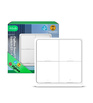
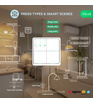
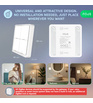
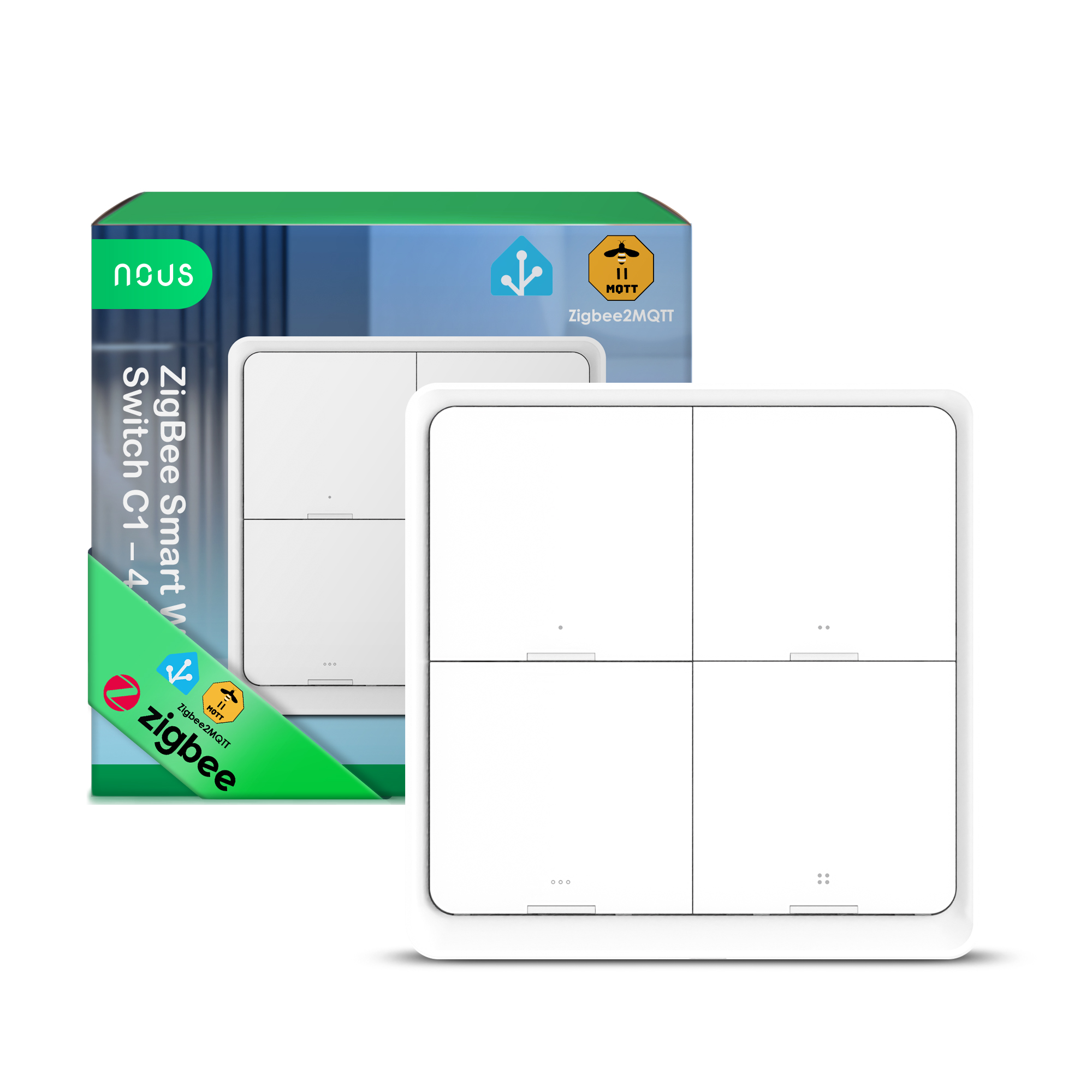
NOUS C1 ZigBee Smart Wireless Switch (4 Buttons)
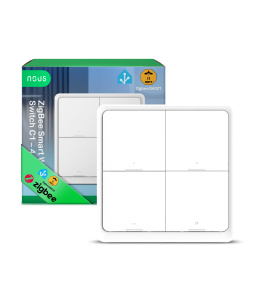
| Main settings | |
|---|---|
| Brand | NOUS |
| Certificate | CE, RoSH |
| Special features | Corresponding gateway is required |
| Network | |
| Protocol | ZigBee 3.0 |
| Communication standard | IEEE 802.15.4 |
| System requirements | Android 4.0 or higher, IOS 8.0 or higher |
| Control from a smartphone | App: Nous Smart Home |
| Max.Transmit Power | 19 dBm |
| Frequency range: | 2.400 - 2.483 GHz |
| Specifications | |
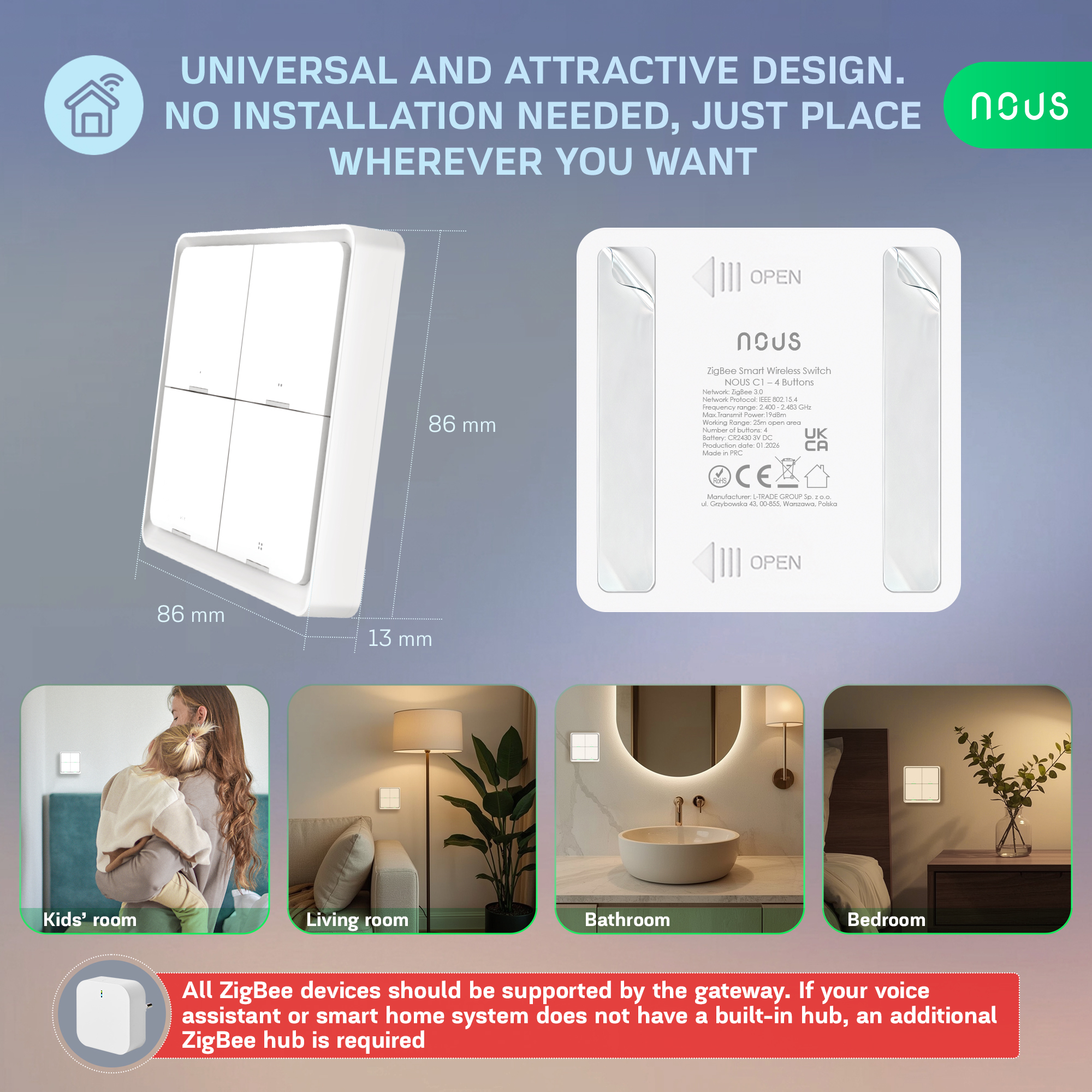
| Device dimensions | 86*86*13mm |
| Working humidity | <90%RH |
| Operating temperature | -10°C~45°C |
| Battery capacity | 50000 times |
| Battery type | CR2430 3V DC |
| Operation range | 25m open area |
| Other | |
| Comes in the box | Switch, User Manual, Sticker x2 |
OPERATING MANUAL
1. DESCRIPTION
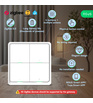
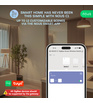
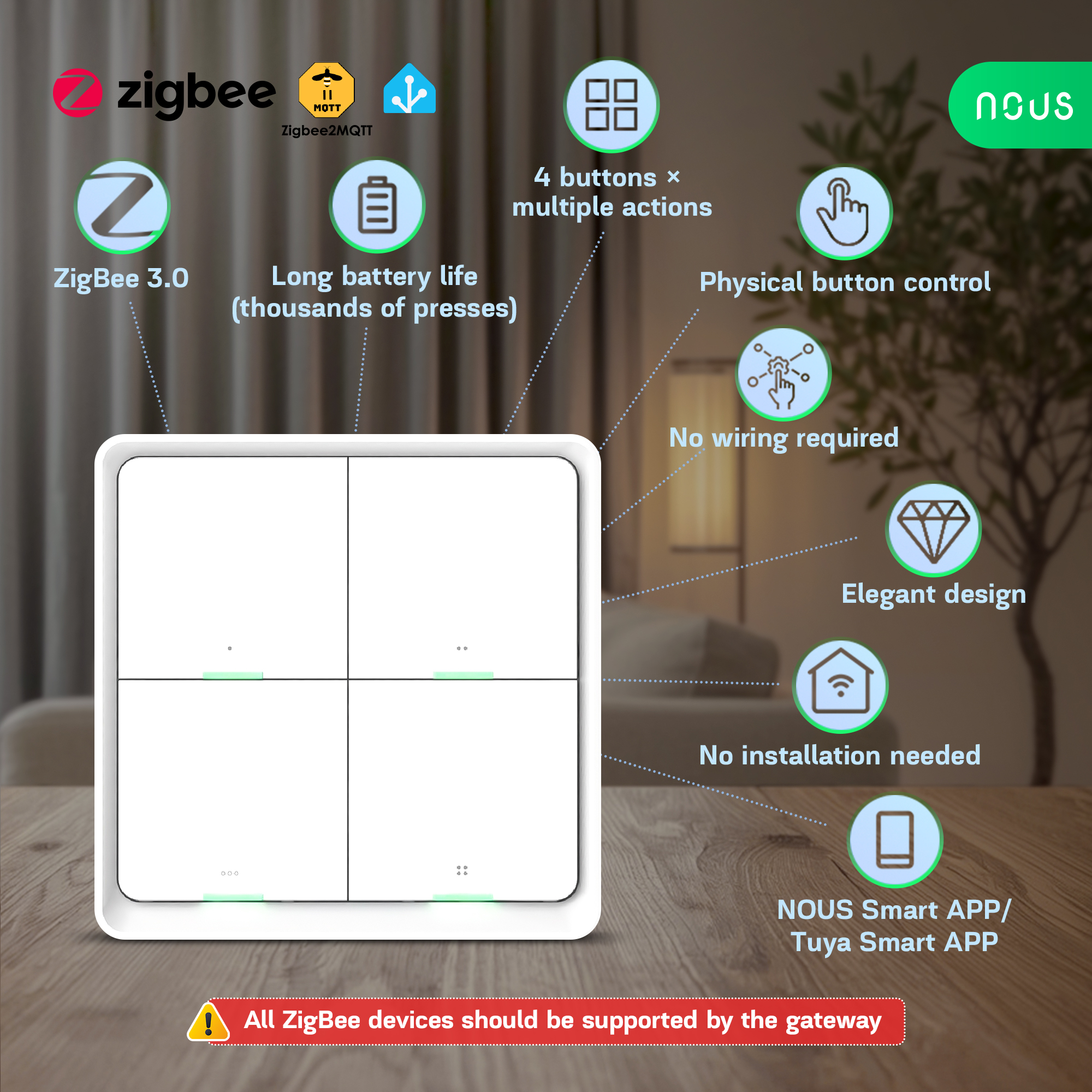
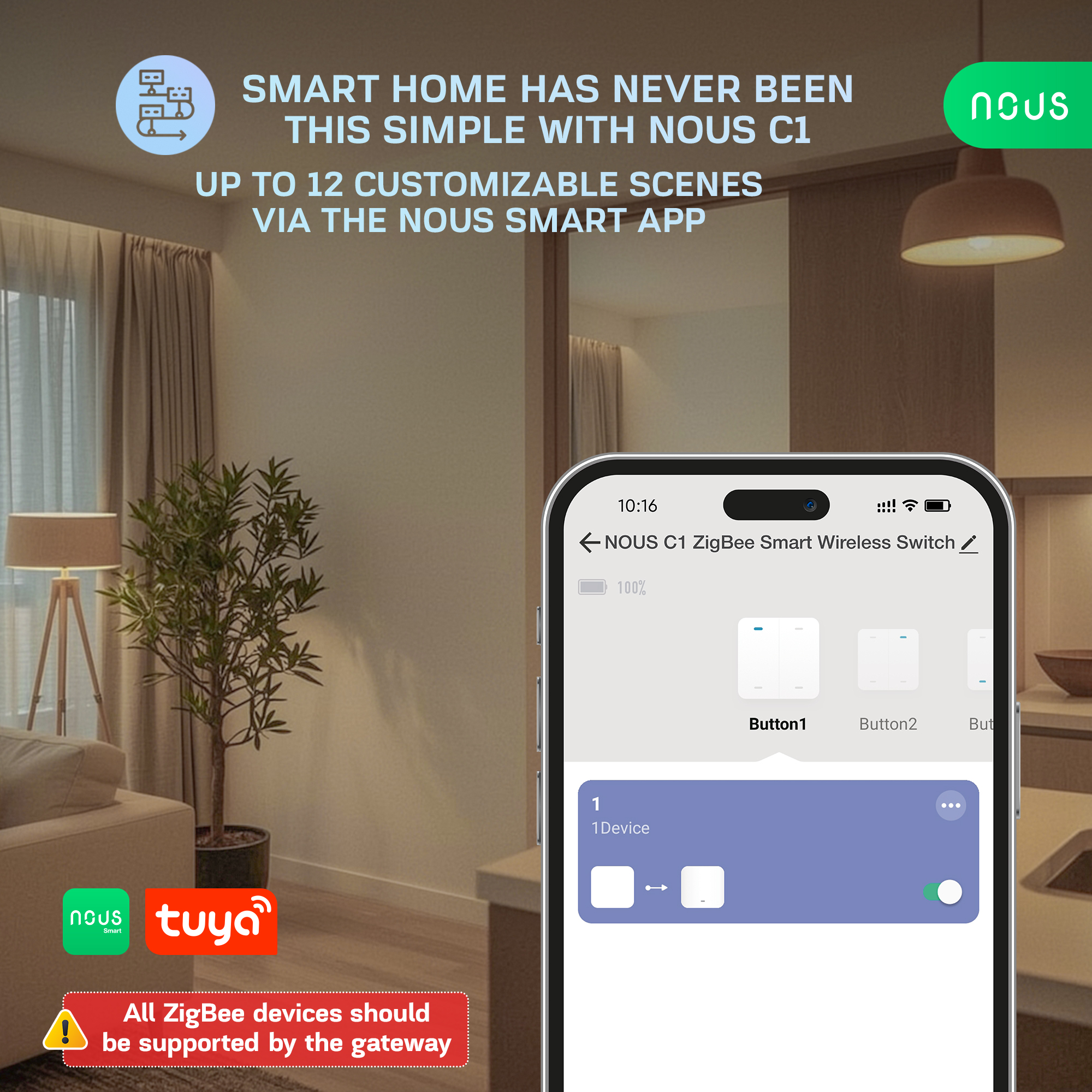
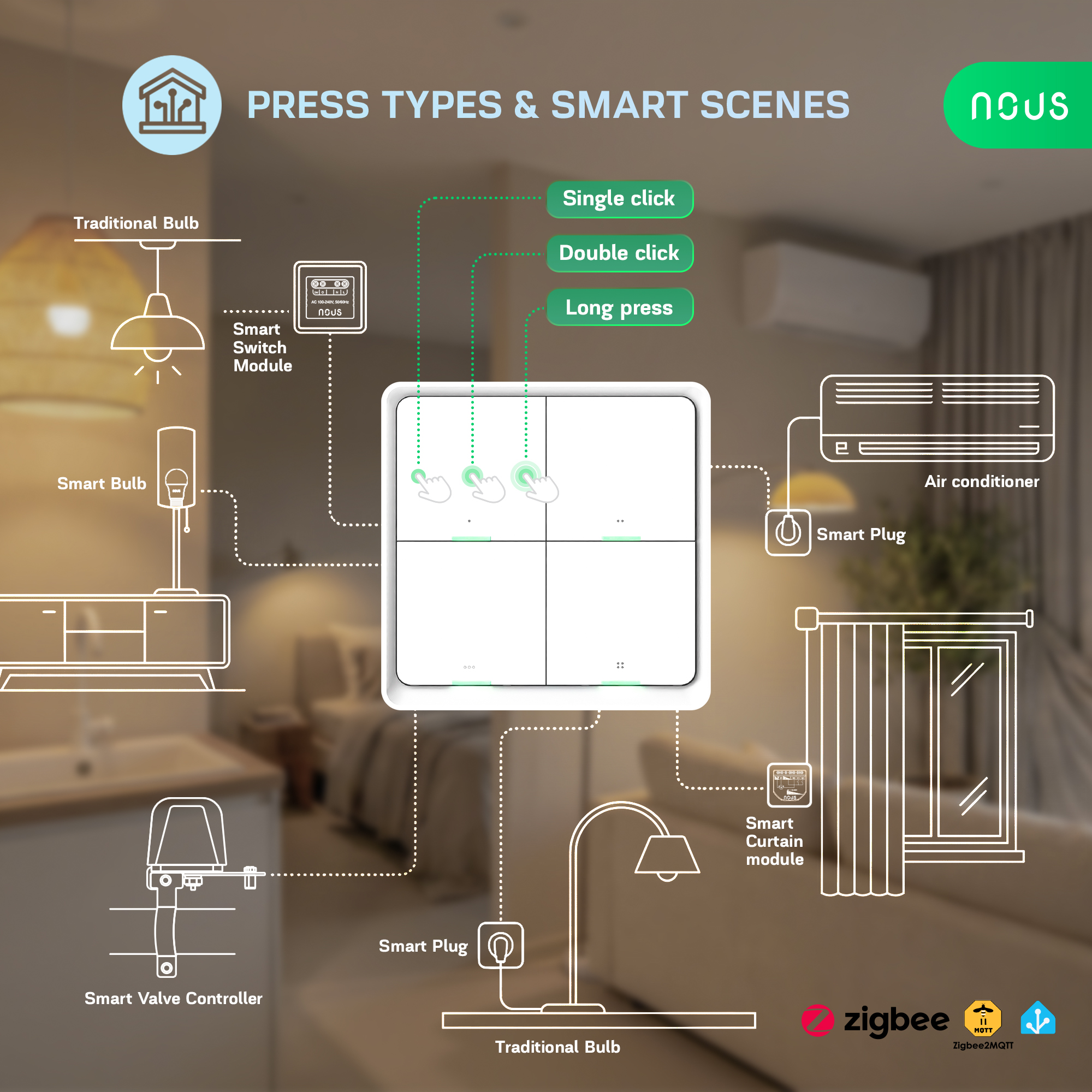
The Nous C1 ZigBee Smart Wireless Switch (4 Buttons) is a versatile four-button switch for wireless smart home control. It allows you to easily control devices and trigger smart home scenarios via the Zigbee 3.0 protocol. The model features four independent buttons, each of which can trigger individual actions or scenarios. Designed to control lighting groups and dimmers, trigger sequential smart home scenarios, and create quick commands for blinds, climate control, outlets, and other devices. An alternative to traditional switches that doesn’t require wall mounting; it can be installed on any surface thanks to a self-adhesive sticker.
Each of the 4 buttons can be configured for flexible control:
- single press – classic on/off or launch of the first scenario;
- double-press – activation of an alternative scene;
- long press – activation of an additional function or scene.
This allows for up to 12 actions/scenes.
IMPORTANT: You will need a Nous E1, Nous E7, Nous E15 or other Tuya compatible ZigBee gateway/hub to connect.
|
|
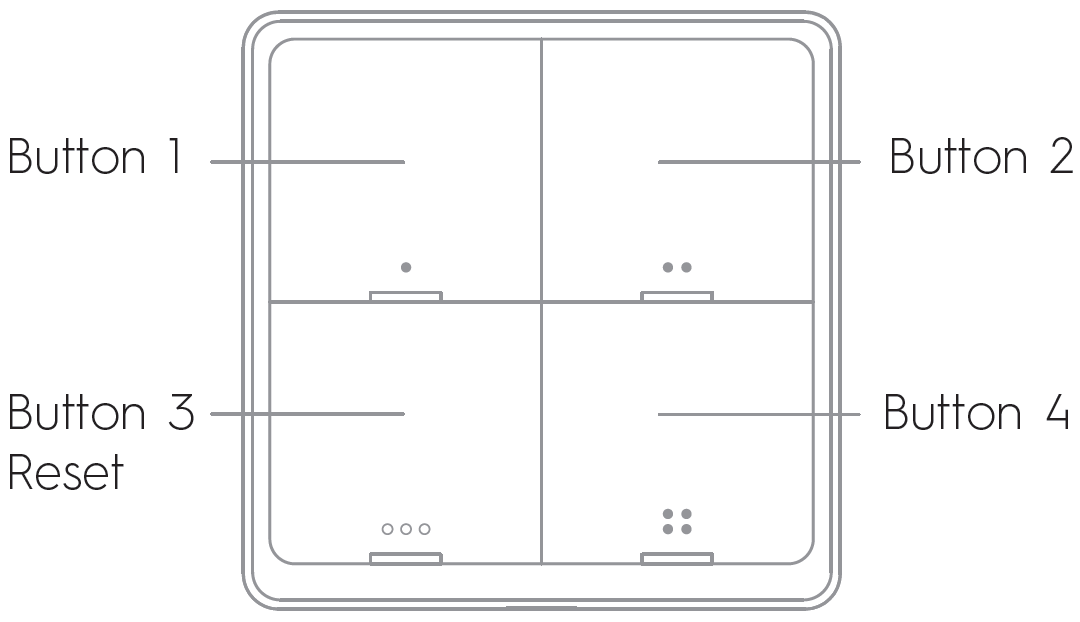
Press and hold button "3" for 10 seconds until the LED indicator flashes. The switch will then enter Quick Configure Mode (required for connecting to a gateway/hub).
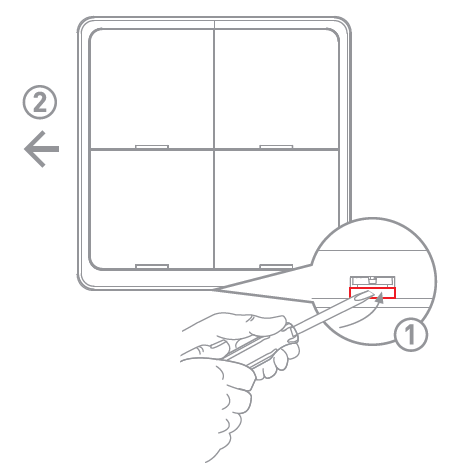 |
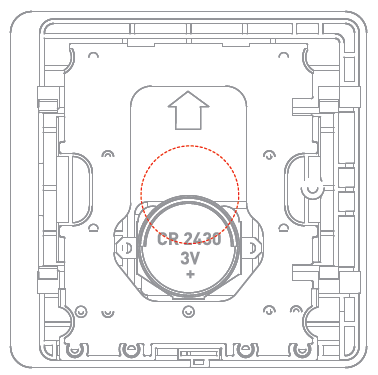
2. Remove the old battery when it runs out, then insert a new CR2430 battery into the slot.
 |
2. TECHNICAL CHARACTERISTICS
Network: ZigBee 3.0
Network Protocol: IEEE 802.15.4
Frequency range: 2.400-2.483 GHz
Working Range: 25m open area
Battery: CR2430 3V DC
Battery Life: >50000 times
Working Temperature: -10°C~45°C
Working Humidity: <90%RH
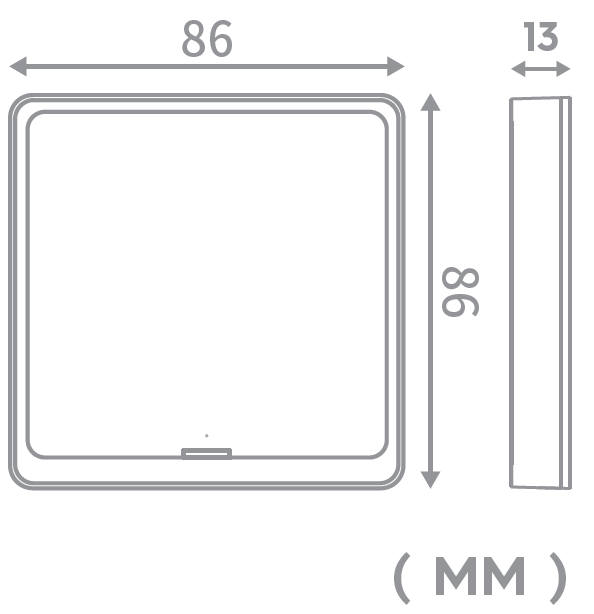
Dimension: 86*86*13mm
 |
3. SAFETY AND PRECAUTIONARY MEASURES
- Please read this manual carefully.
- Use the product within the temperature and humidity limits specified in the technical data sheet.
- Do not install the product near heat sources such as radiators, etc.
- Do not allow the device to fall or be subject to mechanical stress.
- Do not use chemically active or abrasive detergents to clean the product. Use a damp flannel cloth instead.
- Do not exceed the specified power rating. This may result in a short circuit and electric shock.
- Do not disassemble the product yourself - diagnostics and repairs of the device should only be carried out at a certified service center.
4. CONNECTION
To connect the Nous device, you need a smartphone based on the Android or iOS mobile operating system with the Nous Smart Home application installed. This mobile application is free and available for download from Play Market and App Store. The QR code for the application is given below:
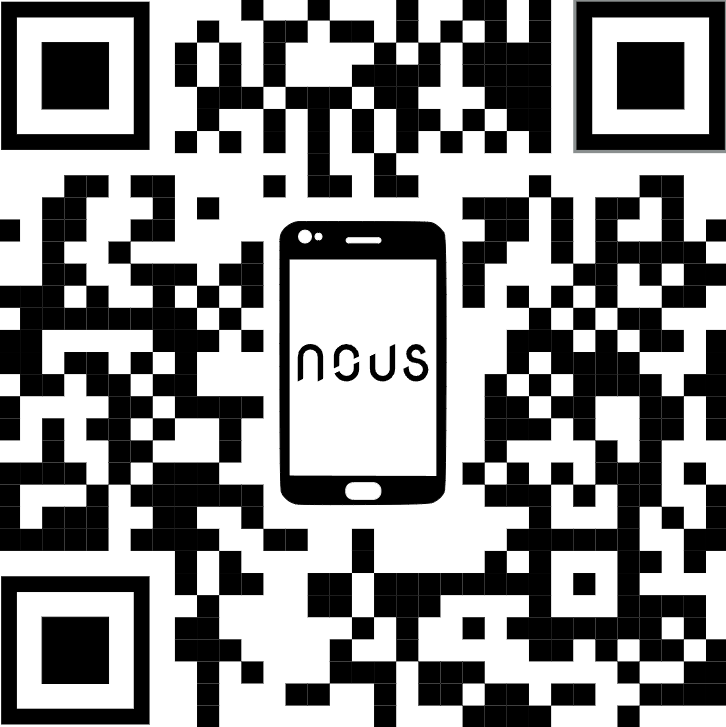 |
Scan the QR code or download it from direct link
After installing the program, for its correct operation, it is necessary to grant it all permissions in the corresponding section of the smartphone settings. Then you need to register a new user of this program.
Quick Installation Guide (the procedure for connecting the device to the Zigbee network):
| 1 | Connect the smartphone to the access point that will be used to connect the device (your ZigBee hub should already be connected to the app). Make sure the network frequency range is 2.4 GHz, otherwise the device will not connect, as Zigbee Habs are not designed to work with 5 GHz Wi-Fi networks. | |
| 2 | Connect the device to the network. If the global indication does not flash quickly, then press the button for 5-7 seconds to reset the smart outlet settings to factory values. | |
| 3 | Open the Nous Smart Home app and click the button to add a new device | |
| 4 |
An autoscan will appear, prompting you to add a new device. Confirm the connection and start pairing. |
|
| 5 |
If autoscan doesn't see your device, you can select it manually from the list of devices |
|
 |
.jpg) |
|
| 6 | In the "Add Manually" tab, select the "Smart Switches" category, and in it the "Nous С1" model, as shown in the figure above; | |
| 7 | In the window that opens, select "next step" and click the "Next" button; | |
| 8 | Connection to the Zigbee hub | |
 |
 |
|
| 8 | A window will appear indicating the degree of network connection and adding the current user of the program to the list of devices: | |
| 9 | After the procedure, a window will appear in which you can set the name of the device and choose the room in which it is located. The device name will also be used by Amazon Alexa and Google Home. | |
| 10 | To delete all data from the smart socket, in the device menu, you need "Delete device", "disabled and delete all data" | |
| When the device is removed from the device list of the application user, the settings of the smart socket will be reset to factory values and it will be necessary to shorten the procedure of connecting to the Wi-Fi network again. If the password for the Wi-Fi access point was entered incorrectly, then after the timer expires, a "failed to connect to Wi-Fi" window appears in the application with step-by-step instructions to fix the problem. | ||
How to connect your device to Alexa:
| 1 |
Sign in with your Alexa account and password (if you're not already signed in, sign up first); After logging in, click the menu in the upper left corner, then click "Settings" and select "Set up a new device"; |
|
| 2 |
Select "Skills" in the options bar, then search for |
|
| 3 |
Enter the username and password you previously registered (the account is only supported in the United States); When you see the correct page, it means that your Alexa account is linked to your NOUS Smart Home account. |
|
 |
 |
|
| 4 |
Device discovery: Users must tell Echo, |
|
| 5 |
List of support skills |
|
| Attention: the name of the device must match the NOUS Smart Home APP. | ||
BEDIENUNGSANLEITUNG
1. BESCHREIBUNG
Der Nous C1 ZigBee Smart Wireless Switch (4 Tasten) ist ein vielseitiger Vier-Tasten-Schalter für die drahtlose Steuerung Ihres Smart Homes. Er ermöglicht die einfache Steuerung von Geräten und das Auslösen von Smart-Home-Szenarien über das ZigBee 3.0-Protokoll. Das Modell verfügt über vier unabhängige Tasten, von denen jede einzelne Aktionen oder Szenarien auslösen kann. Er eignet sich zur Steuerung von Beleuchtungsgruppen und Dimmern, zum Auslösen sequenzieller Smart-Home-Szenarien und zur Erstellung von Schnellbefehlen für Jalousien, Klimaanlage, Steckdosen und andere Geräte. Als Alternative zu herkömmlichen Schaltern benötigt er keine Wandmontage; dank eines selbstklebenden Aufklebers kann er auf jeder Oberfläche angebracht werden.
Jede der 4 Tasten kann für eine flexible Steuerung konfiguriert werden:
- Einmaliges Drücken – klassisches Ein-/Ausschalten oder Starten des ersten Szenarios;
- Doppelklick – Aktivierung einer alternativen Szene;
- Langes Drücken – Aktivierung einer zusätzlichen Funktion oder Szene.
Dies ermöglicht bis zu 12 Aktionen/Szenen.
WICHTIG: Sie benötigen ein Nous E1, Nous E7, Nous E15 oder ein anderes Tuya-kompatibles ZigBee-Gateway/Hub zum Verbinden.
|
|
Halten Sie die Taste „3“ 10 Sekunden lang gedrückt, bis die LED-Anzeige blinkt. Der Schalter wechselt dann in den Schnellkonfigurationsmodus (erforderlich für die Verbindung mit einem Gateway/Hub).
|
2. Entfernen Sie die alte Batterie, wenn sie leer ist, und setzen Sie dann eine neue CR2430- Batterie in den entsprechenden Steckplatz ein.
|
2. TECHNISCHE MERKMALE
Netzwerk: ZigBee 3.0
Netzwerkprotokoll: IEEE 802.15.4
Frequenzbereich: 2,400–2,483 GHz
Arbeitsbereich: 25 m Freifläche
Batterie: CR2430 3V Gleichstrom
Akkulaufzeit: >50.000 Mal
Betriebstemperatur: -10 °C bis 45 °C
Luftfeuchtigkeit im Betrieb: <90 % relative Luftfeuchtigkeit
Abmessungen: 86 x 86 x 13 mm
|
3. Sicherheits- und Vorsichtsmaßnahmen
- Bitte lesen Sie diese Bedienungsanleitung sorgfältig durch.
- Das Produkt ist innerhalb der im technischen Datenblatt angegebenen Temperatur- und Feuchtigkeitsgrenzen zu verwenden.
- Installieren Sie das Produkt nicht in der Nähe von Wärmequellen wie Heizkörpern usw.
- Das Gerät darf nicht herunterfallen oder mechanischen Belastungen ausgesetzt werden.
- Verwenden Sie zur Reinigung des Produkts keine chemisch aktiven oder scheuernden Reinigungsmittel. Verwenden Sie stattdessen ein feuchtes Flanelltuch.
- Die angegebene Nennleistung darf nicht überschritten werden. Andernfalls kann es zu einem Kurzschluss und einem Stromschlag kommen.
- Zerlegen Sie das Produkt nicht selbst – Diagnose und Reparatur des Geräts sollten nur in einem zertifizierten Servicecenter durchgeführt werden.
4. VERBINDUNG
Um das Nous-Gerät zu verbinden, benötigen Sie ein Smartphone mit Android- oder iOS-Betriebssystem und der installierten Nous Smart Home-App. Diese App ist kostenlos und kann im Play Store und App Store heruntergeladen werden. Den QR-Code für die App finden Sie unten.
|
Scannen Sie den QR-Code oder laden Sie die Datei über den Direktlink herunter.
Nach der Installation des Programms müssen Sie ihm für den korrekten Betrieb alle erforderlichen Berechtigungen in den Smartphone-Einstellungen erteilen. Anschließend müssen Sie einen neuen Benutzer für dieses Programm registrieren.
Kurzinstallationsanleitung (Vorgehensweise zum Verbinden des Geräts mit dem Zigbee-Netzwerk):
| 1 | Verbinden Sie das Smartphone mit dem Zugangspunkt, über den das Gerät verbunden werden soll (Ihr ZigBee-Hub sollte bereits mit der App verbunden sein) . Stellen Sie sicher, dass der Netzwerkfrequenzbereich 2,4 GHz beträgt, da das Gerät sonst keine Verbindung herstellen kann. ZigBee-Hubs sind nicht für die Verwendung mit 5-GHz-WLAN-Netzwerken ausgelegt. | |
| 2 | Verbinden Sie das Gerät mit dem Netzwerk. Falls die globale Anzeige nicht schnell blinkt, halten Sie die Taste 5–7 Sekunden lang gedrückt, um die Einstellungen der intelligenten Steckdose auf die Werkseinstellungen zurückzusetzen. | |
| 3 | Öffnen Sie die Nous Smart Home App und klicken Sie auf die Schaltfläche, um ein neues Gerät hinzuzufügen. | |
| 4 |
Es erscheint ein automatischer Scan, der Sie auffordert, ein neues Gerät hinzuzufügen. Bestätigen Sie die Verbindung und starten Sie den Kopplungsvorgang. |
|
| 5 |
Falls die automatische Suche Ihr Gerät nicht erkennt, können Sie es manuell aus der Geräteliste auswählen. |
|
|
|
|
| 6 | Wählen Sie auf der Registerkarte „Manuell hinzufügen“ die Kategorie „Smart Switches“ und darin das Modell „Nous C1“ aus, wie in der obigen Abbildung gezeigt; | |
| 7 | Im sich öffnenden Fenster wählen Sie „nächster Schritt“ und klicken auf die Schaltfläche „Weiter“. | |
| 8 | Verbindung zum ZigBee-Hub herstellen | |
|
|
|
| 8 | Es erscheint ein Fenster, das den Grad der Netzwerkverbindung anzeigt und den aktuellen Benutzer des Programms zur Geräteliste hinzufügt: | |
| 9 | Nach Abschluss des Vorgangs erscheint ein Fenster, in dem Sie den Namen des Geräts festlegen und den Raum auswählen können, in dem es sich befindet. Der Gerätename wird auch von Amazon Alexa und Google Home verwendet. | |
| 10 | Um alle Daten von der intelligenten Steckdose zu löschen, müssen Sie im Gerätemenü „Gerät löschen“ und anschließend „Deaktivieren und alle Daten löschen“ auswählen. | |
| Wird das Gerät aus der Geräteliste des App-Nutzers entfernt, werden die Einstellungen der intelligenten Steckdose auf die Werkseinstellungen zurückgesetzt. Anschließend muss der Verbindungsvorgang zum WLAN-Netzwerk erneut verkürzt werden. Wurde das WLAN-Passwort falsch eingegeben, erscheint nach Ablauf des Timers in der App ein Fenster mit der Meldung „Verbindung zum WLAN fehlgeschlagen“ und einer Schritt-für-Schritt-Anleitung zur Problembehebung. | ||
So verbinden Sie Ihr Gerät mit Alexa:
| 1 |
Melden Sie sich mit Ihrem Alexa-Konto und Passwort an (falls Sie noch nicht angemeldet sind, registrieren Sie sich zuerst); Klicken Sie nach der Anmeldung auf das Menü in der oberen linken Ecke, dann auf „Einstellungen“ und wählen Sie „Neues Gerät einrichten“ aus; |
|
| 2 |
Wählen Sie in der Optionsleiste „Skills“ aus und suchen Sie dann |
|
| 3 |
Geben Sie den Benutzernamen und das Passwort ein, die Sie zuvor registriert haben (das Konto wird nur in den Vereinigten Staaten unterstützt); Wenn Sie die richtige Seite sehen, bedeutet dies, dass Ihr Alexa-Konto mit Ihrem NOUS Smart Home-Konto verknüpft ist. |
|
|
|
|
| 4 |
Geräteerkennung: Nutzer müssen Echo sagen: |
|
| 5 |
Liste der unterstützten Fähigkeiten: |
|
| Achtung: Der Gerätename muss mit dem Namen in der NOUS Smart Home App übereinstimmen. | ||
MANUEL D'UTILISATION
1. DESCRIPTION
L'interrupteur sans fil intelligent Nous C1 ZigBee (4 boutons) est un interrupteur polyvalent à quatre boutons pour le contrôle sans fil de votre maison connectée. Il vous permet de contrôler facilement vos appareils et de déclencher des scénarios domotiques via le protocole Zigbee 3.0. Ce modèle est doté de quatre boutons indépendants, chacun pouvant déclencher des actions ou des scénarios spécifiques. Il est conçu pour contrôler des groupes d'éclairage et des variateurs, déclencher des scénarios domotiques séquentiels et créer des commandes rapides pour les stores, la climatisation, les prises et autres appareils. Alternative aux interrupteurs traditionnels, il ne nécessite aucune fixation murale ; grâce à son adhésif, il peut être installé sur n'importe quelle surface.
Chacun des 4 boutons peut être configuré pour un contrôle flexible :
- une seule pression – marche/arrêt classique ou lancement du premier scénario ;
- double pression – activation d'une scène alternative ;
- Appui long – activation d'une fonction ou d'une scène supplémentaire.
Cela permet jusqu'à 12 actions/scènes.
IMPORTANT : Vous aurez besoin d'une passerelle/d'un concentrateur ZigBee compatible Tuya, Nous E1, Nous E7, Nous E15 ou autre.
|
|
Maintenez le bouton « 3 » enfoncé pendant 10 secondes jusqu’à ce que le voyant LED clignote. Le commutateur passera alors en mode de configuration rapide (nécessaire pour la connexion à une passerelle/un concentrateur).
|
2. Retirez la pile usagée lorsqu'elle est épuisée, puis insérez une nouvelle pile CR2430 dans l'emplacement.
|
2. CARACTÉRISTIQUES TECHNIQUES
Réseau : ZigBee 3.0
Protocole réseau : IEEE 802.15.4
Gamme de fréquences : 2,400-2,483 GHz
Portée : 25 m en champ libre
Pile : CR2430 3V CC
Autonomie de la batterie : > 50 000 fois
Température de fonctionnement : -10 °C à 45 °C
Humidité de fonctionnement : < 90 % HR
Dimensions : 86 x 86 x 13 mm
|
3. MESURES DE SÉCURITÉ ET DE PRÉCAUTION
- Veuillez lire attentivement ce manuel.
- Utilisez le produit dans les limites de température et d'humidité spécifiées dans la fiche technique.
- Ne pas installer le produit à proximité de sources de chaleur telles que des radiateurs, etc.
- Ne laissez pas l'appareil tomber ou être soumis à des contraintes mécaniques.
- N’utilisez pas de détergents chimiques ou abrasifs pour nettoyer le produit. Utilisez plutôt un chiffon de flanelle humide.
- Ne dépassez pas la puissance nominale spécifiée. Cela pourrait provoquer un court-circuit et une électrocution.
- Ne démontez pas vous-même le produit ; les diagnostics et les réparations de l’appareil doivent être effectués uniquement dans un centre de service agréé.
4. CONNEXION
Pour connecter l'appareil Nous, vous avez besoin d'un smartphone Android ou iOS sur lequel l'application Nous Smart Home est installée. Cette application mobile est gratuite et disponible au téléchargement sur le Play Store et l'App Store. Le code QR de l'application est indiqué ci-dessous :
|
Scannez le code QR ou téléchargez-le via le lien direct
Après l'installation du programme, pour son bon fonctionnement, il est nécessaire de lui accorder toutes les autorisations dans la section correspondante des paramètres du smartphone. Ensuite, vous devez créer un compte utilisateur pour ce programme.
Guide d'installation rapide (procédure de connexion de l'appareil au réseau Zigbee) :
| 1 | Connectez votre smartphone au point d'accès qui servira à connecter l'appareil (votre hub ZigBee devrait déjà être connecté à l'application) . Assurez-vous que la fréquence du réseau est de 2,4 GHz ; sinon, l'appareil ne pourra pas se connecter, car les ZigBee Habs ne sont pas compatibles avec les réseaux Wi-Fi 5 GHz. | |
| 2 | Connectez l'appareil au réseau. Si le voyant global ne clignote pas rapidement, appuyez sur le bouton pendant 5 à 7 secondes pour réinitialiser les paramètres d'usine de la prise connectée . | |
| 3 | Ouvrez l'application Nous Smart Home et cliquez sur le bouton pour ajouter un nouvel appareil | |
| 4 |
Une fenêtre de recherche automatique s'affichera, vous invitant à ajouter un nouvel appareil. Confirmez la connexion et lancez l'appairage. |
|
| 5 |
Si la recherche automatique ne détecte pas votre appareil, vous pouvez le sélectionner manuellement dans la liste des appareils. |
|
|
|
|
| 6 | Dans l'onglet « Ajouter manuellement », sélectionnez la catégorie « Interrupteurs intelligents », puis le modèle « Nous C1 », comme indiqué dans la figure ci-dessus ; | |
| 7 | Dans la fenêtre qui s'ouvre, sélectionnez « étape suivante » et cliquez sur le bouton « Suivant » ; | |
| 8 | Connexion au hub Zigbee | |
|
|
|
| 8 | Une fenêtre apparaîtra indiquant le niveau de connexion réseau et ajoutant l'utilisateur actuel du programme à la liste des appareils : | |
| 9 | Une fois la procédure terminée, une fenêtre s'affichera vous permettant de définir le nom de l'appareil et de choisir la pièce où il se trouve. Ce nom sera également utilisé par Amazon Alexa et Google Home. | |
| 10 | Pour supprimer toutes les données de la prise connectée, dans le menu de l'appareil, vous devez sélectionner « Supprimer l'appareil », puis « Désactiver et supprimer toutes les données ». | |
| Lorsque l'appareil est supprimé de la liste des appareils de l'utilisateur de l'application, les paramètres de la prise connectée sont réinitialisés aux valeurs d'usine et il est nécessaire de répéter la procédure de connexion au réseau Wi-Fi. Si le mot de passe du point d'accès Wi-Fi a été saisi incorrectement, une fenêtre « Échec de la connexion Wi-Fi » s'affiche dans l'application après l'expiration du délai, avec des instructions détaillées pour résoudre le problème. | ||
Comment connecter votre appareil à Alexa :
| 1 |
Connectez-vous avec votre compte Alexa et votre mot de passe (si vous n'êtes pas déjà connecté, inscrivez-vous d'abord) ; Une fois connecté, cliquez sur le menu dans le coin supérieur gauche, puis sur « Paramètres » et sélectionnez « Configurer un nouvel appareil » ; |
|
| 2 |
Sélectionnez « Compétences » dans la barre d’options, puis recherchez |
|
| 3 |
Saisissez le nom d'utilisateur et le mot de passe que vous avez enregistrés précédemment (ce compte est uniquement pris en charge aux États-Unis) ; lorsque la page correcte s'affiche, cela signifie que votre compte Alexa est lié à votre compte NOUS Smart Home. |
|
|
|
|
| 4 |
Découverte des appareils : Dites à Echo : |
|
| 5 |
Liste des compétences prises en charge |
|
| Attention : le nom de l'appareil doit correspondre à celui de l'application NOUS Smart Home. | ||
INSTRUKCJA OBSŁUGI
1. OPIS
Inteligentny przełącznik bezprzewodowy Nous C1 ZigBee (4 przyciski) to wszechstronny, czteroprzyciskowy przełącznik do bezprzewodowego sterowania inteligentnym domem. Umożliwia łatwe sterowanie urządzeniami i uruchamianie scenariuszy inteligentnego domu za pośrednictwem protokołu Zigbee 3.0. Model posiada cztery niezależne przyciski, z których każdy może uruchamiać indywidualne akcje lub scenariusze. Zaprojektowany do sterowania grupami oświetlenia i ściemniaczami, uruchamiania sekwencyjnych scenariuszy inteligentnego domu oraz szybkiego sterowania roletami, klimatyzacją, gniazdkami i innymi urządzeniami. Alternatywa dla tradycyjnych przełączników, która nie wymaga montażu na ścianie; można go zainstalować na dowolnej powierzchni dzięki samoprzylepnej naklejce.
Każdy z 4 przycisków można skonfigurować w celu elastycznego sterowania:
- pojedyncze naciśnięcie – klasyczne włączenie/wyłączenie lub uruchomienie pierwszego scenariusza;
- podwójne naciśnięcie – aktywacja sceny alternatywnej;
- długie naciśnięcie – aktywacja dodatkowej funkcji lub sceny.
Pozwala to na maksymalnie 12 akcji/scen.
WAŻNE: Aby nawiązać połączenie, będziesz potrzebować urządzenia Nous E1, Nous E7, Nous E15 lub innej bramy/hubu ZigBee kompatybilnego z Tuya.
|
|
Naciśnij i przytrzymaj przycisk „3” przez 10 sekund, aż dioda LED zacznie migać. Przełącznik przejdzie wtedy w tryb szybkiej konfiguracji (wymagany do połączenia z bramą/hubem).
|
2. Gdy bateria się wyczerpie, wyjmij ją i włóż nową baterię CR2430 do gniazda.
|
2. DANE TECHNICZNE
Sieć: ZigBee 3.0
Protokół sieciowy: IEEE 802.15.4
Zakres częstotliwości: 2,400-2,483 GHz
Zasięg działania: 25 m w terenie otwartym
Bateria: CR2430 3V DC
Żywotność baterii: >50 000 razy
Working Temperature: -10°C~45°C
Working Humidity: <90%RH
Dimension: 86*86*13mm
|
3. SAFETY AND PRECAUTIONARY MEASURES
- Please read this manual carefully.
- Use the product within the temperature and humidity limits specified in the technical data sheet.
- Do not install the product near heat sources such as radiators, etc.
- Do not allow the device to fall or be subject to mechanical stress.
- Do not use chemically active or abrasive detergents to clean the product. Use a damp flannel cloth instead.
- Do not exceed the specified power rating. This may result in a short circuit and electric shock.
- Do not disassemble the product yourself - diagnostics and repairs of the device should only be carried out at a certified service center.
4. CONNECTION
To connect the Nous device, you need a smartphone based on the Android or iOS mobile operating system with the Nous Smart Home application installed. This mobile application is free and available for download from Play Market and App Store. The QR code for the application is given below:
|
Scan the QR code or download it from direct link
After installing the program, for its correct operation, it is necessary to grant it all permissions in the corresponding section of the smartphone settings. Then you need to register a new user of this program.
Quick Installation Guide (the procedure for connecting the device to the Zigbee network):
| 1 | Connect the smartphone to the access point that will be used to connect the device (your ZigBee hub should already be connected to the app). Make sure the network frequency range is 2.4 GHz, otherwise the device will not connect, as Zigbee Habs are not designed to work with 5 GHz Wi-Fi networks. | |
| 2 | Connect the device to the network. If the global indication does not flash quickly, then press the button for 5-7 seconds to reset the smart outlet settings to factory values. | |
| 3 | Open the Nous Smart Home app and click the button to add a new device | |
| 4 |
An autoscan will appear, prompting you to add a new device. Confirm the connection and start pairing. |
|
| 5 |
If autoscan doesn't see your device, you can select it manually from the list of devices |
|
|
|
|
| 6 | In the "Add Manually" tab, select the "Smart Switches" category, and in it the "Nous С1" model, as shown in the figure above; | |
| 7 | In the window that opens, select "next step" and click the "Next" button; | |
| 8 | Connection to the Zigbee hub | |
|
|
|
| 8 | A window will appear indicating the degree of network connection and adding the current user of the program to the list of devices: | |
| 9 | After the procedure, a window will appear in which you can set the name of the device and choose the room in which it is located. The device name will also be used by Amazon Alexa and Google Home. | |
| 10 | To delete all data from the smart socket, in the device menu, you need "Delete device", "disabled and delete all data" | |
| Po usunięciu urządzenia z listy urządzeń użytkownika aplikacji, ustawienia inteligentnego gniazdka zostaną przywrócone do wartości fabrycznych i konieczne będzie ponowne skrócenie procedury łączenia się z siecią Wi-Fi. Jeśli hasło do punktu dostępu Wi-Fi zostało wprowadzone nieprawidłowo, po upływie ustawionego czasu w aplikacji pojawi się okno „Nie udało się połączyć z Wi-Fi” z instrukcjami krok po kroku, jak rozwiązać problem. | ||
Jak połączyć urządzenie z Alexą:
| 1 |
Zaloguj się, używając swojego konta Alexa i hasła (jeśli jeszcze tego nie zrobiłeś, najpierw się zarejestruj). Po zalogowaniu kliknij menu w lewym górnym rogu, a następnie kliknij „Ustawienia” i wybierz „Skonfiguruj nowe urządzenie”. |
|
| 2 |
Wybierz „Umiejętności” na pasku opcji, a następnie wyszukaj |
|
| 3 |
Wprowadź nazwę użytkownika i hasło, które wcześniej zarejestrowałeś (konto jest obsługiwane tylko w Stanach Zjednoczonych). Gdy zobaczysz prawidłową stronę, oznacza to, że Twoje konto Alexa jest połączone z kontem NOUS Smart Home. |
|
|
|
|
| 4 |
Wykrywanie urządzeń: Użytkownicy muszą polecić aplikacji Echo polecenie |
|
| 5 |
Lista umiejętności pomocniczych |
|
| Uwaga: nazwa urządzenia musi być zgodna z nazwą aplikacji NOUS Smart Home. | ||
MANUALE OPERATIVO
1. DESCRIZIONE
L'interruttore wireless intelligente Nous C1 ZigBee (4 pulsanti) è un interruttore versatile a quattro pulsanti per il controllo wireless della casa intelligente. Consente di controllare facilmente i dispositivi e attivare scenari di domotica tramite il protocollo Zigbee 3.0. Il modello è dotato di quattro pulsanti indipendenti, ognuno dei quali può attivare singole azioni o scenari. Progettato per controllare gruppi di illuminazione e dimmer, attivare scenari di domotica sequenziali e creare comandi rapidi per tapparelle, climatizzazione, prese e altri dispositivi. Un'alternativa agli interruttori tradizionali che non richiede il montaggio a parete; può essere installato su qualsiasi superficie grazie a un adesivo.
Ciascuno dei 4 pulsanti può essere configurato per un controllo flessibile:
- singola pressione: accensione/spegnimento classico o avvio del primo scenario;
- doppia pressione – attivazione di una scena alternativa;
- Pressione prolungata: attivazione di una funzione o scena aggiuntiva.
Ciò consente fino a 12 azioni/scene.
IMPORTANTE: Per la connessione è necessario un gateway/hub ZigBee compatibile con Tuya, come Nous E1, Nous E7, Nous E15 o un altro modello.
|
|
Tenere premuto il pulsante "3" per 10 secondi finché l'indicatore LED non lampeggia. L'interruttore entrerà quindi in modalità di configurazione rapida (necessaria per la connessione a un gateway/hub).
|
2. Rimuovere la vecchia batteria quando si scarica, quindi inserire una nuova batteria CR2430 nell'apposito alloggiamento.
|
2. CARATTERISTICHE TECNICHE
Rete: ZigBee 3.0
Protocollo di rete: IEEE 802.15.4
Gamma di frequenza: 2.400-2.483 GHz
Area di lavoro: 25 m in campo aperto
Batteria: CR2430 3V CC
Durata della batteria: >50.000 volte
Temperatura di esercizio: -10°C~45°C
Umidità di lavoro: <90% UR
Dimensioni: 86*86*13 mm
|
3. MISURE DI SICUREZZA E PRECAUZIONI
- Si prega di leggere attentamente questo manuale.
- Utilizzare il prodotto entro i limiti di temperatura e umidità specificati nella scheda tecnica.
- Non installare il prodotto in prossimità di fonti di calore come termosifoni, ecc.
- Non permettere che il dispositivo cada o sia sottoposto a sollecitazioni meccaniche.
- Non utilizzare detergenti chimicamente aggressivi o abrasivi per pulire il prodotto. Utilizzare invece un panno di flanella umido.
- Non superare la potenza nominale specificata. Ciò potrebbe causare un cortocircuito e una scossa elettrica.
- Non smontare il prodotto autonomamente: la diagnosi e la riparazione del dispositivo devono essere eseguite esclusivamente presso un centro di assistenza autorizzato.
4. CONNESSIONE
Per connettere il dispositivo Nous, è necessario uno smartphone con sistema operativo Android o iOS su cui sia installata l'applicazione Nous Smart Home. Questa applicazione è gratuita e disponibile per il download su Play Store e App Store. Il codice QR per l'applicazione è riportato di seguito:
|
Scansiona il codice QR o scaricalo tramite il link diretto.
Dopo aver installato il programma, per il suo corretto funzionamento è necessario concedergli tutte le autorizzazioni nella sezione corrispondente delle impostazioni dello smartphone. Successivamente, è necessario registrare un nuovo utente per questo programma.
Guida rapida all'installazione (la procedura per connettere il dispositivo alla rete Zigbee):
| 1 | Collega lo smartphone all'access point che verrà utilizzato per connettere il dispositivo (il tuo hub ZigBee dovrebbe essere già connesso all'app) . Assicurati che la frequenza di rete sia a 2,4 GHz, altrimenti il dispositivo non si connetterà, poiché gli hub ZigBee non sono progettati per funzionare con reti Wi-Fi a 5 GHz. | |
| 2 | Collega il dispositivo alla rete. Se l'indicatore globale non lampeggia rapidamente, tieni premuto il pulsante per 5-7 secondi per ripristinare le impostazioni della presa intelligente ai valori di fabbrica. | |
| 3 | Apri l'app Nous Smart Home e fai clic sul pulsante per aggiungere un nuovo dispositivo. | |
| 4 |
Verrà visualizzata una scansione automatica che ti chiederà di aggiungere un nuovo dispositivo. Conferma la connessione e avvia l'associazione. |
|
| 5 |
Se la scansione automatica non rileva il dispositivo, è possibile selezionarlo manualmente dall'elenco dei dispositivi. |
|
|
|
|
| 6 | Nella scheda "Aggiungi manualmente", selezionare la categoria "Interruttori intelligenti" e al suo interno il modello "Nous C1", come mostrato nella figura sopra; | |
| 7 | Nella finestra che si apre, selezionare "passaggio successivo" e fare clic sul pulsante "Avanti"; | |
| 8 | Connessione all'hub Zigbee | |
|
|
|
| 8 | Si aprirà una finestra che indicherà il livello di connessione alla rete e aggiungerà l'utente corrente del programma all'elenco dei dispositivi: | |
| 9 | Al termine della procedura, apparirà una finestra in cui potrai impostare il nome del dispositivo e scegliere la stanza in cui si trova. Il nome del dispositivo verrà utilizzato anche da Amazon Alexa e Google Home. | |
| 10 | Per eliminare tutti i dati dalla presa intelligente, nel menu del dispositivo, è necessario selezionare "Elimina dispositivo", "Disabilitato ed elimina tutti i dati". | |
| Quando il dispositivo viene rimosso dall'elenco dei dispositivi dell'utente dell'applicazione, le impostazioni della presa intelligente vengono ripristinate ai valori di fabbrica e sarà necessario abbreviare la procedura di connessione alla rete Wi-Fi. Se la password per il punto di accesso Wi-Fi è stata inserita in modo errato, allo scadere del timer, nell'applicazione viene visualizzata una finestra "Impossibile connettersi al Wi-Fi" con istruzioni dettagliate per risolvere il problema. | ||
Come collegare il dispositivo ad Alexa:
| 1 |
Accedi con il tuo account e la tua password Alexa (se non hai già effettuato l'accesso, registrati prima); dopo aver effettuato l'accesso, fai clic sul menu nell'angolo in alto a sinistra, quindi fai clic su "Impostazioni" e seleziona "Configura un nuovo dispositivo"; |
|
| 2 |
Seleziona "Skill" nella barra delle opzioni, quindi cerca |
|
| 3 |
Inserisci il nome utente e la password che hai utilizzato per la registrazione (l'account è supportato solo negli Stati Uniti); quando visualizzi la pagina corretta, significa che il tuo account Alexa è collegato al tuo account NOUS Smart Home. |
|
|
|
|
| 4 |
Rilevamento dispositivi: gli utenti devono dire a Echo: |
|
| 5 |
Elenco delle funzionalità supportate |
|
| Attenzione: il nome del dispositivo deve corrispondere a quello dell'app NOUS Smart Home. | ||
MANUAL DE INSTRUCCIONES
1. DESCRIPCIÓN
El interruptor inalámbrico inteligente Nous C1 ZigBee (4 botones) es un versátil interruptor de cuatro botones para el control inalámbrico del hogar inteligente. Permite controlar fácilmente dispositivos y activar escenarios inteligentes mediante el protocolo Zigbee 3.0. Este modelo cuenta con cuatro botones independientes, cada uno de los cuales puede activar acciones o escenarios individuales. Está diseñado para controlar grupos de iluminación y reguladores, activar escenarios inteligentes secuenciales y crear comandos rápidos para persianas, climatización, enchufes y otros dispositivos. Es una alternativa a los interruptores tradicionales que no requiere montaje en pared; se puede instalar en cualquier superficie gracias a una pegatina autoadhesiva.
Cada uno de los 4 botones se puede configurar para un control flexible:
- Pulsación única: encendido/apagado clásico o inicio del primer escenario;
- Doble pulsación: activación de una escena alternativa;
- Mantener pulsado: activación de una función o escena adicional.
Esto permite hasta 12 acciones/escenas.
IMPORTANTE: Necesitará un Nous E1, Nous E7, Nous E15 u otro concentrador/puerta de enlace ZigBee compatible con Tuya para conectarse.
|
|
Mantén pulsado el botón "3" durante 10 segundos hasta que el indicador LED parpadee. El interruptor entrará entonces en el modo de configuración rápida (necesario para conectarse a una puerta de enlace/concentrador).
|
2. Retire la batería vieja cuando se agote e inserte una batería CR2430 nueva en la ranura.
|
2. CARACTERÍSTICAS TÉCNICAS
Red: ZigBee 3.0
Protocolo de red: IEEE 802.15.4
Rango de frecuencia: 2,400-2,483 GHz
Área de trabajo: 25 m de área abierta
Batería: CR2430 3V CC
Duración de la batería: >50.000 veces
Temperatura de funcionamiento: -10 °C ~ 45 °C
Humedad de funcionamiento: <90% HR
Dimensiones: 86*86*13 mm
|
3. MEDIDAS DE SEGURIDAD Y PRECAUCIÓN
- Lea este manual detenidamente.
- Utilice el producto dentro de los límites de temperatura y humedad especificados en la ficha técnica.
- No instale el producto cerca de fuentes de calor como radiadores, etc.
- No permita que el dispositivo se caiga ni que sea sometido a esfuerzos mecánicos.
- No utilice detergentes químicamente activos ni abrasivos para limpiar el producto. En su lugar, utilice un paño de franela húmedo.
- No exceda la potencia nominal especificada. Esto podría provocar un cortocircuito y una descarga eléctrica.
- No desmonte usted mismo el producto; el diagnóstico y las reparaciones del dispositivo solo deben realizarse en un centro de servicio certificado.
4. CONEXIÓN
Para conectar el dispositivo Nous, necesita un smartphone con sistema operativo Android o iOS y la aplicación Nous Smart Home instalada. Esta aplicación es gratuita y se puede descargar desde Google Play y la App Store. El código QR de la aplicación se muestra a continuación:
|
Escanea el código QR o descárgalo desde el enlace directo.
Tras instalar el programa, para su correcto funcionamiento, es necesario otorgarle todos los permisos en la sección correspondiente de la configuración del smartphone. A continuación, deberá registrar un nuevo usuario de este programa.
Guía de instalación rápida (procedimiento para conectar el dispositivo a la red Zigbee):
| 1 | Conecta el smartphone al punto de acceso que se utilizará para conectar el dispositivo (tu hub ZigBee ya debería estar conectado a la aplicación) . Asegúrate de que la frecuencia de la red sea de 2,4 GHz; de lo contrario, el dispositivo no se conectará, ya que los hubs Zigbee no están diseñados para funcionar con redes Wi-Fi de 5 GHz. | |
| 2 | Conecte el dispositivo a la red. Si el indicador global no parpadea rápidamente, mantenga presionado el botón durante 5 a 7 segundos para restablecer la configuración del enchufe inteligente a los valores de fábrica. | |
| 3 | Abre la aplicación Nous Smart Home y haz clic en el botón para añadir un nuevo dispositivo. | |
| 4 |
Aparecerá un escaneo automático que le pedirá que agregue un nuevo dispositivo. Confirme la conexión e inicie el emparejamiento. |
|
| 5 |
Si el escaneo automático no detecta su dispositivo, puede seleccionarlo manualmente de la lista de dispositivos. |
|
|
|
|
| 6 | En la pestaña "Agregar manualmente", seleccione la categoría "Interruptores inteligentes" y, dentro de ella, el modelo "Nous C1", como se muestra en la figura anterior; | |
| 7 | En la ventana que se abre, seleccione "siguiente paso" y haga clic en el botón "Siguiente"; | |
| 8 | Conectando con el hub Zigbee | |
|
|
|
| 8 | Aparecerá una ventana que indicará el grado de conexión de red y añadirá al usuario actual del programa a la lista de dispositivos: | |
| 9 | Tras el procedimiento, aparecerá una ventana donde podrá establecer el nombre del dispositivo y seleccionar la habitación donde se encuentra. El nombre del dispositivo también será utilizado por Amazon Alexa y Google Home. | |
| 10 | Para eliminar todos los datos del enchufe inteligente, en el menú del dispositivo, debe seleccionar "Eliminar dispositivo", "deshabilitar y eliminar todos los datos". | |
| Cuando se elimina el dispositivo de la lista de dispositivos del usuario de la aplicación, la configuración del enchufe inteligente se restablecerá a los valores de fábrica y será necesario volver a conectarlo a la red Wi-Fi. Si la contraseña del punto de acceso Wi-Fi se introdujo incorrectamente, una vez transcurrido el tiempo de espera, aparecerá una ventana en la aplicación con el mensaje "Error al conectar con Wi-Fi" e instrucciones paso a paso para solucionar el problema. | ||
Cómo conectar tu dispositivo a Alexa:
| 1 |
Inicia sesión con tu cuenta y contraseña de Alexa (si aún no has iniciado sesión, regístrate primero); Después de iniciar sesión, haz clic en el menú de la esquina superior izquierda, luego haz clic en "Configuración" y selecciona "Configurar un nuevo dispositivo"; |
|
| 2 |
Seleccione "Habilidades" en la barra de opciones y, a continuación, busque |
|
| 3 |
Introduce el nombre de usuario y la contraseña que registraste previamente (la cuenta solo es compatible en Estados Unidos); cuando veas la página correcta, significa que tu cuenta de Alexa está vinculada a tu cuenta de NOUS Smart Home. |
|
|
|
|
| 4 |
Detección de dispositivos: Los usuarios deben decirle a Echo: |
|
| 5 |
Lista de habilidades de soporte |
|
| Atención: el nombre del dispositivo debe coincidir con el de la aplicación NOUS Smart Home. | ||
NÁVOD NA POUŽITIE
1. POPIS
Bezdrôtový inteligentný spínač Nous C1 ZigBee (4 tlačidlá) je všestranný štvortlačidlový spínač pre bezdrôtové ovládanie inteligentnej domácnosti. Umožňuje vám jednoducho ovládať zariadenia a spúšťať scenáre inteligentnej domácnosti prostredníctvom protokolu Zigbee 3.0. Model má štyri nezávislé tlačidlá, z ktorých každé môže spúšťať jednotlivé akcie alebo scenáre. Je určený na ovládanie skupín osvetlenia a stmievačov, spúšťanie sekvenčných scenárov inteligentnej domácnosti a vytváranie rýchlych príkazov pre žalúzie, klimatizáciu, zásuvky a ďalšie zariadenia. Ide o alternatívu k tradičným spínačom, ktorá nevyžaduje montáž na stenu; vďaka samolepiacej nálepke ju možno nainštalovať na akýkoľvek povrch.
Každé zo 4 tlačidiel je možné nakonfigurovať pre flexibilné ovládanie:
- jedno stlačenie – klasické zapnutie/vypnutie alebo spustenie prvého scenára;
- dvojité stlačenie – aktivácia alternatívnej scény;
- dlhé stlačenie – aktivácia dodatočnej funkcie alebo scény.
To umožňuje až 12 akcií/scén.
DÔLEŽITÉ: Na pripojenie budete potrebovať Nous E1, Nous E7, Nous E15 alebo inú ZigBee bránu/hub kompatibilnú so systémom Tuya.
|
|
Stlačte a podržte tlačidlo „3“ po dobu 10 sekúnd, kým LED indikátor nezačne blikať. Prepínač potom prejde do režimu rýchlej konfigurácie (vyžaduje sa na pripojenie k bráne/hubu).
|
2. Keď sa stará batéria vybije, vyberte ju a potom do slotu vložte novú batériu CR2430 .
|
2. TECHNICKÉ CHARAKTERISTIKY
Sieť: ZigBee 3.0
Sieťový protokol: IEEE 802.15.4
Frekvenčný rozsah: 2,400 – 2,483 GHz
Pracovný dosah: 25 m otvoreného priestoru
Batéria: CR2430 3V DC
Výdrž batérie: >50 000-krát
Prevádzková teplota: -10°C ~ 45°C
Prevádzková vlhkosť: <90% relatívnej vlhkosti
Rozmery: 86*86*13 mm
|
3. BEZPEČNOSTNÉ A PREVENTÍVNE OPATRENIA
- Pozorne si prečítajte tento návod.
- Výrobok používajte v rámci teplotných a vlhkostných limitov uvedených v technickom liste.
- Neinštalujte výrobok v blízkosti zdrojov tepla, ako sú radiátory atď.
- Nedovoľte, aby zariadenie spadlo alebo bolo vystavené mechanickému namáhaniu.
- Na čistenie výrobku nepoužívajte chemicky aktívne ani abrazívne čistiace prostriedky. Namiesto toho použite vlhkú flanelovú handričku.
- Neprekračujte uvedený menovitý výkon. Môže to spôsobiť skrat a úraz elektrickým prúdom.
- Nerozoberajte výrobok sami - diagnostiku a opravy zariadenia by malo vykonávať iba certifikované servisné stredisko.
4. PRIPOJENIE
Na pripojenie zariadenia Nous potrebujete smartfón s mobilným operačným systémom Android alebo iOS s nainštalovanou aplikáciou Nous Smart Home. Táto mobilná aplikácia je bezplatná a dostupná na stiahnutie z Play Marketu a App Store. QR kód aplikácie je uvedený nižšie:
|
Naskenujte QR kód alebo si ho stiahnite z priameho odkazu
Po nainštalovaní programu je pre jeho správne fungovanie potrebné udeliť mu všetky povolenia v príslušnej časti nastavení smartfónu. Potom je potrebné zaregistrovať nového používateľa tohto programu.
Stručný návod na inštaláciu (postup pripojenia zariadenia k sieti Zigbee):
| 1 | Pripojte smartfón k prístupovému bodu, ktorý sa použije na pripojenie zariadenia (váš ZigBee hub by už mal byť pripojený k aplikácii) . Uistite sa, že frekvenčný rozsah siete je 2,4 GHz, inak sa zariadenie nepripojí, pretože ZigBee Hub nie sú určené na prácu s Wi-Fi sieťami s frekvenciou 5 GHz. | |
| 2 | Pripojte zariadenie k sieti. Ak globálna indikácia nebliká rýchlo, stlačte tlačidlo na 5-7 sekúnd, čím sa nastavenia inteligentnej zásuvky obnovia na výrobné hodnoty. | |
| 3 | Otvorte aplikáciu Nous Smart Home a kliknutím na tlačidlo pridajte nové zariadenie | |
| 4 |
Zobrazí sa automatické vyhľadávanie s výzvou na pridanie nového zariadenia. Potvrďte pripojenie a spustite párovanie. |
|
| 5 |
Ak automatické skenovanie vaše zariadenie nenájde, môžete ho vybrať manuálne zo zoznamu zariadení. |
|
|
|
|
| 6 | Na karte „Pridať manuálne“ vyberte kategóriu „Inteligentné prepínače“ a v nej model „Nous C1“, ako je znázornené na obrázku vyššie; | |
| 7 | V okne, ktoré sa otvorí, vyberte možnosť „ďalší krok“ a kliknite na tlačidlo „Ďalej“; | |
| 8 | Pripojenie k rozbočovaču Zigbee | |
|
|
|
| 8 | Zobrazí sa okno s informáciou o stupni sieťového pripojenia a pridaním aktuálneho používateľa programu do zoznamu zariadení: | |
| 9 | Po dokončení procedúry sa zobrazí okno, v ktorom môžete nastaviť názov zariadenia a vybrať miestnosť, v ktorej sa nachádza. Názov zariadenia budú používať aj Amazon Alexa a Google Home. | |
| 10 | Ak chcete vymazať všetky údaje z inteligentnej zásuvky, v ponuke zariadenia musíte vybrať „Vymazať zariadenie“, „Zakázať a vymazať všetky údaje“. | |
| Keď je zariadenie odstránené zo zoznamu zariadení používateľa aplikácie, nastavenia inteligentnej zásuvky sa obnovia na továrenské hodnoty a bude potrebné znova skrátiť postup pripojenia k sieti Wi-Fi. Ak bolo heslo pre prístupový bod Wi-Fi zadané nesprávne, po uplynutí časovača sa v aplikácii zobrazí okno „nepodarilo sa pripojiť k sieti Wi-Fi“ s podrobnými pokynmi na vyriešenie problému. | ||
Ako pripojiť zariadenie k Alexe:
| 1 |
Prihláste sa pomocou svojho účtu a hesla Alexa (ak ešte nie ste prihlásení, najprv sa zaregistrujte); Po prihlásení kliknite na ponuku v ľavom hornom rohu, potom kliknite na „Nastavenia“ a vyberte „Nastaviť nové zariadenie“; |
|
| 2 |
V paneli s možnosťami vyberte možnosť „Zručnosti“ a potom |
|
| 3 |
Zadajte používateľské meno a heslo, ktoré ste predtým zaregistrovali (účet je podporovaný iba v Spojených štátoch); Keď sa zobrazí správna stránka, znamená to, že váš účet Alexa je prepojený s vaším účtom NOUS Smart Home. |
|
|
|
|
| 4 |
Vyhľadávanie zariadení: Používatelia musia povedať aplikácii Echo: |
|
| 5 |
Zoznam podporných zručností |
|
| Pozor: názov zariadenia sa musí zhodovať s aplikáciou NOUS Smart Home. | ||
PROVOZNÍ NÁVOD
1. POPIS
Bezdrátový spínač Nous C1 ZigBee (4 tlačítka) je všestranný čtyřtlačítkový spínač pro bezdrátové ovládání chytré domácnosti. Umožňuje snadno ovládat zařízení a spouštět scénáře chytré domácnosti prostřednictvím protokolu Zigbee 3.0. Model je vybaven čtyřmi nezávislými tlačítky, z nichž každé může spouštět jednotlivé akce nebo scénáře. Je určen k ovládání skupin osvětlení a stmívačů, spouštění sekvenčních scénářů chytré domácnosti a vytváření rychlých příkazů pro žaluzie, klimatizaci, zásuvky a další zařízení. Jedná se o alternativu k tradičním spínačům, která nevyžaduje montáž na zeď; díky samolepicí nálepce ji lze nainstalovat na jakýkoli povrch.
Každé ze 4 tlačítek lze nakonfigurovat pro flexibilní ovládání:
- jedno stisknutí – klasické zapnutí/vypnutí nebo spuštění prvního scénáře;
- dvojité stisknutí – aktivace alternativní scény;
- dlouhé stisknutí – aktivace doplňkové funkce nebo scény.
To umožňuje až 12 akcí/scén.
DŮLEŽITÉ: Pro připojení budete potřebovat Nous E1, Nous E7, Nous E15 nebo jinou ZigBee bránu/hub kompatibilní s Tuya.
|
|
Stiskněte a podržte tlačítko „3“ po dobu 10 sekund, dokud LED indikátor nezačne blikat. Přepínač poté přejde do režimu rychlé konfigurace (vyžadováno pro připojení k bráně/hubu).
|
2. Jakmile se stará baterie vybije, vyjměte ji a poté do slotu vložte novou baterii CR2430 .
|
2. TECHNICKÉ CHARAKTERISTIKY
Síť: ZigBee 3.0
Síťový protokol: IEEE 802.15.4
Frekvenční rozsah: 2,400–2,483 GHz
Pracovní dosah: 25 m otevřeného prostoru
Baterie: CR2430 3V DC
Výdrž baterie: >50 000krát
Provozní teplota: -10°C~45°C
Provozní vlhkost: <90% relativní vlhkosti
Rozměry: 86*86*13 mm
|
3. BEZPEČNOSTNÍ A PREVENTIVNÍ OPATŘENÍ
- Pečlivě si prosím přečtěte tento manuál.
- Používejte výrobek v mezích teploty a vlhkosti uvedených v technickém listu.
- Neinstalujte výrobek v blízkosti zdrojů tepla, jako jsou radiátory atd.
- Nedovolte, aby zařízení spadlo nebo bylo vystaveno mechanickému namáhání.
- K čištění výrobku nepoužívejte chemicky aktivní ani abrazivní čisticí prostředky. Použijte místo toho vlhký flanelový hadřík.
- Nepřekračujte specifikovaný jmenovitý výkon. Může dojít ke zkratu a úrazu elektrickým proudem.
- Nerozebírejte výrobek sami - diagnostiku a opravy zařízení by měly provádět pouze certifikované servisní středisko.
4. PŘIPOJENÍ
Pro připojení zařízení Nous potřebujete chytrý telefon s operačním systémem Android nebo iOS s nainstalovanou aplikací Nous Smart Home. Tato mobilní aplikace je zdarma a je k dispozici ke stažení z Play Marketu a App Storu. QR kód aplikace je uveden níže:
|
Naskenujte QR kód nebo si jej stáhněte z přímého odkazu
Po instalaci programu je pro jeho správné fungování nutné mu udělit veškerá oprávnění v odpovídající sekci nastavení smartphonu. Poté je třeba zaregistrovat nového uživatele tohoto programu.
Stručný návod k instalaci (postup připojení zařízení k síti Zigbee):
| 1 | Připojte chytrý telefon k přístupovému bodu, který bude použit k připojení zařízení (váš ZigBee hub by již měl být připojen k aplikaci) . Ujistěte se, že frekvenční rozsah sítě je 2,4 GHz, jinak se zařízení nepřipojí, protože ZigBee Hub nejsou navrženy pro práci s Wi-Fi sítěmi 5 GHz. | |
| 2 | Připojte zařízení k síti. Pokud globální indikace nebliká rychle, stiskněte tlačítko po dobu 5–7 sekund, abyste resetovali nastavení chytré zásuvky na tovární hodnoty. | |
| 3 | Otevřete aplikaci Nous Smart Home a kliknutím na tlačítko přidejte nové zařízení. | |
| 4 |
Zobrazí se automatické vyhledávání s výzvou k přidání nového zařízení. Potvrďte připojení a spusťte párování. |
|
| 5 |
Pokud automatické prohledávání vaše zařízení nevidí, můžete ho vybrat ručně ze seznamu zařízení. |
|
|
|
|
| 6 | Na kartě „Přidat ručně“ vyberte kategorii „Inteligentní přepínače“ a v ní model „Nous C1“, jak je znázorněno na obrázku výše; | |
| 7 | V otevřeném okně vyberte „další krok“ a klikněte na tlačítko „Další“; | |
| 8 | Připojení k hubu Zigbee | |
|
|
|
| 8 | Objeví se okno s uvedením stupně síťového připojení a přidáním aktuálního uživatele programu do seznamu zařízení: | |
| 9 | Po dokončení procedury se zobrazí okno, ve kterém můžete nastavit název zařízení a vybrat místnost, ve které se nachází. Název zařízení bude také používán službami Amazon Alexa a Google Home. | |
| 10 | Chcete-li smazat všechna data z chytré zásuvky, musíte v nabídce zařízení vybrat „Smazat zařízení“, „Zakázat a smazat všechna data“. | |
| Po odebrání zařízení ze seznamu zařízení uživatele aplikace se nastavení chytré zásuvky resetuje na tovární hodnoty a bude nutné znovu zkrátit postup připojení k síti Wi-Fi. Pokud bylo heslo pro přístupový bod Wi-Fi zadáno nesprávně, po uplynutí časovače se v aplikaci zobrazí okno „připojení k Wi-Fi se nepodařilo“ s podrobnými pokyny k vyřešení problému. | ||
Jak připojit zařízení k Alexě:
| 1 |
Přihlaste se pomocí svého účtu a hesla Alexa (pokud ještě nejste přihlášeni, nejprve se zaregistrujte); Po přihlášení klikněte na nabídku v levém horním rohu, poté klikněte na „Nastavení“ a vyberte „Nastavit nové zařízení“; |
|
| 2 |
V panelu možností vyberte „Dovednosti“ a poté v vyhledávacím panelu vyhledejte |
|
| 3 |
Zadejte uživatelské jméno a heslo, které jste si dříve zaregistrovali (účet je podporován pouze ve Spojených státech); Pokud se zobrazí správná stránka, znamená to, že váš účet Alexa je propojen s vaším účtem NOUS Smart Home. |
|
|
|
|
| 4 |
Vyhledávání zařízení: Uživatelé musí aplikaci Echo říct: |
|
| 5 |
Seznam podpůrných dovedností |
|
| Pozor: název zařízení se musí shodovat s názvem aplikace NOUS Smart Home. | ||