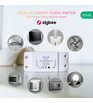
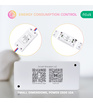
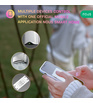


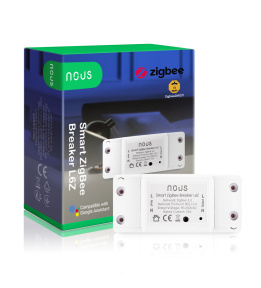

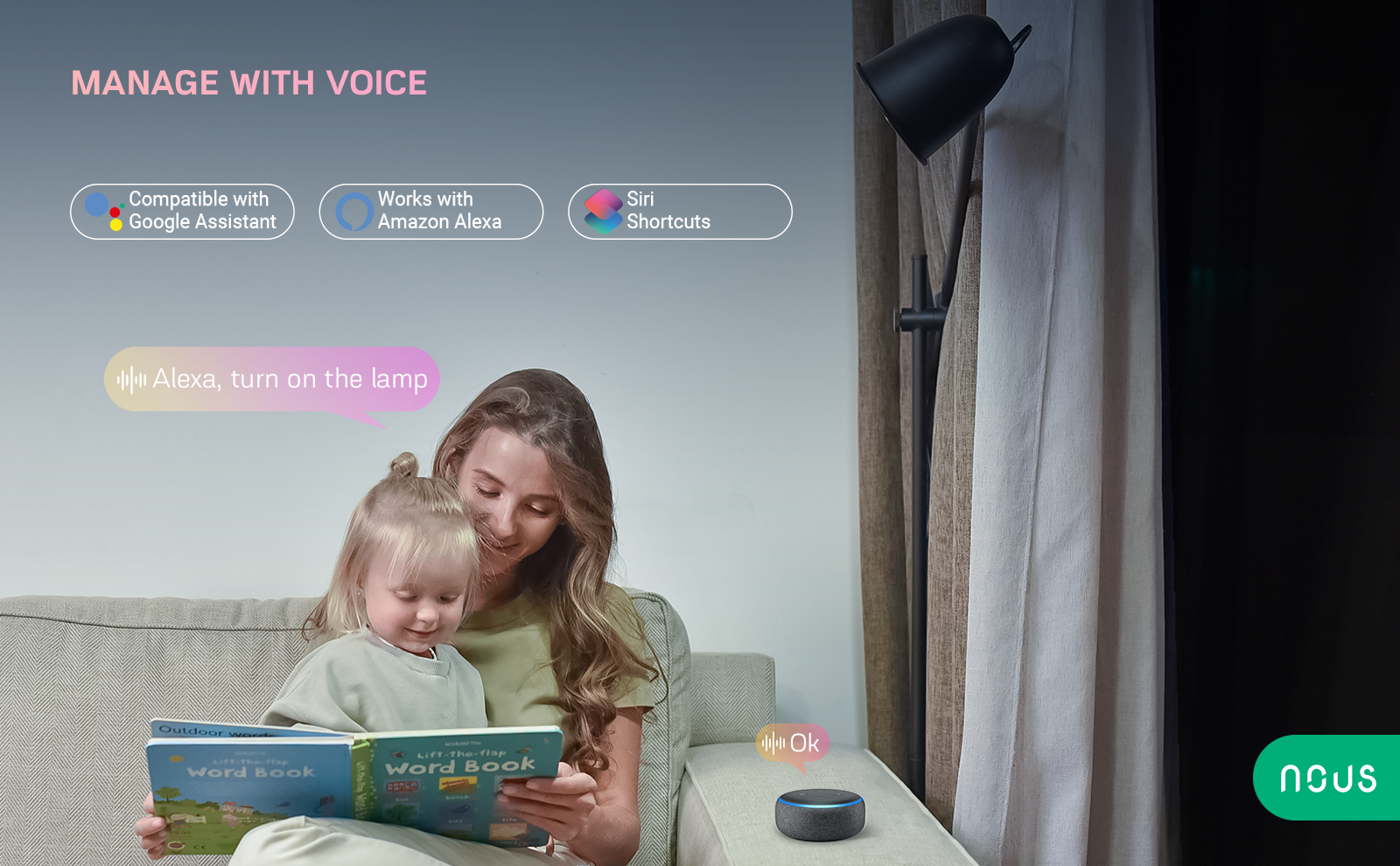
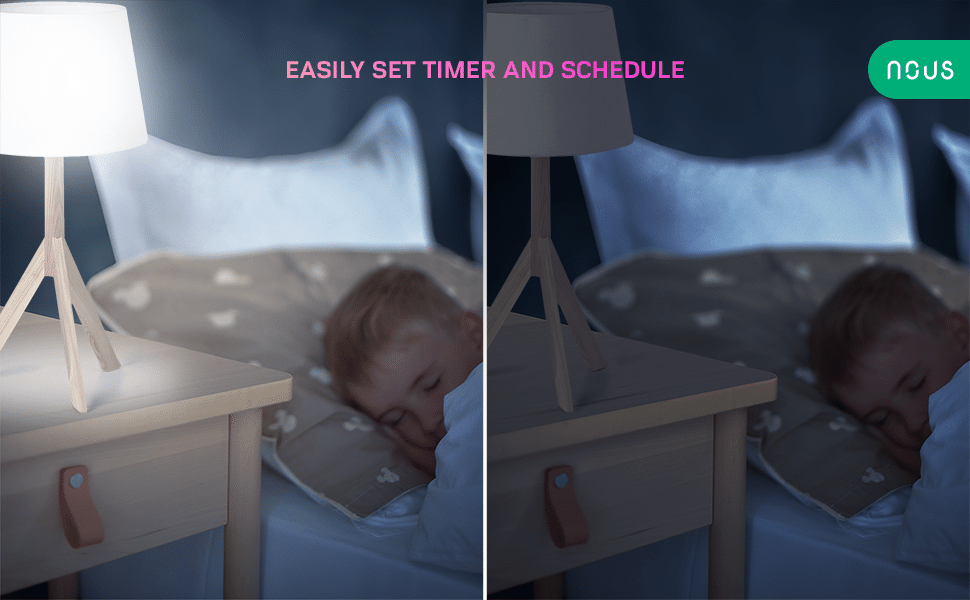
If you are looking for a smart device that can turn any 10A appliance into a smart home gadget, you should check out the Nous L6Z Zigbee smart breaker. This smart switch can control lights, air conditioners, fans, heaters and more with just a touch of your phone or a voice command. You can also set schedules, timers and scenes for your smart devices and enjoy the convenience and comfort of smart home automation.
The Nous L6Z Zigbee smart breaker works with Nous smart app and Tuya smart life apps, which are compatible with Alexa, Google Assistant and other popular voice assistants. You can also connect it to Home Assistant via zigbee2mqtt and use it without cloud dependency. To use this smart switch, you need a Nous E1 or Nous E7 gateway, which acts as a Zigbee hub and connects your smart devices to the internet.

Zigbee is a wireless smart home technology that allows devices to communicate with each other in a mesh network. Zigbee is one of the best protocols for smart home because it has several advantages over Wi-Fi or Bluetooth. Some of these advantages are:
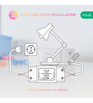
The Nous L6Z Zigbee smart breaker is easy to install and use. It supports 220V/240V electrical systems and has a maximum load of 2200W. It has a sleek and compact design that fits in any wall socket or box. It also has a LED indicator that shows the status of the switch and the connected appliance.
The Nous L6Z Zigbee smart breaker is one of the best smart home devices you can buy for your smart house. It offers you flexibility, reliability and security for your smart home gadgets. You can order it now from our website and enjoy free shipping and 2 year warranty.
| Main settings | |
|---|---|
| Brand | NOUS |
| Certificate | CE, ROSH |
| Special features | Power Monitoring |
| Specifications | |
| Rated Current | 10A |
| Device dimensions | 88*38*22mm |
| Body material | ABS V |
| Maximum load | 2200W |
| Operating voltage range | 90-250V |
| Network | |
| Communication standard | ZigBee 3.0 |
| Protocol | 802.15.4 |
| Frequency range: | 2.400 - 2.483 GHz |
| Max.Transmit Power | 10 dBm |
| Control from a smartphone | Nous smart Home app, Tuya Smart App |
| Compatibility with voice assistants | Google Assistant, Amazon Alexa |
INSTRUCTION MANUAL
Smart ZigBee Switch L6Z
You will need Nous Smart Home App. Scan the QR code or download it from direct link

*and you will need Nous E1 or other Tuya cmpatible ZigBee Gateway/Hub
PRECAUTIONS
- Read this manual carefully.
- Use the product within the temperature and humidity limits specified in the technical data sheet.
- Do not install the product near heat sources such as radiators, etc.
- Do not allow the device to fall and be subject to mechanical loads.
- Do not use chemically active and abrasive detergents to clean the product. Use a damp flannel cloth for this.
- Do not overload the specified capacity. This may cause short circuit and electric shock.
- Do not disassemble the product yourself - diagnostics and repair of the device must be carried out only in a certified service center.
Checklist before using the device:
- Your smart phone or tablet has connected to a WiFi with internet.
- You have the correct WiFi PWD
- Your smart phone or tablet must have access to App Store Google Play.
- Your router is MAC-open
User Guide
- Start with "Nous Smart Home" APP.
- Register an Nous Smart Home If your have Nous Smart Home just log in.
- Open Nous Smart Home app, on smart gateway homepage (your ZigBee Hub has to be connected to the app already),
Click: Zigbee Smart Gateway

- Press + and Add device

- Power on
- ON/OFF operating principle: The connected appliances work/stop throught live wire power on/off.

Appliance wiring instruction
Celling lamp wiring instruction
One wire wiring instruction
Note: The ZigBee Switch must be powered up by N and L wires
- Press the reset button for 5 seconds, till the blue LED blink, then click “LED already blink” on the app.

- Waiting for a few seconds,you can see the this device is shown and you may rename it.


How to connect your device with Alexa
- You have to have Alexa app on youe smartphone
- Go to settings and press "Skill and Games"
- Search for the Nous Smart Home skill
- Enable it
- Link you Nous account with Alexa
- Ask Alexa to discover new devices


How to connect your device with Google Home
- You have to have Google Home app on your smartphone
- Go the the home settings and press "works with google"
- Search for the Nous Smart Home
- Link the account with the Google Home
- All devices from Nous Smart app will appear in Google Home after synchronization


Troubleshooting
Q1: How to set indicator light as rapid flashing?
- Power on device. Power off after 10s and then power on.
- Hold the reset button for 5s.
- Confirm indicator light is now rapidlyflashing
Q2: How to set indicator light as slow flashing?
- Power on device. Power off after 10s and then power on.
- Hold the reset button for 5s
- Confirm indicator light is now rapidly flashing.
- Hold reset button for 5s until indicator light is slowly flashing.
The new added device needs 1min to connect to networks and the internet if it stays offline for a long time please judge the problem by the networks LED status. Тetworks LED quickly blinks one time every second;
* This translation may be inaccurate because it was made with google translate service
MANUALE DI ISTRUZIONI
Interruttore ZigBee intelligente L6Z Interruttore ZigBee intelligente L6Z
Avrai bisogno dell'app Nous Smart Home. Scansiona il codice QR o scaricalo dal collegamento diretto
*e avrai bisogno di Nous E1 o di un altro gateway/hub ZigBee compatibile con Tuya
PRECAUZIONI
- Leggere attentamente questo manuale.
- Utilizzare il prodotto entro i limiti di temperatura e umidità specificati nella scheda tecnica.
- Non installare il prodotto vicino a fonti di calore come radiatori, ecc.
- Non permettere che il dispositivo cada e sia soggetto a carichi meccanici.
- Non utilizzare detergenti chimicamente attivi e abrasivi per pulire il prodotto. A questo scopo utilizzare un panno di flanella umido.
- Non sovraccaricare la capacità specificata. Ciò potrebbe causare cortocircuiti e scosse elettriche.
- Non smontare il prodotto da soli: la diagnostica e la riparazione del dispositivo devono essere eseguite solo presso un centro di assistenza certificato.
Lista di controllo prima di utilizzare il dispositivo:
- Il tuo smartphone o tablet è connesso a una rete WiFi con Internet.
- Hai la PWD WiFi corretta
- Il tuo smartphone o tablet deve avere accesso all'App Store Google Play.
- Il tuo router è aperto al MAC
Guida utente
- Inizia con l'APP "Nous Smart Home".
- Registra una Nous Smart Home Se possiedi Nous Smart Home, effettua il login.
- Apri l'app Nous Smart Home, sulla home page dello smart gateway ( il tuo ZigBee Hub deve essere già connesso all'app ),
fai clic su: Zigbee Smart Gateway
- Premi + e Aggiungi dispositivo
- Accensione
- Principio di funzionamento ON/OFF: gli apparecchi collegati funzionano/si arrestano tramite l'accensione/spegnimento del cavo sotto tensione.
Istruzioni per il cablaggio dell'apparecchio
Istruzioni per il cablaggio della lampada cella
Istruzioni per il cablaggio a un filo
Nota: lo switch ZigBee deve essere alimentato tramite i cavi N e L
- Premi il pulsante di ripristino per 5 secondi, finché il LED blu non lampeggia, quindi fai clic su "Il LED lampeggia già" sull'app.
- Aspettando qualche secondo, puoi vedere che questo dispositivo è mostrato e puoi rinominarlo.
Come connettere il tuo dispositivo ad Alexa
- Devi avere l'app Alexa sul tuo smartphone
- Vai alle impostazioni e premi "Abilità e giochi"
- Cerca la competenza Nous Smart Home
- Abilitalo
- Collega il tuo account Nous ad Alexa
- Chiedi ad Alexa di scoprire nuovi dispositivi
Come connettere il tuo dispositivo a Google Home
- Devi avere l'app Google Home sul tuo smartphone
- Vai alle impostazioni Home e premi "funziona con Google"
- Cerca Nous Smart Home
- Collega l'account a Google Home
- Tutti i dispositivi dell'app Nous Smart verranno visualizzati in Google Home dopo la sincronizzazione
Risoluzione dei problemi
Q1: Come impostare la spia luminosa in modo che lampeggi rapidamente?
- Accendi il dispositivo. Spegnere dopo 10 secondi e quindi riaccendere.
- Tieni premuto il pulsante di ripristino per 5 secondi.
- Conferma che la spia ora lampeggia rapidamente
Q2: Come impostare la spia in modo che lampeggi lentamente?
- Accendi il dispositivo. Spegnere dopo 10 secondi e quindi riaccendere.
- Tieni premuto il pulsante di ripristino per 5 secondi
- La spia di conferma ora lampeggia rapidamente.
- Tenere premuto il pulsante di ripristino per 5 secondi finché la spia non lampeggia lentamente.
Il nuovo dispositivo aggiunto necessita di 1 minuto per connettersi alle reti e a Internet. Se rimane offline per un lungo periodo, giudicare il problema dallo stato del LED della rete. Il LED di rete lampeggia rapidamente una volta al secondo;
* Questa traduzione potrebbe essere imprecisa perché è stata effettuata con il servizio di traduzione di Google
ПОСІБНИК З ЕКСПЛУАТАЦІЇ
Розумний комутатор ZigBee L6Z Розумний комутатор ZigBee L6Z
Вам знадобиться додаток Nous Smart Home. Відскануйте QR-код або завантажте його за прямим посиланням
*і вам знадобиться Nous E1 або інший шлюз/концентратор ZigBee, сумісний з Tuya
ЗАПОБІЖНІ ЗАХОДИ
- Уважно прочитайте цей посібник.
- Використовуйте продукт у межах температури та вологості, зазначених у технічному паспорті.
- Не встановлюйте виріб поблизу джерел тепла, таких як радіатори тощо.
- Не допускайте падіння пристрою та механічних навантажень.
- Не використовуйте для чищення виробу хімічно активні та абразивні миючі засоби. Використовуйте для цього вологу фланелеву серветку.
- Не перевантажуйте вказану ємність. Це може спричинити коротке замикання та ураження електричним струмом.
- Не розбирайте виріб самостійно - діагностику і ремонт пристрою необхідно проводити тільки в сертифікованому сервісному центрі.
Контрольний список перед використанням пристрою:
- Ваш смартфон або планшет підключився до Wi-Fi з Інтернетом.
- У вас правильний WiFi PWD
- Ваш смартфон або планшет повинен мати доступ до App Store Google Play.
- Ваш маршрутизатор відкрито за MAC-адресою
Керівництво користувача
- Почніть із ДОДАТКУ «Nous Smart Home».
- Зареєструйте Nous Smart Home Якщо у вас є Nous Smart Home, просто увійдіть.
- Відкрийте програму Nous Smart Home на домашній сторінці розумного шлюзу ( ваш ZigBee Hub уже має бути підключений до програми ),
натисніть: Zigbee Smart Gateway
- Натисніть + і Додати пристрій
- Увімкніть живлення
- Принцип роботи ON/OFF: підключені прилади працюють/зупиняються через увімкнення/вимкнення живлення проводу під напругою.
Інструкція з підключення приладу
Інструкція з підключення стільникового світильника
Інструкція з підключення одним проводом
Примітка. Живлення комутатора ZigBee має здійснюватися за допомогою проводів N і L
- Натисніть кнопку скидання протягом 5 секунд, доки синій світлодіод не почне блимати, а потім натисніть «Світлодіод вже блимає» в програмі.
- Зачекавши кілька секунд, ви побачите, що цей пристрій показано, і ви можете перейменувати його.
Як підключити свій пристрій до Alexa
- Ви повинні мати додаток Alexa на своєму смартфоні
- Зайдіть в налаштування і натисніть «Навички та ігри»
- Знайдіть навичку Nous Smart Home
- Увімкніть це
- Пов’яжіть свій обліковий запис Nous із Alexa
- Попросіть Alexa відкрити нові пристрої
Як підключити свій пристрій до Google Home
- Ви повинні мати додаток Google Home на своєму смартфоні
- Перейдіть у домашні налаштування та натисніть "працює з Google"
- Знайдіть Nous Smart Home
- Зв’яжіть обліковий запис із Google Home
- Усі пристрої з програми Nous Smart після синхронізації з’являться в Google Home
Вирішення проблем
Q1: Як налаштувати індикатор на швидке блимання?
- Увімкніть пристрій. Через 10 секунд вимкніть, а потім увімкніть.
- Утримуйте кнопку скидання протягом 5 секунд.
- Індикатор підтвердження тепер швидко блимає
Q2: Як налаштувати індикатор на повільне блимання?
- Увімкніть пристрій. Через 10 секунд вимкніть, а потім увімкніть.
- Утримуйте кнопку скидання протягом 5 секунд
- Індикатор підтвердження тепер швидко блимає.
- Утримуйте кнопку скидання протягом 5 секунд, поки індикатор не почне повільно блимати.
Новому доданому пристрою потрібна 1 хвилина для підключення до мережі та Інтернету, якщо він залишається в автономному режимі протягом тривалого часу, оцініть проблему за станом світлодіода мережі. Тetworks світлодіод швидко блимає один раз кожну секунду;
* Цей переклад може бути неточним, оскільки його було зроблено за допомогою служби Google Translate
MANUALE DI ISTRUZIONI
Interruttore Smart ZigBee L6Z
Avrai bisogno dell'app Nous Smart Home. Scansiona il codice QR o scaricalo dal link diretto
Lista di controllo prima di utilizzare il dispositivo:
- Il tuo smartphone o tablet è connesso a una rete Wi-Fi con Internet.
- Hai il WiFi PWD corretto
- Il tuo smartphone o tablet deve avere accesso all'App Store Google Play.
- Il tuo router è aperto al MAC
Guida utente
- Inizia con l'APP "Nous Smart Home".
- Registra una Nous Smart Home Se hai Nous Smart Home, accedi.
- Apri l'app Nous Smart Home, sulla home page del gateway intelligente,
fai clic su: Zigbee Smart Gateway
- Premi + e Aggiungi dispositivo
- Accensione
- Principio di funzionamento ON/OFF: Gli apparecchi collegati funzionano/si arrestano tramite accensione/spegnimento sotto tensione.
Istruzioni per il cablaggio dell'apparecchio
Istruzioni per il cablaggio della lampada a soffitto
Istruzioni per il cablaggio a un filo
Nota: lo ZigBee Switch deve essere alimentato dai fili N e L
- Premere il pulsante di ripristino per 5 secondi, finché il LED blu non lampeggia, quindi fare clic su "LED già lampeggiante" sull'app.
- Aspettando qualche secondo, puoi vedere che questo dispositivo è mostrato e puoi rinominarlo.
Come connettere il tuo dispositivo con Alexa
- Devi avere l'app Alexa sul tuo smartphone
- Vai alle impostazioni e premi "Abilità e giochi"
- Cerca l'abilità Nous Smart Home
- Enable it
- Link you Nous account with Alexa
- Ask Alexa to discover new devices
How to connect your device with Google Home
- You have to have Google Home app on your smartphone
- Go the the home settings and press "works with google"
- Search for the Nous Smart Home
- Link the account with the Google Home
- All devices from Nous Smart app will appear in Google Home after synchronization
Troubleshooting
Q1: How to set indicator light as rapid flashing?
- Power on device. Power off after 10s and then power on.
- Hold the reset button for 5s.
- Confirm indicator light is now rapidlyflashing
Q2: How to set indicator light as slow flashing?
- Power on device. Power off after 10s and then power on.
- Hold the reset button for 5s
- Confirm indicator light is now rapidly flashing.
- Hold reset button for 5s until indicator light is slowly flashing.
Il nuovo dispositivo aggiunto ha bisogno di 1 minuto per connettersi alle reti e a Internet se rimane offline per lungo tempo, giudicare il problema dallo stato del LED della rete. Il LED di rete lampeggia rapidamente una volta al secondo;
* Questa traduzione potrebbe essere imprecisa perché è stata fatta con il servizio di traduzione di Google
MANUAL DE INSTRUCCIONES
Interruptor ZigBee Inteligente L6Z Interruptor ZigBee Inteligente L6Z
Necesitará la aplicación Nous Smart Home. Escanea el código QR o descárgalo desde enlace directo
*y necesitará Nous E1 u otro ZigBee Gateway/Hub compatible con Tuya
PRECAUCIONES
- Lea atentamente este manual.
- Utilice el producto dentro de los límites de temperatura y humedad especificados en la ficha técnica.
- No instale el producto cerca de fuentes de calor como radiadores, etc.
- No permita que el dispositivo se caiga y esté sujeto a cargas mecánicas.
- No utilice detergentes químicamente activos y abrasivos para limpiar el producto. Utilice para ello un paño de franela húmedo.
- No sobrecargue la capacidad especificada. Esto podría provocar un cortocircuito y una descarga eléctrica.
- No desmonte el producto usted mismo: el diagnóstico y la reparación del dispositivo deben realizarse únicamente en un centro de servicio certificado.
Lista de verificación antes de usar el dispositivo:
- Su teléfono inteligente o tableta se ha conectado a una red WiFi con Internet.
- Tienes la PWD WiFi correcta
- Su teléfono inteligente o tableta debe tener acceso a App Store Google Play.
- Su enrutador tiene MAC abierto
Guía del usuario
- Comienza con la APP "Nous Smart Home".
- Registra un Nous Smart Home Si tienes Nous Smart Home simplemente inicia sesión.
- Abra la aplicación Nous Smart Home, en la página de inicio de la puerta de enlace inteligente ( su ZigBee Hub ya debe estar conectado a la aplicación ),
haga clic en: Zigbee Smart Gateway
- Presione + y agregue dispositivo
- Encendido
- Principio de funcionamiento ON/OFF: Los aparatos conectados funcionan/se detienen mediante el encendido/apagado del cable vivo.
Instrucciones de cableado del aparato
Instrucciones de cableado de la lámpara del techo.
Instrucciones de cableado de un cable
Nota: El interruptor ZigBee debe alimentarse mediante cables N y L.
- Presione el botón de reinicio durante 5 segundos, hasta que el LED azul parpadee, luego haga clic en "El LED ya parpadea" en la aplicación.
- Al esperar unos segundos, podrá ver que se muestra este dispositivo y podrá cambiarle el nombre.
Cómo conectar tu dispositivo con Alexa
- Tienes que tener la aplicación Alexa en tu teléfono inteligente.
- Ve a configuración y presiona "Habilidades y Juegos"
- Busca la habilidad Nous Smart Home
- Permitirle
- Vincula tu cuenta Nous con Alexa
- Pídele a Alexa que descubra nuevos dispositivos
Cómo conectar tu dispositivo con Google Home
- Tienes que tener la aplicación Google Home en tu smartphone
- Vaya a la configuración de inicio y presione "funciona con google"
- Busca el Nous Smart Home
- Vincular la cuenta con Google Home
- Todos los dispositivos de la aplicación Nous Smart aparecerán en Google Home después de la sincronización
Solución de problemas
P1: ¿Cómo configurar la luz indicadora para que parpadee rápidamente?
- Encienda el dispositivo. Apague después de 10 segundos y luego enciéndalo.
- Mantenga presionado el botón de reinicio durante 5 segundos.
- La luz indicadora de confirmación ahora parpadea rápidamente
P2: ¿Cómo configurar la luz indicadora para que parpadee lentamente?
- Encienda el dispositivo. Apague después de 10 segundos y luego enciéndalo.
- Mantenga presionado el botón de reinicio durante 5 segundos.
- La luz indicadora de confirmación ahora parpadea rápidamente.
- Mantenga presionado el botón de reinicio durante 5 segundos hasta que la luz indicadora parpadee lentamente.
El nuevo dispositivo agregado necesita 1 minuto para conectarse a las redes y a Internet. Si permanece desconectado durante mucho tiempo, juzgue el problema por el estado del LED de la red. El LED de Тetworks parpadea rápidamente una vez por segundo;
* Esta traducción puede ser inexacta porque fue realizada con el servicio de traducción de Google.
INSTRUKCIJAS
Smart ZigBee Switch L6Z Smart ZigBee Switch L6Z
Jums būs nepieciešama lietotne Nous Smart Home. Skenējiet QR kodu vai lejupielādējiet to no tiešās saites
*un jums būs nepieciešams Nous E1 vai cits ar Tuya saderīgs ZigBee Gateway/Hub
PIESARDZĪBAS PASĀKUMI
- Uzmanīgi izlasiet šo rokasgrāmatu.
- Lietojiet produktu tehniskajā datu lapā norādītajās temperatūras un mitruma robežās.
- Neuzstādiet izstrādājumu tuvu siltuma avotiem, piemēram, radiatoriem utt.
- Neļaujiet ierīcei nokrist un tikt pakļauta mehāniskai slodzei.
- Produkta tīrīšanai neizmantojiet ķīmiski aktīvus un abrazīvus mazgāšanas līdzekļus. Šim nolūkam izmantojiet mitru flaneļa drānu.
- Nepārslogojiet norādīto jaudu. Tas var izraisīt īssavienojumu un elektriskās strāvas triecienu.
- Neizjauciet izstrādājumu paši - ierīces diagnostika un remonts jāveic tikai sertificētā servisa centrā.
Kontrolsaraksts pirms ierīces lietošanas:
- Jūsu viedtālrunis vai planšetdators ir savienots ar WiFi ar internetu.
- Jums ir pareizais WiFi PWD
- Jūsu viedtālrunim vai planšetdatoram ir jābūt piekļuvei App Store Google Play.
- Jūsu maršrutētājs ir atvērts MAC
Lietotāja rokasgrāmata
- Sāciet ar lietotni Nous Smart Home.
- Reģistrējiet Nous Smart Home Ja jums ir Nous Smart Home, vienkārši piesakieties.
- Atveriet lietotni Nous Smart Home viedās vārtejas mājaslapā ( jūsu ZigBee Hub jau ir jābūt savienotam ar lietotni ),
noklikšķiniet uz: Zigbee Smart Gateway
- Nospiediet + un pievienojiet ierīci
- Ieslēdziet barošanu
- IESLĒGŠANAS/IZSLĒGŠANAS darbības princips: pieslēgtās ierīces darbojas/apstājas, ieslēdzot/izslēdzot strāvu vadu.
Ierīces elektroinstalācijas instrukcija
Šūnu lampas elektroinstalācijas instrukcija
Viena vada vadu instrukcija
Piezīme: ZigBee slēdzim ir jābūt darbinātam ar N un L vadiem
- Nospiediet atiestatīšanas pogu 5 sekundes, līdz mirgo zilā gaismas diode, pēc tam lietotnē noklikšķiniet uz “LED jau mirgo”.
- Uzgaidot dažas sekundes, jūs varat redzēt, ka tiek parādīta šī ierīce, un varat to pārdēvēt.
Kā savienot ierīci ar Alexa
- Viedtālrunī ir jābūt lietotnei Alexa
- Dodieties uz iestatījumiem un nospiediet "Prasme un spēles"
- Meklējiet prasmi Nous Smart Home
- Iespējojiet to
- Saistiet savu Nous kontu ar Alexa
- Lūdziet Alexa atklāt jaunas ierīces
Kā savienot ierīci ar Google sākumlapu
- Viedtālrunī ir jābūt lietotnei Google Home
- Atveriet mājas iestatījumus un nospiediet "darbojas ar Google"
- Meklējiet Nous Smart Home
- Saistiet kontu ar Google sākumlapu
- Visas ierīces no lietotnes Nous Smart pēc sinhronizācijas parādīsies pakalpojumā Google Home
Problēmu novēršana
Q1: Kā iestatīt indikatora gaismu kā ātri mirgojošu?
- Ieslēdziet ierīci. Izslēdziet ierīci pēc 10 sekundēm un pēc tam ieslēdziet.
- Turiet nospiestu atiestatīšanas pogu 5 s.
- Apstipriniet, ka indikators tagad ātri mirgo
Q2: Kā iestatīt indikatora gaismu kā lēnu mirgojošu?
- Ieslēdziet ierīci. Izslēdziet ierīci pēc 10 sekundēm un pēc tam ieslēdziet.
- Turiet nospiestu atiestatīšanas pogu 5 s
- Apstipriniet, ka indikators tagad ātri mirgo.
- Turiet atiestatīšanas pogu 5 s, līdz indikators lēnām mirgo.
Jaunajai pievienotajai ierīcei ir nepieciešama 1 minūte, lai izveidotu savienojumu ar tīkliem un internetu, ja tā ilgu laiku ir bezsaistē, lūdzu, novērtējiet problēmu pēc tīkla LED statusa. Тetworks LED ātri mirgo vienu reizi sekundē;
* Šis tulkojums var būt neprecīzs, jo tas tika veikts, izmantojot Google tulkotāja pakalpojumu
INSTRUKCJA OBSŁUGI
Inteligentny przełącznik ZigBee L6Z Inteligentny przełącznik ZigBee L6Z
Będziesz potrzebować aplikacji Nous Smart Home. Zeskanuj kod QR lub pobierz go z bezpośredniego linku
*i będziesz potrzebował Nous E1 lub innego kompatybilnego z Tuya bramki/koncentratora ZigBee
ŚRODKI OSTROŻNOŚCI
- Przeczytaj uważnie niniejszą instrukcję.
- Używaj produktu w zakresie temperatur i wilgotności podanych w karcie technicznej.
- Nie instaluj produktu w pobliżu źródeł ciepła, takich jak grzejniki itp.
- Nie dopuścić do upadku urządzenia i narażania go na obciążenia mechaniczne.
- Do czyszczenia produktu nie należy używać chemicznie aktywnych i ściernych detergentów. Użyj do tego wilgotnej szmatki flanelowej.
- Nie przeciążaj określonej pojemności. Może to spowodować zwarcie i porażenie prądem.
- Nie demontuj produktu samodzielnie – diagnostykę i naprawę urządzenia należy przeprowadzać wyłącznie w certyfikowanym serwisie.
Lista kontrolna przed użyciem urządzenia:
- Twój smartfon lub tablet jest połączony z siecią Wi-Fi z dostępem do Internetu.
- Masz prawidłowe hasło WiFi
- Twój smartfon lub tablet musi mieć dostęp do App Store Google Play.
- Twój router jest otwarty na MAC
Podręcznik użytkownika
- Zacznij od aplikacji „Nous Smart Home”.
- Zarejestruj inteligentny dom Nous Jeśli masz inteligentny dom Nous, po prostu zaloguj się.
- Otwórz aplikację Nous Smart Home na stronie głównej inteligentnej bramy ( Twój ZigBee Hub musi być już połączony z aplikacją ),
kliknij: Zigbee Smart Gateway
- Naciśnij + i Dodaj urządzenie
- Zasilanie włączone
- Zasada działania ON/OFF: podłączone urządzenia działają/zatrzymują się poprzez włączanie/wyłączanie zasilania przewodowego pod napięciem.
Instrukcja okablowania urządzenia
Instrukcja podłączenia lampy sufitowej
Instrukcja okablowania z jednym przewodem
Uwaga: Przełącznik ZigBee musi być zasilany przewodami N i L
- Naciśnij przycisk resetowania na 5 sekund, aż niebieska dioda LED zacznie migać, a następnie kliknij „LED już miga” w aplikacji.
- Poczekaj kilka sekund, zobaczysz, że to urządzenie jest pokazane i możesz zmienić jego nazwę.
Jak połączyć urządzenie z Alexą
- Musisz mieć aplikację Alexa na swoim smartfonie
- Przejdź do ustawień i naciśnij „Umiejętności i gry”
- Wyszukaj umiejętność Nous Smart Home
- Odblokuj to
- Połącz swoje konto Nous z Alexą
- Poproś Alexę o odkrycie nowych urządzeń
Jak połączyć urządzenie z Google Home
- Musisz mieć aplikację Google Home na swoim smartfonie
- Przejdź do ustawień domowych i naciśnij „działa z Google”
- Wyszukaj inteligentny dom Nous
- Połącz konto z Google Home
- Wszystkie urządzenia z aplikacji Nous Smart pojawią się w Google Home po synchronizacji
Rozwiązywanie problemów
P1: Jak ustawić lampkę kontrolną na szybkie miganie?
- Włącz urządzenie. Wyłącz zasilanie po 10 s, a następnie włącz zasilanie.
- Przytrzymaj przycisk resetowania przez 5 sekund.
- Sprawdź, czy kontrolka miga teraz szybko
P2: Jak ustawić lampkę kontrolną na powolne miganie?
- Włącz urządzenie. Wyłącz zasilanie po 10 s, a następnie włącz zasilanie.
- Przytrzymaj przycisk resetowania przez 5 sekund
- Sprawdź, czy kontrolka miga teraz szybko.
- Przytrzymaj przycisk resetowania przez 5 sekund, aż lampka kontrolna zacznie powoli migać.
Nowo dodane urządzenie potrzebuje 1 minuty na połączenie się z siecią i Internetem, jeśli pozostaje w trybie offline przez dłuższy czas, oceń problem na podstawie stanu diody LED sieci. Dioda sieciowa szybko miga raz na sekundę;
* To tłumaczenie może być niedokładne, ponieważ zostało wykonane za pomocą usługi tłumacza Google
MANUEL D'INSTRUCTIONS
Commutateur ZigBee intelligent L6Z Commutateur ZigBee intelligent L6Z
Vous aurez besoin de l’application Nous Smart Home. Scannez le code QR ou téléchargez-le à partir du lien direct
*Et vous aurez besoin de Nous E1 ou d'une autre passerelle/Hub ZigBee compatible avec Tuya.
PRÉCAUTIONS
- Lisez attentivement ce manuel.
- Utiliser le produit dans les limites de température et d'humidité spécifiées dans la fiche technique.
- N'installez pas le produit à proximité de sources de chaleur telles que des radiateurs, etc.
- Ne laissez pas l'appareil tomber et être soumis à des charges mécaniques.
- N'utilisez pas de détergents chimiquement actifs et abrasifs pour nettoyer le produit. Utilisez pour cela un chiffon de flanelle humide.
- Ne surchargez pas la capacité spécifiée. Cela pourrait provoquer un court-circuit et un choc électrique.
- Ne démontez pas le produit vous-même - le diagnostic et la réparation de l'appareil doivent être effectués uniquement dans un centre de service certifié.
Liste de contrôle avant d'utiliser l'appareil :
- Votre téléphone intelligent ou votre tablette est connecté à un réseau WiFi avec Internet.
- Vous disposez du bon mot de passe Wi-Fi
- Votre téléphone intelligent ou votre tablette doit avoir accès à l'App Store Google Play.
- Votre routeur est ouvert sur MAC
Mode d'emploi
- Commencez avec l'application "Nous Smart Home".
- Enregistrez une Nous Smart Home Si vous possédez Nous Smart Home, connectez-vous simplement.
- Ouvrez l'application Nous Smart Home, sur la page d'accueil de la passerelle intelligente ( votre ZigBee Hub doit déjà être connecté à l'application ),
cliquez sur : Zigbee Smart Gateway
- Appuyez sur + et Ajouter un appareil
- Allumer
- Principe de fonctionnement marche/arrêt : les appareils connectés fonctionnent/s'arrêtent grâce à la mise sous/hors tension du fil sous tension.
Instruction de câblage de l'appareil
Instruction de câblage de la lampe de plafond
Instruction de câblage à un fil
Remarque : Le ZigBee Switch doit être alimenté par les fils N et L
- Appuyez sur le bouton de réinitialisation pendant 5 secondes, jusqu'à ce que la LED bleue clignote, puis cliquez sur « La LED clignote déjà » sur l'application.
- En attendant quelques secondes, vous pouvez voir cet appareil s'afficher et vous pouvez le renommer.
Comment connecter votre appareil avec Alexa
- Vous devez avoir l'application Alexa sur votre smartphone
- Allez dans les paramètres et appuyez sur "Compétences et jeux"
- Recherchez la compétence Nous Smart Home
- Activez-le
- Associez votre compte Nous à Alexa
- Demandez à Alexa de découvrir de nouveaux appareils
Comment connecter votre appareil à Google Home
- Vous devez avoir l'application Google Home sur votre smartphone
- Accédez aux paramètres d'accueil et appuyez sur "fonctionne avec Google".
- Recherchez la maison intelligente Nous
- Associer le compte à Google Home
- Tous les appareils de l'application Nous Smart apparaîtront dans Google Home après la synchronisation
Dépannage
Q1 : Comment régler le voyant lumineux pour qu'il clignote rapidement ?
- Allumez l'appareil. Éteignez après 10 secondes, puis rallumez.
- Maintenez le bouton de réinitialisation enfoncé pendant 5 secondes.
- Confirmez que le voyant clignote maintenant rapidement
Q2 : Comment régler le voyant lumineux pour qu'il clignote lentement ?
- Allumez l'appareil. Éteignez après 10 secondes, puis rallumez.
- Maintenez le bouton de réinitialisation enfoncé pendant 5 s
- Le voyant de confirmation clignote maintenant rapidement.
- Maintenez le bouton de réinitialisation enfoncé pendant 5 secondes jusqu'à ce que le voyant clignote lentement.
Le nouvel appareil ajouté a besoin d'une minute pour se connecter aux réseaux et à Internet. S'il reste hors ligne pendant une longue période, veuillez juger du problème par l'état du voyant du réseau. La LED Тetworks clignote rapidement une fois par seconde ;
* Cette traduction peut être inexacte car elle a été réalisée avec le service de traduction Google
BEDIENUNGSANLEITUNG
Intelligenter ZigBee-Schalter L6Z Intelligenter ZigBee-Schalter L6Z
Sie benötigen die Nous Smart Home App. Scannen Sie den QR-Code oder laden Sie ihn über den Direktlink herunter
*und Sie benötigen Nous E1 oder ein anderes Tuya-kompatibles ZigBee-Gateway/Hub
VORSICHTSMASSNAHMEN
- Lesen Sie dieses Handbuch sorgfältig durch.
- Verwenden Sie das Produkt innerhalb der im technischen Datenblatt angegebenen Temperatur- und Feuchtigkeitsgrenzen.
- Installieren Sie das Produkt nicht in der Nähe von Wärmequellen wie Heizkörpern usw.
- Lassen Sie das Gerät nicht fallen und setzen Sie es keinen mechanischen Belastungen aus.
- Verwenden Sie zum Reinigen des Produkts keine chemisch aktiven und scheuernden Reinigungsmittel. Verwenden Sie hierfür ein feuchtes Flanelltuch.
- Überlasten Sie die angegebene Kapazität nicht. Dies kann zu Kurzschlüssen und Stromschlägen führen.
- Zerlegen Sie das Produkt nicht selbst – Diagnose und Reparatur des Geräts dürfen nur in einem zertifizierten Servicecenter durchgeführt werden.
Checkliste vor dem Einsatz des Gerätes:
- Ihr Smartphone oder Tablet ist mit einem WLAN mit Internet verbunden.
- Sie haben das richtige WLAN-Passwort
- Ihr Smartphone oder Tablet muss Zugriff auf den App Store Google Play haben.
- Ihr Router ist MAC-offen
Benutzerhandbuch
- Beginnen Sie mit der App „Nous Smart Home“.
- Registrieren Sie ein Nous Smart Home. Wenn Sie ein Nous Smart Home haben, melden Sie sich einfach an.
- Öffnen Sie die Nous Smart Home-App auf der Smart Gateway-Homepage ( Ihr ZigBee Hub muss bereits mit der App verbunden sein ) und
klicken Sie auf: Zigbee Smart Gateway
- Drücken Sie + und Gerät hinzufügen
- Ein
- EIN/AUS-Funktionsprinzip: Die angeschlossenen Geräte funktionieren/stoppen durch Ein-/Ausschalten der stromführenden Leitung.
Anleitung zum Verdrahten von Geräten
Verdrahtungsanleitung für Deckenlampen
Eindraht-Verdrahtungsanweisung
Hinweis: Der ZigBee-Switch muss über die N- und L-Leitungen mit Strom versorgt werden
- Drücken Sie die Reset-Taste 5 Sekunden lang, bis die blaue LED blinkt, und klicken Sie dann in der App auf „LED blinkt bereits“.
- Nach einigen Sekunden wird dieses Gerät angezeigt und Sie können es umbenennen.
So verbinden Sie Ihr Gerät mit Alexa
- Sie müssen die Alexa-App auf Ihrem Smartphone haben
- Gehen Sie zu den Einstellungen und drücken Sie „Skill and Games“
- Suchen Sie nach der Nous Smart Home-Fähigkeit
- Aktivieren Sie es
- Verknüpfen Sie Ihr Nous-Konto mit Alexa
- Bitten Sie Alexa, neue Geräte zu entdecken
So verbinden Sie Ihr Gerät mit Google Home
- Sie müssen die Google Home-App auf Ihrem Smartphone haben
- Gehen Sie zu den Home-Einstellungen und drücken Sie „Funktioniert mit Google“.
- Suche nach dem Nous Smart Home
- Verknüpfen Sie das Konto mit Google Home
- Alle Geräte aus der Nous Smart-App werden nach der Synchronisierung in Google Home angezeigt
Fehlerbehebung
F1: Wie stelle ich die Kontrollleuchte auf schnelles Blinken ein?
- Gerät einschalten. Nach 10 s ausschalten und dann wieder einschalten.
- Halten Sie die Reset-Taste 5 Sekunden lang gedrückt.
- Bestätigen Sie, dass die Kontrollleuchte jetzt schnell blinkt
F2: Wie stelle ich die Kontrollleuchte auf langsames Blinken ein?
- Gerät einschalten. Nach 10 s ausschalten und dann wieder einschalten.
- Halten Sie die Reset-Taste 5 Sekunden lang gedrückt
- Vergewissern Sie sich, dass die Anzeigeleuchte jetzt schnell blinkt.
- Halten Sie die Reset-Taste 5 Sekunden lang gedrückt, bis die Anzeigeleuchte langsam blinkt.
Das neu hinzugefügte Gerät benötigt 1 Minute, um sich mit Netzwerken und dem Internet zu verbinden. Wenn es längere Zeit offline bleibt, beurteilen Sie das Problem bitte anhand des Netzwerk-LED-Status. Die Netzwerk-LED blinkt schnell einmal pro Sekunde.
* Diese Übersetzung kann ungenau sein, da sie mit dem Google-Übersetzungsdienst erstellt wurde
KASUTUSJUHEND
Nutikas ZigBee lüliti L6Z Nutikas ZigBee lüliti L6Z
Teil on vaja Nous Smart Home rakendust. Skannige QR-kood või laadige see alla otselingilt
*ja teil on vaja Nous E1 või muud Tuya cm-ühilduvat ZigBee Gateway/Hubi
ETTEVAATUSABINÕUD
- Lugege see juhend hoolikalt läbi.
- Kasutage toodet tehnilistel andmetelehel märgitud temperatuuri ja niiskuse piirides.
- Ärge paigaldage toodet soojusallikate, näiteks radiaatorite jms lähedusse.
- Ärge laske seadmel kukkuda ja sellele mehaanilist koormust avaldada.
- Ärge kasutage toote puhastamiseks keemiliselt aktiivseid ja abrasiivseid puhastusvahendeid. Kasutage selleks niisket flanelllappi.
- Ärge koormake määratud võimsust üle. See võib põhjustada lühise ja elektrilöögi.
- Ärge võtke toodet ise lahti – seadme diagnostika ja remont tuleb läbi viia ainult sertifitseeritud teeninduskeskuses.
Kontrollnimekiri enne seadme kasutamist:
- Teie nutitelefon või tahvelarvuti on ühendatud Internetiga WiFi-võrguga.
- Teil on õige WiFi PWD
- Teie nutitelefonil või tahvelarvutil peab olema juurdepääs App Store'ile Google Play.
- Teie ruuter on MAC-avatud
Kasutusjuhend
- Alustage rakendusega "Nous Smart Home".
- Registreerige Nous Smart Home Kui teil on Nous Smart Home, logige lihtsalt sisse.
- Avage nutikalüüsi avalehel rakendus Nous Smart Home ( teie ZigBee Hub peab olema juba rakendusega ühendatud ),
klõpsake: Zigbee Smart Gateway
- Vajutage + ja Lisa seade
- Toide sisse
- SISSE/VÄLJAS tööpõhimõte: Ühendatud seadmed töötavad/peatuvad pingestatud juhtme sisse-/väljalülitamisel.
Seadme juhtmestiku juhend
Kärrelambi juhtmestiku juhend
Ühe juhtme juhtmestiku juhend
Märkus. ZigBee Switch peab olema toiteallikana N- ja L-juhtmetega
- Vajutage lähtestamisnuppu 5 sekundit, kuni sinine LED-tuli vilgub, seejärel klõpsake rakenduses nuppu "LED juba vilgub".
- Paar sekundit oodates näete, et see seade kuvatakse, ja saate selle ümber nimetada.
Kuidas ühendada oma seade Alexaga
- Teie nutitelefonis peab olema Alexa rakendus
- Minge seadetesse ja vajutage "Oskused ja mängud"
- Otsige Nous Smart Home oskust
- Luba see
- Linkige oma Nousi konto Alexaga
- Paluge Alexal uusi seadmeid avastada
Seadme ühendamine Google Home'iga
- Teie nutitelefonis peab olema rakendus Google Home
- Avage koduseaded ja klõpsake nuppu "Töötab Google'iga"
- Otsige üles Nous Smart Home
- Linkige konto Google Home'iga
- Kõik rakenduse Nous Smart seadmed kuvatakse pärast sünkroonimist Google Home'is
Veaotsing
Q1: Kuidas seada märgutuli kiiresti vilkuvaks?
- Lülitage seade sisse. Lülitage 10 sekundi pärast välja ja seejärel sisse.
- Hoidke lähtestamisnuppu 5 sekundit all.
- Kinnitage, et märgutuli vilgub nüüd kiiresti
Q2: Kuidas määrata märgutuli aeglaselt vilkuma?
- Lülitage seade sisse. Lülitage 10 sekundi pärast välja ja seejärel sisse.
- Hoidke lähtestamisnuppu 5 sekundit all
- Kinnitage, et märgutuli vilgub nüüd kiiresti.
- Hoidke lähtestusnuppu 5 sekundit all, kuni märgutuli hakkab aeglaselt vilkuma.
Uus lisatud seade vajab võrkude ja Internetiga ühenduse loomiseks 1 minutit, kui see on pikka aega võrguühenduseta, hinnake probleemi võrgu LED-oleku järgi. Тetworks LED vilgub kiiresti üks kord sekundis;
* See tõlge võib olla ebatäpne, kuna see tehti Google'i tõlke teenusega
NÁVOD NA POUŽITIE
Smart ZigBee Switch L6Z Smart ZigBee Switch L6Z
Budete potrebovať aplikáciu Nous Smart Home. Naskenujte QR kód alebo si ho stiahnite z priameho odkazu
*a budete potrebovať Nous E1 alebo iný ZigBee Gateway/Hub kompatibilný s Tuya
PREVENCIA
- Pozorne si prečítajte tento návod.
- Výrobok používajte v rámci teplotných a vlhkostných limitov uvedených v technickom liste.
- Neinštalujte výrobok v blízkosti zdrojov tepla, ako sú radiátory atď.
- Nedovoľte, aby zariadenie spadlo a nebolo vystavené mechanickému zaťaženiu.
- Na čistenie výrobku nepoužívajte chemicky aktívne a abrazívne čistiace prostriedky. Použite na to vlhkú flanelovú handričku.
- Nepreťažujte uvedenú kapacitu. Môže to spôsobiť skrat a úraz elektrickým prúdom.
- Výrobok sami nerozoberajte - diagnostika a oprava zariadenia sa musí vykonávať iba v certifikovanom servisnom stredisku.
Kontrolný zoznam pred použitím zariadenia:
- Váš chytrý telefón alebo tablet je pripojený k WiFi s internetom.
- Máte správne WiFi PWD
- Váš smartfón alebo tablet musí mať prístup do App Store Google Play.
- Váš smerovač je otvorený pre MAC
Užívateľská príručka
- Začnite s APP "Nous Smart Home".
- Zaregistrujte si Nous Smart Home Ak máte Nous Smart Home, stačí sa prihlásiť.
- Otvorte aplikáciu Nous Smart Home na domovskej stránke inteligentnej brány ( váš ZigBee Hub už musí byť pripojený k aplikácii ),
kliknite: Zigbee Smart Gateway
- Stlačte + a Pridať zariadenie
- Zapnutie
- Princíp činnosti ON/OFF: Pripojené spotrebiče fungujú/zastavujú sa zapnutím/vypnutím elektrického vedenia.
Návod na zapojenie spotrebiča
Návod na zapojenie celingovej lampy
Návod na zapojenie jedného drôtu
Poznámka: ZigBee Switch musí byť napájaný N a L vodičmi
- Stlačte tlačidlo reset na 5 sekúnd, kým nezačne modrá LED dióda blikať, potom v aplikácii kliknite na „LED už bliká“.
- Počkajte niekoľko sekúnd a uvidíte, že sa toto zariadenie zobrazí, a môžete ho premenovať.
Ako pripojiť vaše zariadenie k Alexa
- Na svojom smartfóne musíte mať aplikáciu Alexa
- Prejdite do nastavení a stlačte "Skill and Games"
- Vyhľadajte zručnosť Nous Smart Home
- Povoľte to
- Prepojte svoj účet Nous s Alexou
- Požiadajte Alexu, aby objavila nové zariadenia
Ako pripojiť zariadenie k domovskej stránke Google
- Vo svojom smartfóne musíte mať aplikáciu Google Home
- Prejdite do nastavení domácnosti a stlačte „funguje s google“
- Vyhľadajte inteligentný dom Nous
- Prepojte účet so zariadením Google Home
- Všetky zariadenia z aplikácie Nous Smart sa po synchronizácii zobrazia v Google Home
Riešenie problémov
Q1: Ako nastaviť kontrolku na rýchle blikanie?
- Zapnite zariadenie. Vypnite po 10 sekundách a potom zapnite.
- Podržte tlačidlo reset na 5 sekúnd.
- Skontrolujte, či kontrolka teraz rýchlo bliká
Q2: Ako nastaviť kontrolku na pomalé blikanie?
- Zapnite zariadenie. Vypnite po 10 sekundách a potom zapnite.
- Podržte tlačidlo reset na 5 sekúnd
- Skontrolujte, či kontrolka teraz rýchlo bliká.
- Podržte tlačidlo reset na 5 sekúnd, kým kontrolka pomaly nezačne blikať.
Nové pridané zariadenie potrebuje 1 minútu na pripojenie k sieťam a internetu, ak zostane offline dlhší čas, posúďte problém podľa stavu LED siete. LED Тetworks rýchlo zabliká raz za sekundu;
* Tento preklad môže byť nepresný, pretože bol vytvorený pomocou služby prekladača Google
MANUAL DE INSTRUCTIUNI
Comutator Smart ZigBee L6Z Comutator Smart ZigBee L6Z
Veți avea nevoie de aplicația Nous Smart Home. Scanați codul QR sau descărcați-l de pe linkul direct
*și veți avea nevoie de Nous E1 sau alt Gateway/Hub ZigBee compatibil cu Tuya
PRECAUȚII
- Citiți cu atenție acest manual.
- Utilizați produsul în limitele de temperatură și umiditate specificate în fișa tehnică.
- Nu instalați produsul în apropierea surselor de căldură, cum ar fi calorifere etc.
- Nu lăsați dispozitivul să cadă și să fie supus sarcinilor mecanice.
- Nu utilizați detergenți activi chimic și abrazivi pentru curățarea produsului. Utilizați o cârpă umedă de flanel pentru aceasta.
- Nu supraîncărcați capacitatea specificată. Acest lucru poate cauza scurtcircuit și șoc electric.
- Nu dezasamblați singur produsul - diagnosticarea și repararea dispozitivului trebuie efectuate numai într-un centru de service autorizat.
Lista de verificare înainte de a utiliza dispozitivul:
- Telefonul sau tableta dvs. inteligentă s-a conectat la un WiFi cu internet.
- Aveți PWD WiFi corect
- Telefonul sau tableta dvs. inteligentă trebuie să aibă acces la App Store Google Play.
- Routerul dvs. este deschis pentru MAC
Manualul utilizatorului
- Începeți cu APP „Nous Smart Home”.
- Înregistrați un Nous Smart Home Dacă aveți Nous Smart Home, trebuie doar să vă conectați.
- Deschideți aplicația Nous Smart Home, pe pagina de pornire a gateway-ului inteligent ( ZigBee Hub-ul dvs. trebuie să fie deja conectat la aplicație ),
faceți clic pe: Zigbee Smart Gateway
- Apăsați + și Adăugați dispozitiv
- Aprinde
- Principiul de funcționare ON/OFF: Aparatele conectate funcționează/se opresc prin pornire/oprire prin cablu.
Instrucțiuni de cablare a aparatului
Instrucțiuni pentru cablarea lămpii
Instrucțiuni de cablare cu un singur fir
Notă: Comutatorul ZigBee trebuie alimentat de firele N și L
- Apăsați butonul de resetare timp de 5 secunde, până când LED-ul albastru clipește, apoi faceți clic pe „LED-ul deja intermitent” în aplicație.
- Așteptând câteva secunde, puteți vedea că acest dispozitiv este afișat și îl puteți redenumi.
Cum să vă conectați dispozitivul la Alexa
- Trebuie să aveți aplicația Alexa pe smartphone-ul dvs
- Accesați setări și apăsați „Îndemânare și jocuri”
- Căutați competența Nous Smart Home
- Activează-l
- Conectați-vă contul Nous cu Alexa
- Cereți-i lui Alexa să descopere dispozitive noi
Cum să vă conectați dispozitivul la Google Home
- Trebuie să aveți aplicația Google Home pe smartphone
- Accesați setările de acasă și apăsați „funcționează cu Google”
- Căutați Casa inteligentă Nous
- Conectați contul cu Google Home
- Toate dispozitivele din aplicația Nous Smart vor apărea în Google Home după sincronizare
Depanare
Î1: Cum să setați indicatorul luminos ca intermitent rapid?
- Porniți dispozitivul. Opriți după 10 secunde și apoi porniți.
- Țineți apăsat butonul de resetare timp de 5 secunde.
- Confirmați că indicatorul luminos clipește acum rapid
Î2: Cum să setați indicatorul luminos ca clipește lent?
- Porniți dispozitivul. Opriți după 10 secunde și apoi porniți.
- Țineți apăsat butonul de resetare timp de 5 secunde
- Confirmați că indicatorul luminos clipește rapid acum.
- Țineți apăsat butonul de resetare timp de 5 secunde până când indicatorul luminos clipește încet.
Noul dispozitiv adăugat are nevoie de 1 minut pentru a se conecta la rețele și la internet dacă rămâne offline pentru o perioadă lungă de timp, vă rugăm să judecați problema după starea LED-ului rețelei. LED-ul Тetworks clipește rapid o dată în fiecare secundă;
* Această traducere poate fi inexactă deoarece a fost făcută cu serviciul de traducere Google
NÁVOD K POUŽITÍ
Smart ZigBee Switch L6Z Smart ZigBee Switch L6Z
Budete potřebovat aplikaci Nous Smart Home. Naskenujte QR kód nebo si jej stáhněte z přímého odkazu
*a budete potřebovat Nous E1 nebo jiný ZigBee Gateway/Hub kompatibilní s Tuya
OPATŘENÍ
- Přečtěte si pozorně tento návod.
- Výrobek používejte v mezích teploty a vlhkosti uvedených v technickém listu.
- Neinstalujte výrobek v blízkosti zdrojů tepla, jako jsou radiátory atd.
- Nedovolte, aby zařízení spadlo a bylo vystaveno mechanickému zatížení.
- K čištění výrobku nepoužívejte chemicky aktivní a abrazivní čisticí prostředky. Použijte k tomu vlhký flanelový hadřík.
- Nepřetěžujte uvedenou kapacitu. To může způsobit zkrat a úraz elektrickým proudem.
- Výrobek sami nerozebírejte - diagnostika a opravy zařízení musí být prováděny pouze v certifikovaném servisním středisku.
Kontrolní seznam před použitím zařízení:
- Váš chytrý telefon nebo tablet se připojil k WiFi s internetem.
- Máte správné WiFi PWD
- Váš chytrý telefon nebo tablet musí mít přístup do App Store Google Play.
- Váš router je otevřený pro MAC
Uživatelská příručka
- Začněte s aplikací "Nous Smart Home".
- Zaregistrujte si Nous Smart Home Pokud máte Nous Smart Home, stačí se přihlásit.
- Otevřete aplikaci Nous Smart Home na domovské stránce chytré brány ( váš ZigBee Hub již musí být připojen k aplikaci ),
Klikněte na: Zigbee Smart Gateway
- Stiskněte + a Přidat zařízení
- Zapnutí
- Princip činnosti ON/OFF: Připojené spotřebiče fungují/zastavují se zapnutím/vypnutím napájení pod proudem.
Návod k zapojení spotřebiče
Návod na zapojení podstavné lampy
Návod k zapojení jednoho drátu
Poznámka: ZigBee Switch musí být napájen N a L vodiči
- Stiskněte resetovací tlačítko po dobu 5 sekund, dokud modrá LED nezačne blikat, a poté v aplikaci klikněte na „LED již bliká“.
- Počkejte několik sekund a uvidíte, že se toto zařízení zobrazí, a můžete jej přejmenovat.
Jak propojit zařízení s Alexou
- Na svém smartphonu musíte mít aplikaci Alexa
- Přejděte do nastavení a stiskněte "Skill and Games"
- Hledejte dovednost Nous Smart Home
- Povolte to
- Propojte svůj účet Nous s Alexou
- Požádejte Alexu, aby objevila nová zařízení
Jak připojit zařízení k domovské stránce Google
- Na svém smartphonu musíte mít aplikaci Google Home
- Přejděte do nastavení domácnosti a stiskněte „funguje s google“
- Hledejte Nous Smart Home
- Propojte účet se zařízením Google Home
- Všechna zařízení z aplikace Nous Smart se po synchronizaci objeví v Google Home
Odstraňování problémů
Q1: Jak nastavit kontrolku na rychlé blikání?
- Zapněte zařízení. Vypněte po 10 s a poté zapněte.
- Podržte resetovací tlačítko po dobu 5 sekund.
- Potvrďte, že kontrolka nyní rychle bliká
Q2: Jak nastavit kontrolku na pomalé blikání?
- Zapněte zařízení. Vypněte po 10 s a poté zapněte.
- Podržte resetovací tlačítko po dobu 5 sekund
- Potvrďte, že kontrolka nyní rychle bliká.
- Podržte resetovací tlačítko po dobu 5 s, dokud kontrolka pomalu nezačne blikat.
Nově přidané zařízení potřebuje 1 minutu na připojení k sítím a internetu, pokud zůstane offline po dlouhou dobu, posuďte problém podle stavu LED sítě. LED Тetworks rychle zabliká jednou za sekundu;
* Tento překlad může být nepřesný, protože byl vytvořen pomocí služby Google Translate