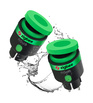

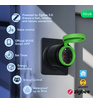
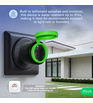
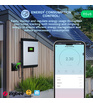

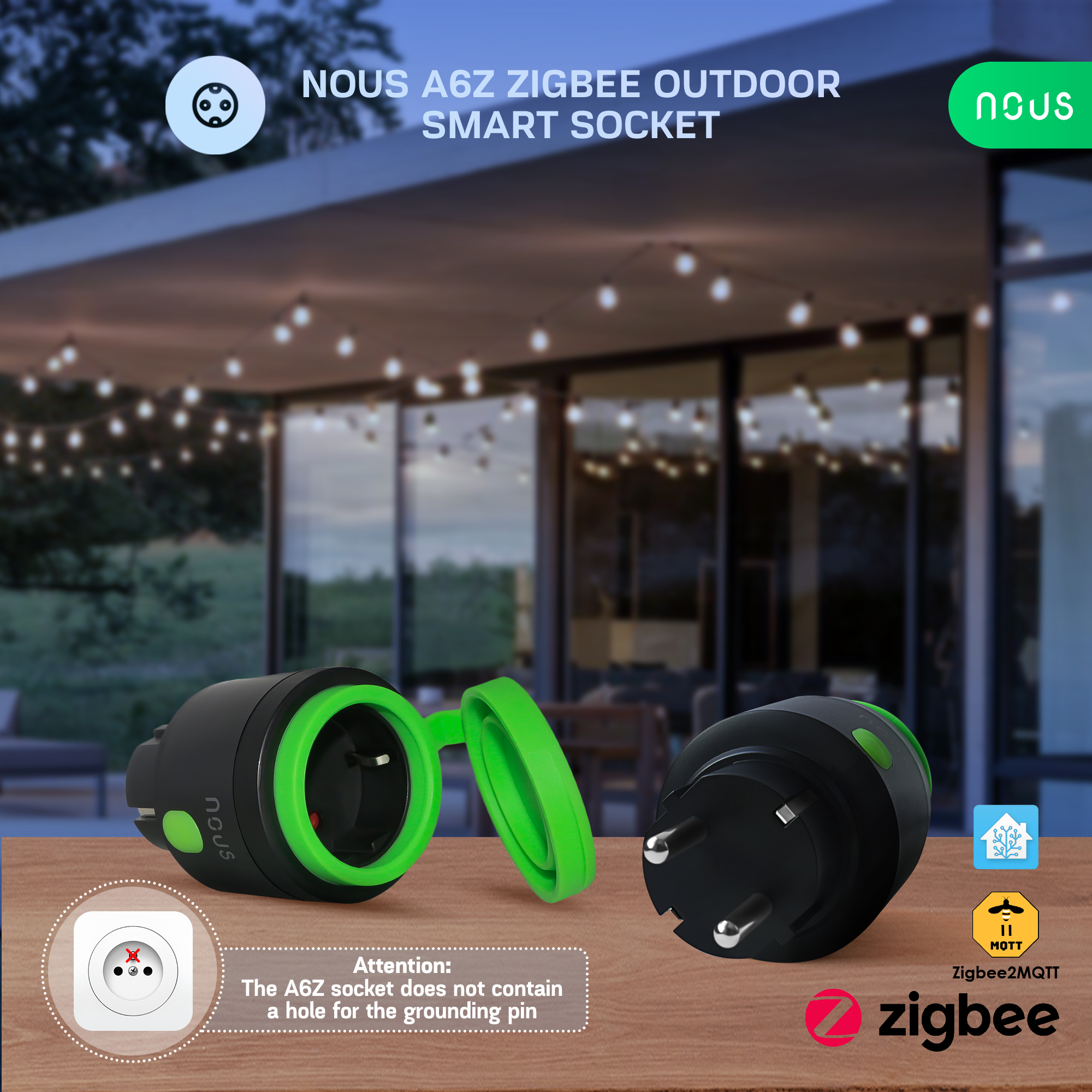

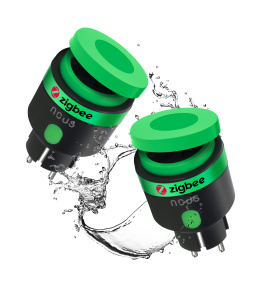
Nous A6Z ZigBee Outdoor Smart Socket (2pcs)
| Main settings | |
|---|---|
| Brand | NOUS |
| Material | Plastic |
| Electric power | 3840W |
| Certificate | CE, RoHS, RED |
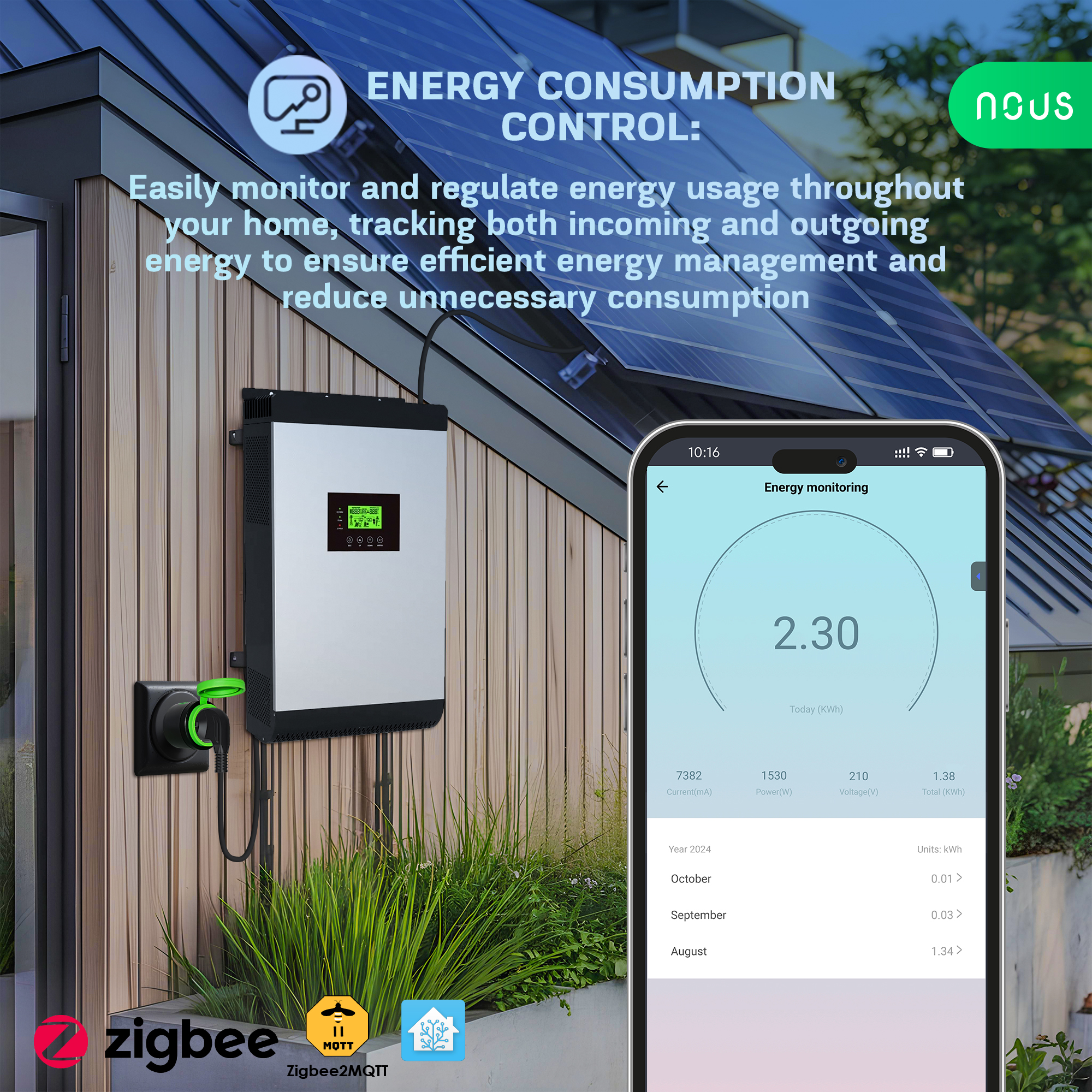
| Special features | Energy Monitoring |
| Specifications | |
| Device dimensions | 58*58*100 mm |
| Body material | Heat resistant plastic |
| Maximum load | 16A peak / 15A continuous |
| Operating temperature | -20 ºC ~ 40 ºC |
| Operating voltage range | 220-240V |
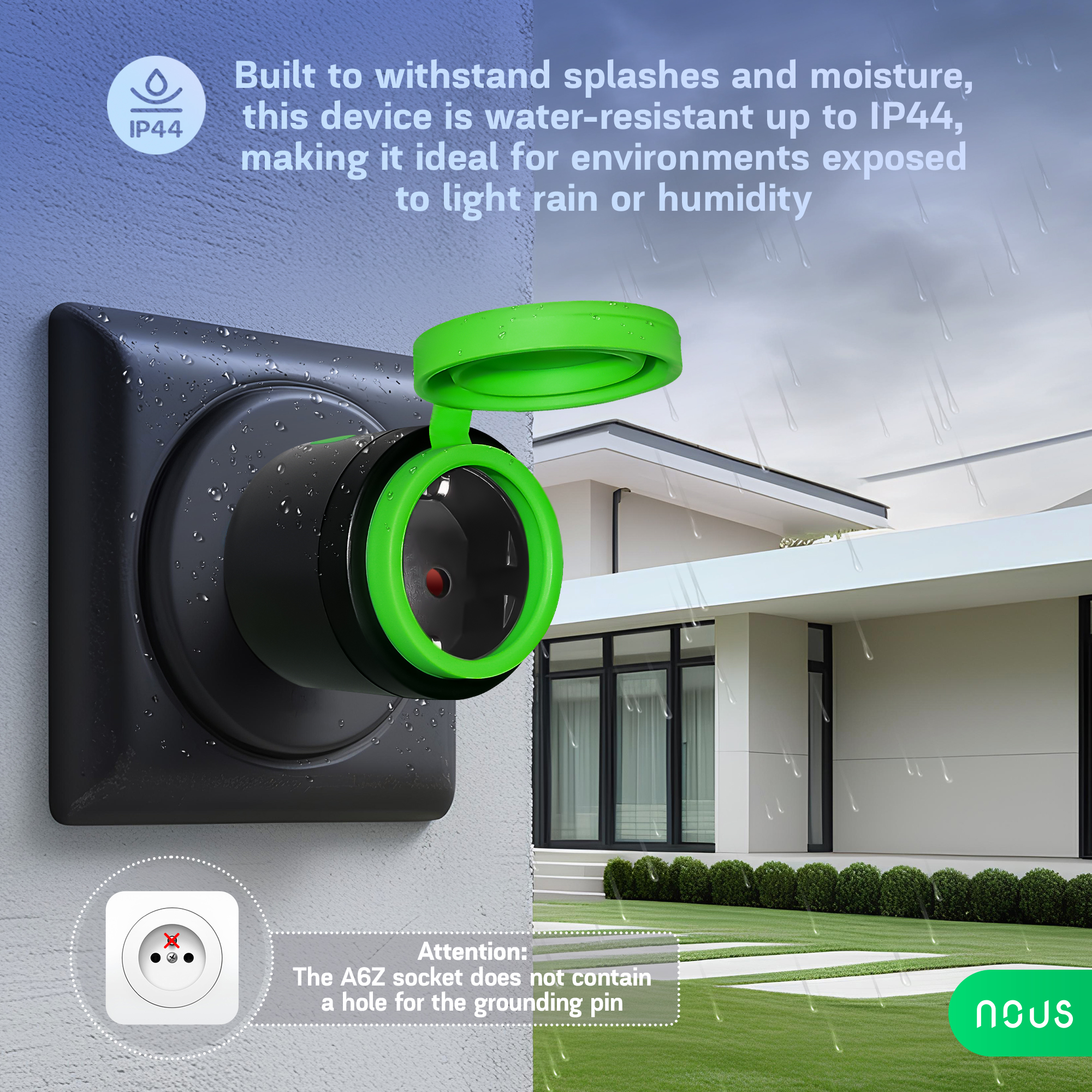
| Level of moisture protection | IP44 |
| Device weight | 109 g |
| Standby power consumption: | 1.3W |
| Network | |
| Communication standard | IEEE802.15.4 |
| Protocol | ZigBee 3.0 |
| System requirements | iOS 8 or Android 4.4 or higher |
| Control from a smartphone | APP: NOUS Smart Home |
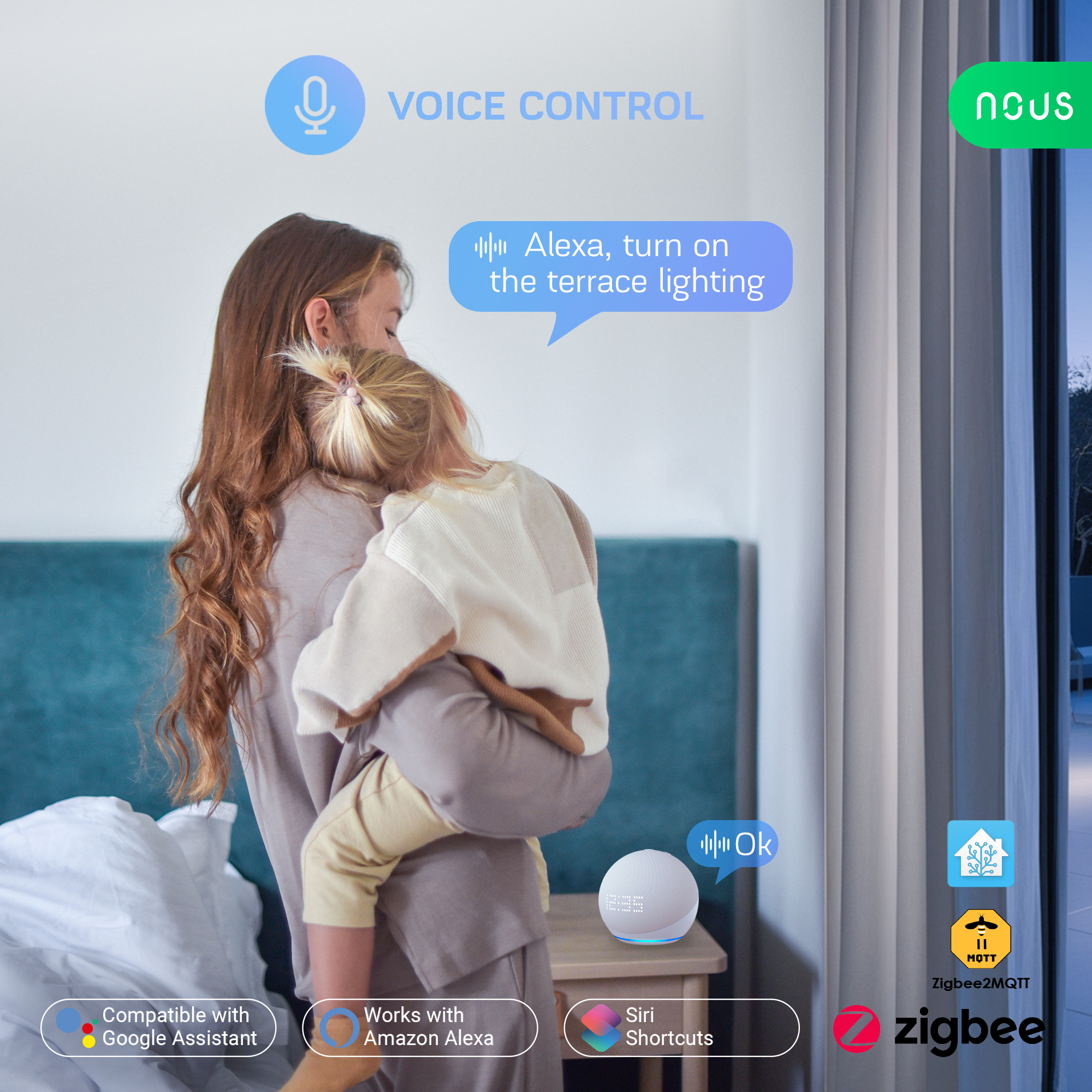
| Compatibility with voice assistants | Amazon Alexa, Google Home |
OPERATION MANUAL
description
The smart Zigbee socket NOUS A6Z (hereinafter referred to as the smart socket) is designed to organize automatic and manual shutdown of electrical appliances, through remote access via the Internet, using a smartphone or tablet with the Nous Smart Home application installed. Communication with the smart outlet is configured through a cloud server using the P2P protocol, for which a wireless zigbee adapter is used. The smart socket is equipped with a mechanical button and a global indication of the device's status. The smart outlet is equipped with an electromechanical relay. The device has the function of energy monitoring and recording of consumer electricity.
 NOTE: You will need a Nous E1, Nous E7 or other Tuya compatible ZigBee gateway/hub to connect.
The connection of a smart socket to the Internet cannot be guaranteed in all cases, as it depends on many conditions: the quality of the communication channel and intermediate network equipment, the brand and model of the mobile device, the version of the operating system, etc.
PRECAUTIONS
- Read this manual carefully.
- Use the product within the temperature and humidity limits specified in the technical data sheet.
- Do not install the product near heat sources, such as radiators, etc.
- Do not allow the device to fall and be subject to mechanical loads.
- Do not use chemically active and abrasive detergents to clean the product. Use a damp flannel cloth for this.
- Do not overload the specified capacity. This may cause short circuit and electric shock.
- Do not disassemble the product yourself - diagnostics and repair of the device must be carried out only in a certified service center.
- Please contact the seller for a replacement if there is damage caused by shipping.
- Please insert the plug into the outlet in proper condition and away from children.
- For safety reasons, insert the plug fully into the outlet when in use.
Design and controls
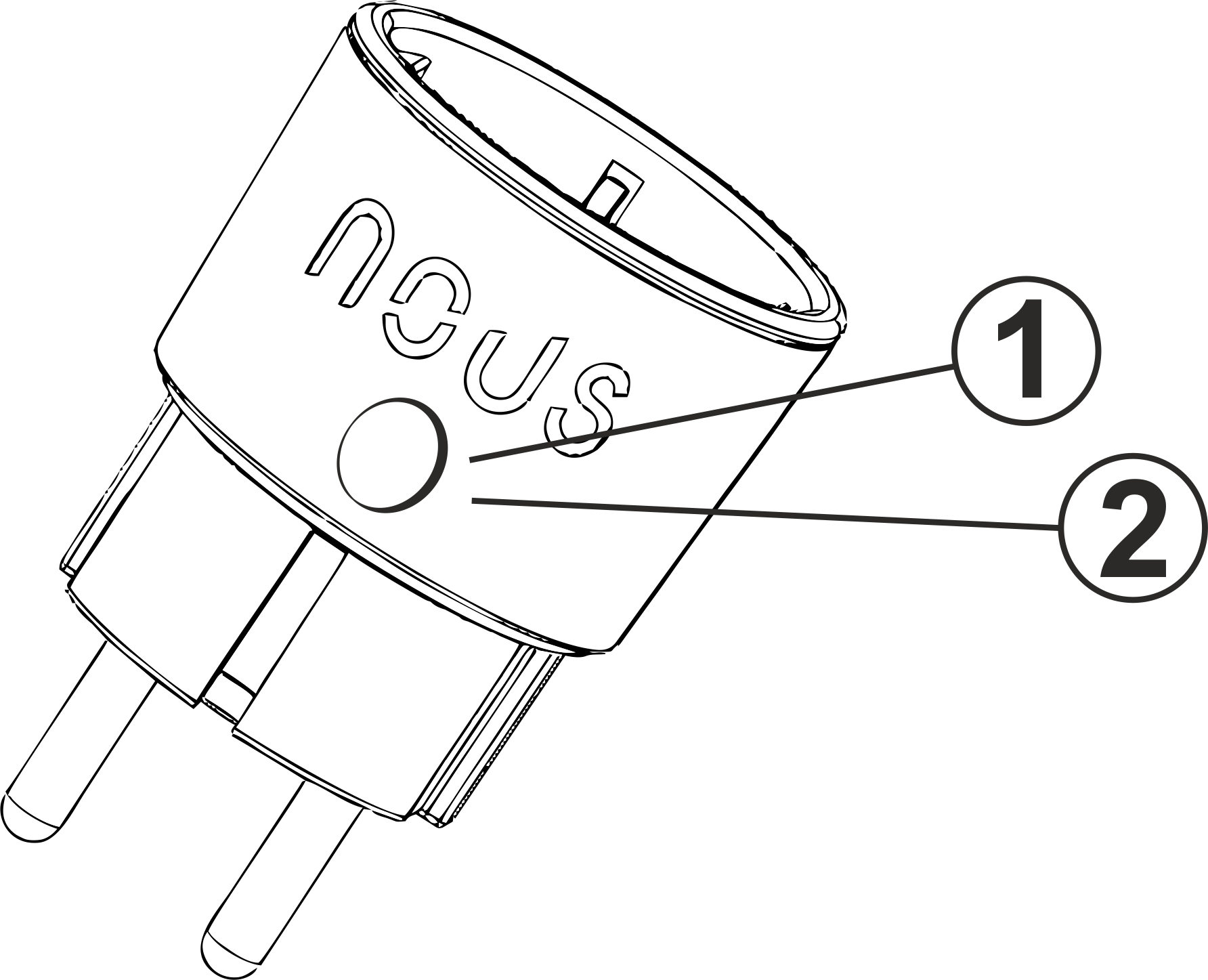
| No. | Name | description |
| 1 | Button | A short press of the button switches the device "ON" "OFF". A long press of the button (5-7 C) resets the settings of the smart socket and the parameters of connection to the Zigbee network . |
| 2 | Socket indicator | Shows the current state of the outlet |
Connection
To connect the Nous A6z smart socket, you need a smartphone based on the Android or iOS mobile operating system with the Nous Smart Home application installed. This mobile application is free and available for download from Play Market and App Store. The QR code for the application is given below:

After installing the program, for its correct operation, it is necessary to grant it all permissions in the corresponding section of the smartphone settings. Then you need to register a new user of this program.
The procedure for connecting a smart socket to the Zigbee network:
| 1 | Connect the smartphone to the access point that will be used to connect the smart socket. Make sure the network frequency range is 2.4 GHz, otherwise the smart socket will not connect, because Zigbee Habs are not designed to work with 5 GHz Wi-Fi networks; (your ZigBee hub should already be connected to the app) | |
| 2 | Turn on the smart socket to the network. If the global indication does not flash quickly, then press the button for 5-7 seconds to reset the smart outlet settings to factory values. | |
| 3 | Open the Nous Smart Home app and click the button to add a new device | |
| 4 |
An autoscan will appear, prompting you to add a new device. Confirm the connection and start pairing. |
|
| 5 |
If autoscan doesn't see your device, you can select it manually from the list of devices |
|
 |
.jpg) |
|
| 6 | In the "Add manually" tab, select the "Smart sockets" category, and in it the "A6Z socket" model, as shown in the figure above; | |
| 7 | In the window that opens, select "next step" and click the "Next" button; | |
| 8 | connection to the Zigbee hub | |
 |
 |
|
| 8 | A window will appear indicating the degree of network connection and adding the current user of the program to the list of devices: | |
| 9 | After the procedure, a window will appear in which you can set the name of the device and choose the room in which it is located. The device name will also be used by Amazon Alexa and Google Home. | |
| 10 | To delete all data from the smart socket, in the device menu, you need "Delete device", "disabled and delete all data" | |
| When the device is removed from the device list of the application user, the settings of the smart socket will be reset to factory values and it will be necessary to shorten the procedure of connecting to the Wi-Fi network again. If the password for the Wi-Fi access point was entered incorrectly, then after the timer expires, the application will show a "failed to connect to Wi-Fi" window with step-by-step instructions to fix the problem. | ||
How to connect your device to Alexa
| 1 |
Sign in with your Alexa account and password (if you're not already signed in, sign up first); After logging in, click the menu in the upper left corner, then click "Settings" and select "Set up a new device"; |
|
| 2 |
Select "Skills" in the options bar, then search for |
|
| 3 |
Enter the username and password you previously registered (the account is only supported in the United States); When you see the correct page, it means that your Alexa account is linked to your NOUS Smart Home account. |
|
 |
 |
|
| 4 |
Device discovery: Users must tell Echo, |
|
| 5 |
List of support skills |
|
| Attention: the name of the device must match the NOUS Smart Home APP. | ||