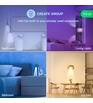
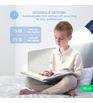
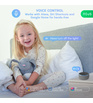
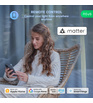



Control lighting from anywhere
Change your mood in one single tap by changing lighting in your room. No matter what are you doing, Nous P8 smart bulb will help you change lighting in your room instantly. You can do it from anywhere.

From cold to warm
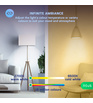
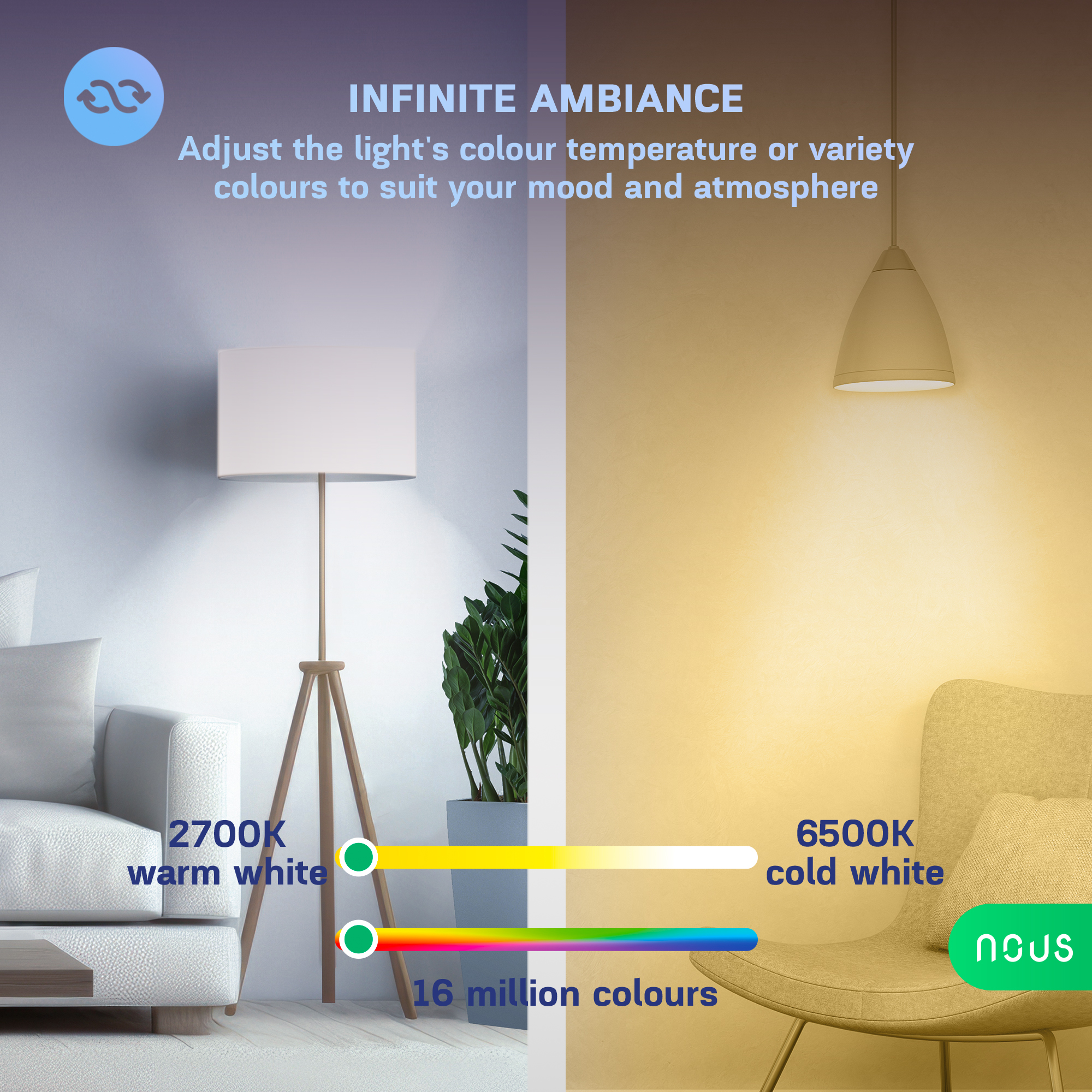
NOUS Smart WIFI P8 has unique ability to set up color temperature which let you have special mood for work, rest, party on even for sleeping. So you can start day with bright tonic light, and rest with gold warm lighting at night

Full spectrum of all colors and shades
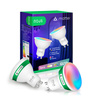
NOUS Smart WIFI P8 expands possibilities of modern interior design: With over 16 million colors, you can transform your home into the perfect party place, bring a bedtime story to life, customize lighting to match your room's color scheme, or simply match the color of the lighting to your mood. To do this, you can use preset color light scenes or your own photographs to bring special memories to life.

Let there be light!
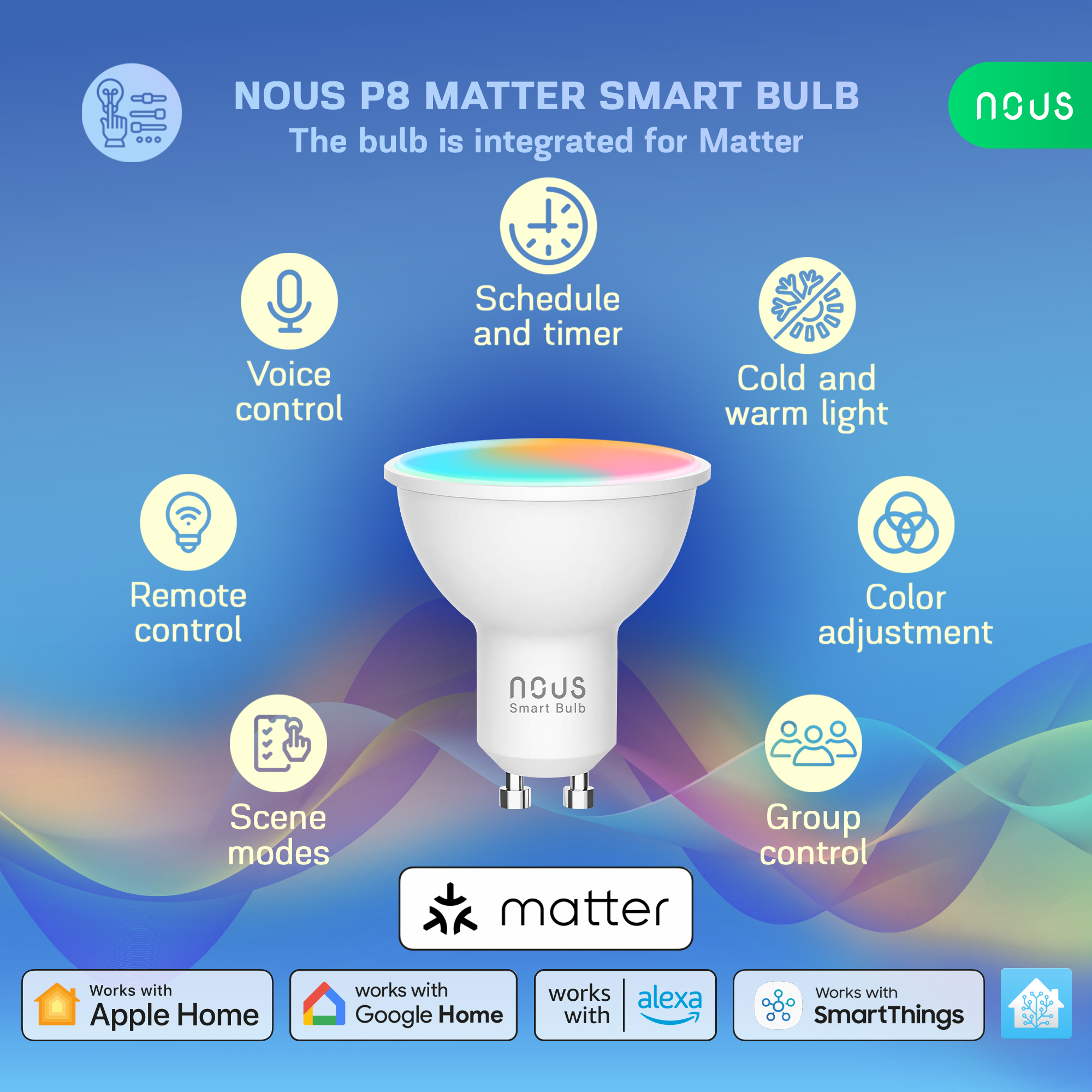
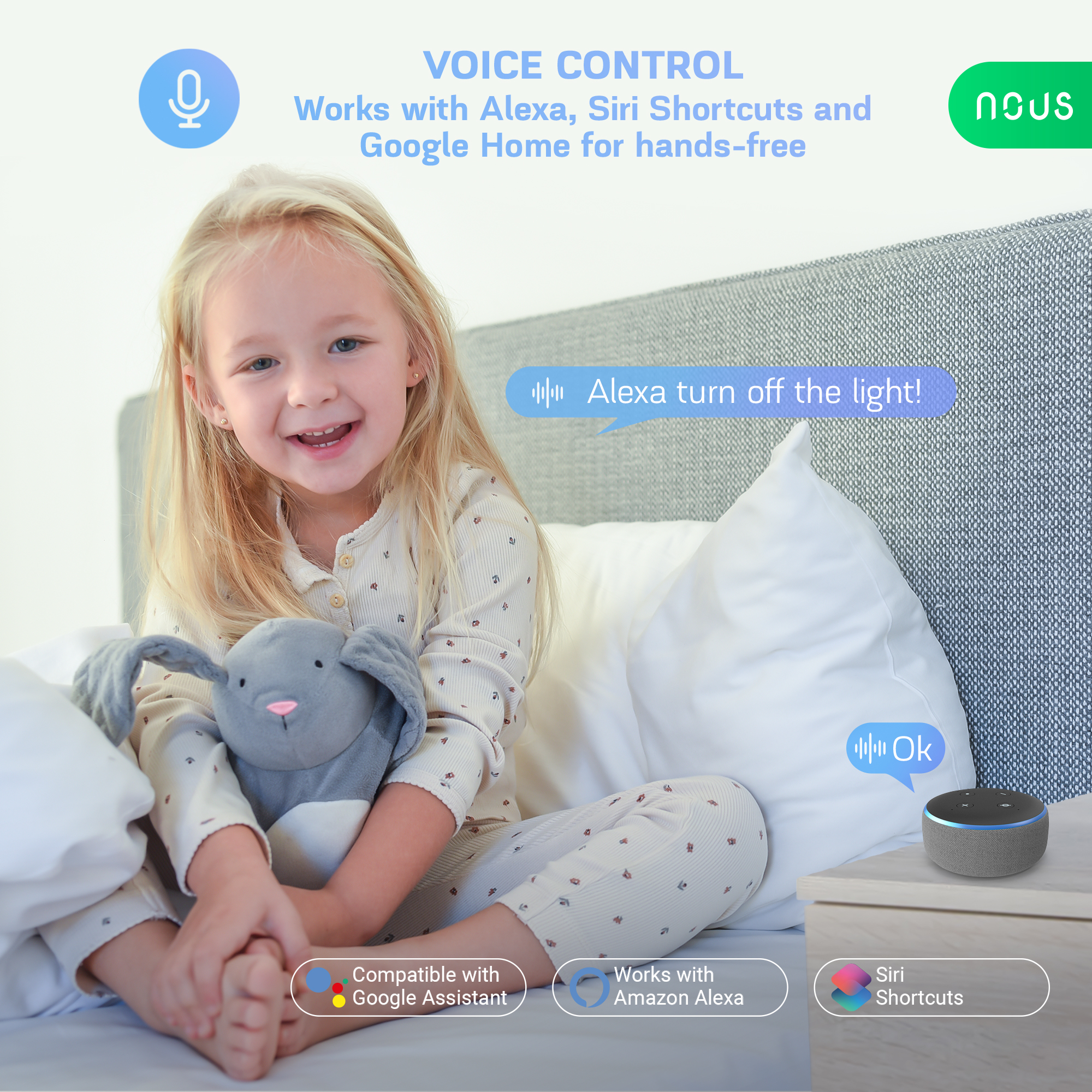
NOUS Smart Home system allows voice control of light through Amazon Alexa and Google Assistant. Just one word - and the room will light up, ideally matching your desires and mood!

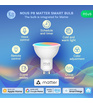
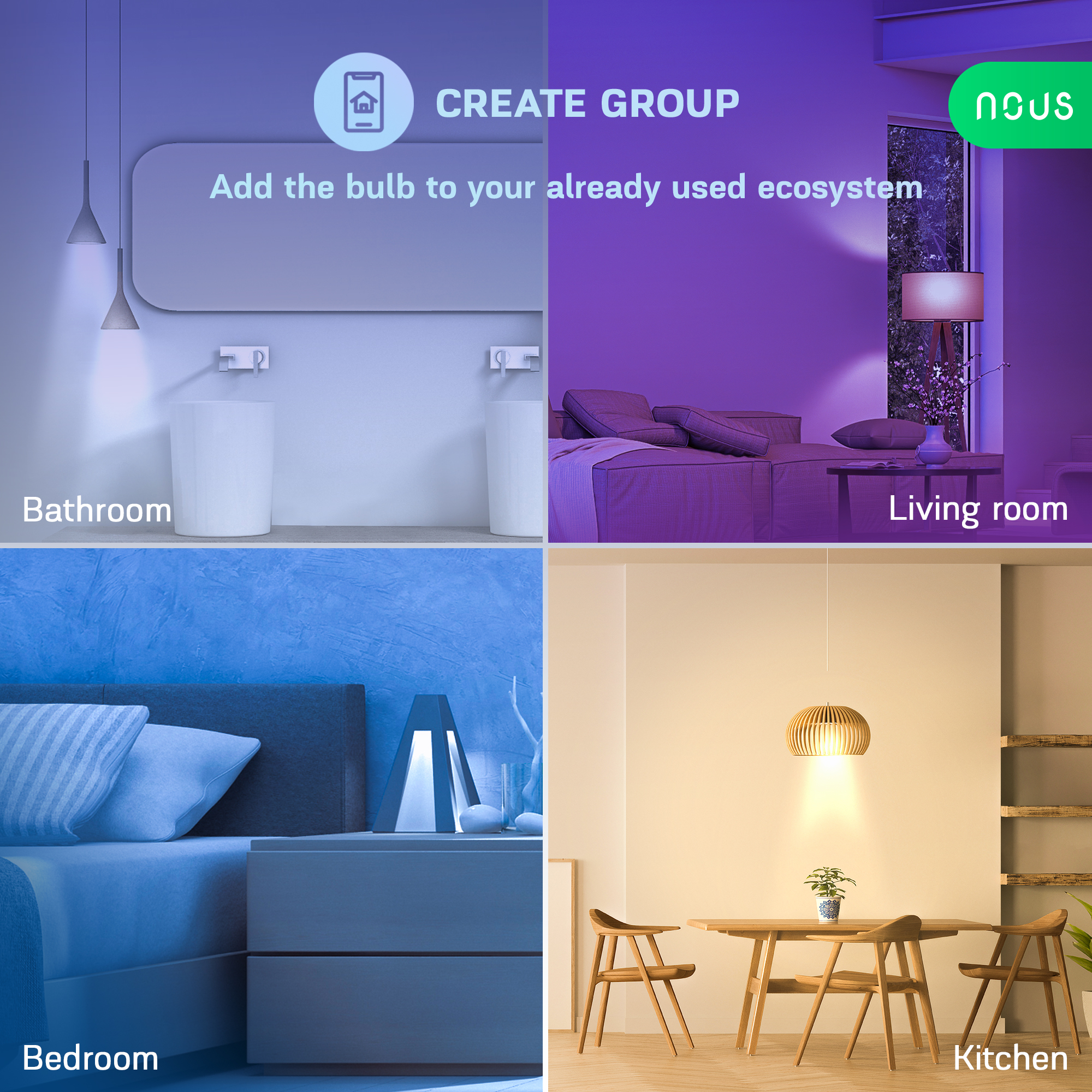
Use with other Nous smart devices. In today's smart home, many devices can communicate with each other. Connect P8 bulbs with other smart devices in groups and control them comprehensively.
| Main settings | |
|---|---|
| Brand | NOUS |
| Form Factor | MR16 |
| Special features | Matter support |
| Light temperature | 2700k-6500k |
| Light flux | 420lm |
| Electric power | 4.5W |
| Base | GU10 |
| Certificate | CE |
| RGB | 16 million colors |
| Specifications | |
| Device dimensions | 50x50x56 |
| Operating temperature | -20 ºC~ 40 ºC |
| Color Rendering Index (Ra) | >80 |
| Life time | 15000 hours |
| Operating voltage range | 220-240V |
| Level of moisture protection | IP20 |
| LED type | SMD |
| Network | |
| Protocol | IEEE 802.11b/g/n |
| Type of wireless transmission | 2,4 GHz |
| System requirements | iOS 8 or Android 4.4 or higher |
| Control from a smartphone | apps: Nous Smart, Alexa, Google Home, Homekit, Smartthings Tuya smart life |
| Compatibility with voice assistants | Amazon Alexa, Google Assistant, Siri |
| Other | |
| Warranty | 24 Months |
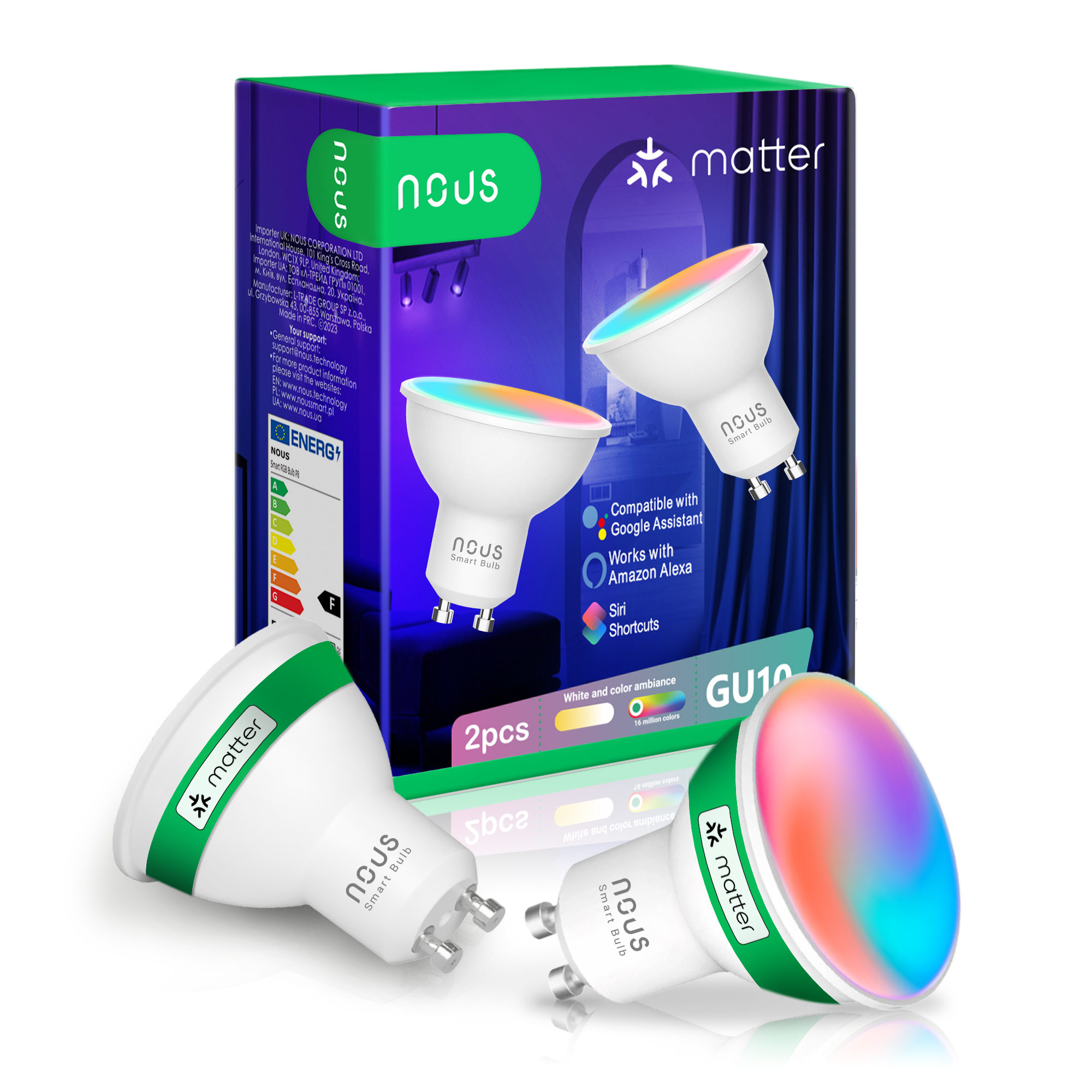
| Comes in the box | 2 Bulbs, user manual, packaging |
OPERATION MANUAL
description
The smart Matter light bulb NOUS P8 (hereinafter referred to as the light bulb) is a high-tech lighting device that can turn your home into a smart home. Compliant with the Matter protocol, these bulbs provide a simple and secure connection to any Matter-compatible smart home control system, allowing you to control your lighting using your smartphone, voice commands or a schedule.
Main features:
-
Simple installation and setup : Thanks to the Matter protocol, the setup and installation of the bulb becomes as intuitive as possible. Simply connect the bulb to your Wi-Fi network and add it to your smart control system.
-
Voice control : Our bulbs are compatible with popular voice assistants such as Siri, Google Assistant and Amazon Alexa, allowing you to control the lighting with voice commands.
-
Adjustable brightness and color : Adjust the brightness and color temperature of the bulb according to your needs and mood. From bright white light for concentration to warm, subdued light for a cozy atmosphere - you will always have the right lighting for your needs.
-
Control from anywhere in the world : With the help of a smartphone application, you can control the lighting even when you are far from home. This allows you not only to save energy, but also to create the impression of presence at home when you are not there.
-
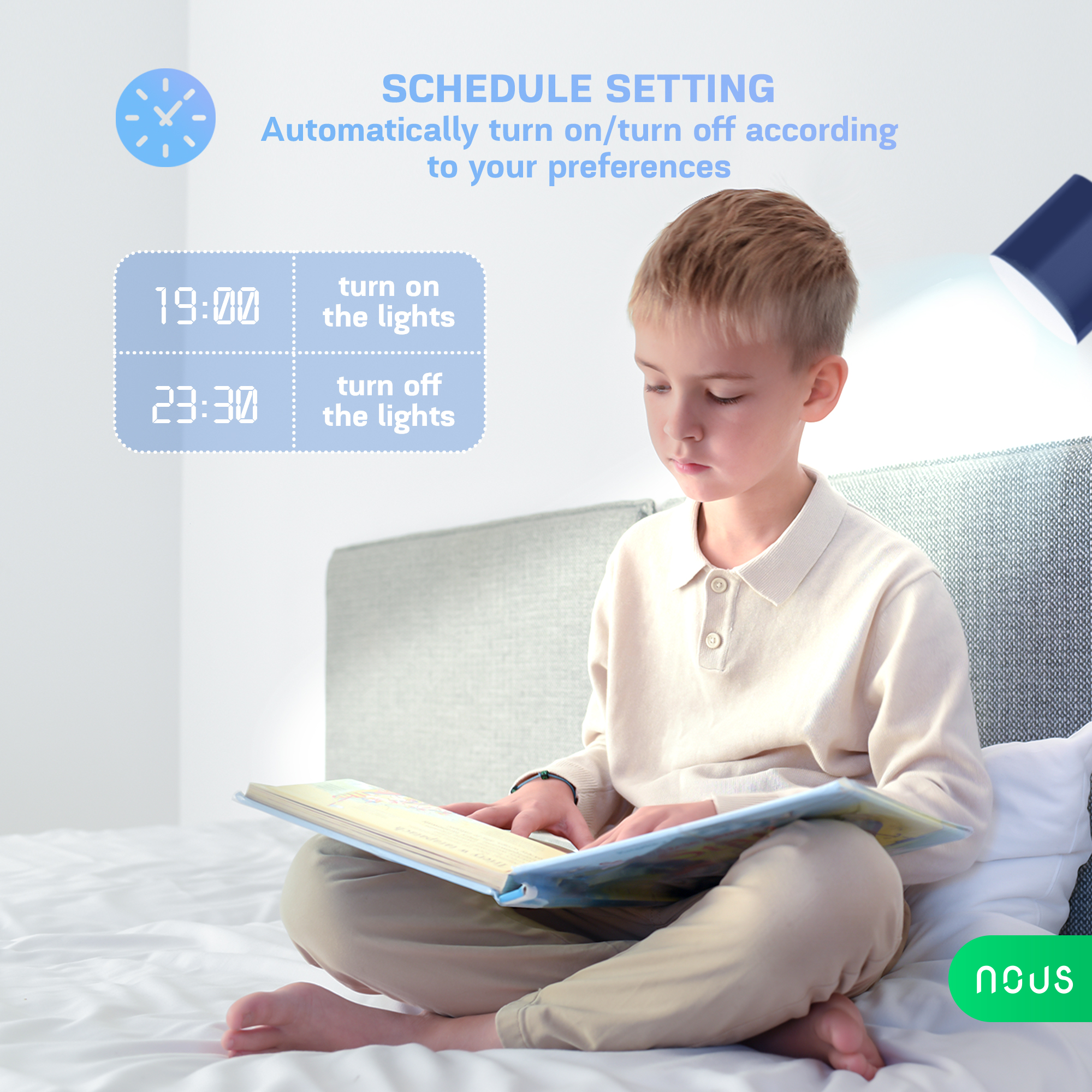
Schedule and Automation : Set up light bulb on and off schedules or light scenarios to automate the lighting in your home.
-
Energy saving : Our smart bulbs use advanced LED technology, providing bright light with minimal energy consumption. This allows you to reduce your energy costs and make your home more environmentally friendly.
Our light bulbs with the Matter protocol are the perfect solution for those who want to make their home smarter, more comfortable and more energy efficient. Create a cozy atmosphere, increase the efficiency and security of your home with our innovative smart light bulbs.
 ATTENTION: Connection to the bulb on the Internet cannot be guaranteed in all cases, as it depends on many conditions: the quality of the communication channel and intermediate network equipment, the make and model of the mobile device, the version of the operating system, etc.
PRECAUTIONS
- Read this manual carefully.
- Use the product within the temperature and humidity limits specified in the technical data sheet.
- Do not install the product near heat sources, such as radiators, etc.
- Do not allow the device to fall and be subject to mechanical loads.
- Do not use chemically active and abrasive detergents to clean the product. Use a damp flannel cloth for this.
- Do not disassemble the product yourself - diagnostics and repair of the device must be carried out only in a certified service center.
Design and controls
Connection
To connect the light bulb, you need a smartphone based on the Android or iOS mobile operating system with the Nous Smart Home application installed. This mobile application is free and available for download from Play Market and App Store. The QR code for the application is given below:

After installing the program, for its correct operation, it is necessary to grant it all permissions in the corresponding section of the smartphone settings. Then you need to register a new user of this program.
The procedure for connecting the bulb to the Wi-Fi network:
| 1 | Connect the smartphone to the access point that will be used to connect the light bulb. Make sure the network frequency range is 2.4GHz or the bulb will not connect as the bulb is not designed to work with 5GHz Wi-Fi networks. | |
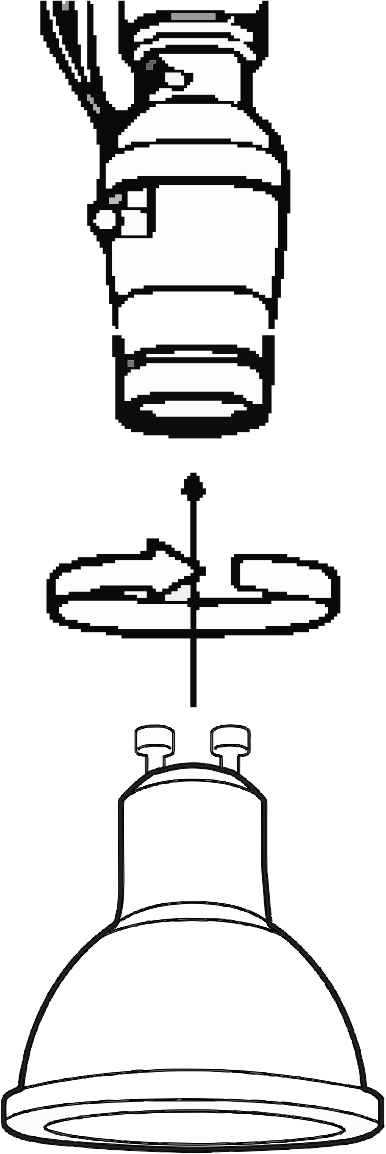
| 2 | Insert the bulb into the socket. | |
 |
||
| 3 | Turn on the power for the bulb. Normally, the light will start flashing to confirm that it is ready to connect. | |
| 4 | Open the Nous Smart Home app and click the button to add a new device. | |
| 5 |
An autoscan will appear, prompting you to add a new device. Confirm the connection and start pairing. |
|
| 6 |
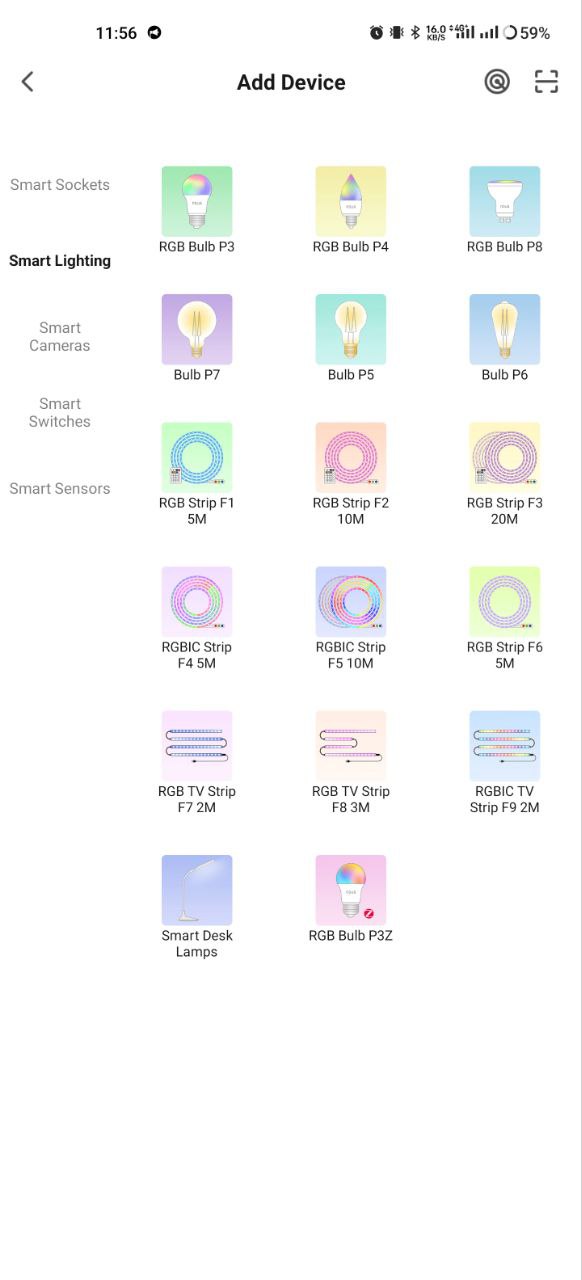
If autoscan doesn't see your device, you can select it manually from the list of devices. |
|
 |
 |
|
| 7 | In the Add Manually tab, select the Smart Lighting category and select the Smart Lighting model as shown in the image above. | |
| 8 | In the window that opens, select "next step" and click the "Next" button. | |
| 9 | In the next window, make sure that the name of the access point corresponds to the required one, then enter the password for it in the line below and click the "Next" button. | |
 |
 |
|
| 10 | A window will appear indicating the degree of network connection and adding the current user of the program to the list of devices. | |
| 11 | After the procedure, a window will appear in which you can set the name of the device and choose the room in which it is located. The device name will also be used by Amazon Alexa and Google Home. | |
| 12 | Adding a device to the Nous Smart Home application using a QR code. | |
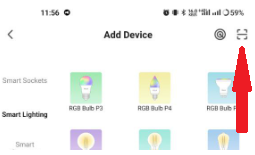
| 13 | In the Add Manually tab, select Scan as shown in the image below. | |
 |
||
| 14 | Next, scan the Qr code and wait until the device appears in the application. | |
| 15 | To delete all data from the light bulb, you need to "Erase device", "turn off and delete all data" in the device menu. | |
| When the device is removed from the device list of the application user, the light will be reset to the factory settings and the procedure for connecting to the Wi-Fi network will need to be performed again. If the password for the Wi-Fi access point was entered incorrectly, then after the timer expires, a "failed to connect to Wi-Fi" window appears in the application with step-by-step instructions to fix the problem. | ||
Instructions for adding smart light bulbs with the Matter protocol to Google Home
| 1 | Make sure your Matter protocol smart bulbs are already connected to your home Wi-Fi network and functioning properly. | |
| 2 | Download and open the Google Home app on your smartphone or tablet. Make sure you're signed in to your Google Account. | |
| 3 | Tap the "+" or "Add" icon in the upper left corner of the screen. | |
| 4 | Select Add Device. | |
| 5 | Under Add a device, select Multiple additional manufacturers. | |
| 6 | Scroll down and select "Matter Protocol". | |
| 7 | The Google Home app will automatically search for Matter-enabled smart devices connected to your network. | |
| 8 | After the search is complete, you will see your smart bulbs in the list of available devices. | |
| 9 | Tap the bulb you want to add. | |
| 10 | Follow the on-screen instructions to complete the process of adding the bulb. | |
| 11 | You'll usually be prompted to name the light bulb and assign it a room in your home. | |
| 12 |
Now you can control your smart light bulbs with the Matter protocol through the Google Home app. You can turn lights on and off, adjust brightness, change colors and create lighting schedules using your smartphone or voice commands via Google Assistant. That's all! Your Matter protocol smart bulbs are now successfully added to your Google Home app and ready to use. |
|
NÁVOD K OBSLUZE Chytrá WIFI Žárovka P8

Budete potřebovat aplikaci Nous Smart Home. Naskenujte QR kód nebo si jej stáhněte z přímého odkazu

Zaregistrujte se pomocí svého mobilního čísla/e-mailu a poté se přihlaste
- Spusťte aplikaci „Nous Smart Home“.
- Vytvořte si nový účet nebo se přihlaste ke svému stávajícímu účtu.
- Klepnutím na „+“ přidejte zařízení
- Ze seznamu produktů vyberte „Smart Bulb“.
- Zapněte napájení.
- Pokud kontrolka nebliká: Přepněte napájení na zapnuto - vypnuto - zapnuto - vypnuto - zapnuto. Pokud kontrolka bliká: Potvrďte v aplikaci.

- Potvrďte síť Wi-Fi a heslo.
- Zadejte název zařízení.
Poznámka: Název zařízení bude také používat Amazon Alexa a Google Home
Používání rychlého průvodce Amazon Echo
Co budete potřebovat...
APP a účet Amazon Alexa NOUS APP a účet pro
chytrou domácnost (Uživatelé si musí zaregistrovat svůj vlastní účet, vybrat region jako „Spojené státy“)
Echo, Echo Dot, Tap nebo jiná zařízení ovládaná hlasem Amazon.
Tip: Po úspěšné konfiguraci zařízení přejmenujte. Název zařízení se doporučuje používat pro snadnou výslovnost anglických slov.
(Amazon Echo podporuje angličtinu pouze dočasně)
Nastavte si reproduktor Echo pomocí aplikace Alexa
- Přihlaste se pomocí účtu a hesla Alexa (Pokud nejste zaregistrováni,
nejprve se zaregistrujte); Po přihlášení klikněte na nabídku vlevo nahoře, poté
klikněte na „Nastavení“ a vyberte „Nastavit nové zařízení“; - Vyberte zařízení (například Echo). Když se
zobrazí správná stránka, dlouze stiskněte malou tečku na
zařízení Echo, dokud se světlo nerozsvítí žlutě.
Poté klikněte na „Pokračovat“ v aplikaci. - Vyberte WIFI uživatele a počkejte několik minut.
- Po úvodním videu klikněte na další krok, automaticky se přepne na
„domovskou“ stránku. Nyní je Echo připojeno k
Alexa APP přes WiFi úspěšně.
Povolte naši dovednost v aplikaci Alexa

- V pruhu voleb vyberte „Skills“ a poté vyhledejte
„NOUS Smart Home“ ve vyhledávacím pruhu; Ve výsledcích vyhledávání vyberte „NOUS
Smart Home“ a poté klikněte na „Povolit“. - Zadejte uživatelské jméno a heslo, které jste si dříve zaregistrovali (podporujte pouze účet ve Spojených státech amerických); Když uvidíte správnou stránku, znamená to, že účet Alexa je propojen s účtem NOUS Smart Home.
Ovládání zařízení hlasem
Po předchozí operaci můžete zařízení ovládat přes Echo.
- Objevování zařízení: Za prvé, uživatelé musí říct Echo:
"Echo (nebo Alexa), Discover my devices."
Echo začne vyhledávat zařízení, která jsou přidána do NOUS Smart Home APP, bude trvat asi 20 sekund, než se zobrazí výsledek. Nebo můžete kliknout na „Objevit zařízení“ v aplikaci Alexa, zobrazí se zařízení, která bylaúspěšněnalezena.
Poznámka: „Echo“ je jedním z názvů probuzení, což může být
kterékoli z těchto tří názvů (Nastavení): Alexa/Echo/Amazon. - Seznam dovedností podpory
Uživatel může ovládat zařízení podle následujících pokynů:
Alexa, zapněte [zařízení]
Alexa, vypněte [zařízení]
Upozornění: Název zařízení musí být v souladu s přidáním NOUS Smart Home APP.